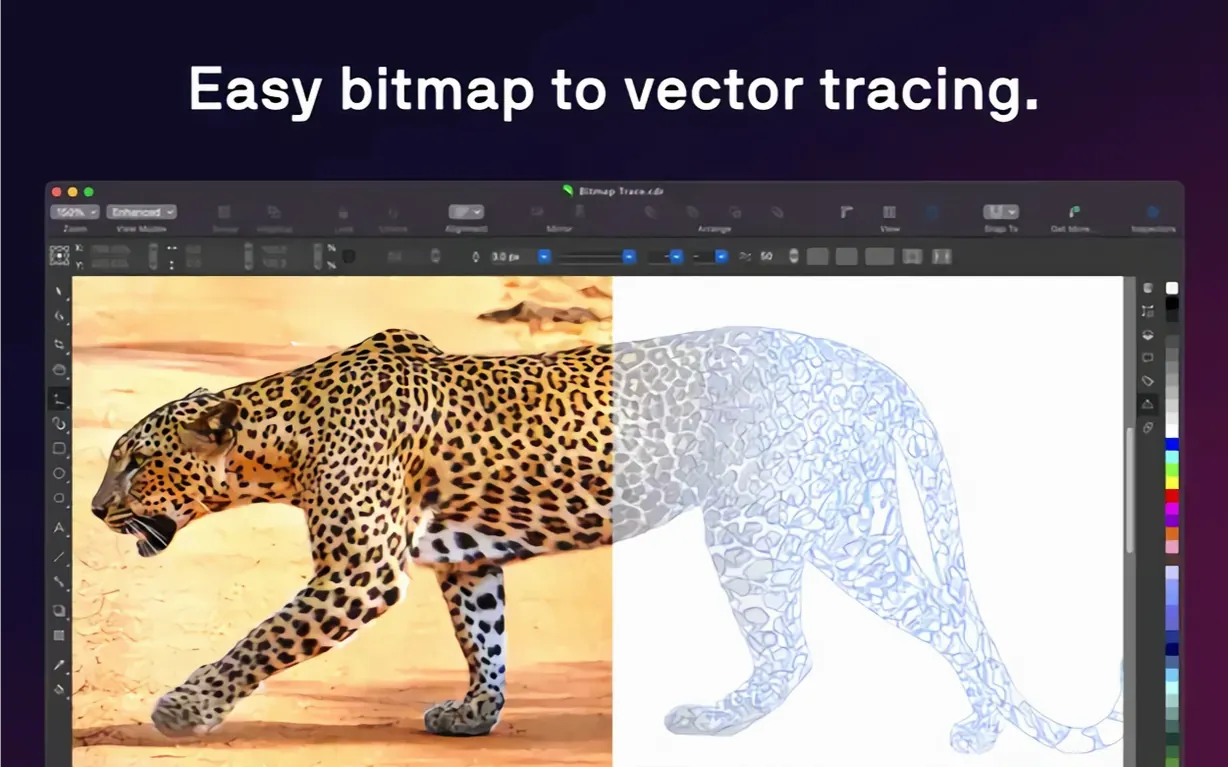
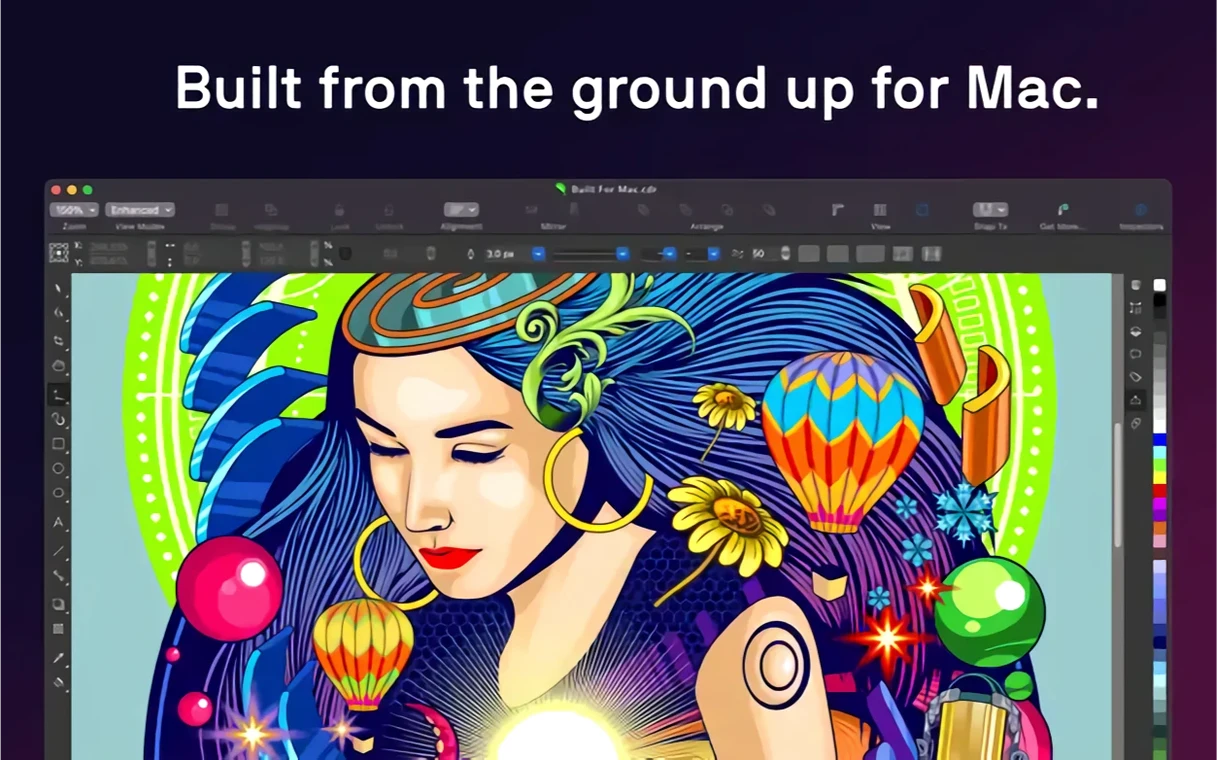
For anyone who has stretched Illustrator's pen tool to its limits, CorelDRAW brings a parallel way of thinking. It puts a full vector illustration, layout, and photo-editing toolkit inside a native macOS interface, with Sidecar support for Apple Pencil and Touch Bar controls for layers and type.
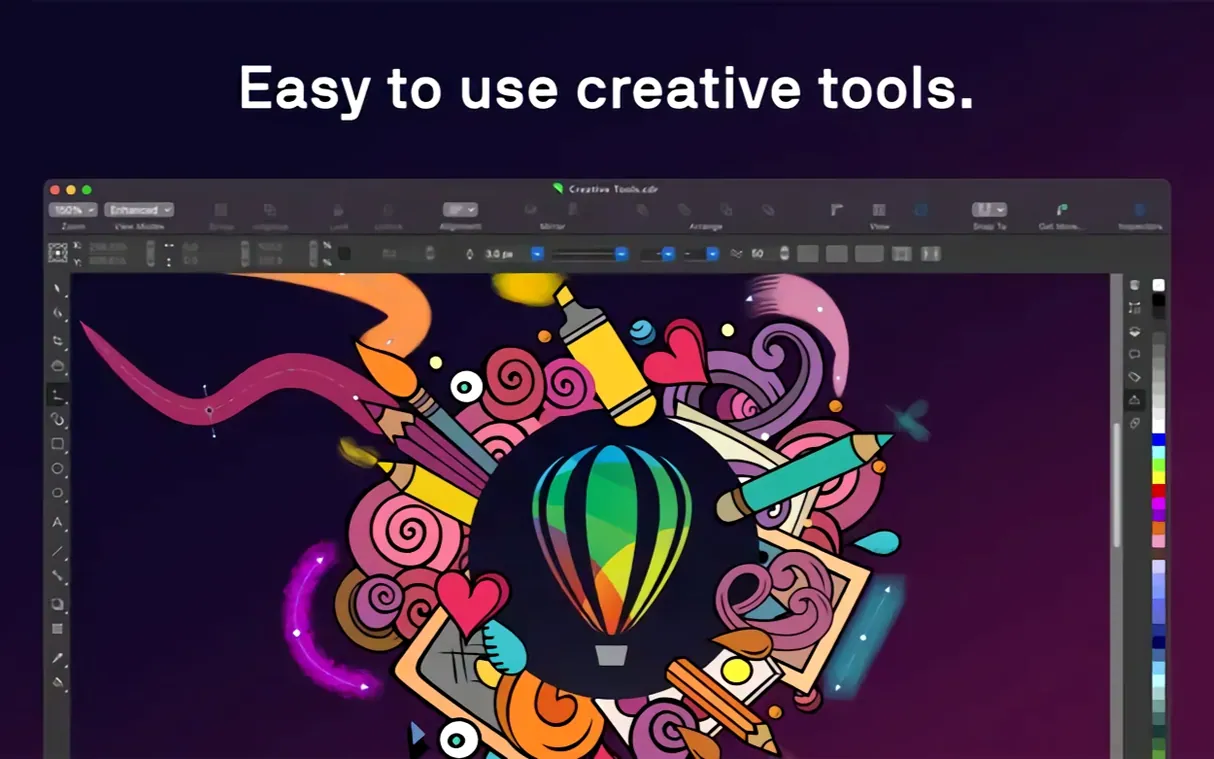
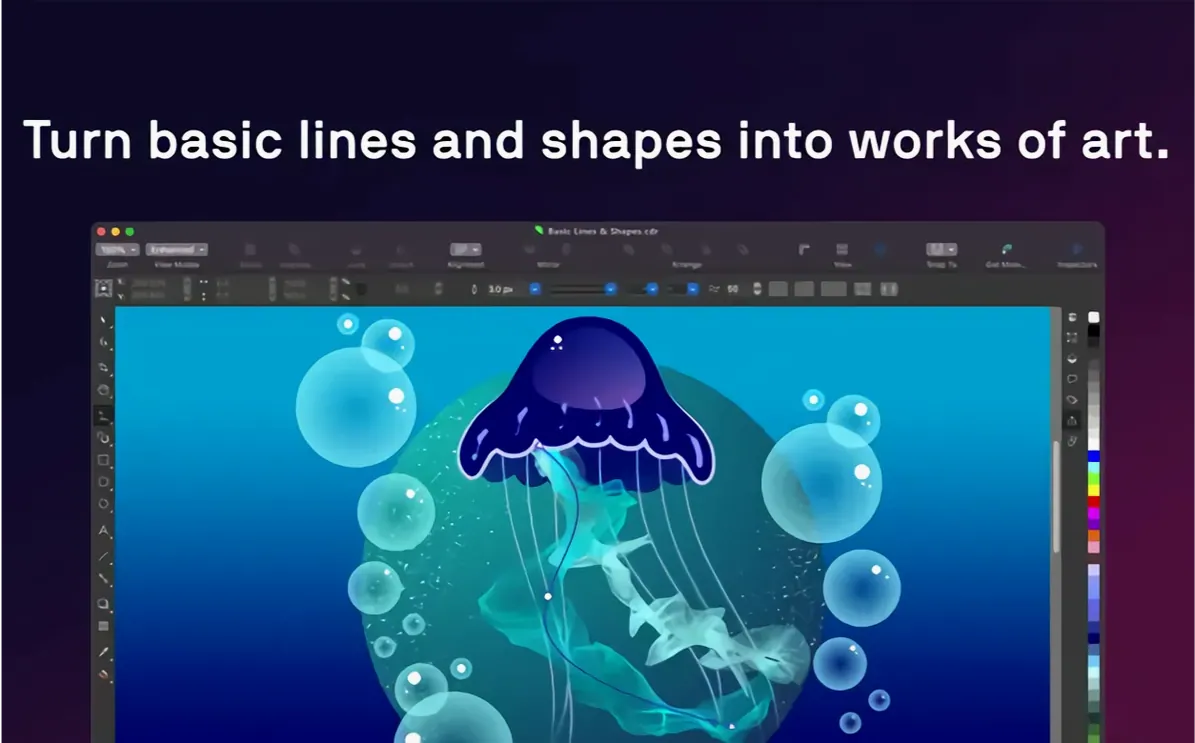
Build crisp vector artwork
Create logos, signage, and technical illustrations with precision drawing tools. The software reads and writes CDR, AI, SVG, EPS, and DWG files, so it slots into a cross-platform pipeline without conversion headaches.
Set type with control
Adjust variable fonts interactively, then apply style sets across entire documents. Fine-tune spacing, shadows, and outlines from one panel, and use the Touch Bar to nudge kerning without reaching for a menu.
Polish photos inside the same file
Remove JPEG artifacts and upscale low-resolution images with built-in AI tools. Work in PSD, TIFF, HEIF, or PDF layers without switching to a separate photo editor.
How CorelDRAW fits into a Mac workflow
CorelDRAW doesn't live in isolation. It reads and writes a dozen industry formats, so you can start a layout in CorelDRAW, pass a photo through Corel PHOTO-PAINT, and hand off a print-ready PDF to a commercial printer — all without leaving the suite.
- Adobe interchange — open AI and PSD files directly. Layers, masks, and editable text survive the round trip more often than not. Save back to AI when collaborators insist on it.
- Font management — Corel Font Manager indexes your collection and activates fonts on demand. No need to install every typeface system-wide. It plays nicely with macOS Font Book; fonts activated in one appear in the other.
- Sidecar and Apple Pencil — extend your Mac screen to an iPad. Draw freehand vectors with pressure sensitivity, then watch strokes appear on the desktop canvas in real time. Useful for tracing sketches or inking over a photo.
- Touch Bar shortcuts — layer visibility toggles, text property sliders, and alignment commands sit right above the keyboard. Muscle memory builds quickly.
- Finder and Quick Look — CDR files show thumbnails in Finder and preview in Quick Look. Drag a CDR onto the Dock icon to open it, or right-click to convert to PDF via a quick action.
Why fonts vanish from your PDF exports
Every complex app has friction points. These are the ones that come up most often in a Mac environment.
- Fonts vanish when exporting to PDF. The culprit is usually a missing embed permission. Check the font's licensing flag in Corel Font Manager. For output, use the PDF/X-4 preset and tick "Embed all fonts" in the export dialog.
- AI files open with shifted text blocks. CorelDRAW and Illustrator calculate line height differently. Before saving from Illustrator, convert type to outlines if exact positioning matters. Otherwise, budget five minutes for minor adjustments after import.
- Touch Bar stops responding. This is a macOS focus issue. Click back on the canvas, then press the Globe key once. The app-specific Touch Bar controls should reappear.
- Apple Pencil pressure feels laggy over Sidecar. Lower the canvas rendering quality to "Draft" in View settings. The pencil input itself isn't lagging — the screen redraw is. Draft mode keeps strokes snappy.
- JPEG artifact removal blurs fine detail. The AI tool is aggressive by default. Open the adjustment strength slider and dial it back to 30–40% for photos with intricate textures like fabric or foliage.
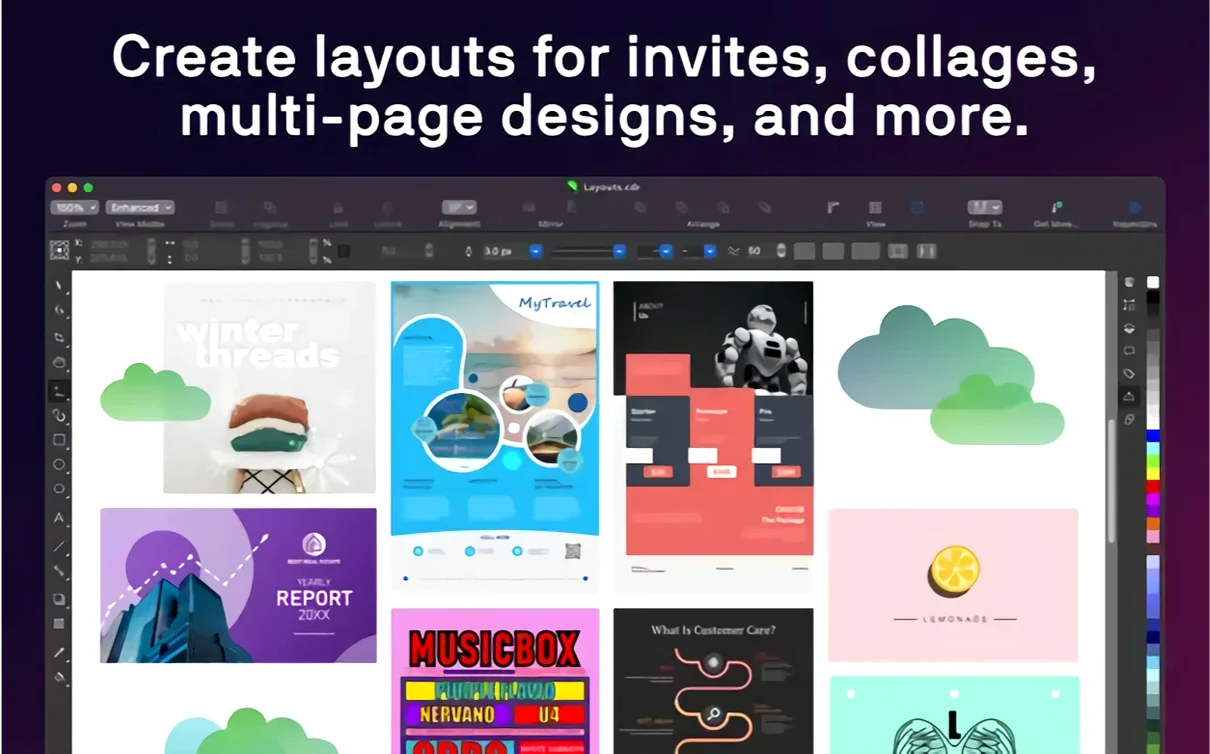
Layout workflow: from blank canvas to print-ready flyer
Here's a concrete path for an A4 event flyer, start to finish.
- Set up the document. Create new from template, pick A4, 3 mm bleed, CMYK colour space. Name your layers: Background, Photos, Text, Logos.
- Place and trace the hero image. Drag a JPG onto the Photos layer. Run PowerTRACE with the "Detailed logo" preset, tweak the corner threshold until curves follow the subject, then delete the source bitmap. You now have a scalable vector graphic.
- Build the colour palette. Sample three core colours from the traced art using the Eyedropper. Save them as a palette. Apply the dominant colour as a gradient background on the Background layer.
- Set the type hierarchy. Pull in a headline variable font from Corel Font Manager. Widen the weight and tighten the tracking. For body copy, create a text frame, paste the content, and apply a paragraph style with 12pt/16pt leading.
- Align and distribute. Select all elements, open the Align docker, centre horizontally, and distribute vertically. Adjust the logo placement manually so it anchors the bottom corner.
- Export. Use the PDF/X-4 preset, check "Embed all fonts," confirm bleed is 3 mm, and output. The file lands on a printer's server with zero follow-up questions.
Picking up yesterday's packaging file on the Mac
It's 9:30. You open CorelDRAW to a start screen showing recent files. You click on yesterday's packaging design — a CDR file with six artboards for different box panels.
The Layers docker is docked left. You hide the dieline layer so you can focus on the front-panel art. The Touch Bar switches to show alignment options; you tap "Centre Vertically" to fix a stray logo.
A supplier sends a new barcode as a PNG. You drag it onto the canvas, right-click, and choose "Trace Bitmap" → "Logo." Ten seconds later, the barcode is a clean vector object. You assign it to the "Regulatory" layer and lock it.
You switch to Corel Font Manager — a separate window but integrated — and activate a condensed sans-serif for the ingredient list. Back in CorelDRAW, you type inside a linked text frame that spans two artboards. The variable font slider lets you compress the width until the text fits without shrinking the point size.
Midday, you open an AI file from a freelance illustrator. A warning appears: "Text in a language not installed." You ignore it — the art is all outlines — and the illustration lands perfectly. You group it, drop it onto the "Art" layer, and scale it to the bleed edge.
Before lunch, you export a proof. PDF/X-4, low-res preview, one-click upload to the client's review folder. The whole session used three applications — CorelDRAW, Corel Font Manager, and Finder — and no workarounds.
- macOS 13 or later
- Apple Silicon or Intel processor
- 8 GB RAM (16 GB recommended)
- OpenCL 1.2-compatible video card with 3 GB or more VRAM
Questions I get before install
What kind of Mac do I need?
CorelDRAW requires macOS 13 or later with 8 GB of RAM (16 GB recommended) and an OpenCL 1.2-compatible video card with 3 GB or more of VRAM.
Can I use it with an iPad?
Yes, Sidecar support lets you draw with Apple Pencil on an iPad while viewing changes in real time on your Mac screen.
Comments 0
Sign in to leave a comment.Sign inCreate an account
No comments yet. If a step is still there after you install it, say so.
More in Mac Apps
All in Mac Apps Updated
Compresto
Shrinks video and image files offline before you email or post them.
4 steps saved
 Updated
CrossOver
Translates Windows commands so a game or launcher runs on your Mac.
21 steps saved
 Commander One PRO
Unzips, connects to FTP, and searches files inside one dual-pane window.
21 steps saved
 Updated
Cubase
Records, arranges and mixes music with deep MIDI editing and scoring tools.
7 steps saved
 Color Finale
Lets you grade inside the Final Cut Pro timeline with no roundtripping.
5 steps saved
 Coherence X
Isolates each web tool into its own app so one crash stops nothing.
21 steps saved
 Cursor Pro
Magnifies the pointer so a room follows your walkthrough without squinting.
9 steps saved
 Cocktail Sequoia Edition
Runs maintenance scripts, cache cleanup and repairs from one control panel.