
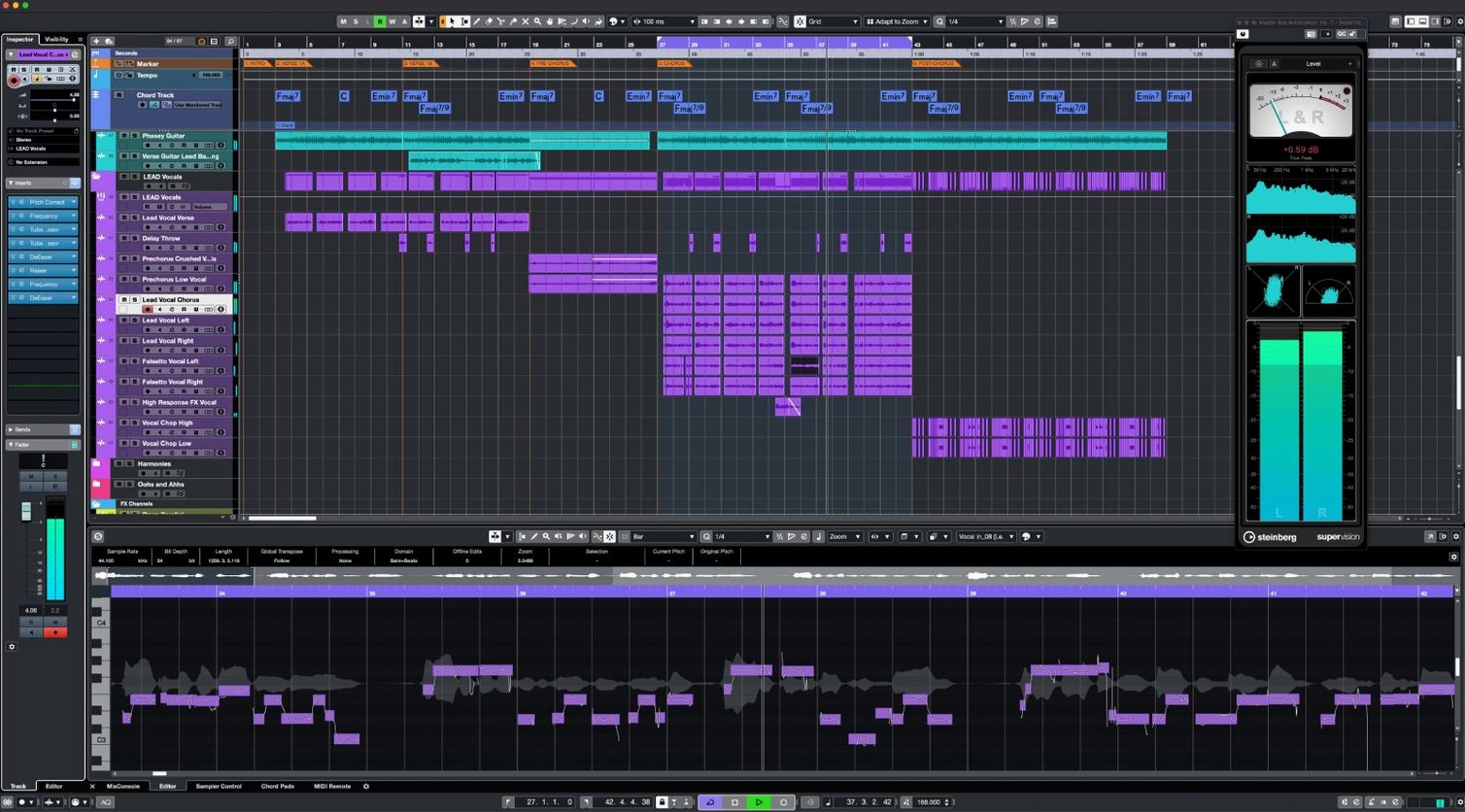
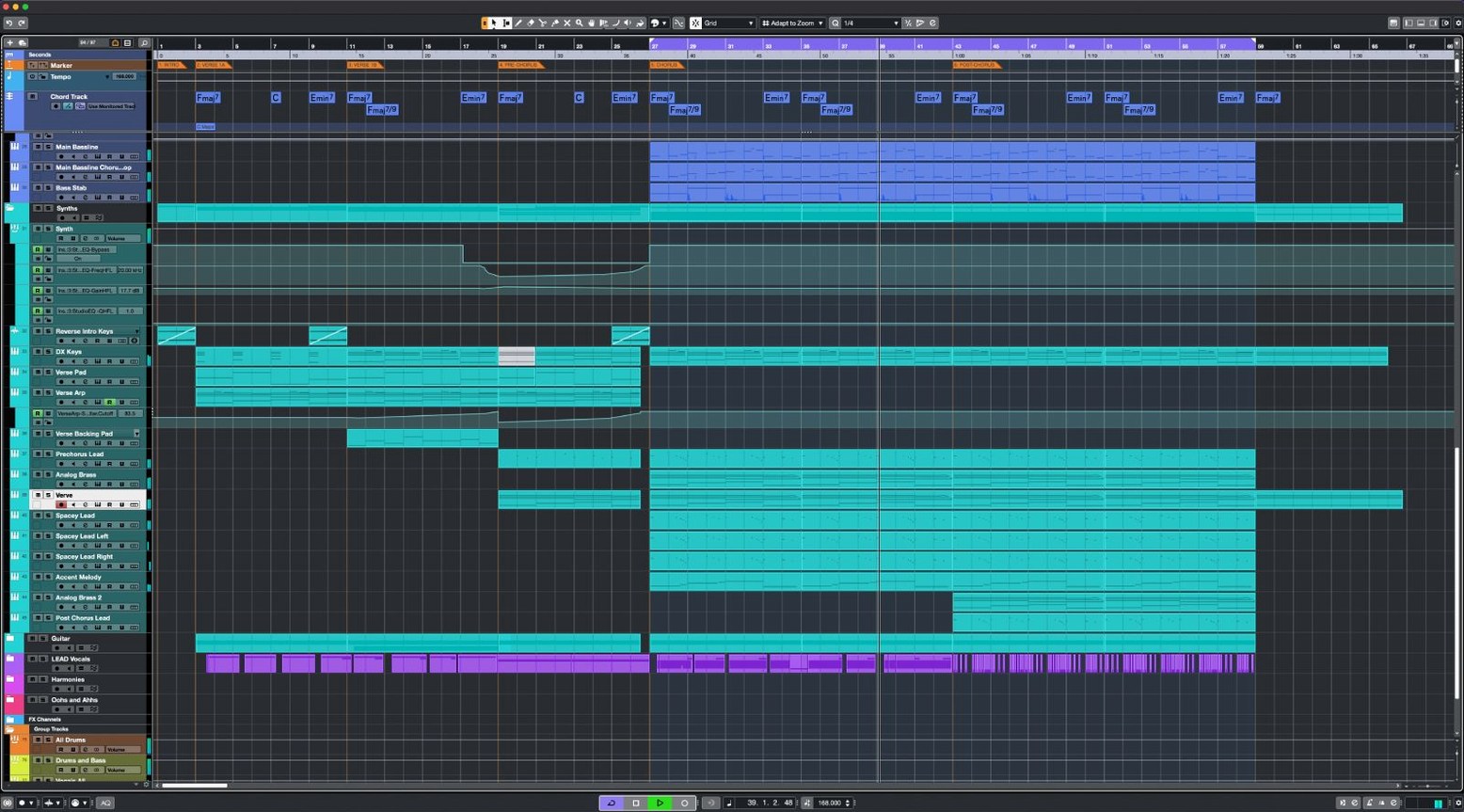
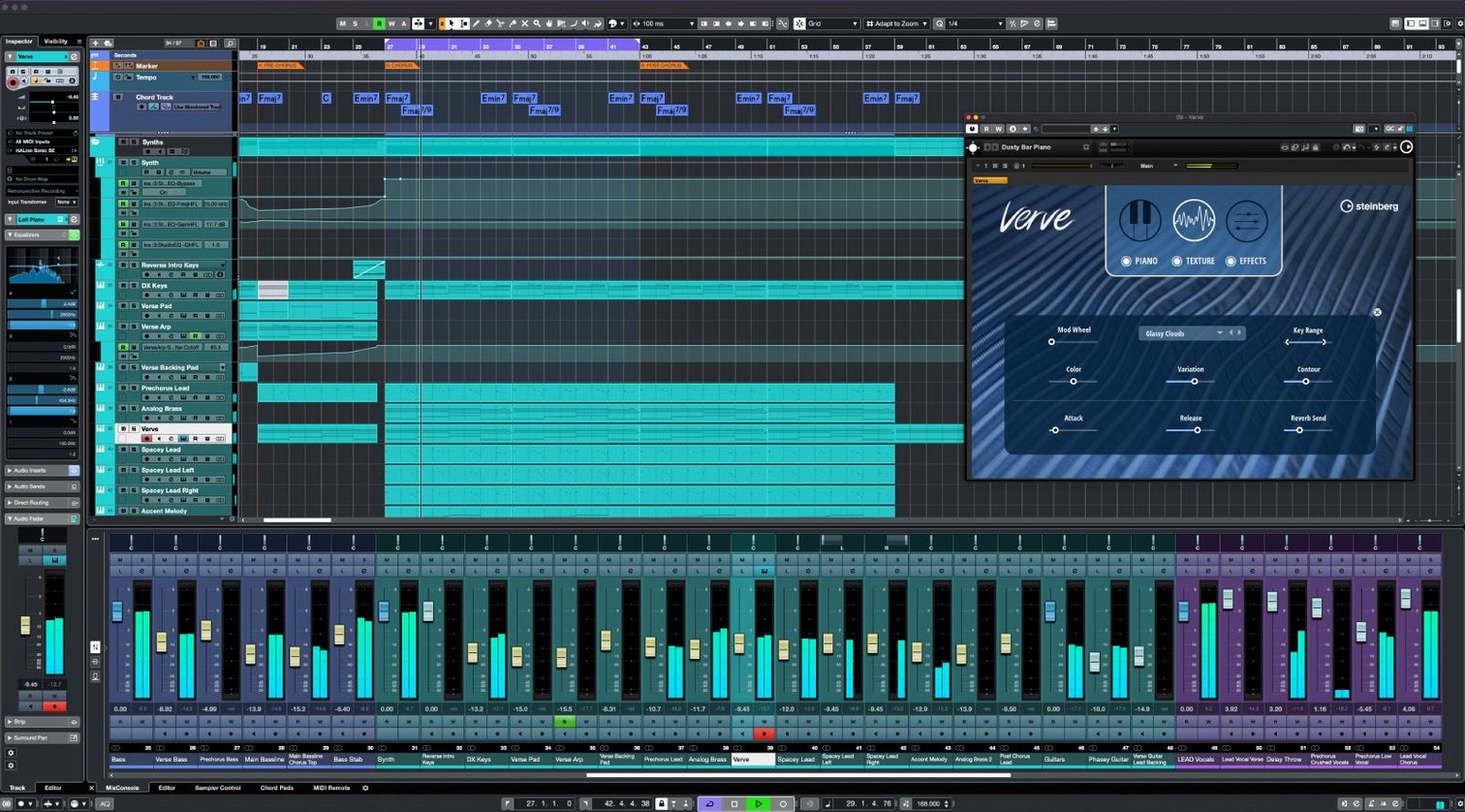
256 physical inputs and outputs. That's the raw routing capacity of Cubase 15's mixing environment, and it's where a production can grow without hitting a wall.
- Set the key and scale. Open the Scale Assistant in the Key Editor. Pick a preset scale, and the piano roll snaps to valid notes. Wrong keys disappear before you play them.
- Map your controllers. Plug in a MIDI controller and let MIDI Remote integration detect it. Assign faders, knobs and pads with custom mappings you save per project. No third-party translation layer needed.
- Tighten the timing. Drop in an audio clip and engage AudioWarp. Mark hit points, and the algorithm stretches the waveform to the project grid and tempo without slicing transients.
- Place sound in space. Switch to the Dolby Atmos renderer. Pan objects in a 3D field, automate movement, and export a bed that translates to surround playback systems.
- Finish at full resolution. The 64-bit floating-point engine sums tracks. No internal clipping before the final limiter. Render stems or the full mixdown with the headroom intact.
Keyboard shortcuts tie the workflow together. Every command is reachable without lifting your hands, and the shortcut system lets you reassign bindings to match muscle memory built in other DAWs.
Fighting Defaults That Flatline Your Headphone Mixes
Most early stumbles aren't about missing features. They're about fighting defaults that are easy to change.
Ignoring the Control Room. New users often route everything to the stereo out, then wonder why headphone mixes feel flat. The Control Room section lets you create separate cue mixes, insert monitor effects without printing them, and switch between speaker sets with a single click. Set it up once per project template and stop patching around it.
Not locking the tempo track early. Dragging audio in before setting a tempo map leads to warped transients and misaligned grids. Use the Tempo Detection panel on a rough guide track first — even a scratch vocal or a drum loop works. Cubase builds its grid from that data, and AudioWarp behaves predictably afterward.
Stacking inserts instead of using parallel chains. Sixteen insert slots per channel invite over-processing. When a compressor and an EQ both sit inline, each one eats the headroom of the next. Route a dry signal to a group channel, apply the heavy processing there, and blend it with the original. The mix stays punchy without gain-staging gymnastics.
Skipping the Scale Assistant setup. A blank piano roll shows every note. The Scale Assistant hides out-of-key pitches and colour-codes chord tones. Turn it on before programming MIDI — it's one dropdown, not a commitment, and it cuts wrong-note hunting to zero.
How Cubase Compares with Similar Mac DAWs
Cubase sits between two poles on macOS: the immediacy of Logic Pro and the modular depth of Ableton Live. Each handles the same core tasks, but the philosophy differs.
Versus Logic Pro. Logic Pro bundles a tighter instrument-and-effects library out of the box and feels more polished for a single songwriter tracking ideas quickly. Cubase counters with deeper audio editing: VariAudio for note-by-note pitch correction inside the sample editor, Audio to MIDI chords that extract harmony from polyphonic material, and a mixing console modelled on large-format desks with full routing visibility. Where Logic simplifies, Cubase exposes signal paths you can reconfigure. The trade-off: Logic rewards instinct; Cubase rewards methodical setup.
Versus Ableton Live. Live's Session View is built for non-linear experimentation — launching clips, trying arrangements on the fly. Cubase is linear by design: its Arrange window expects you to build left to right. But Cubase's MIDI editing tools are more surgical. The Key Editor includes per-note expression, chord pads, and the Scale Assistant in a single view. For scoring to picture or editing dense MIDI orchestration, Cubase gives you more lanes and more precision. Live wins on spontaneous performance; Cubase wins on detailed post-performance refinement.
Versus Studio One. Both share a drag-and-drop ethos and a single-window layout. Studio One's Project Page for mastering is a distinct advantage. Cubase pulls ahead with its Dolby Atmos integration, larger I/O counts, and the FX Modulator for generating rhythmic textures that would take a rack of plug-ins elsewhere. If you mix in surround or run complex hardware routing, Cubase scales further.
Cold Launch in Under Eight Seconds on Apple Silicon
Cubase 15.0.30 launches cold on an Apple Silicon Mac in under eight seconds. Projects with 80-plus tracks and moderate plug-in loads open without the beach ball pause that plagued earlier versions. The 64-bit floating-point engine handles summing cleanly, and the ASIO-guard system offloads real-time processing to spare cores without manual buffer tweaking.
Memory use stays reasonable: a 40-track project with four instances of HALion, three convolution reverbs and a dozen insert effects hovers around 3.2 GB of RAM. The app itself runs natively on both Intel and Apple Silicon — no Rosetta translation layer to soak cycles. On a MacBook Air with 16 GB of RAM, fan noise appears only when chaining heavy spectral processors or rendering Atmos beds at 96 kHz.
Stability is the quiet headline. The 2026-06-03 update tightened MIDI Remote API 1.3 handling, and controller dropouts with Novation Launch Control Series 3 units have stopped. Crashes are rare during long sessions; autosave files capture every two minutes by default, so a rare quit doesn't cost half a day's work. The single-installer model — where the license alone determines whether Cubase Elements, Artist or Pro opens — means one codebase to maintain and fewer version-specific bugs.
Disk I/O is efficient. The macOS package sits under 1.3 GB, and the app streams audio from disk rather than loading full clips into RAM. Large orchestral templates with hundreds of disabled tracks idle near zero CPU load until you arm them. In practice, that means you build a template once, enable only what the session needs, and keep the transport responsive.
Cubase Pro 16.0.5 is now available. The update concentrates on stability refinements and performance tuning across the arranger, mixer, and audio engine.
- macOS 13 or later
- Apple Silicon or Intel 64-bit processor
Questions I get before install
Does Cubase 15 support surround mixing?
Yes, it includes built-in Dolby Atmos tools for creating and exporting object-based surround mixes.
Which macOS versions can run Cubase 15?
It requires macOS 13 or later and runs natively on both Intel and Apple Silicon Macs.
Comments 0
Sign in to leave a comment.Sign inCreate an account
No comments yet. If a step is still there after you install it, say so.
More in Mac Apps
All in Mac Apps Updated
CrossOver
Translates Windows commands so a game or launcher runs on your Mac.
21 steps saved
 Cursor Pro
Magnifies the pointer so a room follows your walkthrough without squinting.
4 steps saved
 Cycling '74 Max
Patches together custom audio, MIDI and visual tools from connectable objects.
11 steps saved
 CorelDRAW
Puts vector, layout, and photo editing in one native Mac workspace.
17 steps saved
 DaisyDisk
Maps disk usage as an interactive sunburst chart so you spot what is eating space in seconds.
7 steps saved
 Updated
Compresto
Shrinks video and image files offline before you email or post them.
17 steps saved
 Updated
Dash
Gives developers instant offline access to API docs and code snippet libraries.
22 steps saved
 Updated
DataGrip
Reads your database schema and catches query mistakes before you run them.