
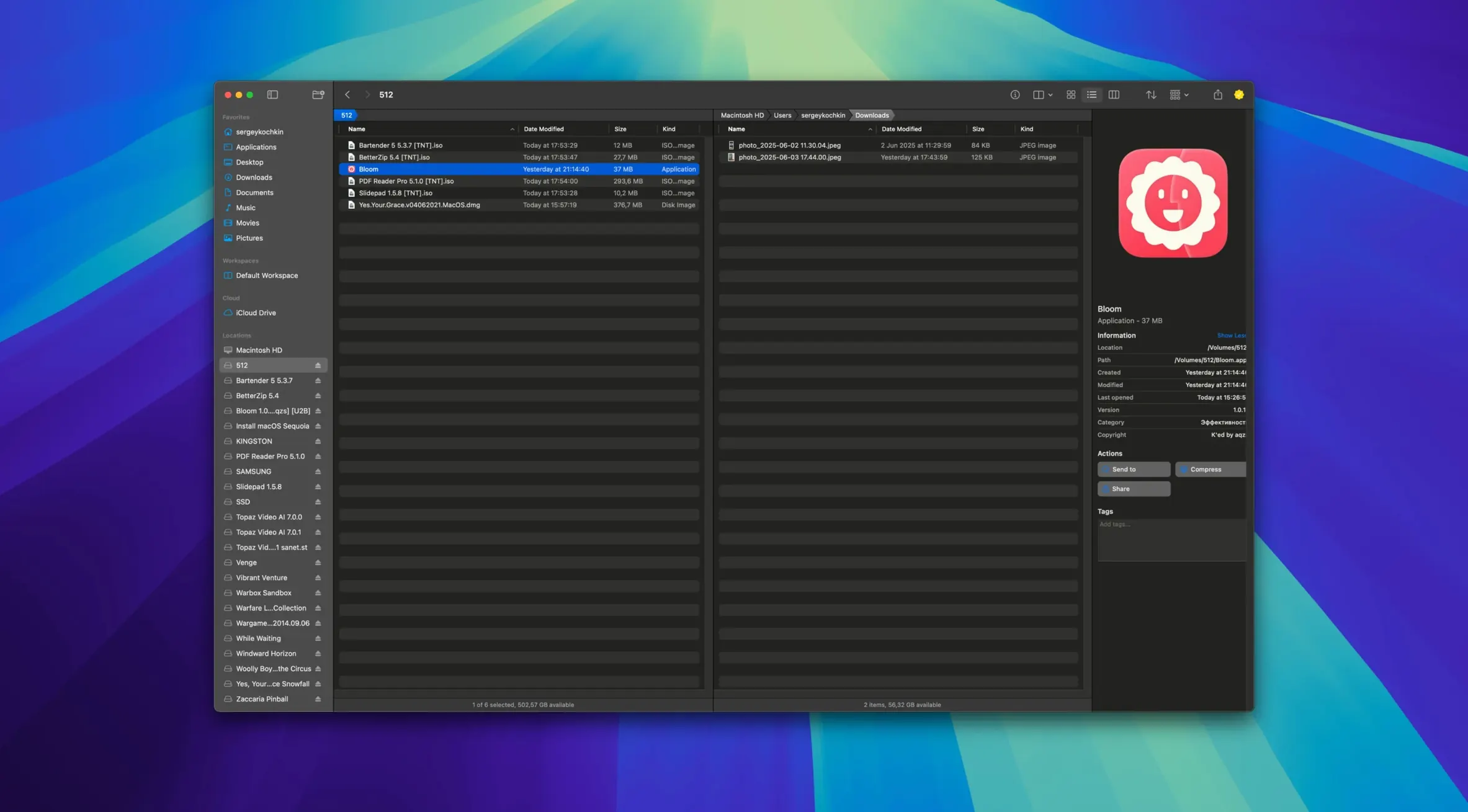
Files larger than 10 MB won't preview inside Bloom. That's a hard limit for text, images, and PDFs. The app is built for macOS 14 and later, running natively on both Apple Silicon and Intel hardware.
Organize by type or date
Sort a folder of mixed assets into subfolders by file extension or creation date. It handles the heavy lifting while you stay in one window.
Pin the Portal above other windows
Keep a floating file panel docked to the screen edge or pinned on top. Drag files into it as a temporary holding area, then drop them into their final destination.
Search and refresh with ⌘R
Scenario: a front-end developer cleaning up a project
A dev wraps a sprint and faces a src folder with stale mockups, duplicate SVGs and screenshots from three design rounds. She opens Bloom, hits ⌘F and searches .png inside the project root. The results list every raster file. She tags the ones she needs to keep, then uses the organize by type command to shunt the rest into an _archive folder. The treemap view confirms she reclaimed 340 MB. She drops the cleaned folder into Terminal with one click and runs git status.
Recovering a portal that vanished after a Spaces swipe
Portal window disappears after switching Spaces. It's not gone — it's unpinned from the screen edge. Right-click the window title and re-select Pin to Edge. If you need it to survive Mission Control swipes, dock it to the left or right edge instead of floating free.
Search returns nothing in an iCloud Drive folder. Bloom searches file names and indexed metadata. If the folder is set to Remove Download in macOS, the files are placeholders with no local index. Right-click the folder in Finder and choose Download Now, then refresh Bloom's search with ⌘R.
Batch rename with regex fails silently. Bloom's advanced renaming expects a valid pattern and a replacement string — empty matches don't trigger an error, they just do nothing. Test your expression against one file first, then apply to the selection.
Launching Terminal from Bloom without retyping paths
Bloom sits between Finder and the apps you already use. Terminal integration means you navigate to a folder in Bloom, launch Terminal from it, and run npm or brew commands without retyping paths. iCloud Drive folders appear alongside local volumes — no separate interface needed.
The image conversion and optimization tools feed directly into design workflows. Compress a batch of screenshots, then drag them from the results into Slack or Figma. For audio projects, the archive preview lets you inspect a downloaded sample pack without extracting every ZIP — useful when you're hunting for a specific one-shot among a dozen packs from a bloom for mac search.
Tag management syncs with macOS's native tags, so files you colour-code in Bloom appear tagged in Finder and Spotlight searches. The task scheduler can queue file operations to run overnight — pair it with an external backup script or a rsync job that picks up organized folders.
Run a folder-based search, then hit ⌘R to refresh results when new files land. Tag management and automatic column resizing keep the results readable.
- macOS 14 or later
- Apple Silicon or Intel 64-bit
Questions I get before install
Can Bloom replace Finder completely?
It acts as an alternative, integrating with iCloud Drive and offering tag management, but it runs alongside Finder rather than disabling it.
Comments 0
Sign in to leave a comment.Sign inCreate an account
No comments yet. If a step is still there after you install it, say so.
More in Mac Apps
All in Mac Apps Blocs
Builds responsive websites visually while keeping clean, class-based code under the hood.
20 steps saved
 Bitwig Studio
Combines linear recording with a modular sound design sandbox in a single workstation.
13 steps saved
 Boom 3D
Fine-tunes system-wide output with a 31-band equalizer and volume boost.
20 steps saved
 Binary Ninja
Lets you disassemble and decompile binaries to understand what compiled code actually does.
6 steps saved
 Bootstrap Studio
Builds responsive layouts on the desktop without writing repetitive HTML and CSS grids.
5 steps saved
 Updated
BetterZip
Lets you preview an archive’s contents without extracting it first.
6 steps saved
 BuhoCleaner
Removes leftover files from uninstalled apps and clears system clutter.
19 steps saved
 BetterTouchTool
Maps unused trackpad gestures and key sequences to the commands you repeat daily.