
Think of the Volume icon in your Mac’s menu bar — it’s a blunt tool. Boom 3D is the fine-tuning toolkit that sits behind it.
- Set the master output. Boost volume system-wide without distortion. It pushes the signal further than macOS allows alone.
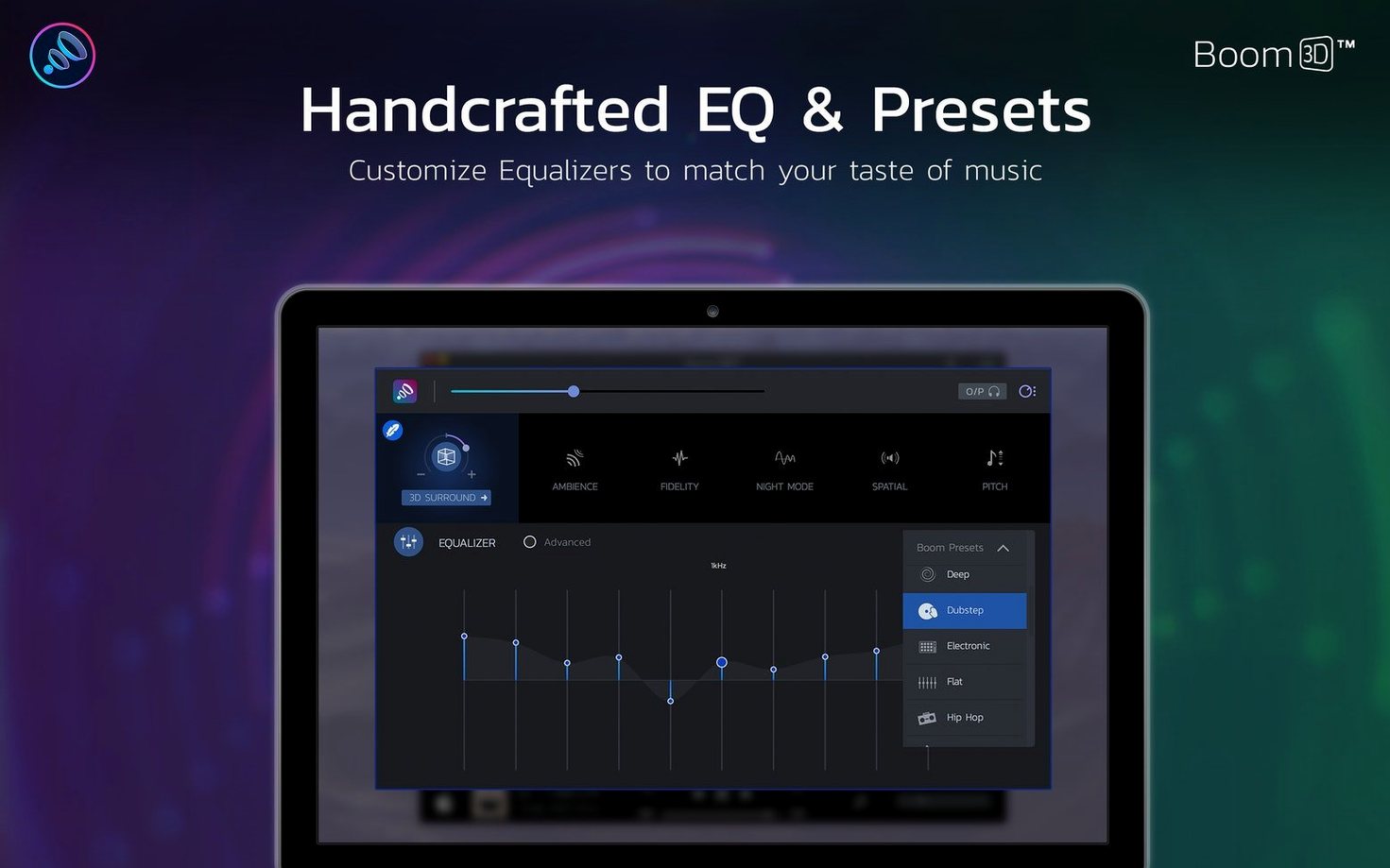
- Shape the frequencies. A 31-band precision equalizer sits in the main window. Pick a preset or drag the sliders yourself to fix flat headphones or tame harsh speakers.
- Assign volume per app. Your browser stays loud while your mail client stays quiet. Set each application’s level once in the controller.
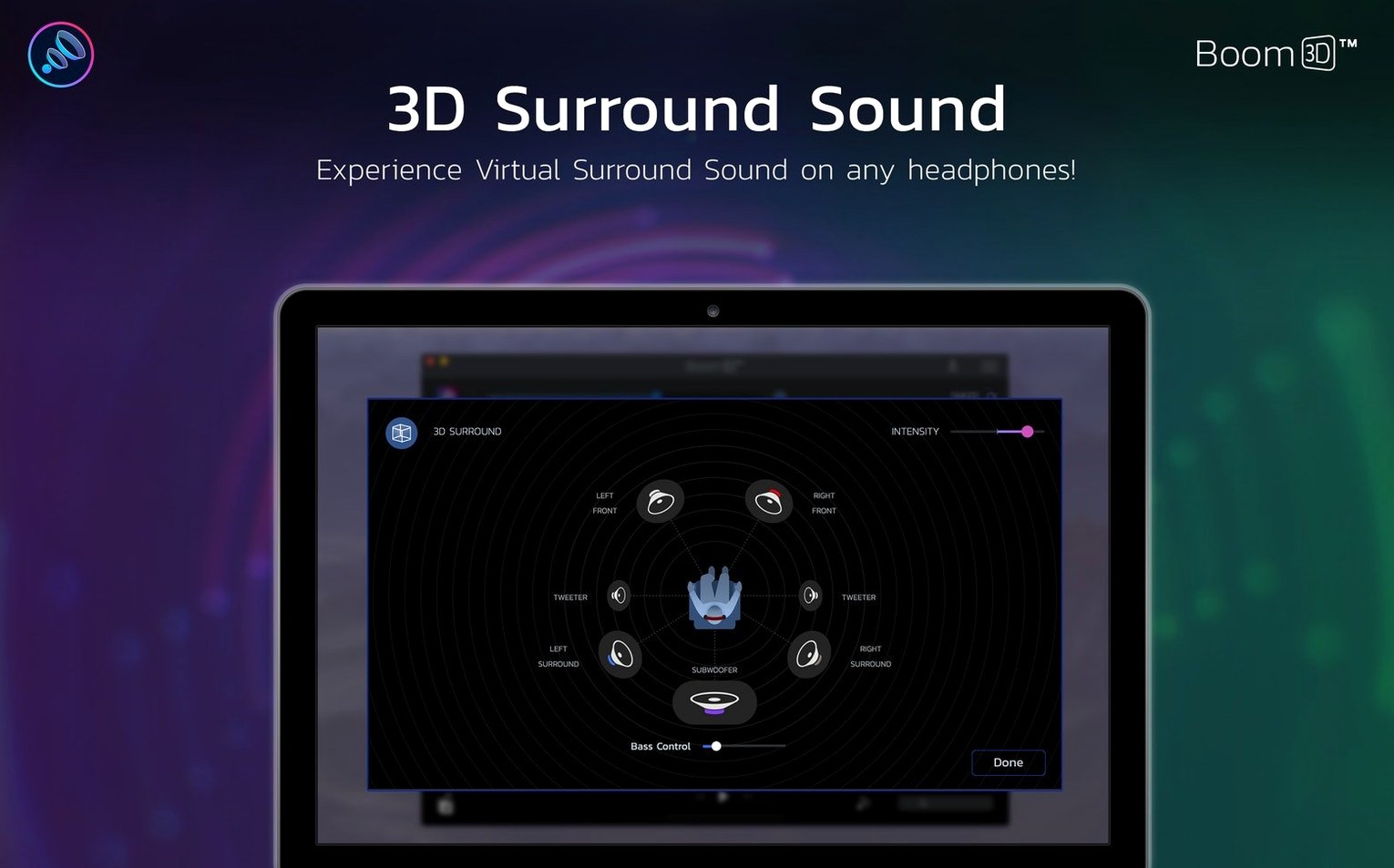
- Toggle 3D Surround. The spatial audio engine widens the stereo field. It’s built for headphones, and you can adjust the intensity from subtle to extreme.
Boom 3D is a separate tool from Boom 2, built for macOS 10.14 and later on both Intel and Apple Silicon machines. It works with the audio you already have — no special files or players required.
Taming Uneven Volume Across Spotify, YouTube, and Slack
You sit down with headphones plugged into the Mac. Spotify is open, a YouTube tab plays a conference talk, and Slack pings every few minutes. The volume keys on the keyboard feel coarse — one notch too loud, the next too quiet.
Open Boom 3D from the menu bar. The main window appears with the large volume knob front and centre. Drag it up to +15%. The talk becomes clear without the muffled edge you got from maxing out the system slider. Switch to the equalizer tab. The Rock preset is too bass-heavy for the speaker’s voice, so you tap Voice from the preset list. The midrange tightens, sibilance drops. Now open the App Volume Controller. Spotify sits at 80%, YouTube at 100%, and you drag Slack down to 40%. Pings no longer compete with your focus.
Later, you queue an album. Turn on 3D Surround, set the intensity slider to 30%. The stereo image widens past the ear cups. The session ends with a single click on the menu bar icon to hide the window. Everything stays set.
Small Conveniences and Overlooked Shortcuts
A few details live under the surface:
- Menu bar quick controls — Right-click the Boom 3D icon. A compact panel lets you toggle boost, 3D Surround, and the equalizer without opening the full window.
- Keyboard shortcuts — Map global hotkeys in Preferences. Common picks: Cmd+Shift+B for boost on/off, Cmd+Shift+S for 3D Surround. Works while any app is in focus.
- Preset switching via scroll — Hover over the equalizer preset name in the main window. Scroll your mouse wheel to cycle through the list without opening the dropdown. Quick A/B testing.
- Per-app persistence — Volume levels you assign in the App Volume Controller survive app restarts. Close and reopen Spotify; it stays at 80%.
- Headphone type detection — Boom 3D remembers the last output device. Plug in your usual headphones and the 3D Surround profile loads automatically. Switch to the MacBook speakers and it disengages the spatial engine.
The 40 MB Audio Driver Hit on Apple Silicon
The app installs a lightweight audio driver. On an Apple Silicon Mac, the driver adds roughly 40 MB to memory pressure — negligible in daily use. CPU draw sits around 0.5–1% during audio playback with the equalizer active. The 3D Surround engine pushes it to 2–3%, still imperceptible in normal workflows.
Latency is the real test for a system-wide audio tool. Boom 3D introduces a small buffer — perhaps 15–20 ms — which is fine for music and video. Gamers who need sample-accurate timing might notice a slight lag, but for media consumption and calls, the delay is invisible. Audio glitches are rare. Occasional crackle appears only when switching output devices while the equalizer processes a complex curve. A quick toggle of the boost button clears it.
Stability over long sessions holds up. Running Boom 3D for eight hours with constant app switching, sleep/wake cycles, and Bluetooth headphone reconnections produces no kernel panics or driver dropouts. The menu bar icon remains responsive. Memory usage creeps up by 10–15 MB over a full workday, then flattens. No leaks worth chasing. This build suits daily-driver use on macOS 10.14 through the latest release.
- macOS 10.14 or later
- Apple Silicon or Intel 64-bit processor
Questions I get before install
What is the difference between Boom 3D and Boom 2?
Boom 3D is a separate, newer app from Global Delight with a different audio engine, 3D surround support, and a redesigned interface.
Which macOS versions does Boom 3D support?
The current version supports macOS 11 and later, while an older download page lists support for macOS 10.10 to 10.13.
Can I control the volume of individual apps with Boom 3D?
Yes, Boom 3D includes per-app volume control, allowing you to set different output levels for each open application.
Comments 0
Sign in to leave a comment.Sign inCreate an account
No comments yet. If a step is still there after you install it, say so.
More in Mac Apps
All in Mac Apps Bootstrap Studio
Builds responsive layouts on the desktop without writing repetitive HTML and CSS grids.
6 steps saved
 BuhoCleaner
Removes leftover files from uninstalled apps and clears system clutter.
13 steps saved
 Updated
Bloom
Sorts a messy folder of mixed assets into subfolders by file type or creation date.
20 steps saved
 BuhoLaunchpad
Replaces the standard app grid with a snappier, folder-friendly launcher.
6 steps saved
 Blocs
Builds responsive websites visually while keeping clean, class-based code under the hood.
22 steps saved
 Caffeinated
Keeps your Mac awake, display bright, and screensaver off from the menu bar.
20 steps saved
 Bitwig Studio
Combines linear recording with a modular sound design sandbox in a single workstation.
20 steps saved
 Binary Ninja
Lets you disassemble and decompile binaries to understand what compiled code actually does.