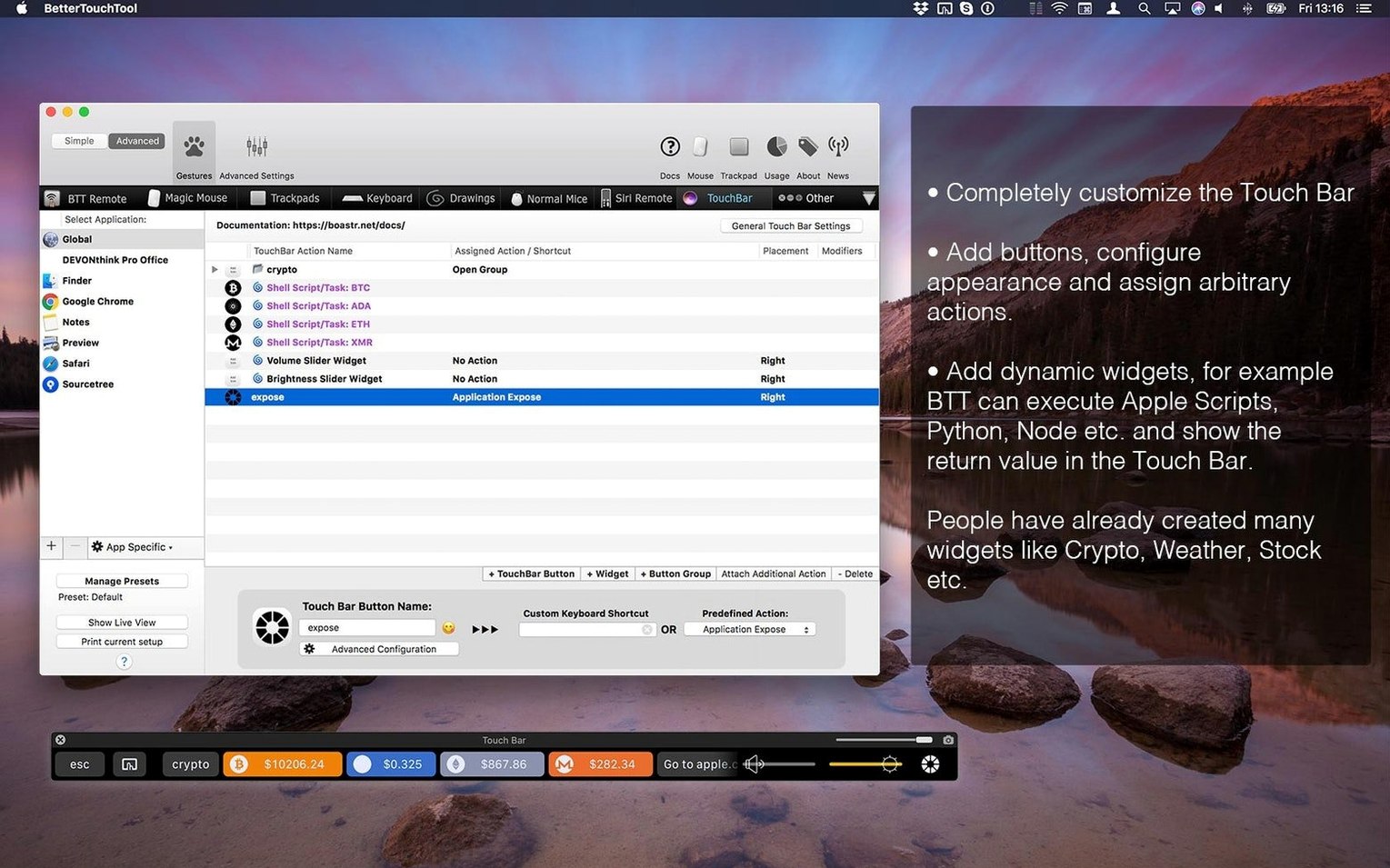
Default trackpad and mouse controls leave too many repetitive actions on the table. BetterTouchTool lets you assign those unused gestures, key sequences, and Touch Bar slots to the exact commands you repeat all day.
What version 6.726 delivers
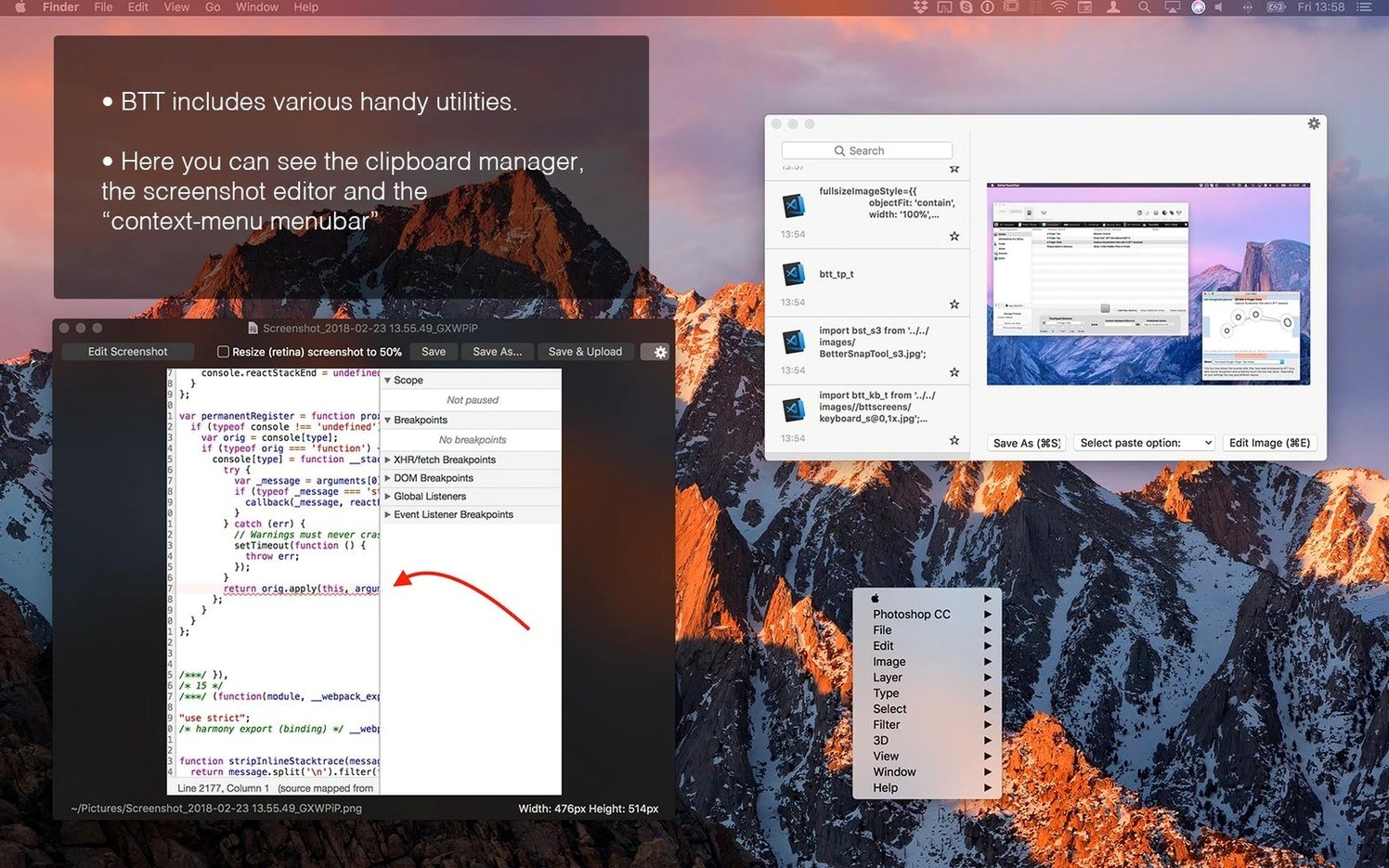
The current release refines the toolset that makes BetterTouchTool a system-wide automation layer. You can target individual applications with their own shortcut rules, so a three-finger swipe can trigger one action in your browser and a completely different macro in your code editor. The built-in clipboard manager holds multiple copied items, and the widget engine—driven by AppleScript, custom URL schemes, or HTTP requests—lets you build live information panels on your Touch Bar.
The foundation that hasn't changed
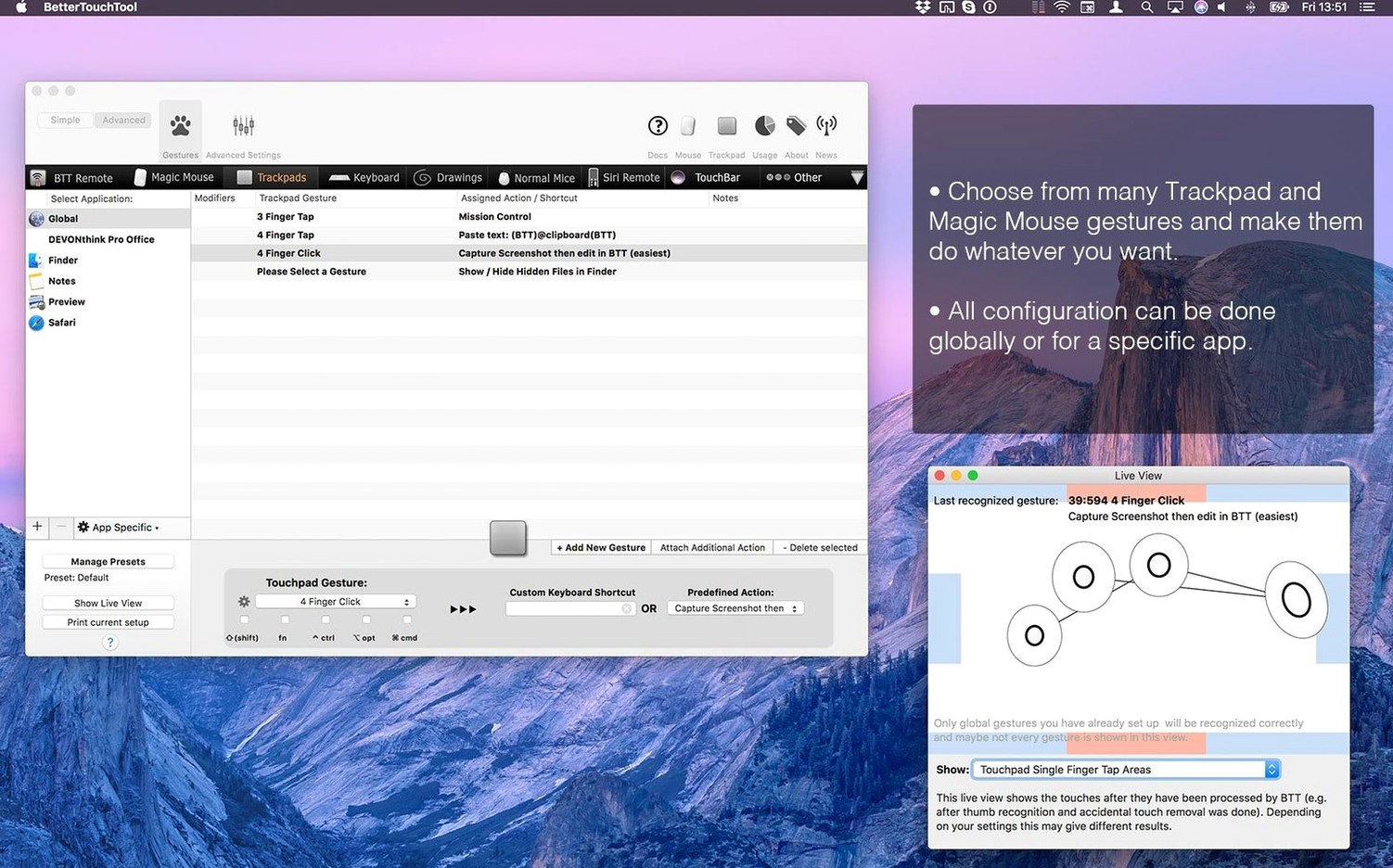
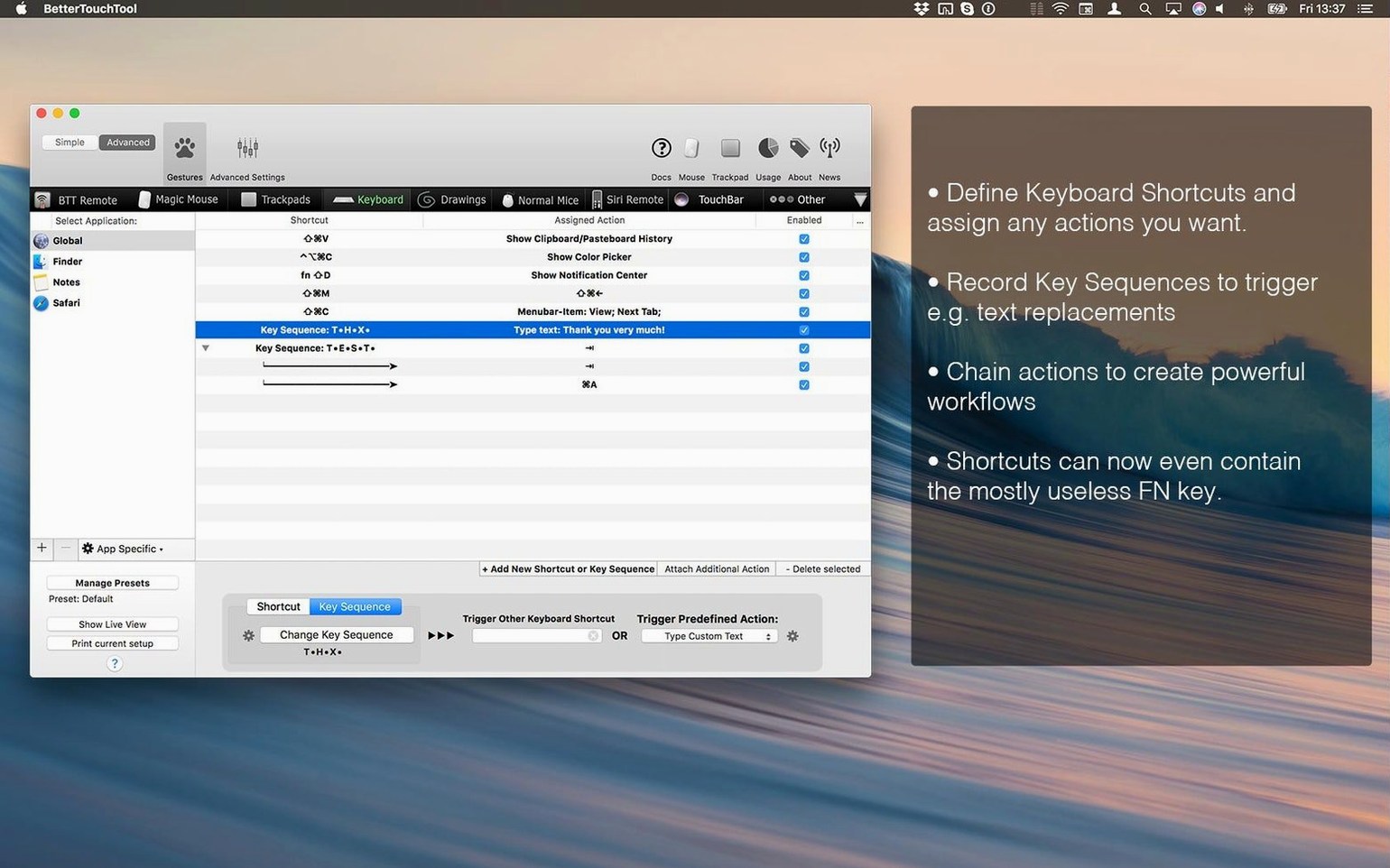
BetterTouchTool remains a single utility for replacing scattered input preferences. You draw custom gestures, record complex sequences and attach them to trackpad movements, mouse buttons, keyboard combos, or entirely new Touch Bar layouts. Everything runs on macOS 10.15 and later, on both Apple Silicon and Intel hardware. No cloud accounts—just a direct line from your input devices to your most-used commands.
Launch at login so it’s always running in the background
Out of the box, BetterTouchTool is quiet and unobtrusive. A few early tweaks make it feel native to your hands.
- Launch at login. Open Preferences → General and check Start BetterTouchTool at login. The app needs to be running to interpret your gestures, so skip the manual launch ritual.
- Toggle the menubar icon. Same tab. Switch between showing the icon, hiding it, or collapsing it into a BTT-labelled strip. Clean menu bar enthusiasts pick the hidden option and rely on a hotkey to open preferences.
- Disable conflicting macOS gestures. System Settings → Trackpad → uncheck anything you plan to remap. If you assign a four-finger swipe down to a window manager action, macOS still thinks it owns that gesture until you tell it otherwise. The two will fight, and macOS usually wins.
- Export your setup immediately. Even a half-finished configuration represents an hour of experimenting. Preferences → General → Export all settings. Store the file somewhere safe. It serves as a snapshot you can revert to after trying an ambitious new trigger set.
The first 72 hours: what to actually do
Treat the first three days as deliberate practice, not passive adjustment. The goal is to pick up one new shortcut per day, not to rebuild every input device at once.
Day one. Assign one trackpad or mouse gesture to a window management action you repeat constantly. A three-finger swipe up to maximize the front window, or a tip-tap with two fingers in the top-right corner to snap the window left. Use only that gesture for the entire workday. By evening, muscle memory starts to form.
Day two. Pick your most-used application—a browser, a text editor, a terminal—and open its app-specific settings. Add a single shortcut that collapses a common two-step sequence. Example: a corner click that runs “copy link → open new tab → paste → go” in one motion. Notice how your rhythm changes when the micro-decision disappears.
Day three. Open the clipboard manager. Assign a keyboard shortcut (⌃⌘V works well) and use it as your primary paste method for the day. If the clipboard history feels cumbersome, the trigger placement is wrong, not the feature. Move the shortcut closer to your left hand and reduce the number of visible items to five—less scrolling, faster selection.
Power users who already lean on keyboard shortcuts
The app rewards users who already know the keyboard shortcuts of their primary tools. Those users feel the friction of missing a direct path from thought to action. BetterTouchTool adds the paths they wanted.
Developers and system administrators. Terminal-heavy workflows benefit from per-app triggers that send shell commands or open SSH sessions. The widget engine lets them build Touch Bar status panels that display server uptime, build status, or current git branch—without leaving the keyboard.
Designers who juggle precision tools. A Wacom tablet, a trackpad, and a Magic Mouse can all coexist with separate gesture dictionaries. App-specific rules keep a pinch gesture for zooming in Figma while the same pinch in Photoshop triggers a different action entirely. No mode-switching, no accidental cross-tool interference.
Anyone who abandoned the Touch Bar. Users who dismissed the Touch Bar as a gimmick often change their mind after loading a few custom widgets. A row of persistent buttons for mute, sleep display, and clipboard history replaces Apple's context-switching strip with a fixed, predictable control surface. The Touch Bar stops being a suggestion and becomes a dashboard.
Heavy trackpad users on MacBooks. The built-in gesture vocabulary covers six or seven motions. BetterTouchTool multiplies that by letting you define corner clicks, tip-taps, force-click zones, and chorded gestures. A designer who spends ten hours a day on a laptop trackpad can reclaim hundreds of micro-movements per week.
- macOS 10.15 or later
- Apple Silicon or Intel processor
Questions I get before install
Can BetterTouchTool create custom Touch Bar layouts?
Yes. You can build custom Touch Bar widgets that display information or run actions, driven by AppleScript, custom URL schemes, or HTTP requests.
Does BetterTouchTool work per application?
Yes. You can target specific applications with individual shortcut and gesture rules, so the same input triggers different actions depending on which app is active.
Does BetterTouchTool include a clipboard manager?
Yes. A built-in clipboard manager stores multiple copied items for quick access.
Comments 0
Sign in to leave a comment.Sign inCreate an account
No comments yet. If a step is still there after you install it, say so.
More in Mac Apps
All in Mac Apps BetterDisplay Pro
Overrides the factory EDID so your screen matches the brightness and resolution you need.
5 steps saved
 Updated
BetterZip
Lets you preview an archive’s contents without extracting it first.
14 steps saved
 Beauty Box Photo
Smooths skin texture automatically while keeping eyes and hair sharp.
20 steps saved
 Binary Ninja
Lets you disassemble and decompile binaries to understand what compiled code actually does.
5 steps saved
 BBEdit
Opens massive plain-text files and lets you edit them without a lag spike.
20 steps saved
 Bitwig Studio
Combines linear recording with a modular sound design sandbox in a single workstation.
16 steps saved
 Bartender
Hides the menu bar icons you rarely need behind a single click.
6 steps saved
 Blocs
Builds responsive websites visually while keeping clean, class-based code under the hood.