Designers, developers, and anyone running six or seven menu bar utilities on a MacBook screen. That’s who reaches for Bartender first.
| Detail | Info |
|---|---|
| Current version | 7.0.4 |
| Developer | Surtees Studios Ltd |
| Requirements | macOS 27, Apple Silicon & Intel |
| Interface languages | English |
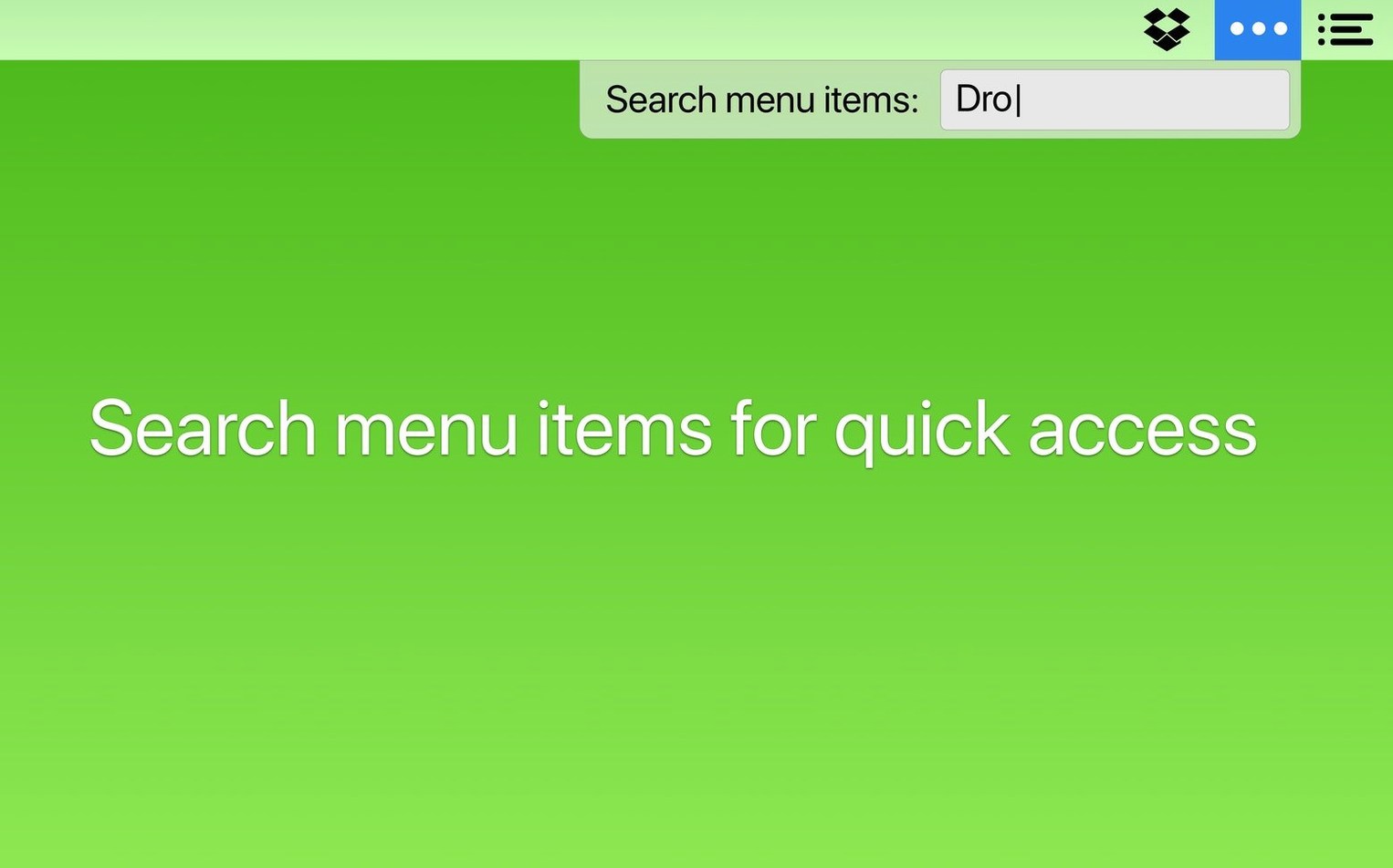
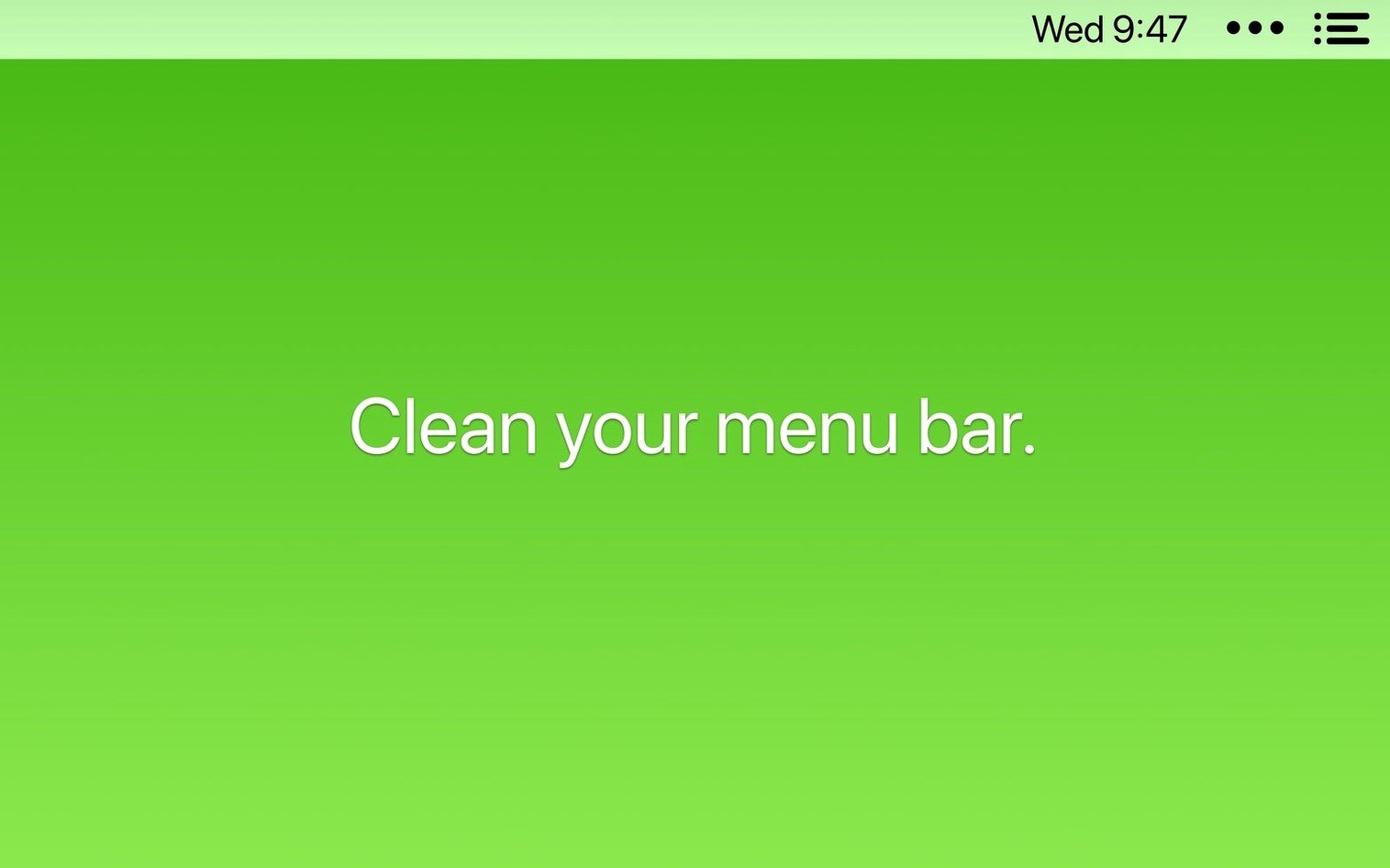
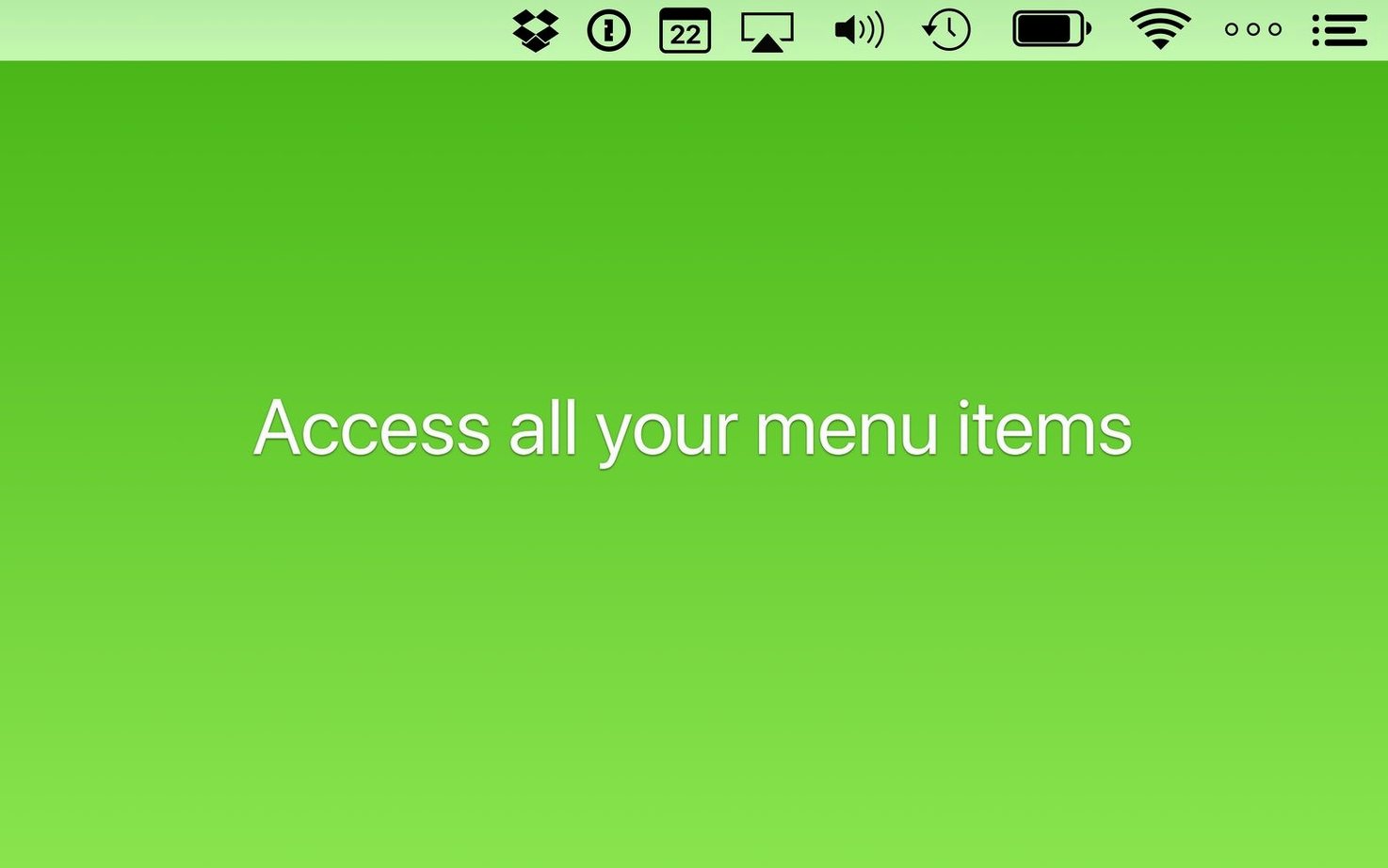
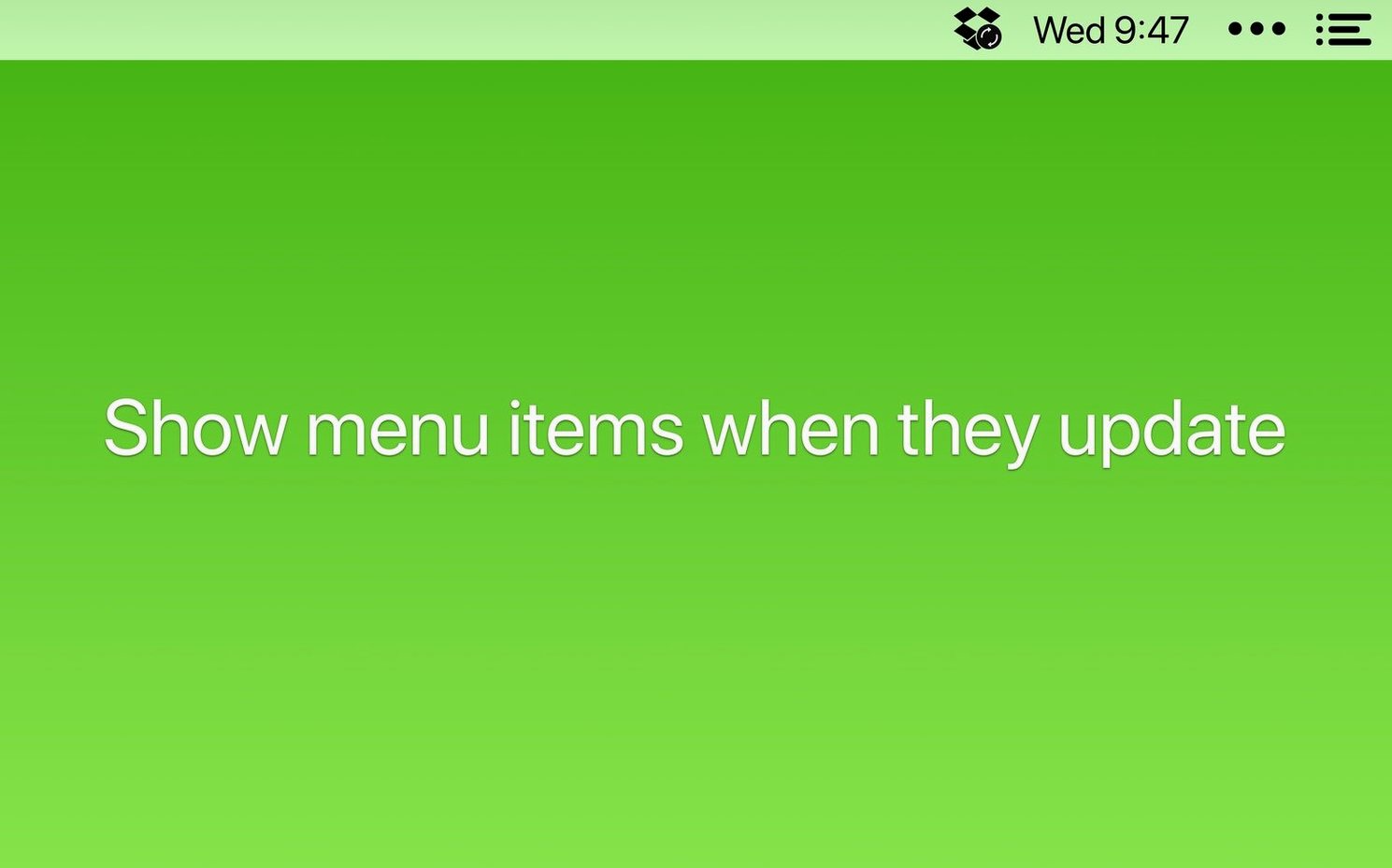
Bartender sits quietly between your apps and your menu bar, deciding what gets prime screen space and what moves to the hidden Bartender Bar. You can drag to reorder icons, assign keyboard shortcuts to reveal the bar, and trigger actions through Shortcuts app intents. The Command Bar lets you activate menu items by typing, so you never need to aim a cursor again. Version 7.0.4 tightens a few loose ends: the clipboard helper inside the Command Bar got an update, items no longer fail to appear after a restart, and moving icons around won’t leave them stuck mid-drag. The app can also show status icons during updates, syncs, or errors, and you can hide its own menu bar icon entirely once everything is configured.
Fifteen Menu Bar Apps and a Flurry of Update Badges
You open your MacBook at a coworking desk. Fifteen menu bar apps load — Wi‑Fi, Bluetooth, 1Password, Dropbox, Alfred, a VPN, a clipboard manager, two time‑zone clocks, and a handful of developer tools. Three of them start flashing update badges. The rest simply eat space.
Here’s what the next ninety seconds look like.
- Reveal the hidden bar. You tap
⌃⌘B. The Bartender Bar slides out beneath the main menu bar, showing the ten icons you’ve tucked away — battery, Bluetooth, the second clock, a CPU monitor, a media controller. You glance at battery percentage, then tap the shortcut again. The bar retracts. - Check a sync status. Dropbox shows a spinning arrow. Because you’ve set a trigger — “show in menu bar when syncing” — the icon has moved itself from the Bartender Bar into the main bar automatically. You hover, see “3 files remaining,” and carry on.
- Reorder on the fly. You hold
⌘and drag the VPN icon two slots left, next to Wi‑Fi. No preferences window. No pause. The icons shuffle and stay put. - Activate a menu item by name. You hit
⌥Spaceto bring up the Command Bar, typequit vpn, and pressEnter. The VPN disconnects and closes. You never touched the trackpad. - Hide the clutter. A new helper app you installed this morning appeared in the menu bar without asking. You
⌘-click its icon, drag it below the Bartender divider line, and let go. It vanishes from the main bar instantly.
Ninety seconds. No cursing. No squinting. No dragging windows out of the way to read a truncated date.
A Freelance Writer’s Setup
Miriam writes technical documentation for three clients. Her menu bar holds: a text expander, a grammar checker, a Pomodoro timer, Focus, Wi‑Fi, Battery, Clock, a colour picker, and a screenshot tool. She works on a 13‑inch MacBook Air. Screen width is precious.
She keeps five items visible: Clock, Focus mode, Wi‑Fi, Battery, and the Pomodoro timer. Everything else — grammar checker, colour picker, text expander, screenshot tool — lives behind the Bartender Bar. The grammar checker’s icon is set to appear in the main bar only when it has suggestions. Most of the day it stays hidden. The colour picker shows only when she opens Sketch. Bartender’s app‑based triggers handle this without her thinking about it.
When she’s deep in a draft, she opens the Command Bar with ⌥Space, types pomo start, and begins a 25‑minute focus block. Two keystrokes. No cursor movement. The timer icon appears in the menu bar for the duration, then slides away when the break bell rings.
Miriam’s menu bar never exceeds five icons during writing hours. Everything else is one shortcut away. She says the biggest win isn’t the cleaning — it’s that she stopped losing the Clock behind a wall of third‑party icons during client calls.
Don’t Turn the Hidden Bar Into a Notification Graveyard
New users tend to treat Bartender as a junk drawer. They drag everything into the hidden bar on day one and wonder why they miss notifications.
- Hiding everything immediately. The Bartender Bar isn’t a landfill. Keep items you check frequently — Clock, Wi‑Fi, battery — visible. Hide the ones you interact with rarely. If you hide everything, you’ll end up opening the bar forty times a day, which defeats the purpose.
- Ignoring triggers. Bartender can show an icon only when its app is running, or only when the icon changes (updates, errors, syncs). New users often skip this panel entirely. That’s how you miss the VPN disconnecting or Dropbox stalling. Set triggers for anything that communicates status.
- Forgetting the Command Bar exists. Many people install Bartender, tidy their icons, and never open the Command Bar. It’s the fastest way to reach any menu item without the mouse — especially useful for nested menus like “Share” or “Open Recent.” Assign a shortcut you can hit without looking.
- Not locking the arrangement. If you skip the “Lock menu bar items” toggle, a restless
⌘-drag can accidentally pull an icon out of position. Lock it once you’re happy with the order. - Leaving the Bartender icon visible forever. After configuration, hide it. The keyboard shortcut still works. The bar still opens. The icon is just a settings doorway you no longer need in view.
- macOS 27 or later
- Apple Silicon or Intel Mac
Questions I get before install
Does Bartender 7 require screen recording permissions?
No, Bartender 7 works without requiring screen recording access.
Can I change the order of menu bar icons?
Yes, you can drag items directly in the menu bar to change their order.
Comments 0
Sign in to leave a comment.Sign inCreate an account
No comments yet. If a step is still there after you install it, say so.
More in Mac Apps
All in Mac Apps BAO Mask Avenger
Exposes every mask point as an animatable keyframe for detailed rotoscoping.
5 steps saved
 BBEdit
Opens massive plain-text files and lets you edit them without a lag spike.
14 steps saved
 Beauty Box Photo
Smooths skin texture automatically while keeping eyes and hair sharp.
7 steps saved
 Audiofile Engineering Fidelia
Plays a local music library with audiophile-grade output and per-device settings.
12 steps saved
 BetterDisplay Pro
Overrides the factory EDID so your screen matches the brightness and resolution you need.
20 steps saved
 Audiobook Builder
Stitches a stack of audio files into one structured, chaptered audiobook.
19 steps saved
 BetterTouchTool
Maps unused trackpad gestures and key sequences to the commands you repeat daily.
4 steps saved
 Audio Hijack
Captures any audio your Mac plays and applies a denoise filter before it saves.