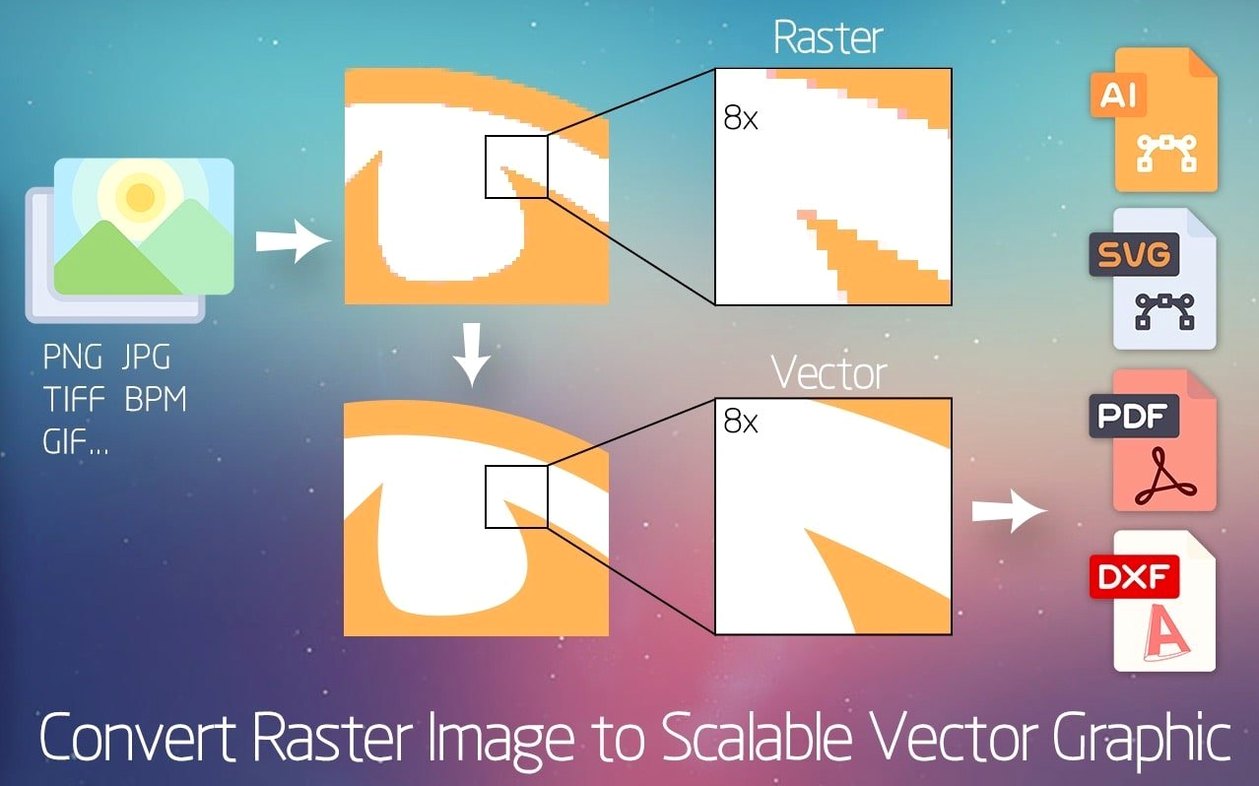
Illustrators, CNC operators, and print designers use Super Vectorizer Pro when a flat image needs to become a scalable vector. It suits anyone who works with logos, maps, or scanned line art.
70+ Raster Formats Converted to AI, SVG, DXF and PDF
- 70+ input formats — from common JPEGs to less frequent bitmap types
- Up to 64 colours in a single vectorization pass
- Transparent backgrounds for clean exports
- AI, SVG, DXF, PDF output for other editors
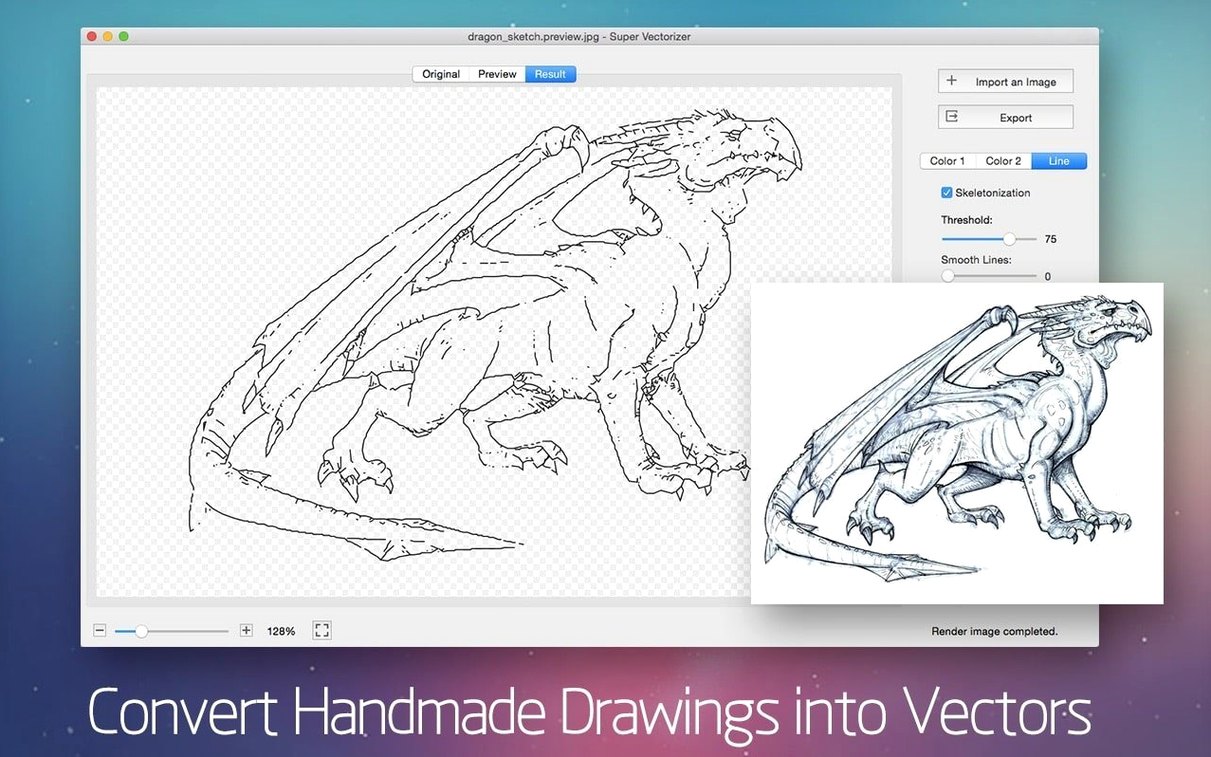
- Pencil drawings converted into smooth vector paths
Export-Ready Vectors for Illustrator, Inkscape or CAD on Mac
Super Vectorizer Pro works as a conversion tool, not a full illustration suite. Export a vector file, then refine it in Illustrator, Inkscape, or CAD software. It runs on macOS 10.10 and later, on both Intel and Apple Silicon.
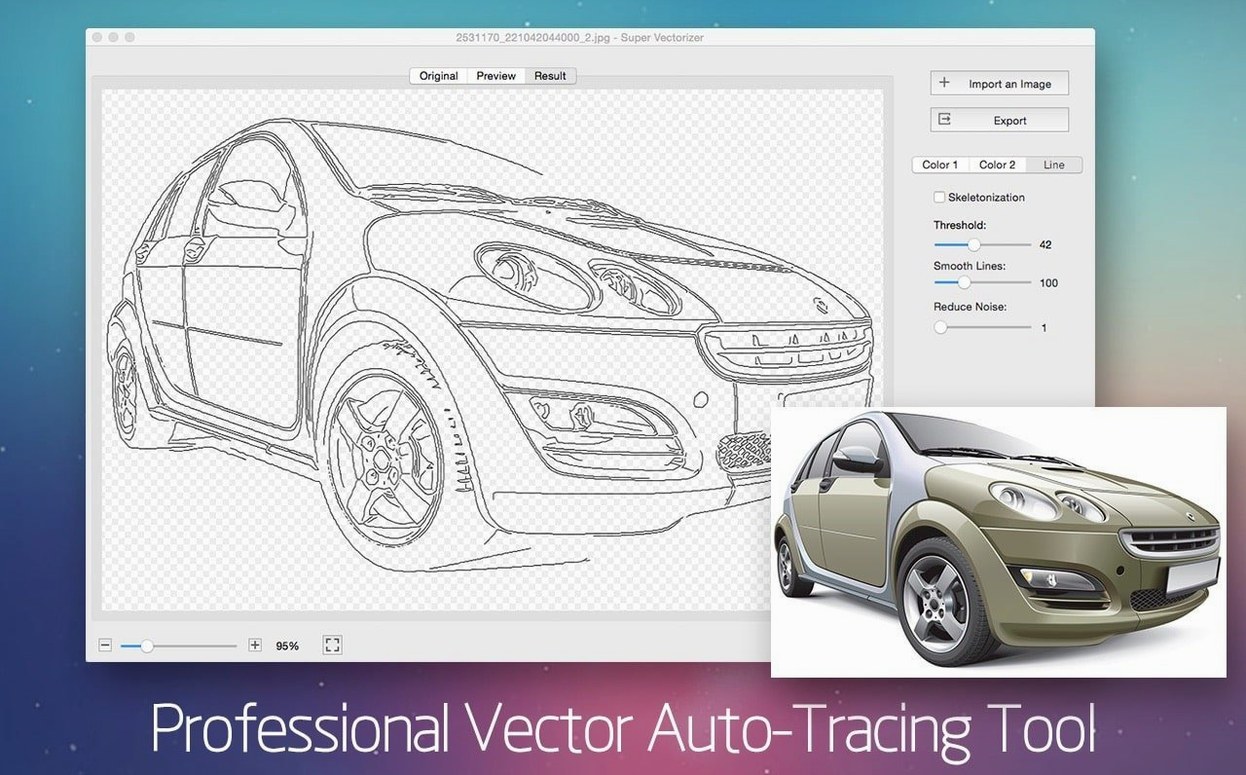
Clean DXF Cutting Paths from Low-Resolution Customer Photos
Three types of Mac users lean on Super Vectorizer Pro more than most.
Sign makers and CNC operators. They receive customer artwork as low-resolution JPEGs or smartphone photos and need clean DXF output for cutting paths. Skipping a manual trace saves half a morning.
Logo cleanup specialists. A client sends the only copy of a logo — a 200-pixel PNG pulled from an old website. Super Vectorizer Pro rebuilds it as an editable SVG with transparent background in under a minute.
Comic artists and sketchers. Pencil drawings scanned on a home flatbed come out as crisp vector strokes. The skeletonization function reduces thick lines to single paths, ready for colour fills in another app.
Anyone who traces more than three images a week notices the time saving. Occasional users — someone converting a single family crest for a one-off project — get less from it than a daily production workflow does.
Six Product Photos Turned Into Line-Art Icons in One Go
Imagine a designer who just received six product photos from a supplier. The brief asks for clean line-art icons based on the photos. Here is how it unfolds.
- Drag in the first JPEG. The preview window opens immediately. No import wizard, no file-size complaints.
- Choose a vectorization mode. The photo has three dominant colours, so the designer selects Colour and dials the colour count down to 4. A live preview redraws within two seconds, showing each shape as a distinct block.
- Toggle background transparency. One click removes the off-white product backdrop. The preview confirms nothing but the product shapes remain.
- Export as SVG. The file lands on the desktop. Opening it in Illustrator shows grouped vector shapes with smooth curves — no jagged edges from the original photo.
- Repeat for the remaining five images. Batch processing is not built in, so each image takes about thirty seconds of tweaking plus export time. Six icons, roughly four minutes total.
The designer refines anchor points in Illustrator later, but the heavy lifting — edge detection, colour reduction, path generation — happened inside Super Vectorizer Pro.
Silence Background Noise by Dropping the Colour Count
The trace picks up too much background noise. A photo with a textured wall or paper grain behind the subject confuses the edge detection. Solution: crop tightly before importing, or drop the colour count so the background merges into a single shade the app can ignore. The transparency toggle handles the rest.
DXF exports open with broken curves in CAD software. Some CAD tools interpret arcs differently. Switch the output to PDF, which preserves bezier data more reliably, then import that into Fusion or similar. If DXF is mandatory, test a single shape first before tracing the full image.
Thin pencil lines vanish or turn speckled. Low-contrast scans need a pre-processing pass. Increase the source image contrast in Preview or Photoshop before dragging it in. The skeletonization mode works best when lines are dark and the paper is clean white — grey-on-cream sketches produce unpredictable results.
Real-time preview lags on a large file. Images above 4000 pixels on the long edge slow down the live redraw. Scale the source down to a practical resolution — 2000 pixels wide is plenty for most vector outputs — and the preview snaps back to real time.
What's new in 2.4.0
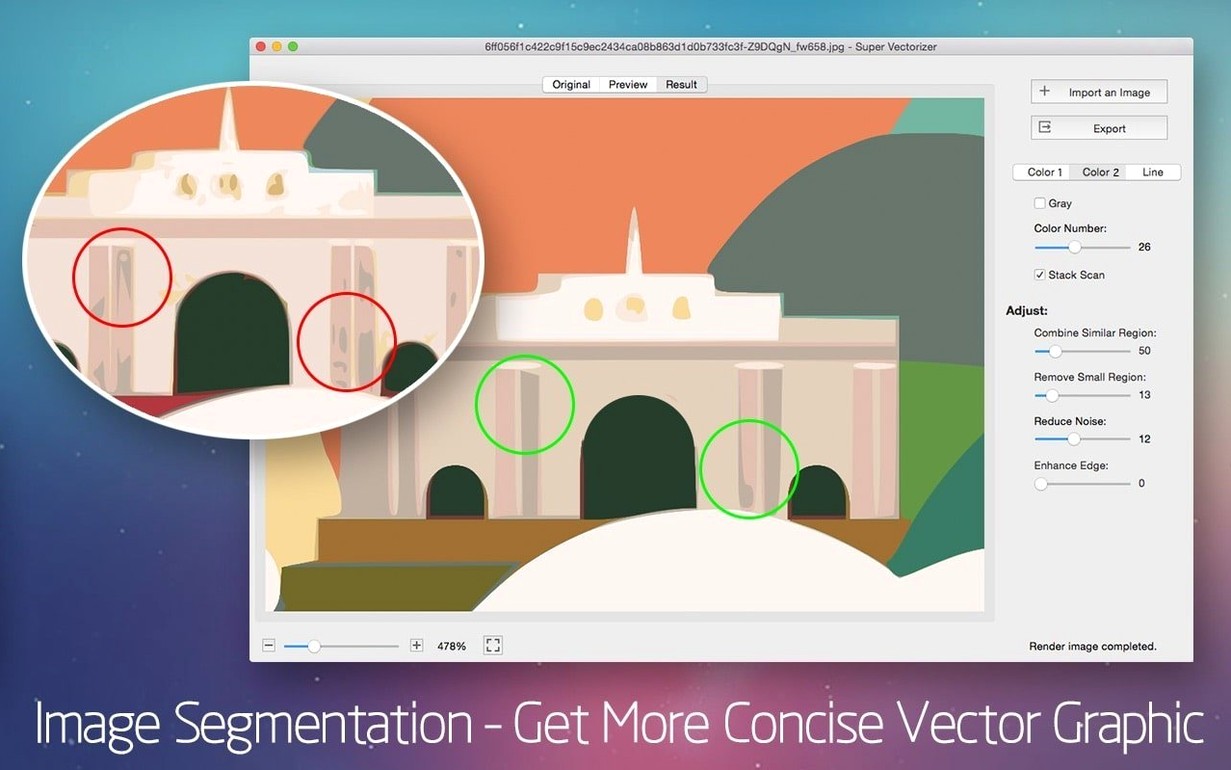
- New — Region tracing mode. Splits the image along real edges and fills each region with its own colour. Handles thousands of regions without a colour-count limit. Complex portraits keep their gradients and fine structure.
- New — AI super-resolution preprocessing for small images and line art. Upscales before tracing for cleaner edges, then exports at the original size. (Apple Silicon only.)
- New — EPS format output.
- New — 10 built-in presets: Portrait, Landscape, Icon, Manga, Line Art, Text, plus Icon and Manga for Colour mode.
- Improved — Sharper edges with no drift. The rewritten edge-enhancement pass snaps colours once at the boundary and locks the boundary in place. No soft halos or white seams.
- Improved — Two separate controls replace one slider. Simplify merges similar-coloured regions; Min Area removes speckles.
- macOS 10.13 or later
- Apple Silicon or Intel 64-bit
Questions I get before install
Which file formats can Super Vectorizer Pro export?
It exports AI, SVG, DXF, and PDF files for use in other editors.
Does Super Vectorizer Pro support transparent backgrounds?
Yes, it supports transparent background output for clean vector results.
Can Super Vectorizer Pro convert pencil drawings?
Yes, pencil drawings can be converted into vector graphics.
Comments 0
Sign in to leave a comment.Sign inCreate an account
No comments yet. If a step is still there after you install it, say so.
More in Mac Apps
All in Mac Apps SuperDuper!
Creates a full, bootable clone of your entire drive on any modern Mac.
17 steps saved
 Sublime Text
Edits code and text fast with multiple cursors and instant project search.
23 steps saved
 Studio One
Records, arranges and mixes music in a fast drag-and-drop DAW.
10 steps saved
 Swinsian
Plays a large local music library with smart playlists and wide format support.
17 steps saved
 Swish
Snaps windows and switches spaces with gestures on a Magic Trackpad or Magic Mouse.
17 steps saved
 SwitchResX
Unlocks hidden screen resolutions and saves complete monitor configurations per setup.
23 steps saved
 Steinberg Nuendo
Provides a dedicated audio post-production workstation built for dialogue, Atmos, and game audio.
12 steps saved
 Updated
SoundSource
Routes every app's audio to a different output from the menu bar.