
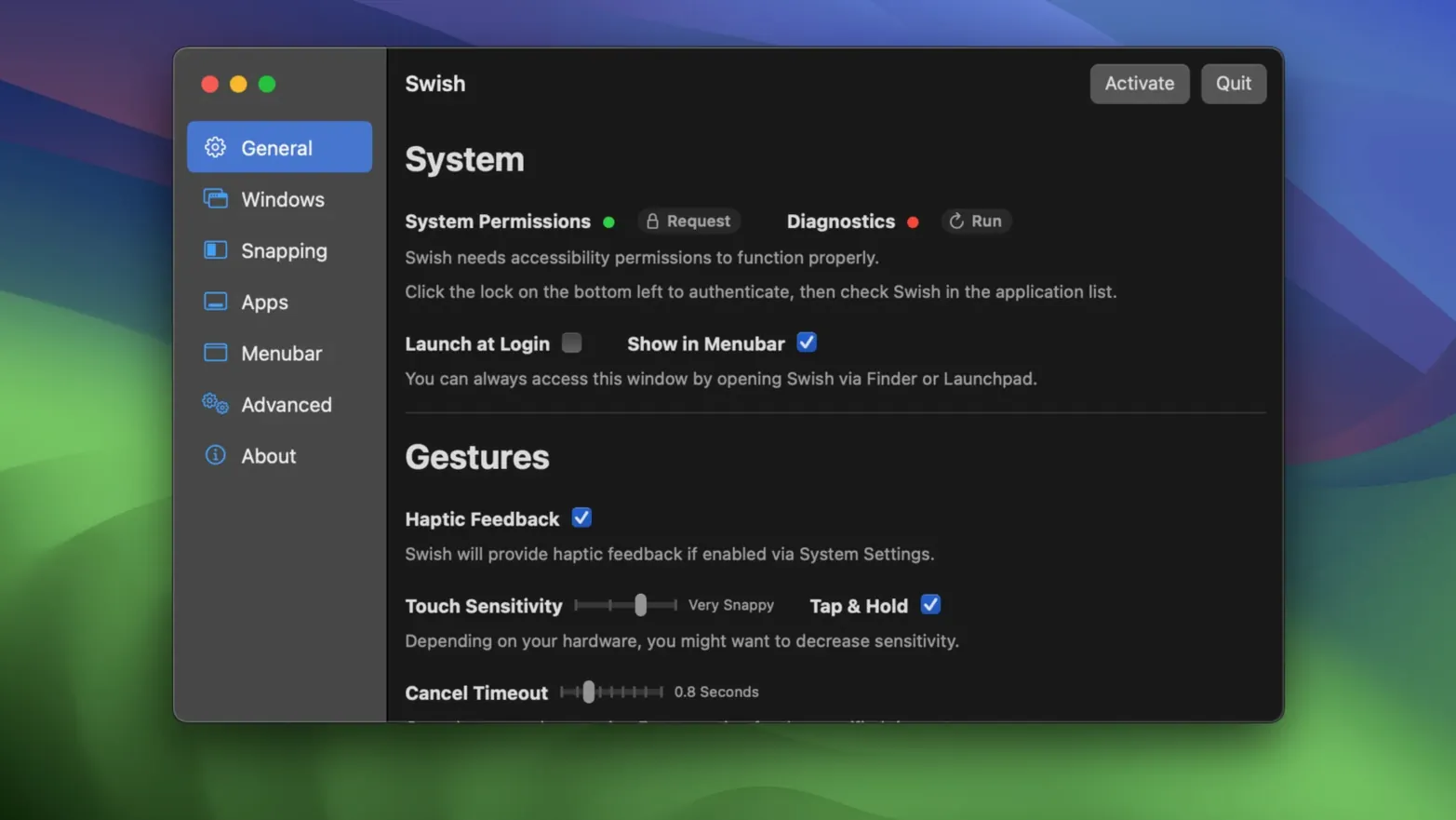
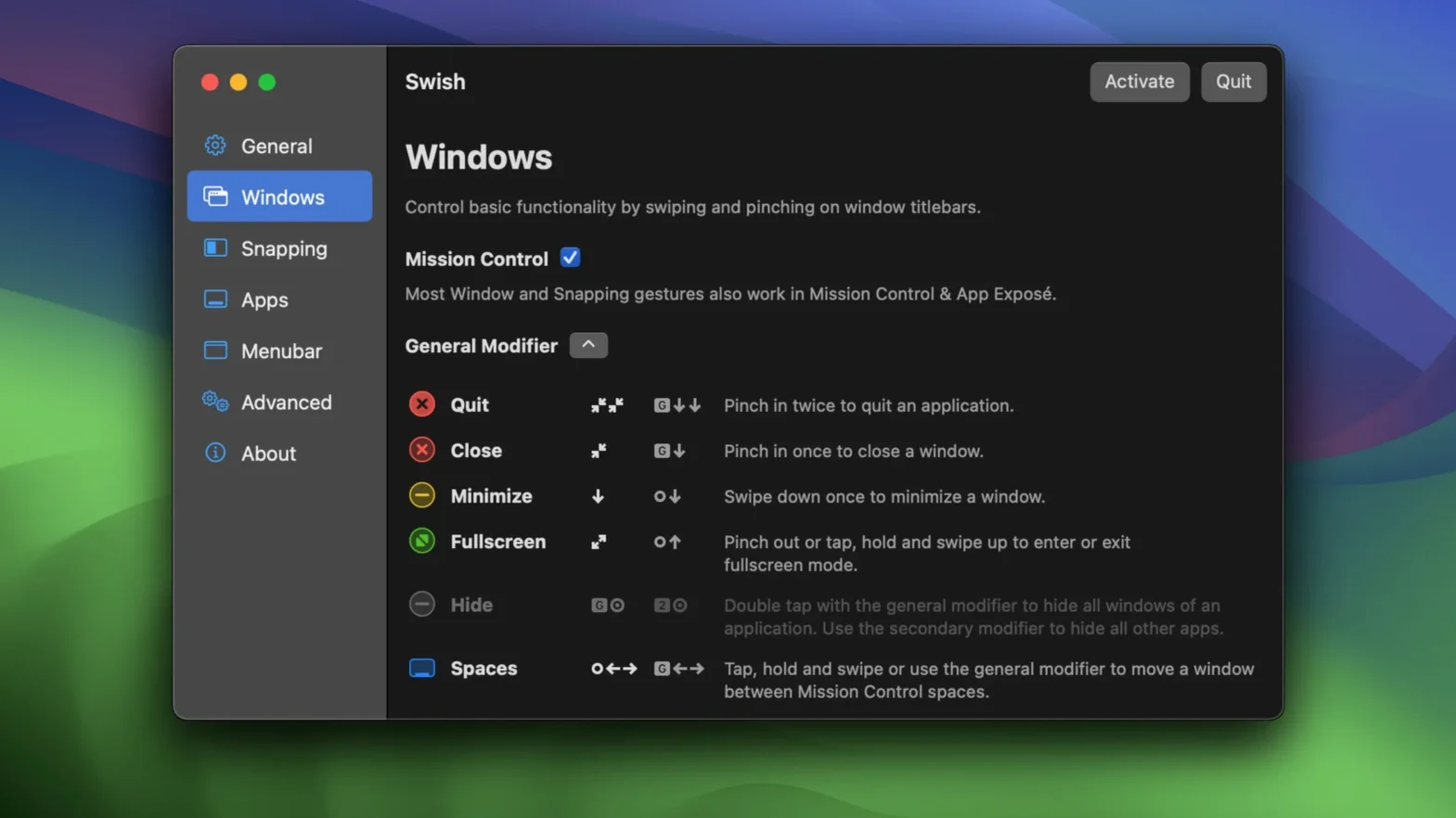
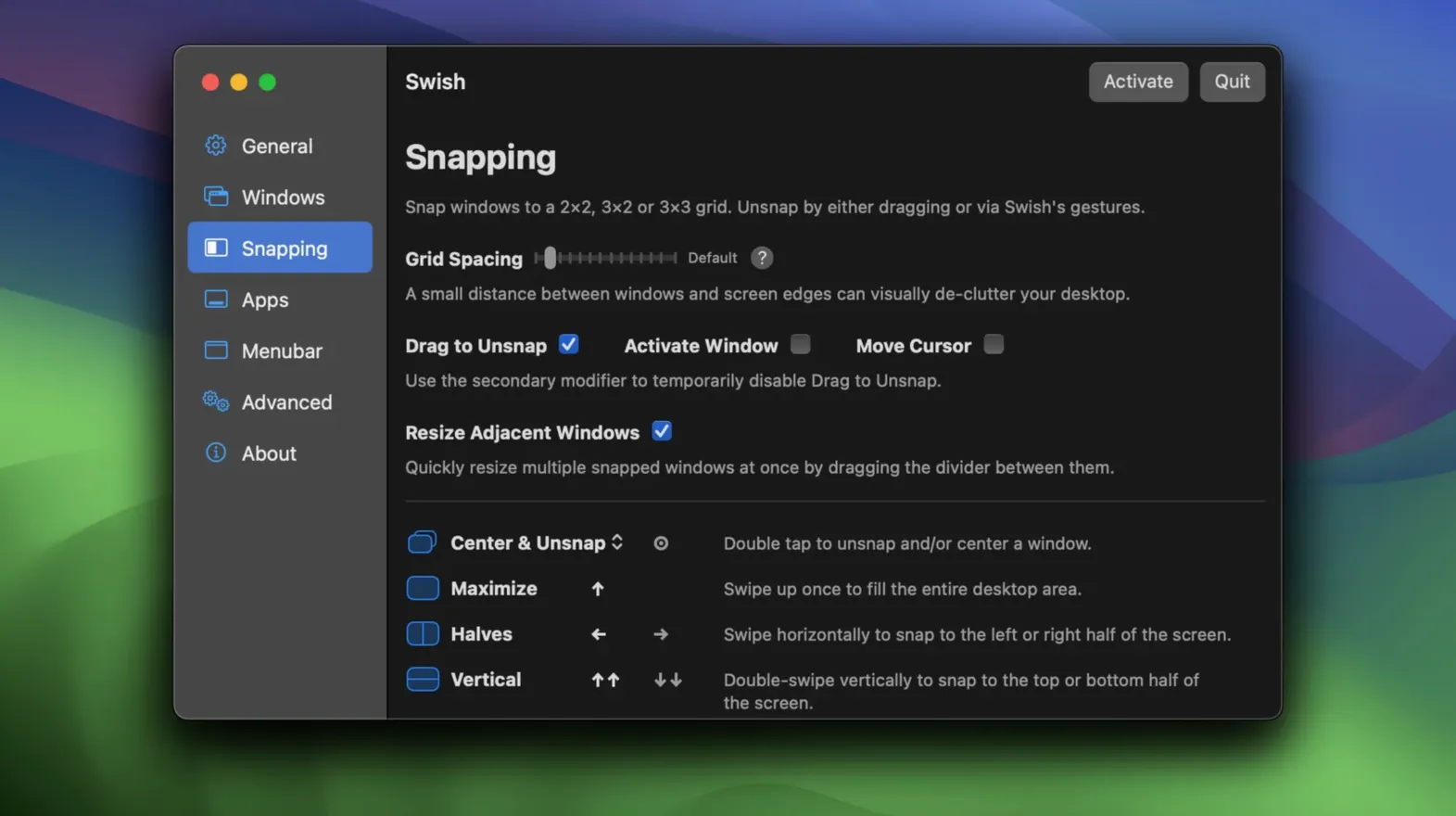
Dragging windows by their title bar and hunting for tiny green buttons breaks your rhythm. Swish replaces that busywork with a gesture language you already know. Swipe, pinch, tap, or hold on your Magic Trackpad or Magic Mouse, and windows snap, apps switch, and spaces fly past. A crisp 2×2 grid lets you arrange windows to the corners and halves of the display without touching the edge of the screen. Keyboard shortcuts cover the same actions when your hands are already typing.
Compatibility first
Swish runs on any Mac that supports macOS 12 Monterey or later. That covers Intel machines from roughly 2015 forward and every Apple Silicon model. The app works identically with a Magic Trackpad, Magic Mouse, or the built-in keyboard shortcuts — you decide which input method leads your workflow. The developer built Swish with room to grow, noting it is already prepared for macOS 27.
What you control
Window management forms the core: snap any window to halves, quarters, or full screen with a short swipe. Application control lets you switch between open apps and quit them with a gesture, while spaces management moves you between desktops without reaching for Control-arrow. A quick start guide walks you through the handful of gestures that replace the most frequent drag-and-click loops.
Where Swish fits in your stack
Swish sits between macOS's built-in window snapping and a full keyboard-centric manager like Rectangle. It does not replace Mission Control or Stage Manager — it layers gesture shortcuts on top of them. Pinch to summon Mission Control, then swipe to send a window to another space. The grid snaps complement the Finder's column view: arrange reference docs on the left half, your editor on the right, and a terminal in the bottom-right corner, all without lifting your fingers from the trackpad.
The 28 included gestures are individually toggleable, so you can keep the three you use daily and disable the rest. On a multi-monitor desk, a modifier key turns the standard 2×2 grid into a 2×3 layout, giving you columns that span both displays. And because Swish also reads keyboard input, the same moves work when your hands are on the keys — useful if you alternate between trackpad and mechanical keyboard throughout the day.
Disable the 28 gestures you will never use
Open Swish's preferences and do three things before anything else:
- Disable gestures you will never trigger intentionally. The full set of 28 covers the title bar, Dock, and menu bar — turning off the ones you do not need prevents accidental window moves.
- Pick your modifier key for the 2×3 grid. The default works, but remapping it to match your other window manager's modifier keeps muscle memory intact.
- Check the Spaces gestures. If you already use Control-arrow for desktop switching, Swish's swipe-to-space gesture can replace it entirely, freeing up a keyboard shortcut for something else.
After that, run through the built-in quick start guide once. It takes under five minutes and surfaces a few title-bar gestures — hold to centre, swipe down to minimize — that are easy to miss but tend to become daily habits for anyone who downloads Swish for Mac.
- macOS 12 Monterey or later
- Apple Silicon or Intel processor
- Magic Trackpad, Magic Mouse, or keyboard
Questions I get before install
Does Swish work with a regular mouse?
Swish relies on Magic Trackpad, Magic Mouse, and keyboard shortcuts for its gesture controls. A standard mouse without a touch surface will not trigger the swipe, pinch, or tap actions.
How does the window snapping grid work?
Swish uses a 2×2 grid that lets you snap any window into halves or quarters of the screen with a short gesture or key command.
Comments 0
Sign in to leave a comment.Sign inCreate an account
No comments yet. If a step is still there after you install it, say so.
More in Mac Apps
All in Mac Apps Swinsian
Plays a large local music library with smart playlists and wide format support.
17 steps saved
 SwitchResX
Unlocks hidden screen resolutions and saves complete monitor configurations per setup.
12 steps saved
 TablePlus
Connects to PostgreSQL and MySQL in separate tabs to run queries side by side before a deploy.
21 steps saved
 SuperDuper!
Creates a full, bootable clone of your entire drive on any modern Mac.
6 steps saved
 Tahoe Cache Cleaner
Clears caches, logs and temporary files to free space and fix glitches.
14 steps saved
 Updated
Super Vectorizer Pro
Converts a flat raster logo into a scalable vector for print or CNC work.
7 steps saved
 Taphouse Pro
Browses and installs Homebrew formulae through a graphical interface instead of the terminal.
17 steps saved
 Sublime Text
Edits code and text fast with multiple cursors and instant project search.