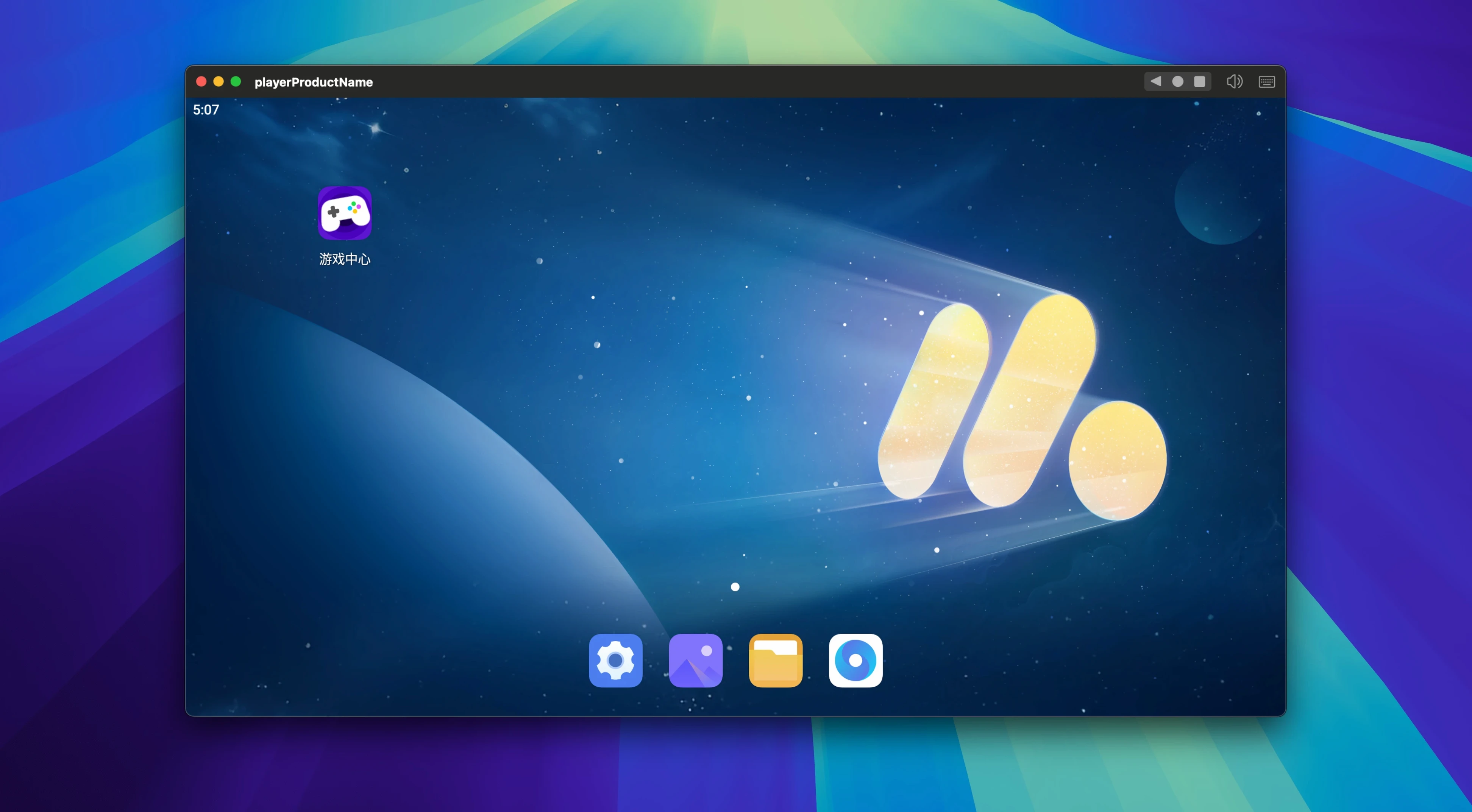
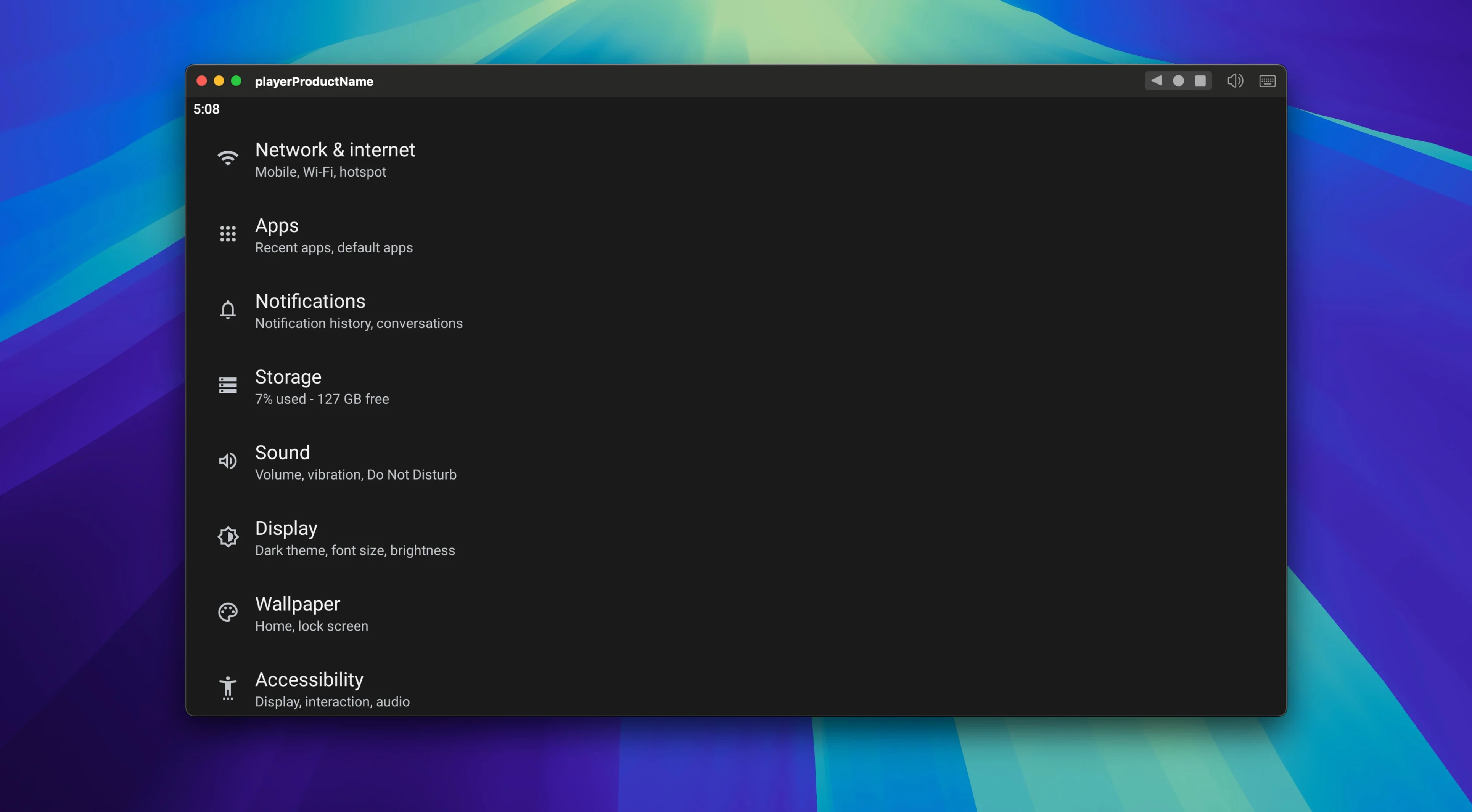
You need an Android app on your Mac, but a phone screen is too cramped for focused work. MuMu Player Pro gives you the full Android environment on macOS, with proper keyboard and mouse control.
Here's one realistic flow—getting a mobile-only utility onto your desktop:
Download the APK — Grab the Android installer file from a source you trust.
Drop it on the emulator — Drag the APK into MuMu Player Pro. It installs without fuss.
Set the orientation — Rotate the interface to portrait if the app demands it, or leave it landscape for wider menus.
Adjust the resolution — Scale the display so text is readable on a larger screen, not just a pixel-doubled phone view.
Capture a screenshot — Grab a clean frame for documentation or sharing with the built-in tool.
Check Your Mac’s Chip Before You Download
Does it run on Intel Macs, or only Apple Silicon? This build is ARM-only. If your Mac has an Intel chip, you will need a different emulator. Check About This Mac to confirm the processor before you download.
Will Google Play work out of the box? Not automatically. The cleanest path is sideloading APK files directly—drag and drop is faster than signing into Google's ecosystem anyway. For apps that strictly demand Play Services, you may need extra configuration steps beyond the default setup.
How much space does it need? The app itself is modest, but a full Android environment plus a few apps and their data can eat several gigabytes. Keep at least 10 GB free for room to breathe.
Can I use it for work apps that check device integrity? Some corporate apps detect emulators and refuse to run. MuMu Player Pro does not hide its nature, so test a single app before committing it to a workflow.
Bump Display Resolution Past the Phone Default
A few defaults deserve immediate attention if you want a comfortable experience:
- Display resolution — The factory setting often mimics a phone. Bump it up to match your Mac's screen real estate, or set a custom ratio like 1920×1080 for recording tutorial videos.
- Frame rate cap — The emulator supports 30 to 120 FPS. For turn-based apps and reading-heavy tools, lock it at 30 to save battery. For action games, push it to 60 or higher.
- Keyboard mapping — The default controls ship with a few pre-mapped keys. Open the mapping panel and assign shortcuts that mirror the app's touch zones. Ten minutes here saves hours of awkward clicking later.
- Screenshot save location — By default captures land in the virtual Android storage. Route them to a folder in your Mac's home directory so they appear in Finder without digging through the emulator's file browser.
Keyboard and mouse input replaces finger taps. The emulator is built for Apple Silicon, so the performance fits a modern Mac.
- macOS 11 or later
- Apple Silicon
Questions I get before install
Does MuMu Player Pro support keyboard mapping?
Yes, it includes keyboard and mouse controls so you can interact with Android apps without relying on touch input.
Comments 0
Sign in to leave a comment.Sign inCreate an account
No comments yet. If a step is still there after you install it, say so.
More in Mac Apps
All in Mac Apps m’s HalfTone
Applies halftone dot patterns to footage directly within the layer stack.
22 steps saved
 Updated
Mp3tag
Pulls structured metadata from Discogs and MusicBrainz for precise tagging.
9 steps saved
 My Metronome - Tempo Keeper
Combines a metronome, BPM detector, and guitar tuner for practice sessions.
11 steps saved
 Updated
Movist Pro
Plays obscure video formats with hardware decoding and rich subtitle controls.
20 steps saved
 Movavi Video Suite
Combines rough cuts, format conversion, and screen capture in one Mac app.
15 steps saved
 Native Instruments Reaktor
Opens a blank canvas for visually wiring custom synths and samplers.
5 steps saved
 Movavi Video Editor
Trims raw footage and adds missing audio or visual pieces on a simple timeline.
11 steps saved
 Updated
Navicat Premium
Manages multiple database types from a single macOS workspace.