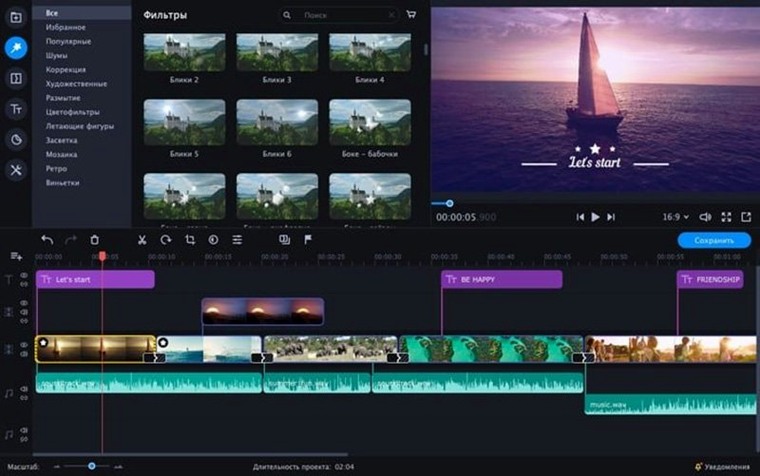
Raw footage sits on a drive, too long and too quiet. Movavi Video Editor trims the fat and adds the missing pieces without a steep learning curve.
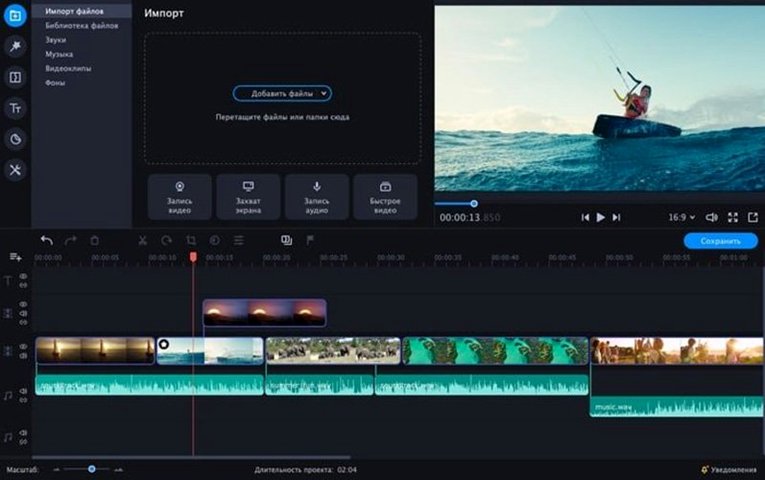
- Import and arrange. Drag clips onto the timeline. The stylish interface stays out of your way.
- Cut and trim. Split long takes with a click. Delete the dead air.
- Add sound. Polish audio in a few clicks. Bring up quiet voices, pull back background noise.
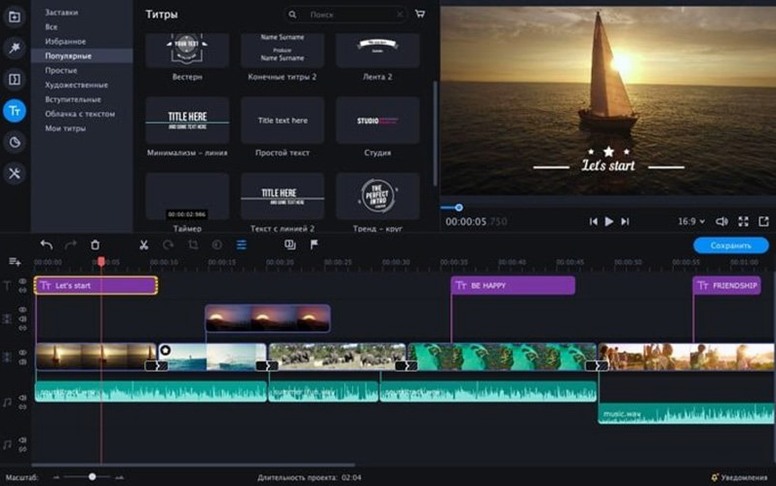
- Apply titles. Pick a ready-made intro. Drop it at the start of a business video or family movie.
- Export. Save a clean file for social clips or local playback.
The app runs on Intel Macs with 64-bit architecture. Its menus and labels speak English, German, Spanish, Italian, French, Japanese, Korean, Dutch, Polish, Portuguese, Turkish, and both traditional and simplified Chinese. No templates to hunt down — the intros and effects ship inside the app.
A Chroma-Key Workflow from Start to Finish
Green-screen editing trips up editors who expect it to work like a filter. It doesn’t. The result depends on what happens before the footage ever reaches the timeline.
- Light the background evenly. Uneven light creates colour patches the keyer can’t grab in one pass.
- Pull the clip onto the timeline, above the replacement clip. Top track holds the green-screen footage; bottom track holds the new background.
- Open the chroma-key tool. Click the eyedropper on a mid-tone area of the green screen, not a shadow or a hotspot.
- Adjust tolerance and noise. Raise tolerance until the background disappears. Then back it off slightly so edges stay sharp. Increase noise reduction if the rim looks grainy.
- Check edges against the new background. A dark studio shot placed over a bright beach scene needs edge softening. A light interior over a dark cityscape may need a slight edge shrink.
Slow motion and reverse playback stack on top of the keyed clip without breaking the composite. Apply the speed change to the green-screen clip before keying — the keyer reads the modified frames correctly.
Stack Effects Only After Trimming the Timeline
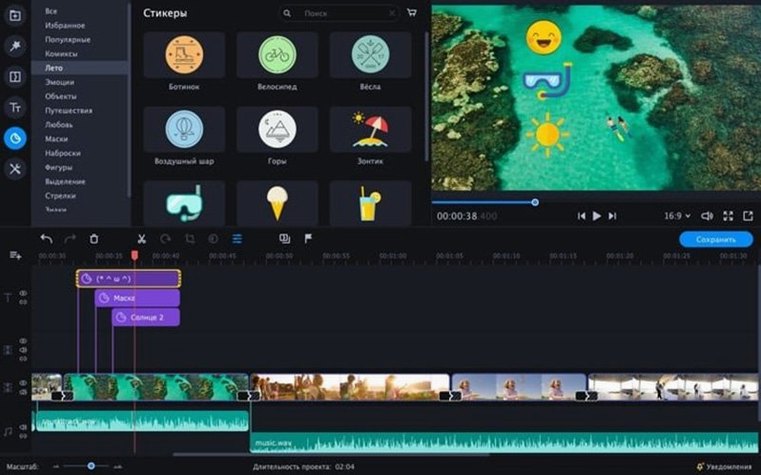
Stacking effects before cutting. New editors drag a clip in, add LUTs, stickers, and slow motion, then realize the clip is three times too long. Cut first. Effects come after the timeline is tight.
Ignoring audio sync when using speed changes. Slowing a talking-head clip to 50% drops the pitch. The audio polish tools can clean the result, but they work better when the clip is split — video on one track, detached audio on another. Adjust speed on video only, then re-sync.
Leaving the default export resolution. Movavi picks a safe output size based on the first clip. If the project mixes 1080p footage with a 4K intro template, the export defaults to the lower resolution unless the user overrides it in the export dialogue.
A Vlogger’s Saturday Routine
Lena films recipe videos on Saturday morning, edits by noon, and posts by 2 p.m. Her phone captures 20 minutes of raw kitchen footage. She drags the file into Movavi Video Editor while coffee brews.
First pass: cut every segment where nothing happens — waiting for water to boil, checking the recipe card. The timeline shrinks to seven minutes. She drops a ready-made intro at the head, then adds animated text overlays for each ingredient name as it appears on screen. Slow motion holds on the final plated shot for three seconds.
A Spanish-language version of the same video needs different titles. She duplicates the project, swaps the text overlays, and exports. Both files sit in a folder labelled with the date, ready for scheduling. The whole edit, from import to dual-language export, fits inside 90 minutes.
- macOS 10.13 or later
- 64-bit Intel processor
Questions I get before install
What languages does Movavi Video Editor for Mac support?
The interface is available in English, German, Spanish, Italian, French, Japanese, Korean, Dutch, Polish, Portuguese, Turkish, traditional Chinese, and simplified Chinese.
What kind of videos is Movavi Video Editor built for?
Movavi describes it as a tool for social clips, business videos, and family movies — short-form projects that need quick cuts and simple effects.
Comments 0
Sign in to leave a comment.Sign inCreate an account
No comments yet. If a step is still there after you install it, say so.
More in Mac Apps
All in Mac Apps Movavi Video Suite
Combines rough cuts, format conversion, and screen capture in one Mac app.
11 steps saved
 Updated
Movist Pro
Plays obscure video formats with hardware decoding and rich subtitle controls.
21 steps saved
 Movavi Screen Recorder
Captures screen, audio, webcam, and stills in a single recording utility.
22 steps saved
 Updated
Mp3tag
Pulls structured metadata from Discogs and MusicBrainz for precise tagging.
8 steps saved
 Updated
MouseBoost Pro
Replaces several small right-click utilities with one organized Finder menu.
9 steps saved
 m’s HalfTone
Applies halftone dot patterns to footage directly within the layer stack.
5 steps saved
 Mountain Duck
Mounts remote servers as standard Finder volumes for direct file browsing.
18 steps saved
 Motionvfx - mTitle Cinematic
Adds fifty cinematic titles that keep a consistent horizontal framing across cuts.