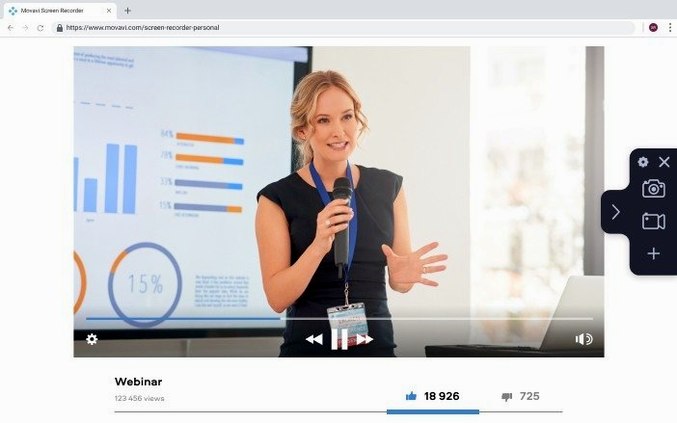
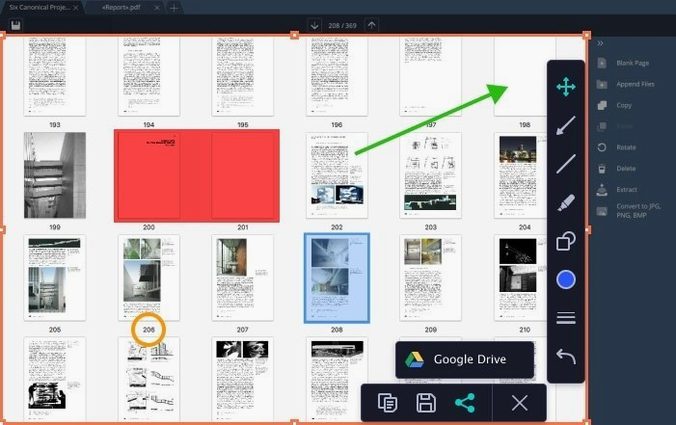
A Mac screen recorder that captures video, system audio, webcam feeds, and still screenshots in a single utility.
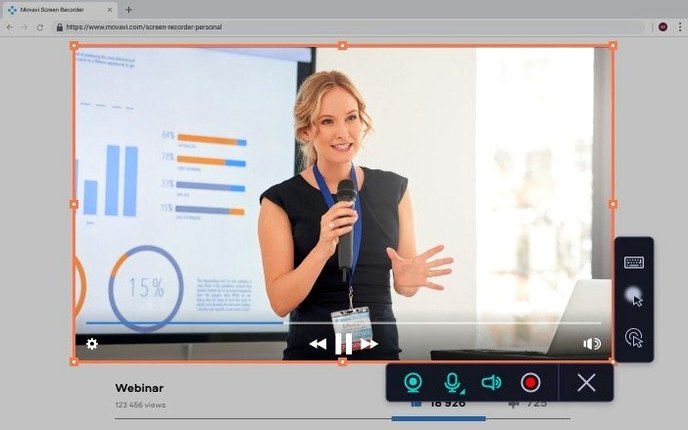
Screen + audio capture — records full screen, a region, or a specific window with system sound.
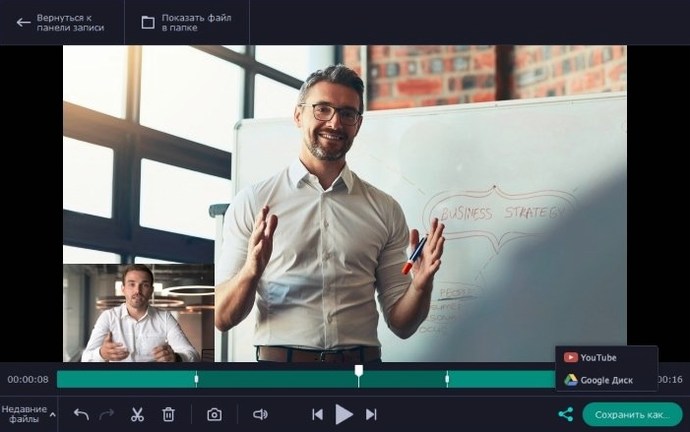
Webcam overlay — adds a picture-in-picture facecam stream during the recording.
Scheduled recording — set a date, start time, and duration limit; the app starts and stops on its own.
Multi-stream recording — captures screen and webcam as separate video tracks at the same time.
Output formats — save as video files or export short clips as animated GIFs.
Direct uploads — push finished recordings to Google Drive or YouTube without leaving the workspace.
Custom hotkeys — re-bind shortcuts to your own keyboard layout.
When System Audio Goes Silent on macOS
A few things trip people up early on. Most are quick to fix once you spot the pattern.
- No system audio in the recording. The Mac's audio routing can be stubborn. Check that the app has screen recording permission in System Preferences → Privacy, and select the correct sound output in the recorder's audio settings. If you run an external interface or a virtual device like Loopback, make sure Movavi is pointed at it directly.
- Scheduled recording never fires. The Mac must stay awake. If the display sleeps or the machine enters standby, the scheduler skips the job. Disable sleep for the window you need, or use
caffeinatein Terminal if you prefer a command-line nudge. - Webcam overlay gets stuck at a fixed size. The picture-in-picture shape defaults to a small rectangle. Resize it by dragging the corner handles before you hit record — not during. Once recording starts, the overlay size locks.
- GIF exports look fuzzy. The default palette for animated GIFs is limited. Shorten the clip, drop the frame rate to 10–12 fps, and keep the dimensions under 800 px wide for a crisper result.
Fewer Dropped Frames on Older Intel Macs
Version 23.1.1 brought minor bug fixes and small performance tweaks rather than headline features. In everyday use, that means fewer dropped frames on older Intel Macs during long captures, and a more reliable scheduler that holds its date-time settings between restarts. The GIF exporter also received a quiet correction: colour banding on exports over 15 seconds is now less aggressive.
Earlier 23.x releases introduced the multi-stream recording engine, which is where the real workflow shift happened. Screen and webcam now record as independent tracks, so you can reposition the facecam after the fact instead of committing during capture. That one change removed the need for a separate video editor on quick screencasts.
Capture-and-Go Without a Timeline Editor
The app clicks for people who need a screen recorder that does more than QuickTime Player but stays lighter than a full video suite — no timeline, no multi-layer editing, just capture and go.
App demo creators. The cursor click effects and keyboard press overlays turn a plain screen recording into a legible walkthrough. Presenters who record software demonstrations weekly save the editing round-trip because the visual cues are baked in during capture.
Remote trainers and support staff. The webcam overlay keeps a human face on the lesson, while the scheduler handles unattended recordings of live sessions. Staff who field the same setup questions repeatedly build a clip library and upload straight to YouTube from the save dialog.
Musicians capturing DAW sessions. Anyone who still misses the tactile feel of a 4 track cassette recorder or an 8 track tape recorder but works inside a Mac will find the system-audio capture practical for grabbing arrangement ideas. It records the stereo output of a DAW session without extra routing, which makes it a quick sketchpad — not a replacement for proper stems, but a fast way to timestamp a mix in progress. The same workflow suits producers who learned on a 4 track tape recorder and want a no-fuss capture of a live jam inside Logic or Ableton.
Casual clip makers. People who grab short gameplay moments or app highlights and share them as GIFs use the region recorder and the GIF exporter together. The trimmed output skips the heavy editing step that a full video editor demands.
- Fixed — minor bugs and stability issues from the previous release.
- macOS — 10.13 or newer
- Architecture — Intel only
Questions I get before install
Can Movavi Screen Recorder capture system audio on a Mac?
Yes. It records internal system sound, not just microphone input, which makes it suitable for tutorials and webinars.
Does the scheduler let me limit how long a recording runs?
Yes. You can set an automatic stop duration alongside the start time, so the recording ends without manual intervention.
What video formats can I save my recordings in?
You can export recordings as standard video files or as GIF animations for quick sharing.
Comments 0
Sign in to leave a comment.Sign inCreate an account
No comments yet. If a step is still there after you install it, say so.
More in Mac Apps
All in Mac Apps Updated
MouseBoost Pro
Replaces several small right-click utilities with one organized Finder menu.
5 steps saved
 Mountain Duck
Mounts remote servers as standard Finder volumes for direct file browsing.
5 steps saved
 Movavi Video Editor
Trims raw footage and adds missing audio or visual pieces on a simple timeline.
18 steps saved
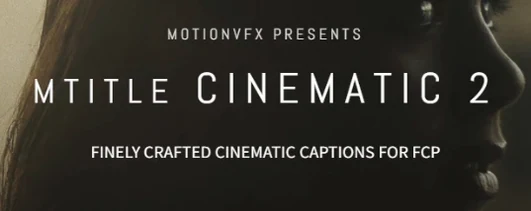 Motionvfx - mTitle Cinematic
Adds fifty cinematic titles that keep a consistent horizontal framing across cuts.
20 steps saved
 Movavi Video Suite
Combines rough cuts, format conversion, and screen capture in one Mac app.
11 steps saved
 Updated
Movist Pro
Plays obscure video formats with hardware decoding and rich subtitle controls.
12 steps saved
 MotionVFX mModules
Drops 60 pre-built motion titles and accents into your Final Cut Pro timeline.
11 steps saved
 MotionVFX - mLowers Universal for FCP
Adds news-style lower thirds and social handles directly inside Final Cut Pro.