
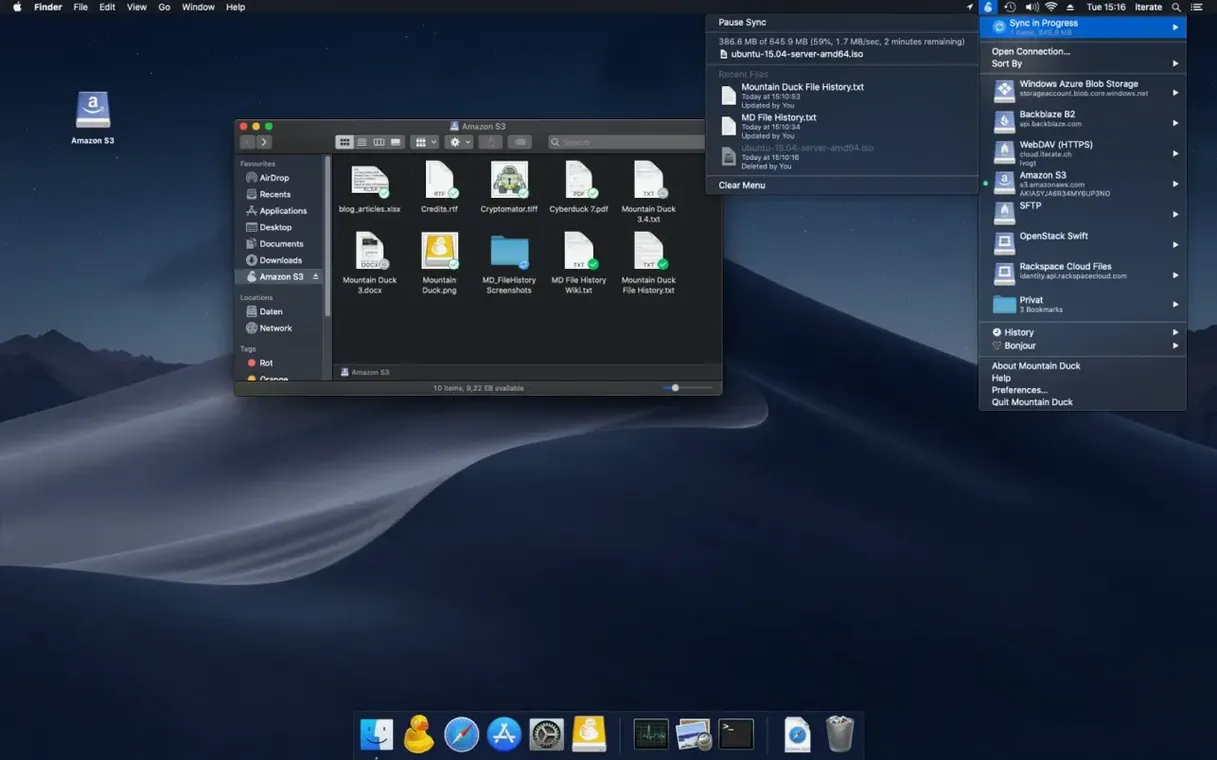
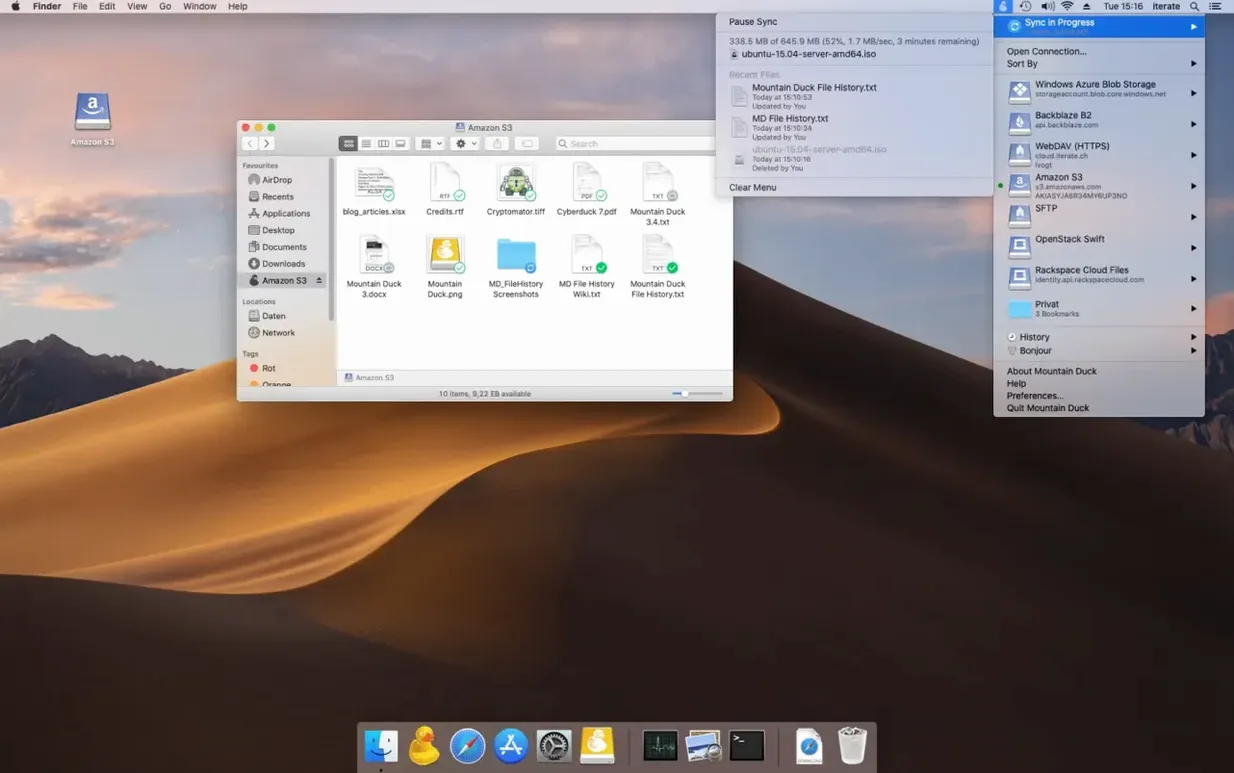
Think of it as Cyberduck for your file explorer. Where Cyberduck transfers files, Mountain Duck mounts the whole remote server as a volume directly in Finder.
Where does the connected disk appear?
It shows up on your desktop and in the Finder sidebar like any external drive. You can browse, rename, and drag files exactly as you would on a local disk.
How do I open a remote file?
Double-click it. The file downloads to a local cache on demand and opens in its default Mac application. Save your changes, and the app uploads the new version in the background.
Cached files stay open and sync later
Any file you have opened is stored in the local cache and remains available. You can keep working, and changes sync back once a connection returns.
Can I connect to a local server?
Only opened files land on your local disk
Does it duplicate my cloud storage? No. By default, Mountain Duck keeps only the files you actually open on your local disk. Everything else stays remote until you need it. The Finder volume you see is a live window onto the server, not a full copy.
What about file locks and conflicts? When two people edit the same file on a shared WebDAV or SMB volume, the protocol's own locking rules apply. Mountain Duck does not add its own conflict layer — it passes writes through to the server, and the server decides. For cloud services like Dropbox or Google Drive, conflict handling depends on the provider's own versioning backend.
Does Cryptomator encryption slow things down? The overhead is modest on Apple Silicon Macs. Files are encrypted chunk by chunk during upload and decrypted the same way when you open them. The local cache holds the unencrypted version after decryption, so repeated opens feel native. The real cost is CPU, not disk speed.
Can I trust it with production data? Teams at small agencies use it daily. The app has been through years of Cyberduck development before it, and version 5.3.2 inherits that maturity. Still, test your workflow on a staging bucket before pointing it at the live site. That advice isn't specific to Mountain Duck — it applies to any tool that mounts remote storage transparently.
Master the cache with one connection first
- Start with one connection, not five. Pick your main file server or cloud bucket and live with it for a week. Learn how the cache behaves when you disconnect and reconnect before you add complexity.
- Pin the files you always need. Right-click any file or folder and choose to keep it offline. Do this for your active project directory, templates, or reference documents. The cache handles the rest.
- Watch your local disk space. The cache lives in
~/Library/Application Support/Mountain Duck. If you open large media files, the cache can grow. Clear it from the app's preferences when you need the room — files return to remote-only until you open them again. - Share bookmarks with Cyberduck. Install both, and every connection you configure in one appears in the other. Use Cyberduck for bulk transfers and Mountain Duck for Finder access. Same bookmarks, two different jobs.
- Test your backup exclusion. Time Machine will happily back up the Mountain Duck cache unless you exclude it. Add the cache folder to your exclusion list on day one.
Any Mac app reads the volume directly
Because Mountain Duck presents storage as a standard volume, any Mac app can open files from it. Photoshop opens a PSD stored on Backblaze B2. A code editor reads and writes to an SFTP server. Logic Pro pulls audio samples from an S3 bucket. No plug-ins, no export steps — the remote storage is just another folder to every application on the machine.
Finder tags work on cached files. Spotlight indexes them once they are local. Quick Look previews pop up with the spacebar, same as any other file. The integration is not a separate interface layer — it is Finder, behaving exactly the way you expect.
For command-line users, mounted volumes appear under /Volumes with the name you gave the bookmark. Shell scripts, rsync jobs, and build tools can read and write directly. If you have ever tried to script around a sync client's opaque database, you will notice the difference immediately.
Version 5's Integrated Connect Mode shifts how the system sees the mount. Instead of a user-space filesystem, it uses Apple's own File Provider framework. That means the volume appears in Finder's sidebar under Locations, the sharing pane works as expected, and file coordination with other apps is handled by macOS itself. The result is fewer edge cases with file dialogs and better behaviour during sleep and wake cycles.
Yes. Version 5 added support for SMB connections, so you can mount a local network share alongside your cloud storage.
- macOS 13 or later
- Apple Silicon or Intel 64-bit processor
Questions I get before install
Does it share settings with Cyberduck?
If you have Cyberduck installed, Mountain Duck reads its bookmarks automatically. You can start mounting your existing servers right away.
When does it use my disk space?
The app caches files only after you open them. This Smart Synchronization keeps your local storage free of clutter.
Comments 0
Sign in to leave a comment.Sign inCreate an account
No comments yet. If a step is still there after you install it, say so.
More in Mac Apps
All in Mac Apps Motionvfx - mTitle Cinematic
Adds fifty cinematic titles that keep a consistent horizontal framing across cuts.
8 steps saved
 Updated
MouseBoost Pro
Replaces several small right-click utilities with one organized Finder menu.
12 steps saved
 MotionVFX mModules
Drops 60 pre-built motion titles and accents into your Final Cut Pro timeline.
21 steps saved
 Movavi Screen Recorder
Captures screen, audio, webcam, and stills in a single recording utility.
11 steps saved
 MotionVFX - mLowers Universal for FCP
Adds news-style lower thirds and social handles directly inside Final Cut Pro.
7 steps saved
 MotionVFX mKBHD
Applies glitch transitions and modern overlays to fast-turnaround edits.
5 steps saved
 Movavi Video Editor
Trims raw footage and adds missing audio or visual pieces on a simple timeline.
12 steps saved
 MotionVFX mInfographics
Turns flat charts into animated, on-brand infographics inside Final Cut Pro.