
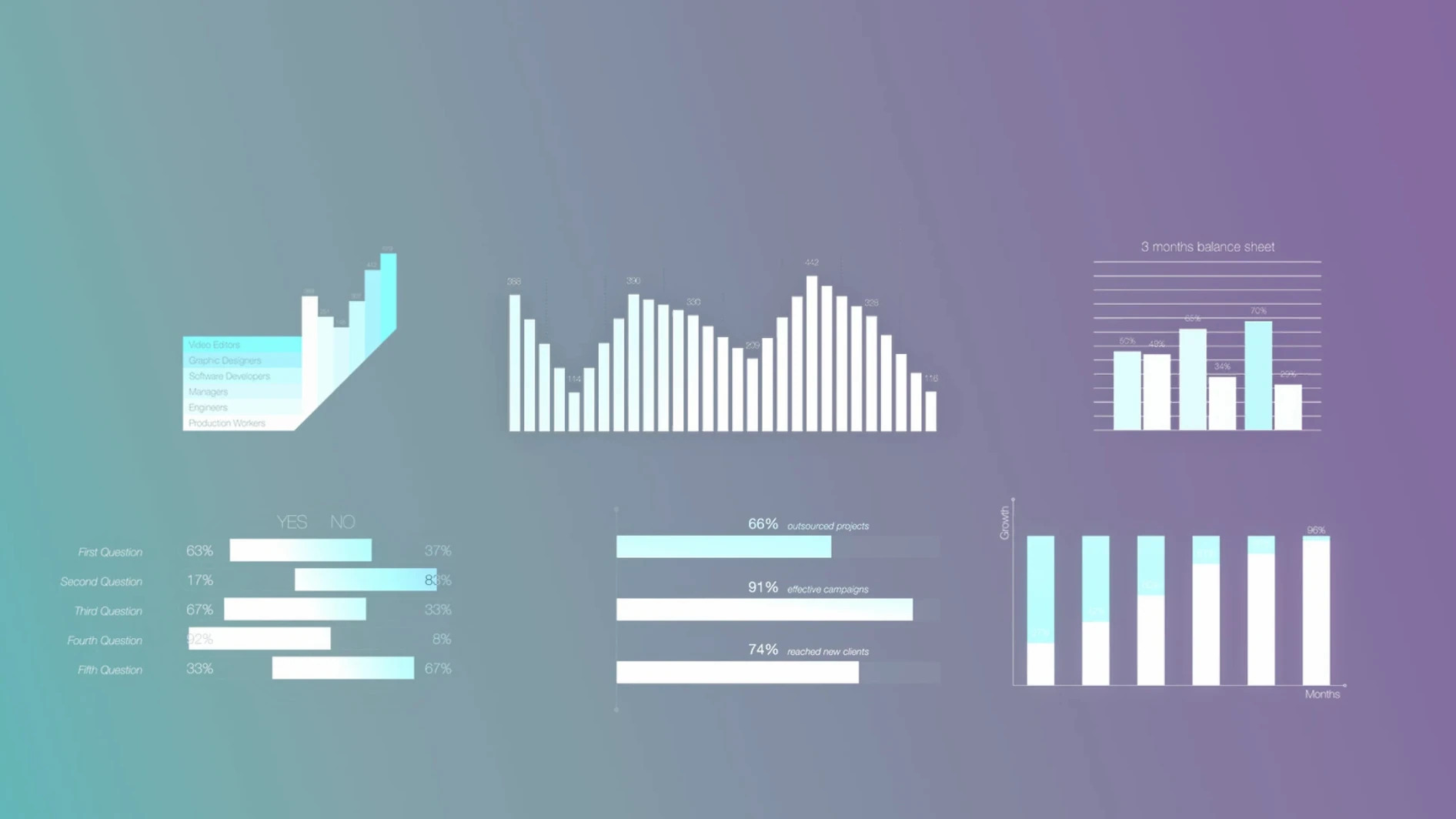
A producer drops a rough cut on your timeline and points to a flat bar chart. She wants it animated, on-brand, and ready for the client screening in twenty minutes. That’s where mInfographics fits.
Final Cut Pro–tuned captions with custom typography
- Informational captions with considered typographic styling
- Elements tuned for Final Cut Pro’s timeline
- Content designed by motionVFX, listed on Apple’s Final Cut Pro ecosystem page
Built for editors, not motion designers
MotionVFX builds these tools for video editors who need to finish a job without leaving their NLE. The pack replaces the slow back-and-forth of creating basic infographics in a separate motion-graphics app. You drag an element in, adjust the text, and keep cutting.
From spreadsheet or sketch to a chosen chart shape
Start with a client-supplied spreadsheet or a rough sketch on paper. Open Final Cut Pro, drop mInfographics into the Titles browser, and pick a chart style that matches the data shape — bars for comparisons, a donut for share of budget, a line for growth over quarters.
- Drag the element above the clip where the graphic should appear.
- Type the headline in the inspector, then fill in each data point in order. Keep labels short — two or three words per line reads best on screen.
- Use the on-screen controls to position the chart, then adjust scale so it sits clear of the subject and any lower thirds.
- Set the in and out points. Give the graphic three or four frames to animate in, and cut away before the viewer starts reading it twice.
- Copy the finished element and swap the numbers for the next data set. The styling stays consistent, which saves the fiddly work of matching fonts and colours across multiple graphics.
Trim the build-in animation so it doesn't drag
Most elements ship with sensible defaults, but two adjustments make a real difference early on.
- Animation length — Shorten the build-in to match your edit’s pacing. A chart that lingers too long feels like a slide deck, not a cut.
- Number formatting — Check decimal places and separators before you render. Changing them after a client review costs another export cycle.
Typography is the third thing to touch. The built-in captions carry a designed look, but swapping the font to match the brand’s existing on-screen style pulls the whole project together.
Template folders one level too deep won't show up
The element doesn’t appear in Final Cut Pro. The folders must sit directly in /Users/USERNAME/Movies/Motion Templates/Titles. If they’re nested one level deeper, Final Cut Pro won’t index them. Quit and relaunch Final Cut Pro after moving the files.
Text fields look empty or misaligned. Some elements place text using on-screen controls rather than the inspector. Click the element in the viewer and look for the small handles before assuming the title didn’t load.
The chart animates but your numbers don’t count up. Not every element includes an animated counter. Pick a template with a “number” component for that effect, or keyframe the value yourself in the inspector.
A slower machine may drop frames during playback with several elements stacked. Render the section or use background render, then review. The graphics themselves are lightweight once cached.
- macOS: compatible with current Final Cut Pro versions
- Architecture: Intel and Apple Silicon
Questions I get before install
Where do I install the mInfographics plugin?
Move the unpacked folders to /Users/USERNAME/Movies/Motion Templates/Titles so Final Cut Pro can find them.
Does this work with Apple Silicon Macs?
Yes, the plugin supports both Intel and Apple Silicon architectures.
Is motionVFX officially recognized by Apple?
Yes, Apple lists MotionVFX as a supported developer on its Final Cut Pro ecosystem page.
Comments 0
Sign in to leave a comment.Sign inCreate an account
No comments yet. If a step is still there after you install it, say so.
More in Mac Apps
All in Mac Apps MotionVFX mKBHD
Applies glitch transitions and modern overlays to fast-turnaround edits.
12 steps saved
 Motion
Builds animated 3D titles and composited effects for video editors.
11 steps saved
 MotionVFX - mLowers Universal for FCP
Adds news-style lower thirds and social handles directly inside Final Cut Pro.
12 steps saved
 MotionVFX mModules
Drops 60 pre-built motion titles and accents into your Final Cut Pro timeline.
18 steps saved
 Mole
Detects new builds for non-App Store apps and swaps them without fuss.
18 steps saved
 Motionvfx - mTitle Cinematic
Adds fifty cinematic titles that keep a consistent horizontal framing across cuts.
5 steps saved
 Moho Pro
Rigs 2D characters with bones and exports them straight to game engines.
5 steps saved
 Mountain Duck
Mounts remote servers as standard Finder volumes for direct file browsing.