
One app manages the full stack: Apache, MySQL, and multiple PHP versions across separate local hosts. Version 6.9.0 runs on Intel Macs with macOS 10.12 or later.
| Detail | Note |
|---|---|
| Stack | Apache, MySQL 5.7, PHP, Python |
| Projects | One host per site |
| Languages | English interface |
| Architecture | Intel only |
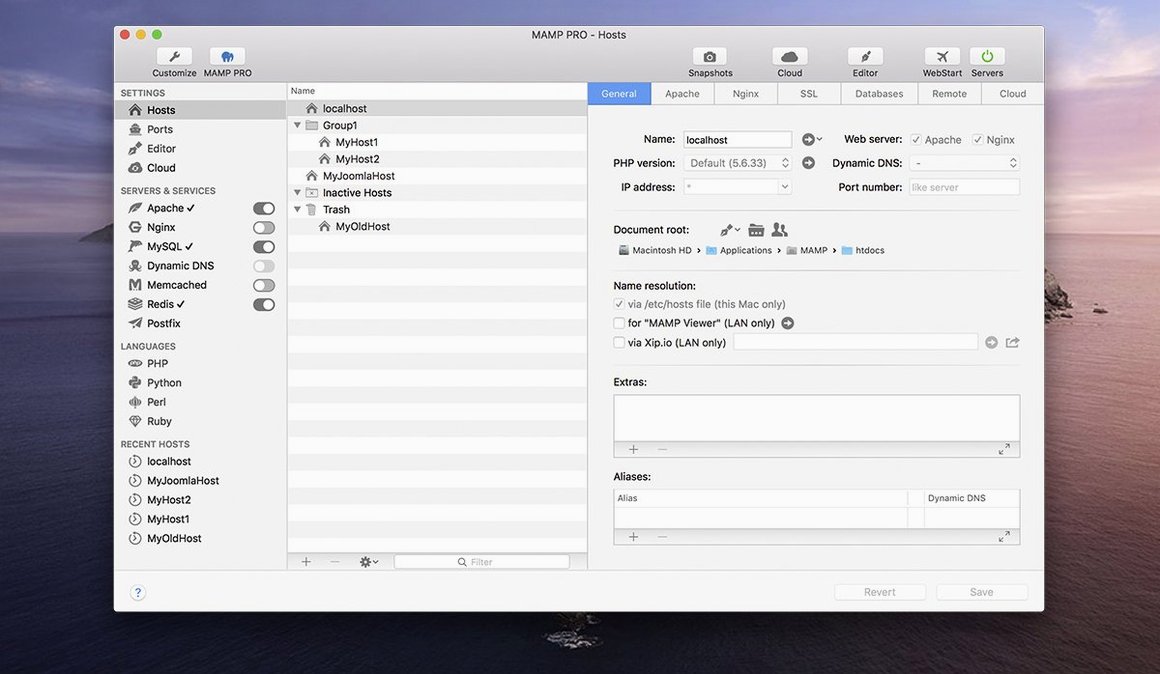
Most questions circle back to one thing: what happens after the install. MAMP PRO creates a separate host for each web project, so staging and client work stay compartmentalized. You can import WordPress sites directly from a remote server, reorder hosts to match your mental map, and edit files remotely without leaving the environment. The commercial front end wraps the familiar MAMP stack into a tool that handles server configuration crashes better than before—the 6.9 release specifically fixed a crash when editing host-specific settings and sorted out several Cloud network quirks. Opening phpMyAdmin 5 from an alias now works the way you expect. For developers who juggle PHP and Python versions, the documentation confirms the app manages both, though you will want to verify Python module paths for your specific setup.
Spinning Up shop-build.local on a Tuesday Morning
Open the app on a Tuesday morning. The toolbar sits across the top — servers stopped, hosts listed in the left column. You click a client project named shop-build.local. The panel on the right shows its PHP version (8.1), document root, and whether SSL is on. One glance tells you everything you need before touching a line of code.
Tap Start Servers. Apache and MySQL fire up in under three seconds. The status indicator goes green. You open the host in your browser, poke around the staging copy, then switch to a second host running PHP 7.4 for a legacy plugin test. No config file hunting, no terminal commands to remember.
Mid-morning, a colleague sends a WordPress site that needs local debugging. You use the import tool: point it at the remote server credentials, pick the destination host name, and let the app pull the database and files. While it runs, you capture a screenshot of the broken page from within the app — the image saves straight to the host folder. When import finishes, you reproduce the error locally, fix it, and move on. Servers stay running until you shut down for the day. No restarts, no port collisions.
Opening Host Files Straight from Your Code Editor
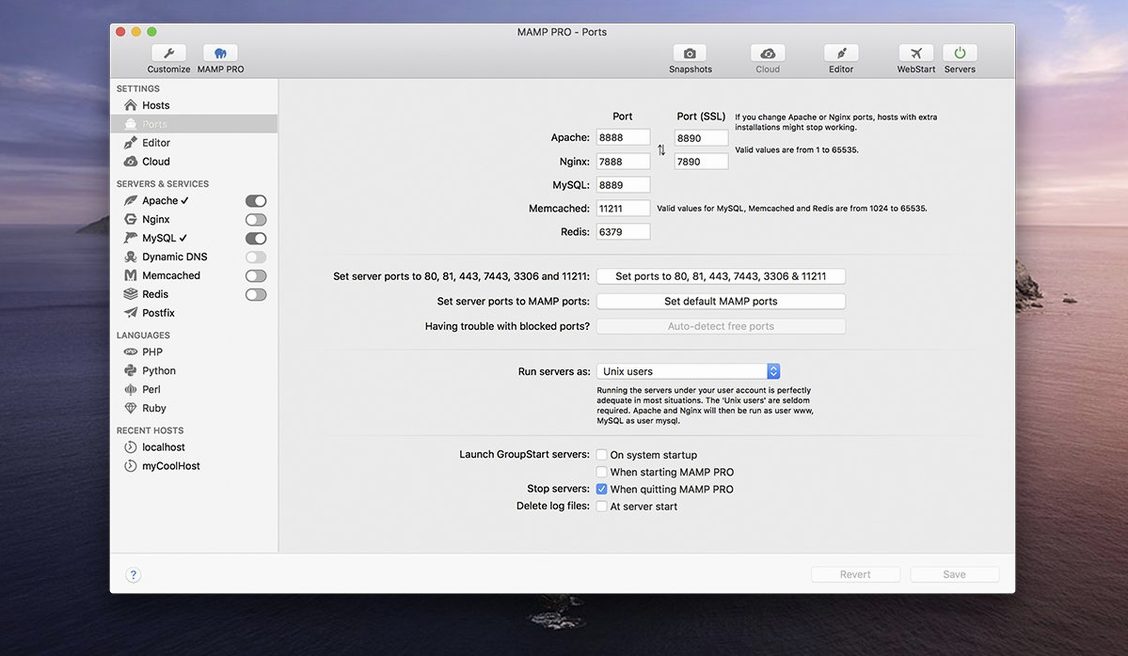
The stack plays well with the tools you already use. Your code editor opens files from the host's document root directly — the path is a regular folder in ~/Sites or wherever you keep projects. Git tracks changes as it would on any local directory. Sequel Ace or TablePlus connect to MySQL through the port MAMP PRO exposes, and Redis integration means caching setups mirror production more closely.
macOS features don't get in the way. Spotlight indexes your project folders normally. Time Machine backs up the whole host directory alongside everything else. The app registers its hosts in the system's own hosts file or uses its internal DNS, depending on your preference, so browsers and curl requests resolve .local domains without extra configuration. AirDrop a database dump to your Mac, drop it in the host's SQL import dialog, and the data lands where you need it.
Workflow: Building a WordPress Staging Site from a Live Server
Here is a concrete path — importing a live WordPress site, making changes, and pushing it back. The whole loop runs inside the app.
- Create the host. Click the plus button in the host list. Name it
client-redesign.local. Choose PHP 8.2, enable SSL, and set the document root to a clean folder. - Pull the live site. Open the WordPress import panel. Enter the remote server's SFTP details and MySQL credentials. The app copies all files and the database to your local host. When the progress bar finishes, the site runs locally — identical to production.
- Work locally. Edit theme files in your editor. Test new plugins. Break things without consequences. The Redis cache, if enabled, mirrors the server's object cache behaviour, so performance quirks surface early.
- Capture before-and-after screenshots. Use the built-in screenshot tool to grab pages at desktop and mobile widths. Store them in the project folder for client review.
- Push changes back. Select the host and open the publishing dialog. The app compares local files against the remote server. Check the boxes for changed files and the updated database tables, then publish. The live site updates in one pass.
This loop eliminates FTP clients, manual database exports, and the slow drip of small configuration errors that eat an afternoon. It also gives you a local copy you can revisit months later — servers stopped, project intact — to reproduce a reported bug without touching production.
- Fixed — Program crash when editing host-specific server configurations.
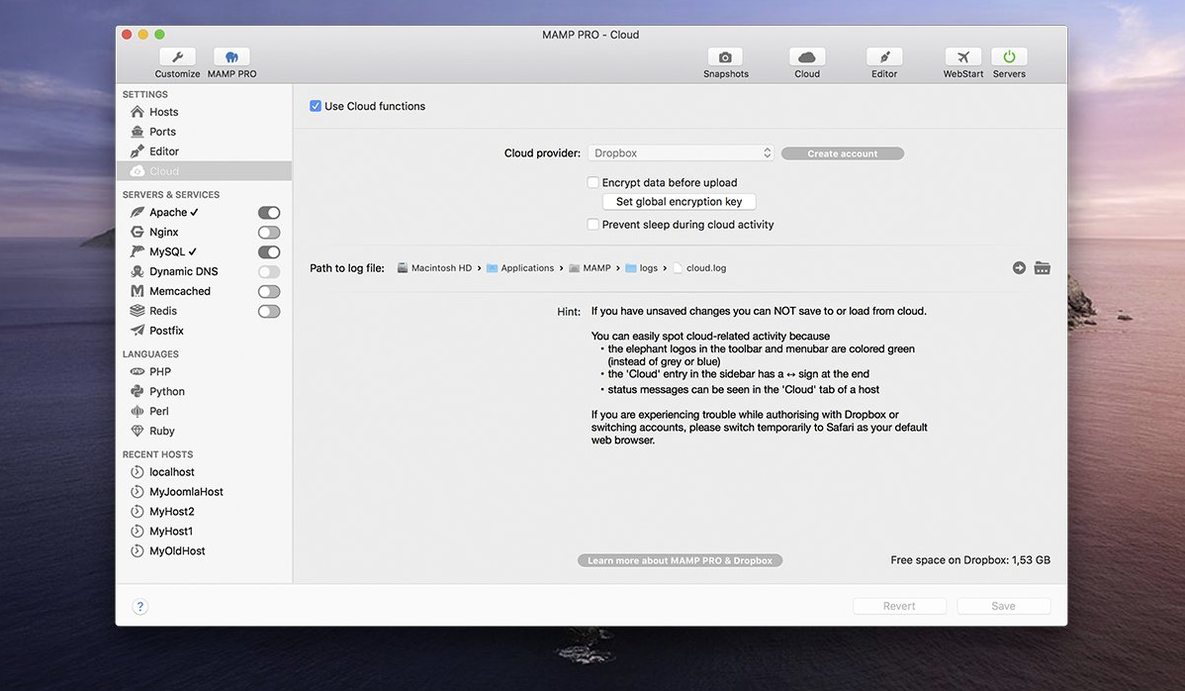
- Fixed — Several network-related issues in the MAMP Cloud feature.
- Improved — Installation of PHP versions.
- Improved — Opening phpMyAdmin 5 via alias.
- macOS 10.12 or later
- Intel Mac
Questions I get before install
Does MAMP PRO 6.9 support Intel Macs on macOS 10.12?
Yes. The developer lists Intel Macs running macOS 10.12 or later as the requirement for version 6.9.0.
Comments 0
Sign in to leave a comment.Sign inCreate an account
No comments yet. If a step is still there after you install it, say so.
More in Mac Apps
All in Mac Apps MainStage
Switches sounds silently during a live set, pulling patches straight from Logic.
21 steps saved
 Magnet
Snaps windows into halves, thirds, and quarters with keyboard shortcuts.
6 steps saved
 Maschine
Builds beats with a pattern sequencer, sampler, and synth in one system.
23 steps saved
 Updated
Magic Disk Cleaner
Finds temporary files immediately and lets you clear them in one click.
12 steps saved
 Updated
Magic Battery
Shows wireless device charge levels in the menu bar at a single glance.
4 steps saved
 MediaMate
Replaces the default volume and media HUDs with polished overlays.
17 steps saved
 Mela
Collects recipes, scans printed pages, and plans meals without the clutter.
10 steps saved
 MacPilot
Toggles hundreds of hidden macOS settings with a checkbox instead of Terminal.