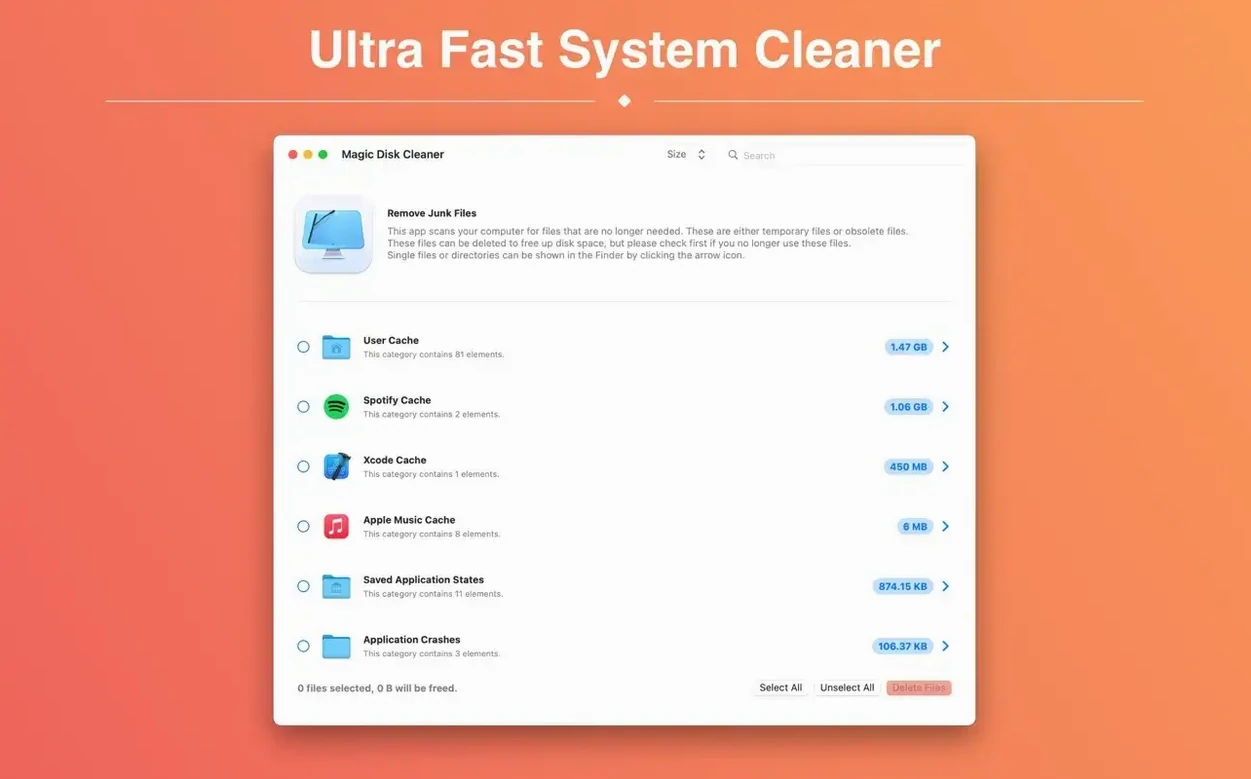
Magic Disk Cleaner runs on any Mac that supports macOS 15.6, both Intel and Apple Silicon. It launches straight into a search for temporary files, presenting results immediately. The interface stays out of your way so you can act on what it finds.
- Let the scan finish, review the list, then click once to delete everything it found.
- Check the size column to spot which caches are taking the most space first.
- Close the app and reopen it after a heavy work session — new temp files appear instantly.
- Rely on the consent model: nothing leaves your drive unless you click to confirm.
- Switch the interface to German, French, Japanese, or one of six other languages if you prefer.
Where Magic Disk Cleaner fits in your tool stack
Magic Disk Cleaner does one job and doesn't pretend to do more. That makes it easy to slot into a wider cleanup routine alongside built-in macOS tools and a couple of other focused utilities.
- macOS Storage Management — Apple's built-in recommendations handle large files, old iOS backups and purgeable space. Run that first for the big wins, then launch Magic Disk Cleaner to catch the temporary debris the system tools ignore.
- Finder column view — After a scan, cross-check large cache folders by pasting the path into Finder. Useful when you want to peek inside before deleting, especially for app-specific caches that might hold preferences or drafts.
- DaisyDisk or GrandPerspective — Visual disk mappers show you what's eating space overall. Magic Disk Cleaner complements them by targeting one slice — temporary files — without the visual overhead.
- Onyx or CleanMyMac — If you already use a broader maintenance tool, Magic Disk Cleaner acts as a quicker, single-purpose alternative for temp-file sweeps. No scheduling, no background agents, no extras.
- Shortcuts app — No native Shortcuts integration, but you can add the app to your Dock and set a hotkey via System Settings → Keyboard → App Shortcuts. Launch it with a keystroke, scan, clean, quit. Keeps the round trip under ten seconds.
macOS integration notes
The app respects the system language setting by default and switches to one of ten supported languages automatically. It writes no login items, no launch agents and no background processes — check System Settings → General → Login Items & Extensions and you won't find it listed there. That means it only runs when you open it, which is exactly the point.
On Apple Silicon Macs, the app runs natively without Rosetta. File access stays within standard sandbox boundaries, so it won't prompt for Full Disk Access unless a cache folder lives outside the usual temp paths. If a scan comes up empty when you expected results, grant Full Disk Access in System Settings → Privacy & Security, then restart the app.
When Gatekeeper Silently Blocks the First Scan
Most friction with magic disk cleaner comes from macOS security layers, not from the app itself. Here are the three recurring ones.
- Scan finds nothing on first launch
- Gatekeeper sometimes blocks file-access permissions without showing a prompt. Open System Settings → Privacy & Security → Files and Folders, find Magic Disk Cleaner and toggle on the relevant directories. Reopen the app and scan again.
- App won't open — "damaged" warning
- This is standard for software distributed outside the App Store. The install steps on this page include the Terminal bypass; run that command exactly as shown and the app launches normally. You only need to do it once.
- Deleted a cache and an app lost settings
- Rare, but it happens with apps that store non-temp data inside cache directories. Before deleting a large cache from an app you rely on daily, check the path shown in Magic Disk Cleaner. If it points to
~/Library/Caches/you're usually safe. If it points elsewhere, spend thirty seconds looking at the folder contents in Finder.
For teams sharing a Mac or a lab machine, set up a separate user account for cleanup runs. That keeps one person's cache deletions from affecting another's app state, and it avoids the permissions tangles that come with multiple users sharing the same Library folders.
The Universal Binary That Ended Separate Builds
Version 5.4.0, the current release, runs on macOS 15.6 and later and ships as a universal binary for both Intel and Apple Silicon. Earlier versions had separate builds; that split is gone, which simplifies installation for anyone managing mixed-hardware fleets.
The scan engine in 5.4.0 picks up temporary files from several new locations that previous versions missed, particularly around Xcode-derived data and browser service-worker caches. Scans feel faster on Apple Silicon, partly because of native execution and partly because the file enumeration logic was rewritten to batch directory reads more aggressively.
Interface-wise, the language list expanded to ten options. Finnish and Portuguese arrived in this release cycle, and the Russian and Simplified Chinese localizations were reworked to fix truncation in the size column. If you use magic disk cleaner mac in a non-English environment, the switch happens in the app preferences and takes effect immediately without a restart.
One quiet but practical change: the confirmation dialog before deletion now shows the total number of files, not just the combined size. That small addition makes it easier to decide whether a 200 MB cache full of thousands of tiny files is worth the cleanup — or whether you'd rather leave it and avoid the I/O churn.
These four actions cover the core loop. The tool is built for speed, so you spend seconds cleaning, not minutes configuring.
New
- Permissions setup redesigned. Every required permission appears on one screen, with granted items clearly marked.
- Other Apps window redesigned and now localized to your language.
- Recycle Bin category now locates items sitting in your Trash.
Removed
- Old app versions category retired.
- macOS 15.6 or later
- Apple Silicon or Intel 64‑bit
Questions I get before install
Does Magic Disk Cleaner delete files automatically?
No. It never removes data without your explicit consent. You must click to confirm any deletion.
How soon do I see results after opening the app?
The search begins immediately on launch. You see the list of temporary files within seconds, no manual scan button required.
Can I use Magic Disk Cleaner on an older Intel Mac?
Yes. It runs natively on both Intel and Apple Silicon Macs as long as they run macOS 15.6.
Comments 0
Sign in to leave a comment.Sign inCreate an account
No comments yet. If a step is still there after you install it, say so.
More in Mac Apps
All in Mac Apps Updated
Magic Battery
Shows wireless device charge levels in the menu bar at a single glance.
21 steps saved
 Magnet
Snaps windows into halves, thirds, and quarters with keyboard shortcuts.
23 steps saved
 MainStage
Switches sounds silently during a live set, pulling patches straight from Logic.
8 steps saved
 MAMP PRO
Runs separate Apache, MySQL, and PHP hosts for every local project.
6 steps saved
 Maschine
Builds beats with a pattern sequencer, sampler, and synth in one system.
10 steps saved
 MacPilot
Toggles hundreds of hidden macOS settings with a checkbox instead of Terminal.
17 steps saved
 macOS Tahoe
Brings the Liquid Glass redesign and new system features to supported Macs.
19 steps saved
 macOS Mojave
Brings Dark Mode and desktop Stacks to Macs that can't go further.