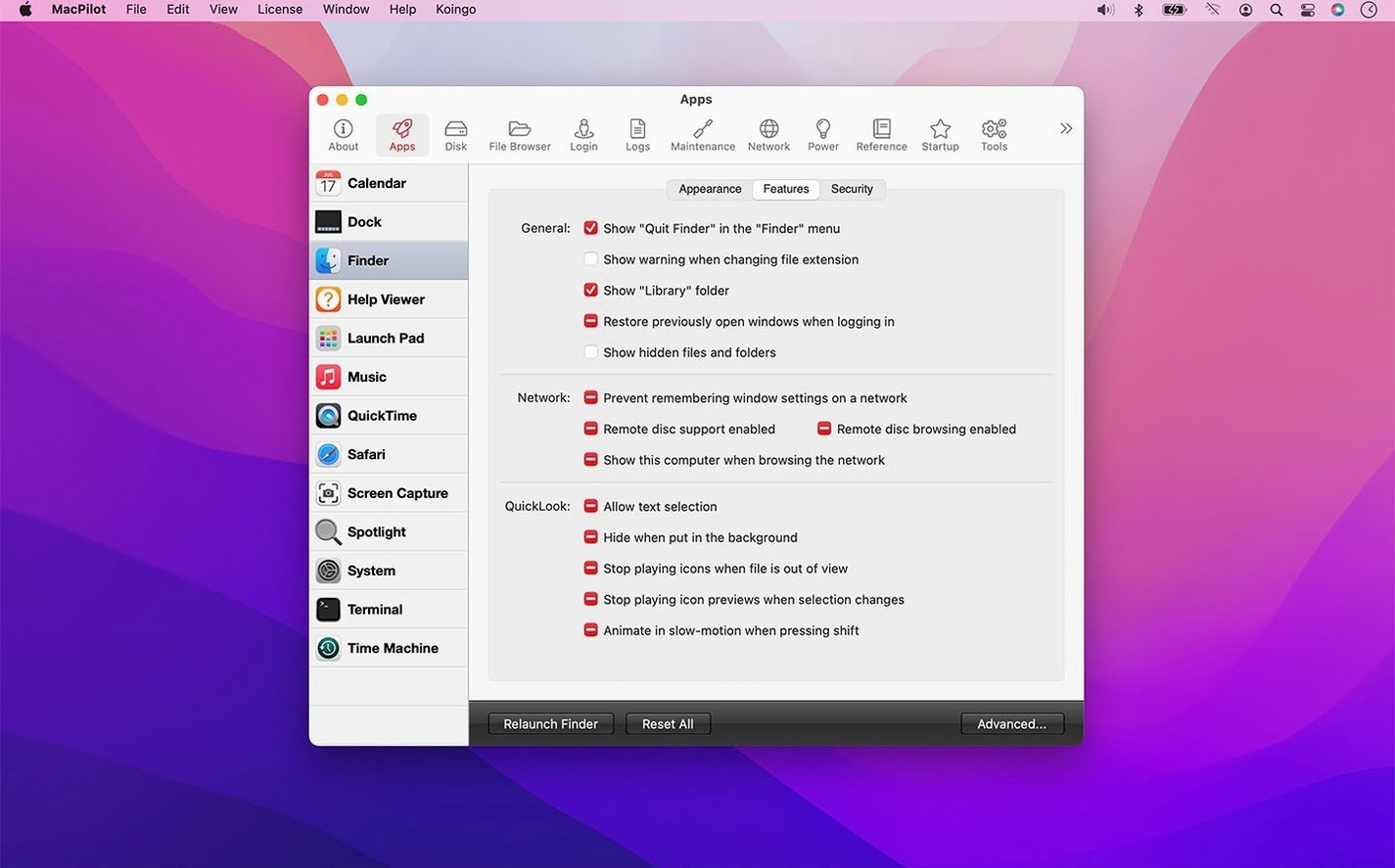
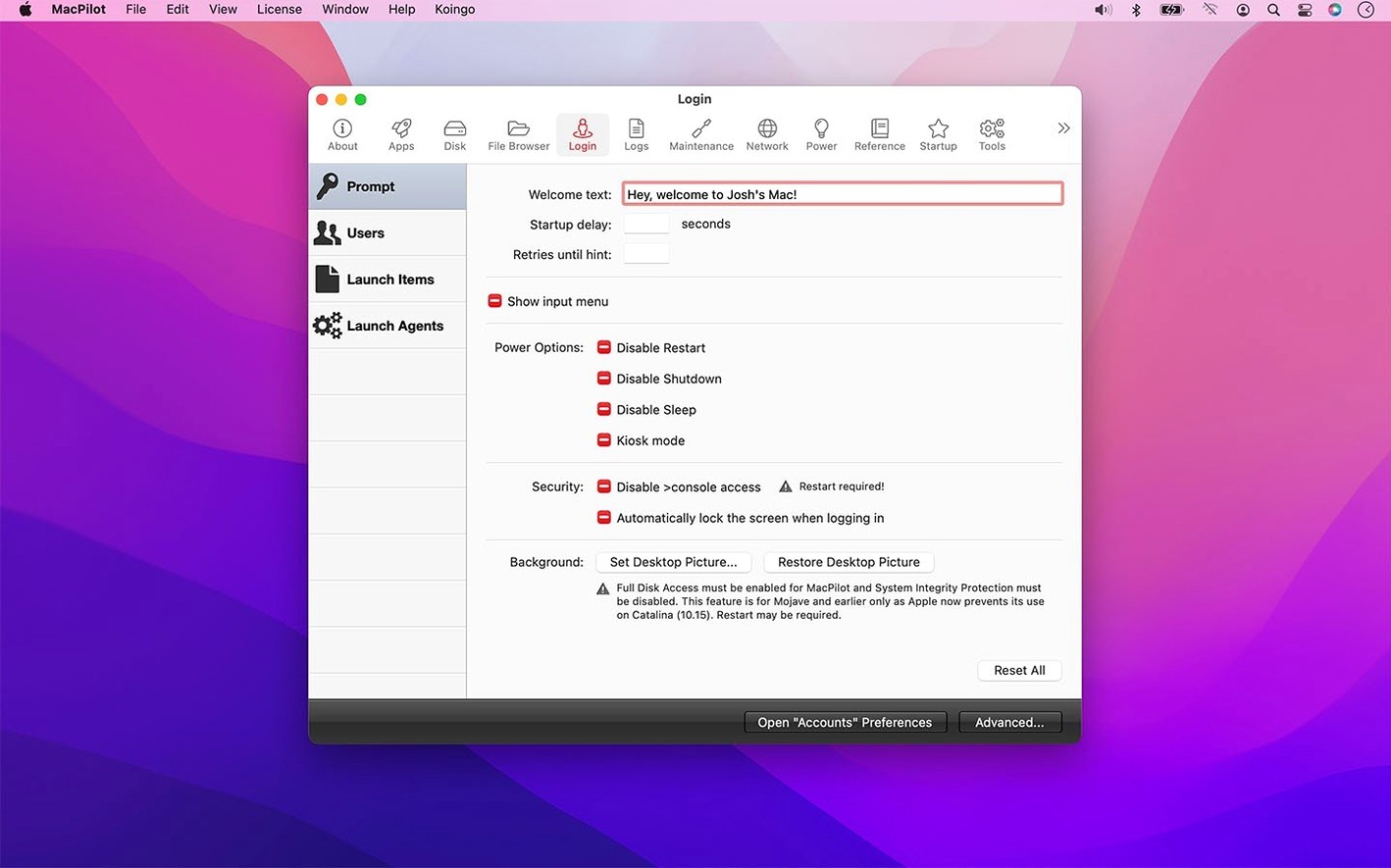
You open System Settings to change the default save location for screenshots, but the option isn't there. A quick search points to a Terminal command you would rather not touch. MacPilot puts a labelled checkbox on that setting and hundreds of others like it.
Toggle Hidden Finder, Dock, and Safari Features Without Terminal
- Turning hidden Finder, Dock, Safari, and QuickTime features on or off without Terminal
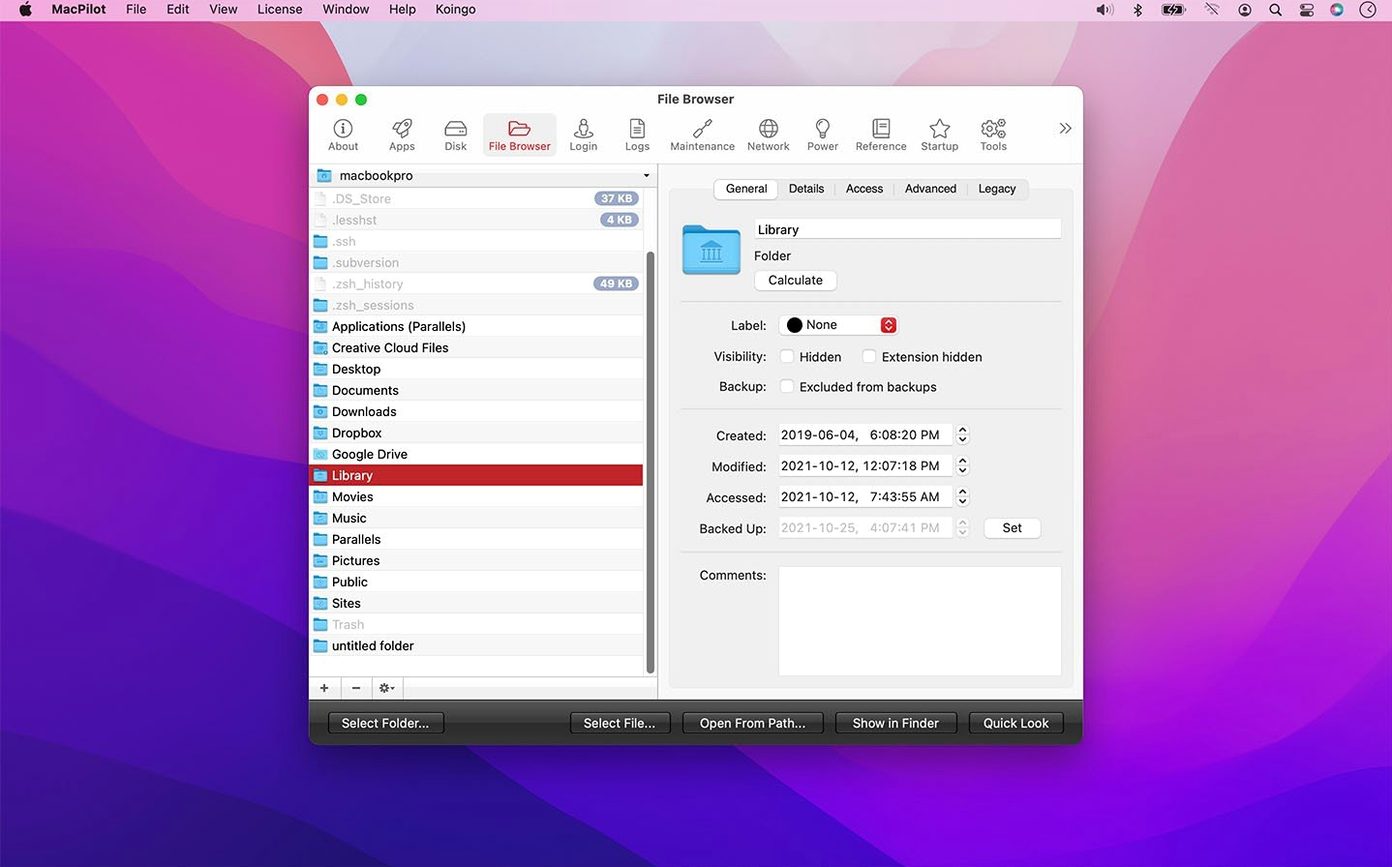
- Editing advanced file attributes, POSIX permissions, and ACLs through a property list editor
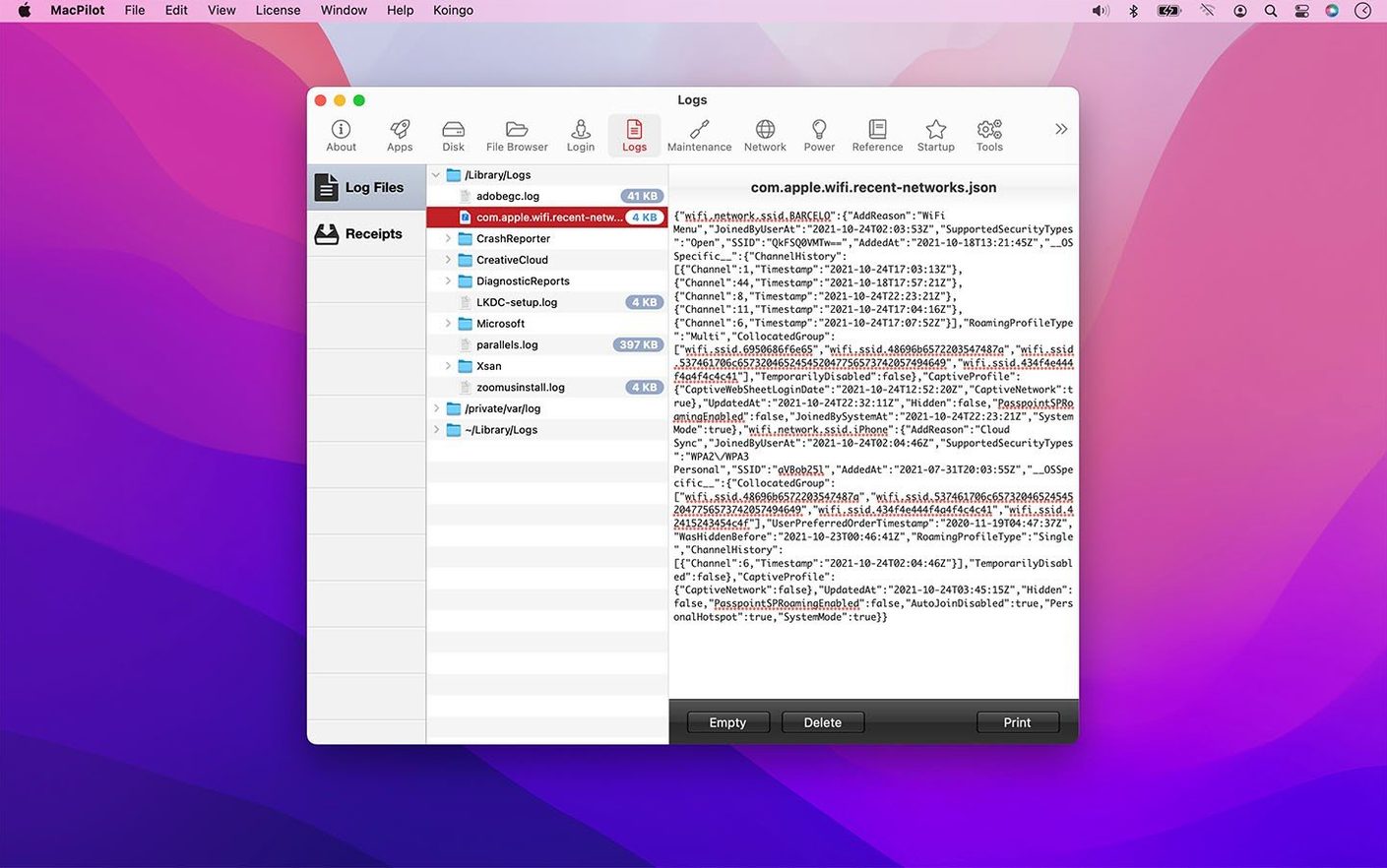
- Running system maintenance — clearing logs, caches, and Trash contents safely
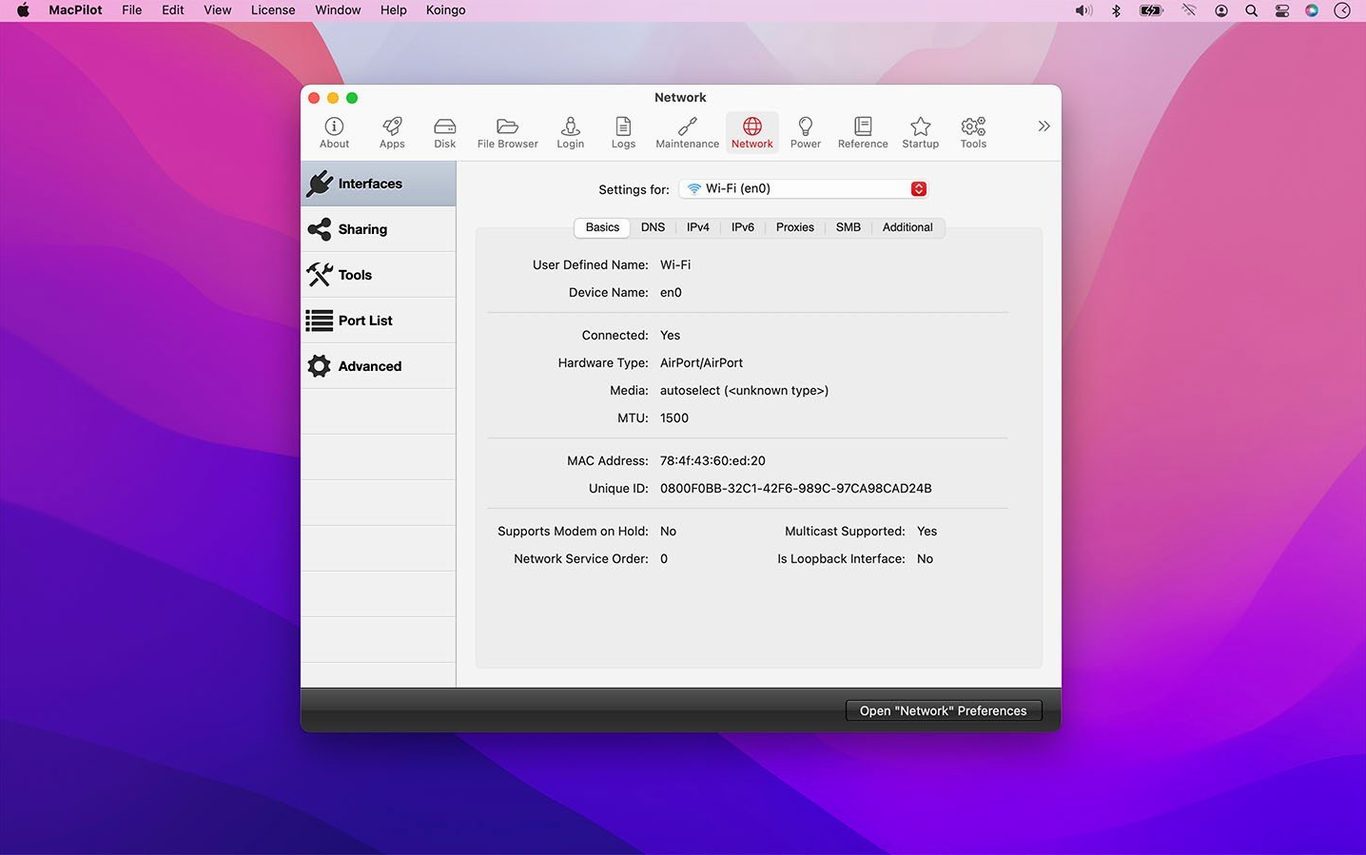
- Accessing Bluetooth assistants, certificates, directories, RAID helpers, and printing system tools from one window
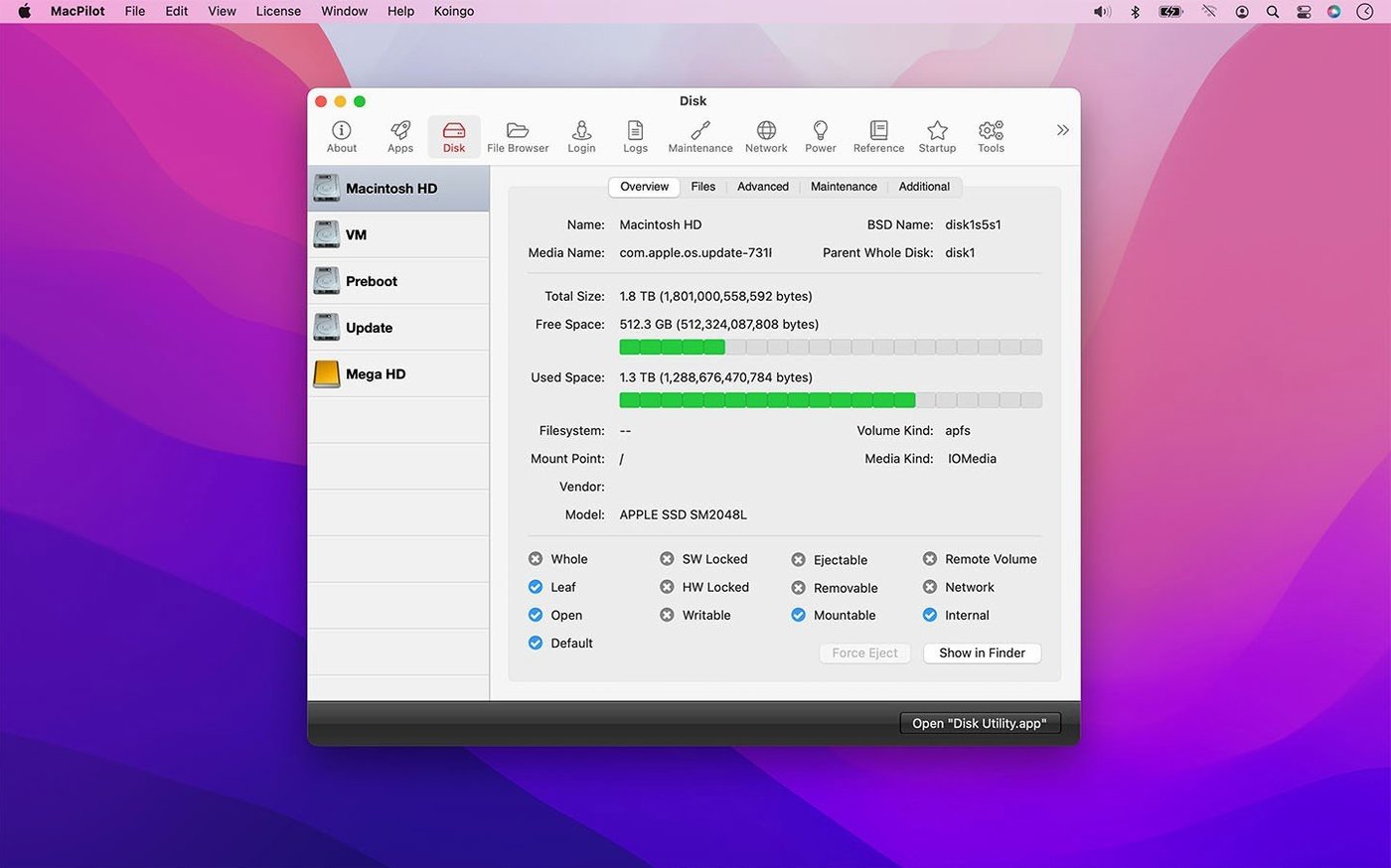
- Displaying extended disk information and statistics
- Changing settings Apple removed from the UI, including the startup sound
Pref Editing and Maintenance Tasks Carry Real System Risk
- Requires macOS 13 Ventura or later
- Interface is English only
- Exposes protected preferences and NVRAM settings — changes carry real risk
Settings Can Revert After macOS Updates
A setting you toggled earlier may revert after a macOS update. System updates often overwrite the preference files MacPilot edits. Reapply your customizations afterward — the Features Database makes it quick to find the same switches again.
The file browser showing invisible files can feel sluggish with large system directories. Narrow the view to a single folder rather than browsing /System in one go. Performance picks up immediately.
If the app refuses to launch on an Apple Silicon Mac, right-click it and choose Open with Rosetta. The current build runs natively on ARM, but Rosetta sidesteps occasional code-signing quirks some users report.
Apply One Dock or Finder Tweak at a Time
The most common one is enabling every Dock and Finder tweak at once without noting what each does. A cluttered Dock with spacers, stacks, and hidden debug menus becomes hard to navigate. Change one setting, observe the result, then move to the next.
Skipping the built-in help panels is another. Hold the pointer over any feature label — many include a brief description of what the toggle actually changes. Guessing leads to surprises like a screenshot format your sharing app cannot read.
Using the property list editor without a backup of the original file is a mistake you make exactly once. Copy the plist to a safe location before editing POSIX permissions or ACLs. The file browser’s right-click menu makes a duplicate in seconds.
- New — improved handling of file creation, access, and backup dates.
- Improved — safety when editing protected preferences, property lists, logs, Trash contents, NVRAM settings, and login pictures.
- Improved — command progress, failure, and cancellation reporting.
- Improved — reliability of the Features Database, property list editor, Hex editor, File Browser, Manuals viewer, and I/O Benchmark.
- macOS 13 Ventura or later
- Apple Silicon or Intel Mac
Comments 0
Sign in to leave a comment.Sign inCreate an account
No comments yet. If a step is still there after you install it, say so.
More in Mac Apps
All in Mac Apps macOS Tahoe
Brings the Liquid Glass redesign and new system features to supported Macs.
19 steps saved
 macOS Mojave
Brings Dark Mode and desktop Stacks to Macs that can't go further.
20 steps saved
 macOS High Sierra
Keeps older Intel Macs and 32-bit apps running on a stable, final build.
4 steps saved
 macOS Golden Gate
Brings the newest macOS to Apple silicon Macs with fresh system features.
12 steps saved
 Updated
Magic Battery
Shows wireless device charge levels in the menu bar at a single glance.
20 steps saved
 macOS Catalina
Moves iPhone sync and backups from iTunes straight into the Finder.
23 steps saved
 Updated
Magic Disk Cleaner
Finds temporary files immediately and lets you clear them in one click.
5 steps saved
 Updated
MacFamilyTree
Manages evidence and citations to build a family history that holds up to scrutiny.