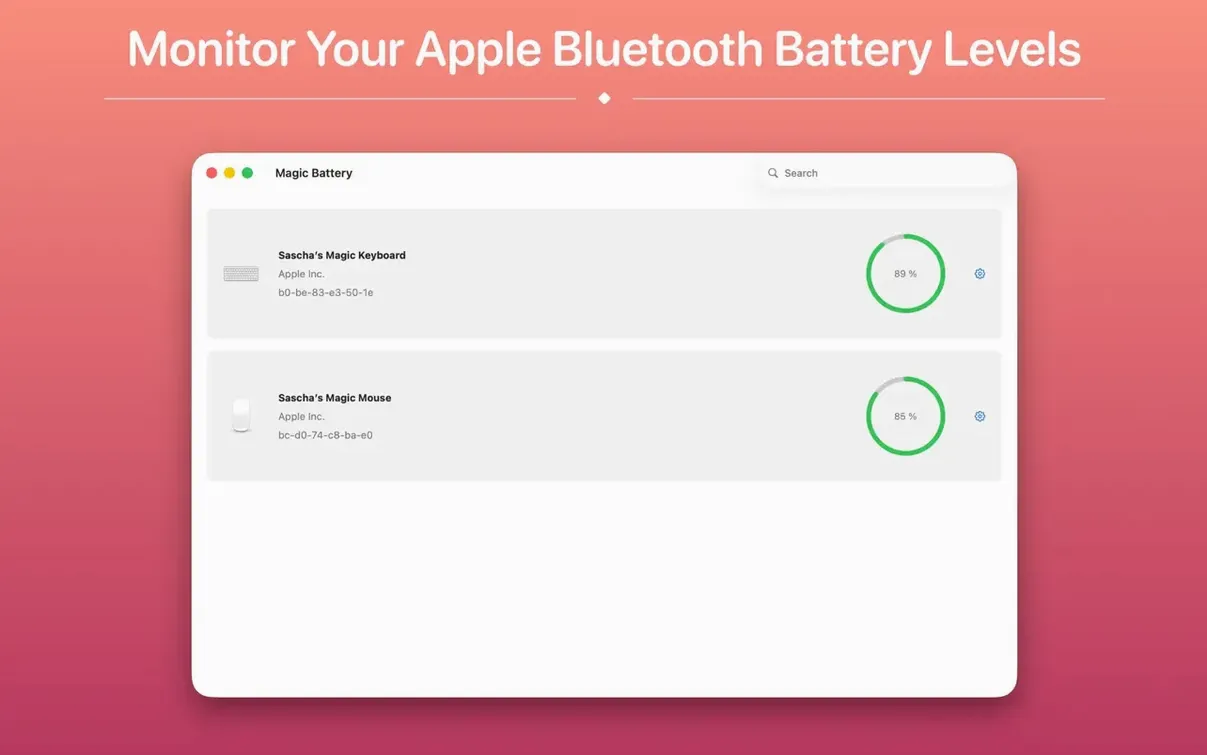
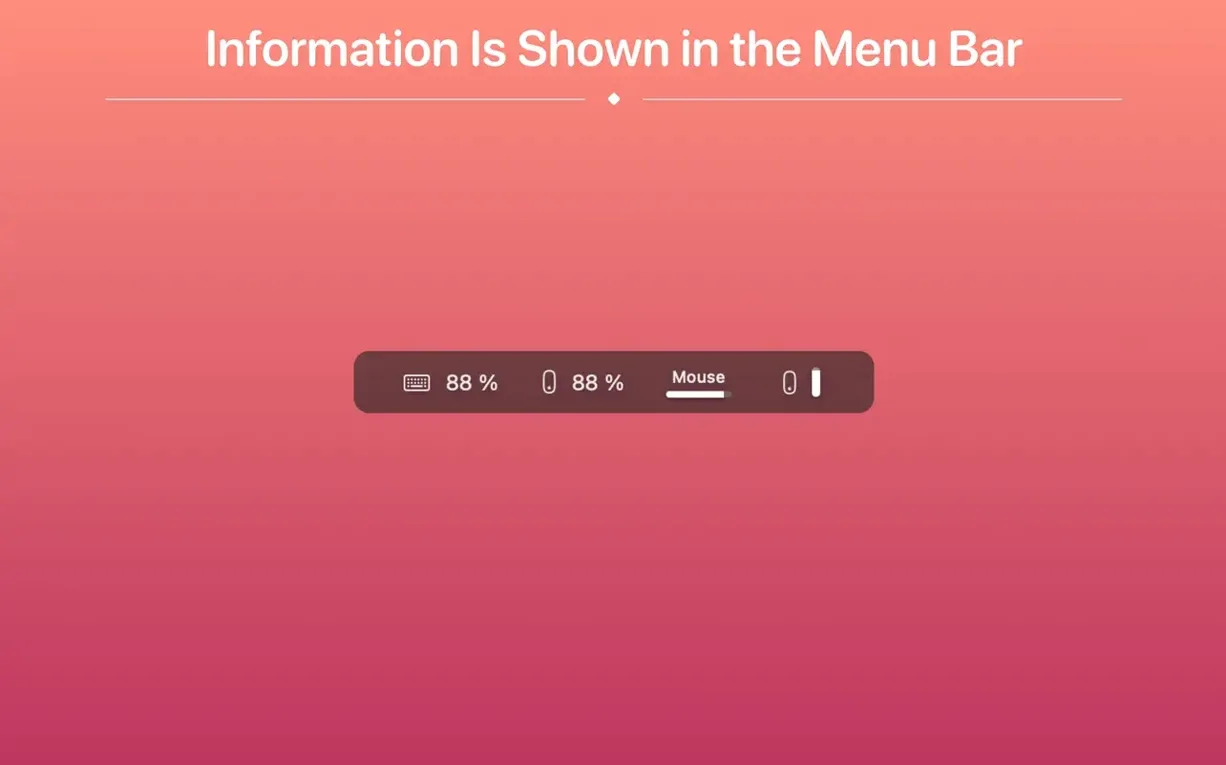
Designers, writers, and anyone who works with wireless peripherals will appreciate Magic Battery. It puts the charge levels of Apple and Logitech Bluetooth devices right in the menu bar where a quick glance is enough.
Display modes for any setup
The app offers three view options:
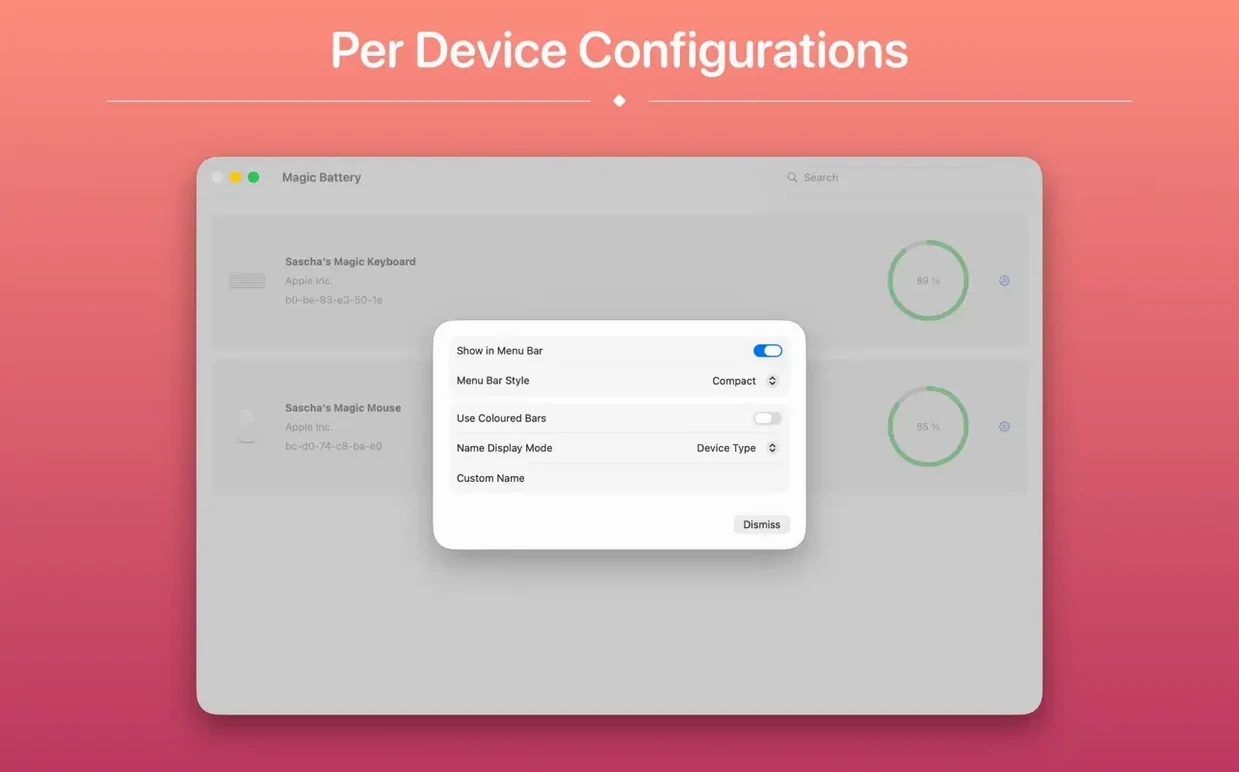
- Detailed — shows device name, icon, and percentage.
- Compact — a thin bar that uses very little space.
- Icon-only — a single icon; the percentage appears after you click to open the menu.
What gets tracked
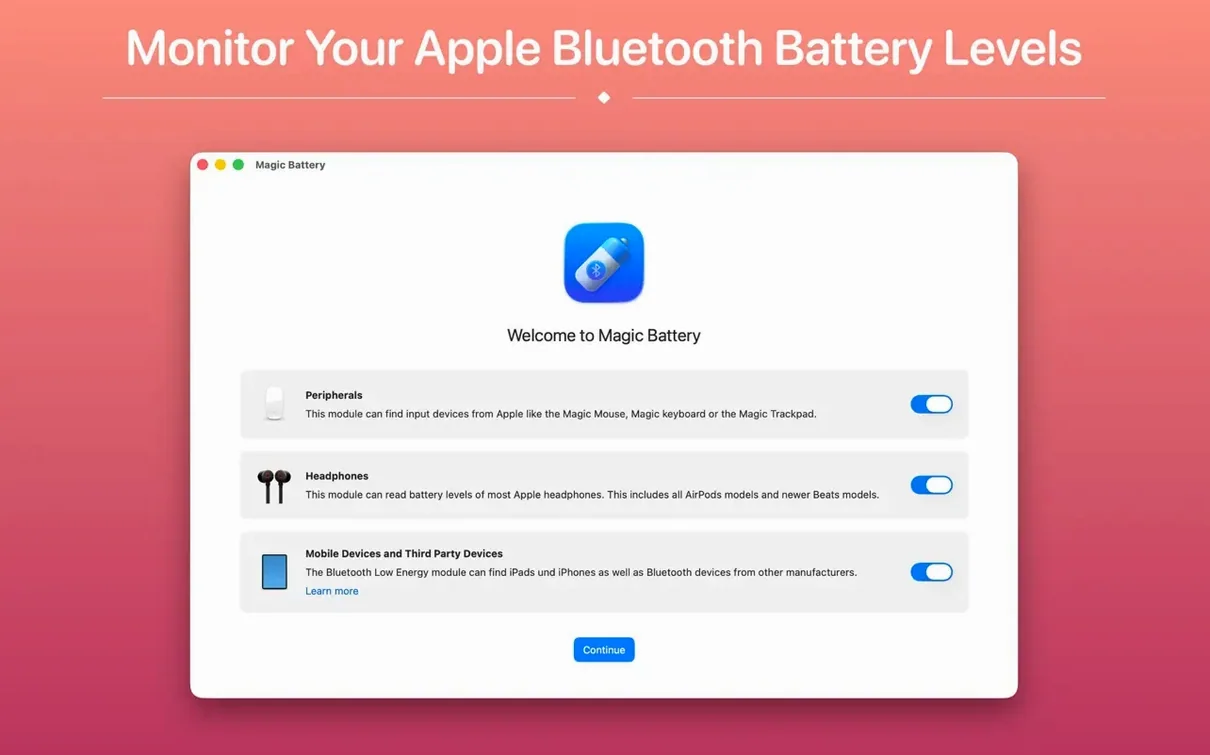
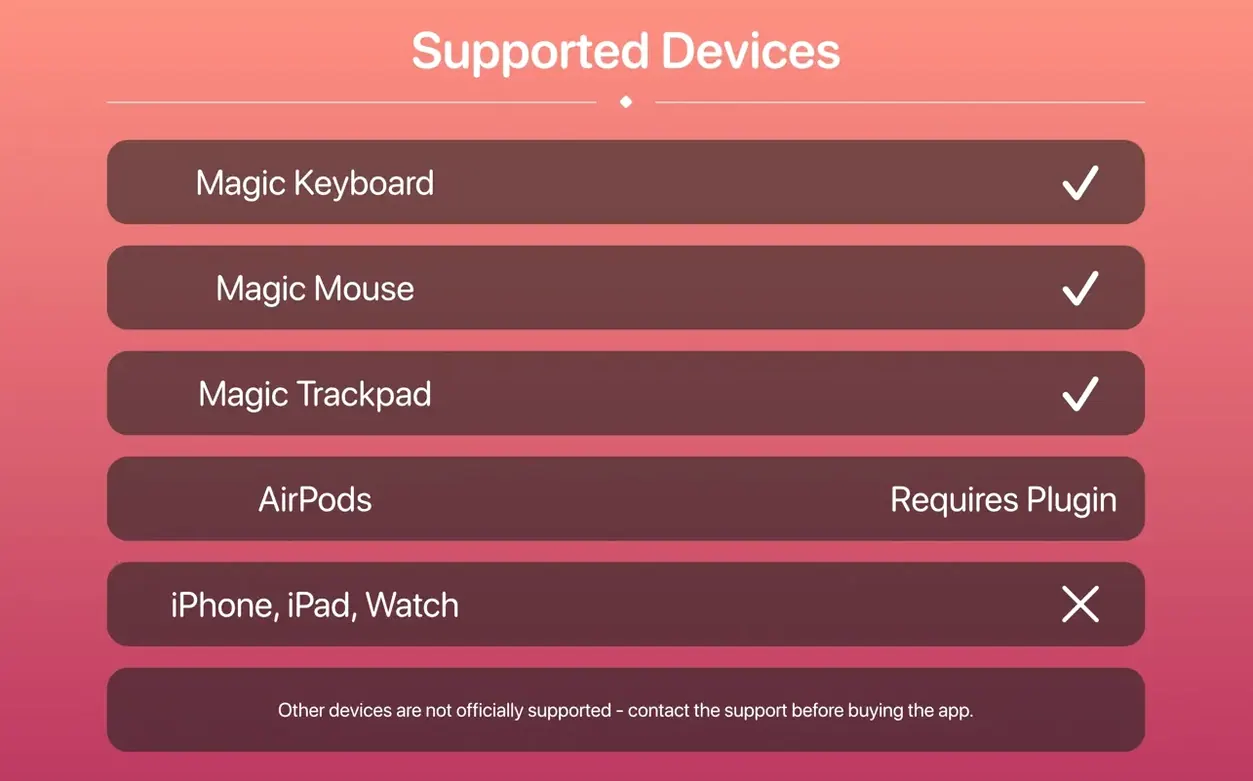
Magic Battery extends the standard macOS battery status display to cover wireless input devices and internal batteries that Apple leaves out. It supports the Apple Magic Mouse, Wireless Keyboard, and Wireless Trackpad. On the Logitech side, it works with the MX Anywhere 3 and Pebble mouse. The developer has built the app to start automatically at login so the information is always present without a manual launch.
AirBuddy’s Flashy Panel vs. a Compact Menu Bar Feed
Magic Battery sits alongside a few other utilities that aim to surface Bluetooth battery data, but each takes a different path.
AirBuddy goes wide — it mimics the iOS device connection panel with flashy animations, handles AirPods and iPhone battery, and offers Quick Actions. The trade-off: it pulls attention, and the interface can feel heavy for someone who only wants mouse and keyboard percentages.
BatteryBoi leans in the opposite direction. It lives in the menu bar, shows a single source at a time, and keeps its feature set deliberately small. What it lacks is Magic Battery’s automatic device detection and the flexibility to show multiple peripherals at once.
iStat Menus buries Bluetooth battery inside a dense monitoring suite. It works, but getting to your keyboard level means clicking through CPU graphs and network charts first. Magic Battery strips that down to one purpose — input device charge — and nothing else.
Turning On Icon-Only Mode Before Realizing It Hides Percentages
A few things trip up new users, even though the app itself is straightforward.
- Choosing the wrong display mode too early. Icon-only mode hides percentages until you click. Someone setting up the app for the first time may think tracking isn’t working, when the data is simply one menu click away. Start with detailed view, then shrink the display once you trust the readouts.
- Expecting every Bluetooth device to appear. Magic Battery supports a curated list. Third-party headphones, game controllers, or off-brand mice often won’t show up even if macOS sees them. Check the supported-device list before assuming the app is broken.
- Ignoring the 20% notification setting. It’s off by default. A user who relies on the menu bar icon alone won’t get a warning before a mouse dies mid-task. Turn it on once and forget it.
- Launching manually every session. The auto-start option is a checkbox in preferences, not a Launch Agent you configure yourself. Missing it means the menu bar item vanishes after a restart.
What's new in 11.1.0
- New — The internal battery now shows up right in the menu bar dropdown.
- New — Redesigned Other Apps window, now localized for your language.
- New — You can re-display the welcome screen anytime from the Help menu.
- Fixed — Removed an unwanted focus ring that appeared around "Open Main Window" in the menu bar panel.
- macOS 15.6 or later
- Apple Silicon or Intel 64-bit
Questions I get before install
What Bluetooth devices does Magic Battery support?
It supports Apple's Magic Mouse, Wireless Keyboard, and Wireless Trackpad, plus Logitech mice like the MX Anywhere 3 and Pebble.
How much menu bar space does the compact view use?
The compact view is designed to use very little space, showing a thin bar that stays out of the way.
Can Magic Battery launch when I log into my Mac?
Yes, you can set it to start automatically after user login so battery levels are visible right away.
Comments 0
Sign in to leave a comment.Sign inCreate an account
No comments yet. If a step is still there after you install it, say so.
More in Mac Apps
All in Mac Apps Updated
Magic Disk Cleaner
Finds temporary files immediately and lets you clear them in one click.
21 steps saved
 Magnet
Snaps windows into halves, thirds, and quarters with keyboard shortcuts.
23 steps saved
 MainStage
Switches sounds silently during a live set, pulling patches straight from Logic.
8 steps saved
 MAMP PRO
Runs separate Apache, MySQL, and PHP hosts for every local project.
10 steps saved
 MacPilot
Toggles hundreds of hidden macOS settings with a checkbox instead of Terminal.
17 steps saved
 macOS Tahoe
Brings the Liquid Glass redesign and new system features to supported Macs.
6 steps saved
 Maschine
Builds beats with a pattern sequencer, sampler, and synth in one system.
19 steps saved
 macOS Mojave
Brings Dark Mode and desktop Stacks to Macs that can't go further.