
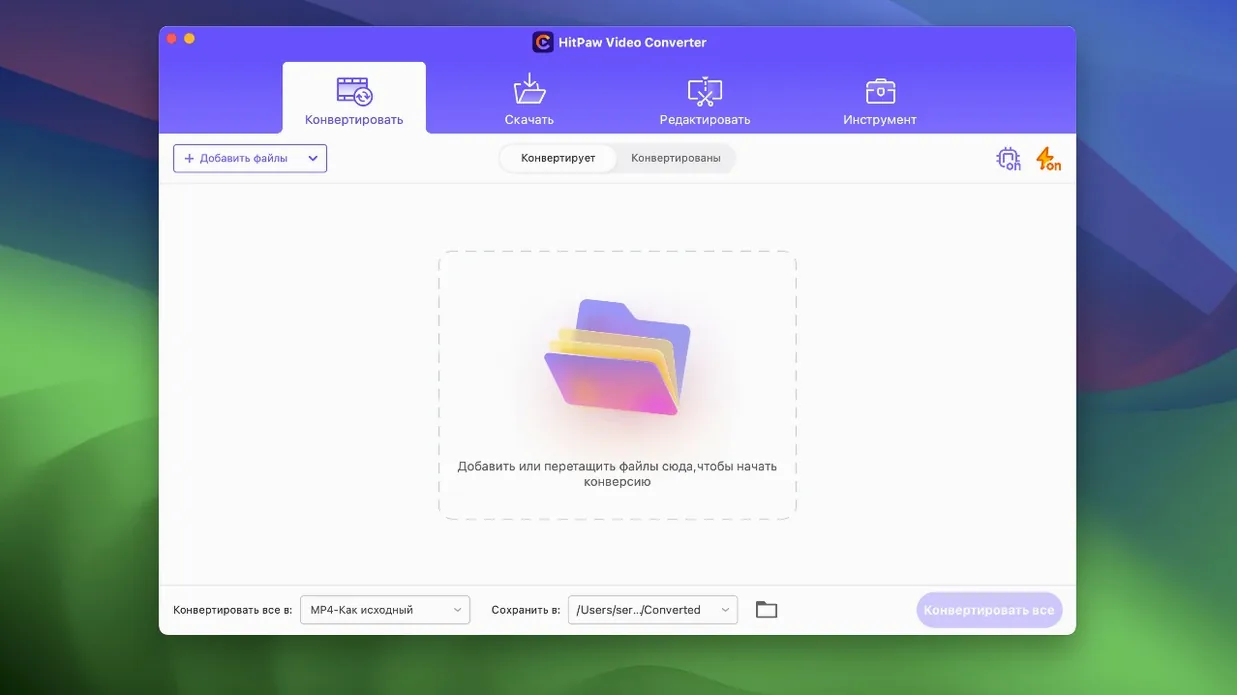
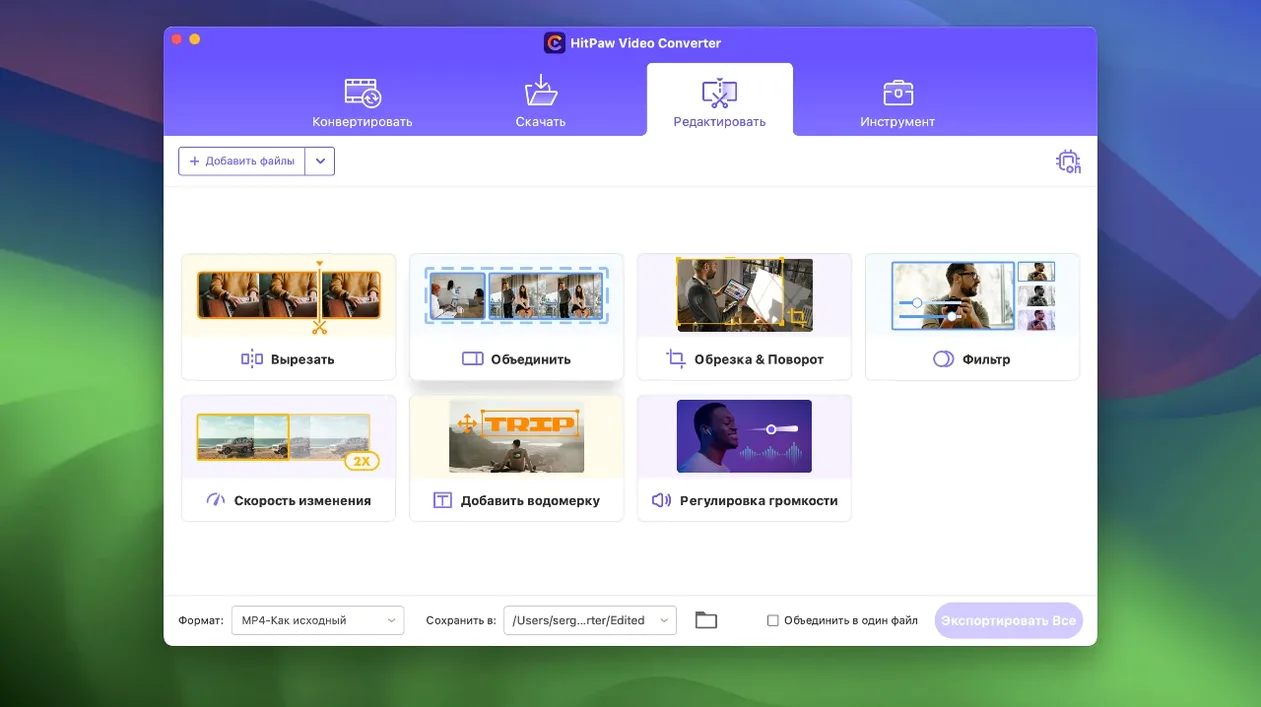
If you know HandBrake, you know a straightforward transcoder. HitPaw Video Converter starts from that same place—drag in a file, pick MP4 or MOV, convert—then layers on a set of tools that go well beyond format-shifting. It downloads, edits, compresses, and now reframes clips with a single click.
AI compression that shrinks 4K without macroblocking
- Compress a 4K file with AI — version 4.5.0 overhauled the compression module. Drop a large MKV or VOB file in, set the size target, and let the AI shrink it without the usual macroblocking.
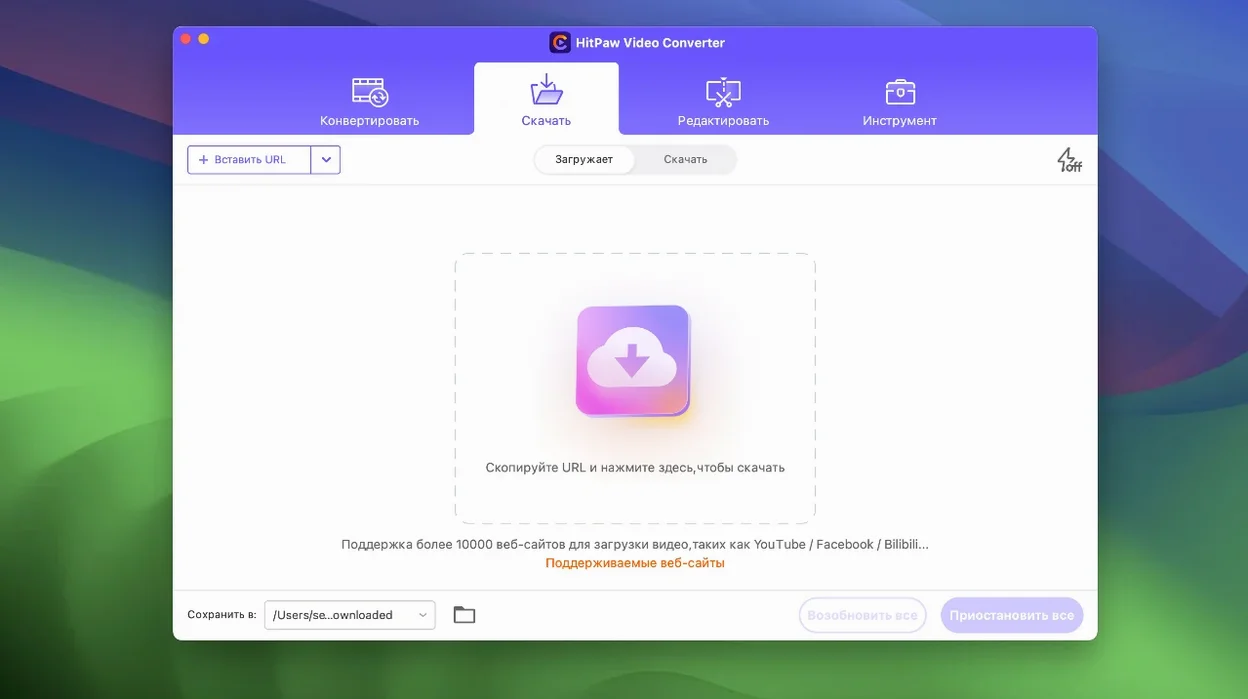
- Grab a video from a website — paste a URL from any of the 10,000+ supported sites. Pull down a tutorial, a music performance, or a clean reference clip in seconds.
- Auto reframe for social — the new auto reframe feature analyses the frame and crops a 16:9 clip to 1:1 or 9:16 while keeping the subject centred.
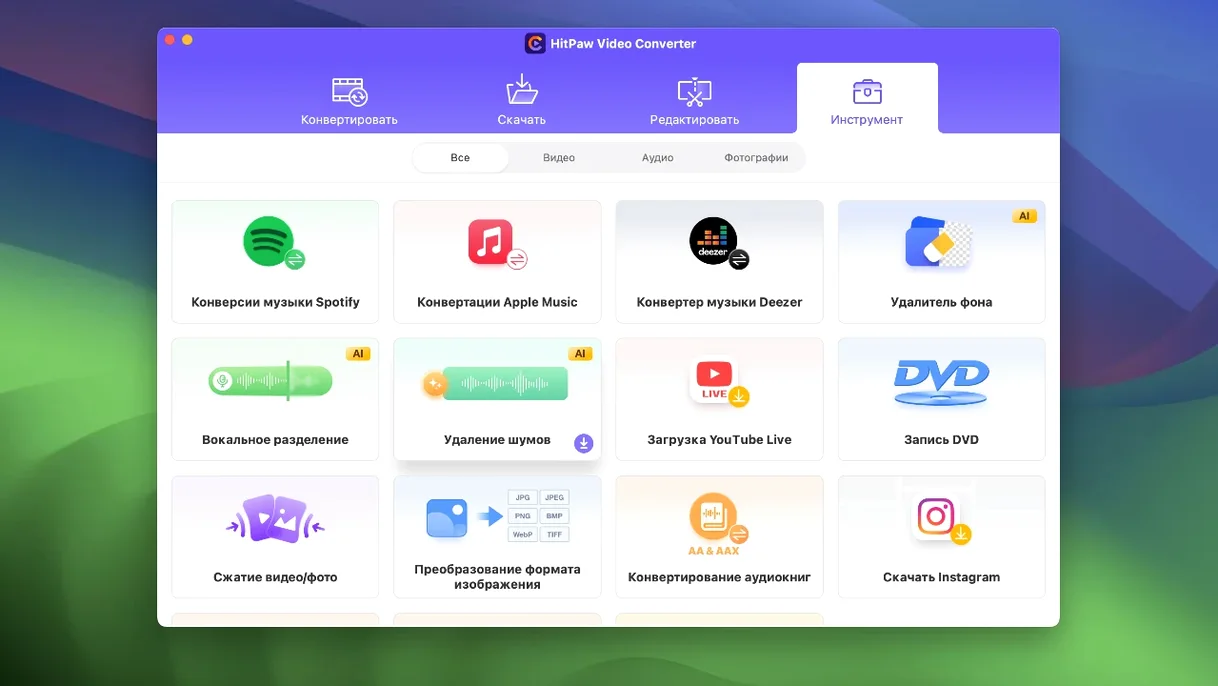
- Extract audio from a Deezer or Apple Music track — save an M4A or MP3 directly. Useful for isolating a podcast segment or pulling a clean instrumental.
Why the AI label matters
HitPaw calls the Mac app AI-powered, and it shows in the compression and reframe modules. The software makes decisions about bitrate, keyframes, and motion smoothing that you would otherwise dial in manually. For a first session, that means you get usable output before you learn the advanced panels.
Dump your output folder onto an external drive
- Output folder — the default dumps everything into a single HitPaw directory. Set a dedicated project folder, or point it straight to an external drive if you work with 4K files regularly.
- GPU acceleration toggle — it is on by default, but a few Intel Macs run cooler with it off for long encodes. Test a 60-second clip both ways before committing to a batch.
- Compression quality slider — version 4.5.0 resets this to a middle value. Bump it up one notch for client deliverables; drop it one notch for reference files you will delete next week.
- Download format preset — the website downloader defaults to MP4 at the highest available resolution. Switch it to M4A if you only want audio, or cap it at 1080p when 4K is overkill.
Stop treating every conversion as lossless
One common slip: treating every conversion as lossless. The app can convert without visible loss, but that requires matching the source codec and container, not just picking MP4 from the dropdown. If you feed it a VP9 MKV and ask for H.264 MP4, you get a re-encode, not a remux. The time and quality difference is real.
Another: ignoring the auto reframe preview. The feature marks a centre point, but a talking head framed off-axis can get cropped awkwardly. Drag the bounding box once before hitting start — it takes five seconds and saves a redo.
Beginners also batch-convert a dozen clips before checking the first output. Run a single test file through the full pipeline, open it, then queue the rest. And if you download with hitpaw video converter mac expect the M4A extraction to pull the streaming copy — not a remaster. It sounds clean, but it is not a CD rip.
- New — Added auto reframe feature for automatic social-media cropping.
- Improved — Optimized the compression module for faster, cleaner output.
- Improved — Refined the editor module display and layout.
- macOS 10.15 or later
- Intel processor
Questions I get before install
Which Mac versions does HitPaw Video Converter support?
The Mac app requires macOS 10.15 or later and runs on Intel-based Macs.
Can HitPaw Video Converter download from Spotify?
Yes. It includes built-in support for saving audio from Apple Music, Spotify, and Deezer in common formats like MP3.
Comments 0
Sign in to leave a comment.Sign inCreate an account
No comments yet. If a step is still there after you install it, say so.
More in Mac Apps
All in Mac Apps HitPaw Univd
Converts media between formats and pulls video from over 10,000 sites.
11 steps saved
 HitPaw Watermark Remover
Traces and removes unwanted objects or watermarks from a single video frame.
22 steps saved
 HitPaw Edimakor
Pairs a standard timeline with AI tools so you can cut video without a steep learning curve.
17 steps saved
 Updated
Hopper Disassembler
Disassembles and decompiles binaries so you can trace logic or audit code.
6 steps saved
 Haptyk
Generates typing sounds that respond to how firmly you press the keys.
15 steps saved
 IDA Pro
Picks apart executables with a guided disassembler, decompiler, and debugger.
9 steps saved
 iExplorer
Mounts an iPhone or iPad on your Mac for direct file browsing without a jailbreak.
8 steps saved
 Imagenomic Plugin Suite
Consolidates skin retouching, noise reduction, and resizing under one installer.