
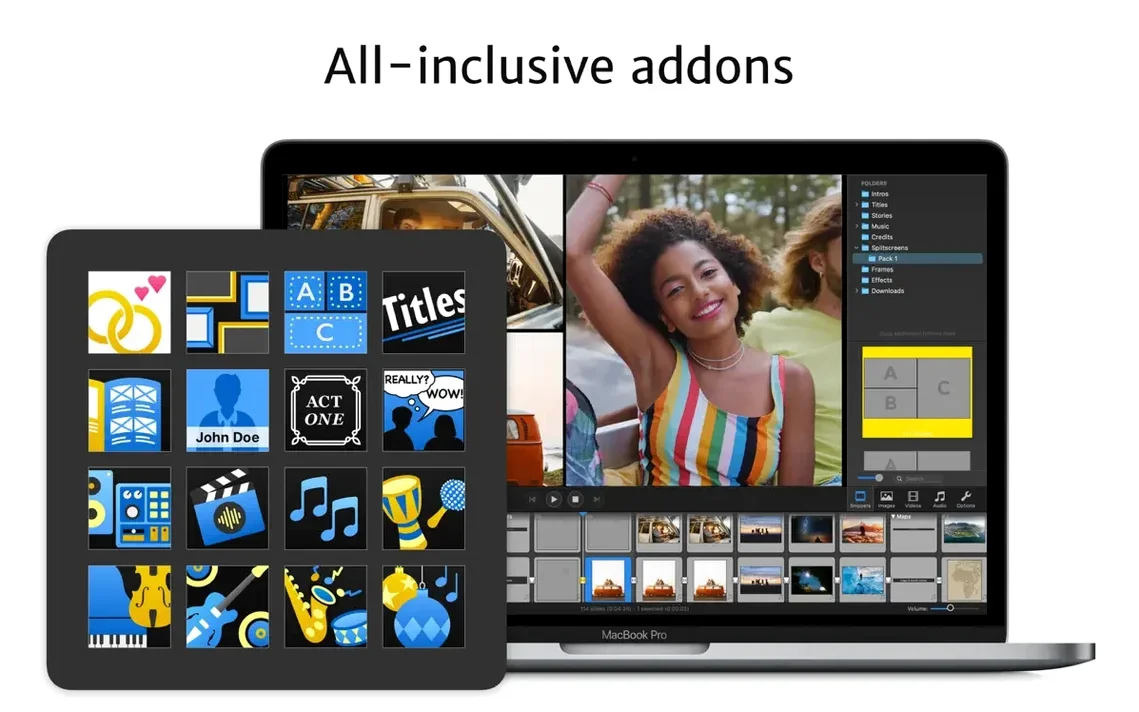
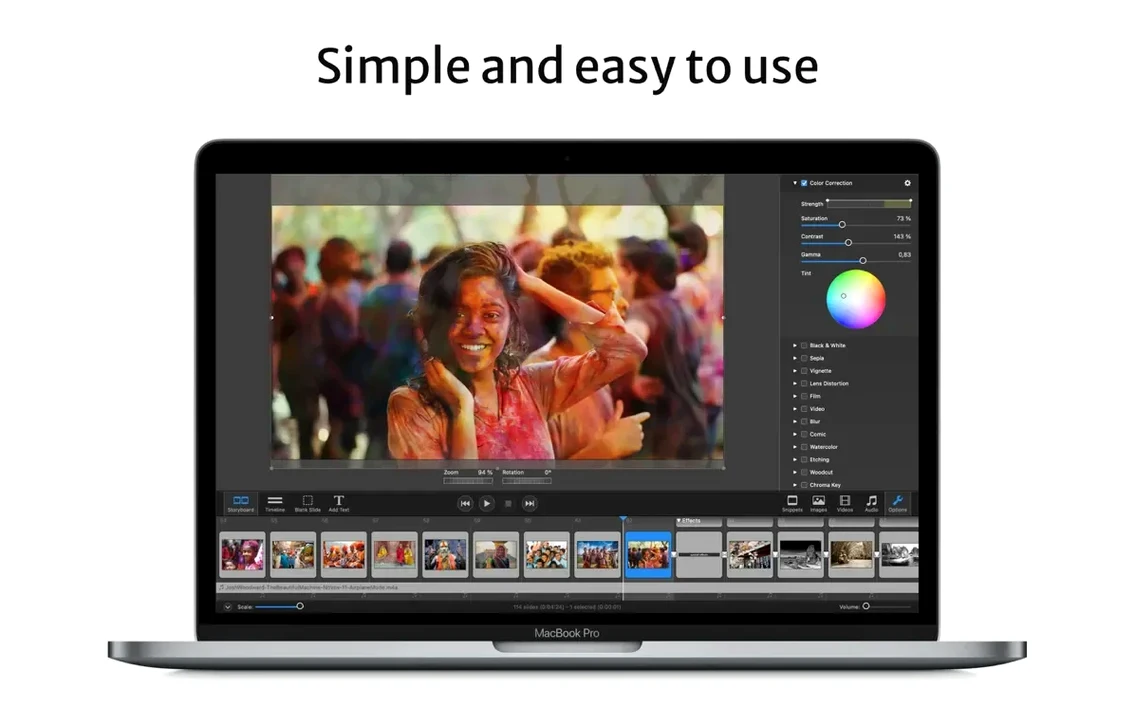
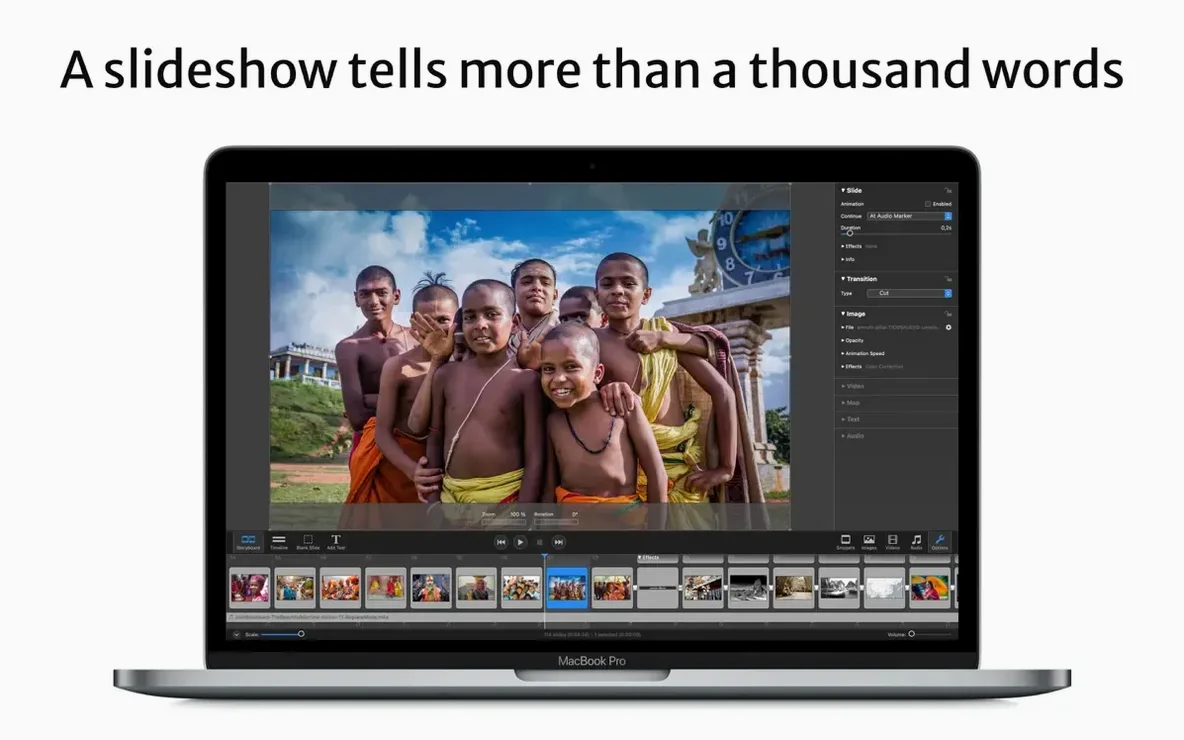
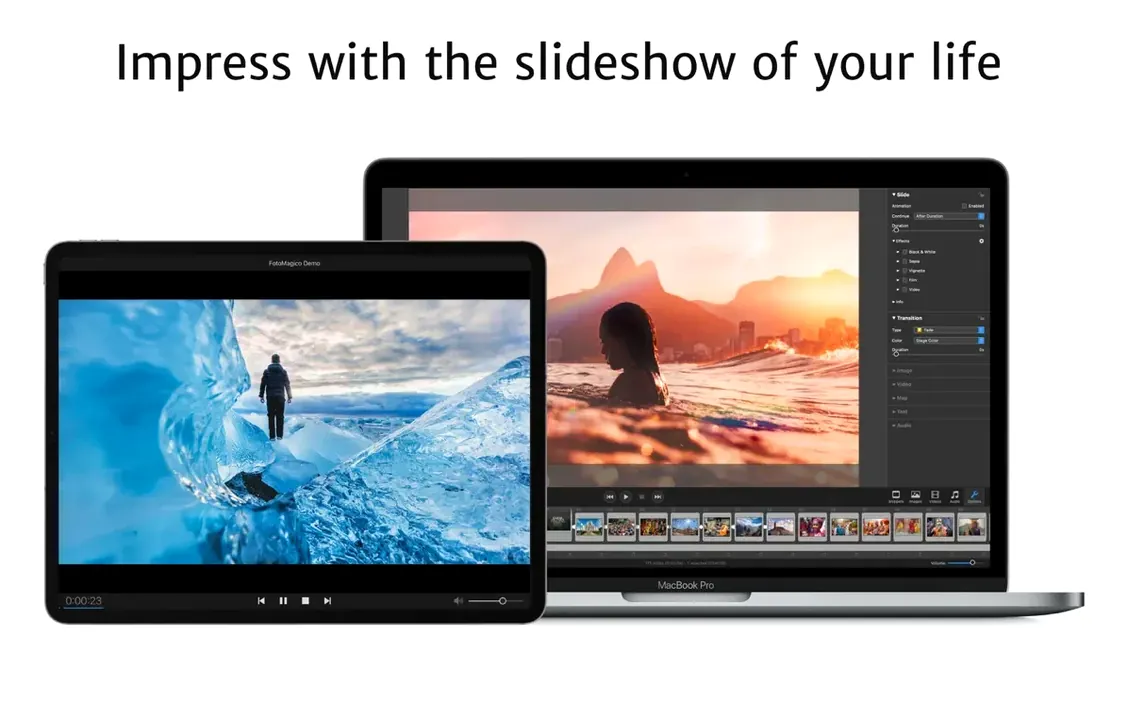
You've just opened a folder of photos from a field trip and want to share them during Friday's team meeting without clicking through thumbnails. Open FotoMagico, drop the selection onto the storyboard, and a clean timeline appears, ready for order changes and pacing adjustments.
Add a text caption to the opening slide to name the location. Grab a title addon from the built-in collection if you want something beyond plain text. Next, pick two or three transitions from the library and apply them between key scenes to give the sequence a gentle rhythm. If you're working on an iPad later, store the project on iCloud Drive and continue where you left off.
For playback, the separate FotoMagico Player lets you share a high-resolution file with colleagues who don't own the app. You control access by limiting how many times the slideshow can be viewed or setting an expiry date. Export options also include a screensaver format for a lobby display and an iPad-optimized file for one-on-one showings.
Before you present, connect a large display or HDTV. The app handles the higher resolution without extra output tweaks, so you focus on the story, not the signal path.
Dial In the Default Stage Duration Before You Build
A few preferences make the editor feel less like a demo and more like your own tool. Open Settings before you build anything serious.
- Default stage duration — Raise it from the preset if your slides carry two or three sentences of caption text. Eight seconds reads better than four.
- Audio fade length — Shorten the default crossfade for music tracks. A tight 0.5-second fade keeps narration cues audible between slides.
- Export resolution — Leave it on Best for display unless you know the target screen. For lobby screens and HDTVs, the hardware-matched setting prevents oversized files.
- Watermark behaviour — Enable the watermark option once, then set a corner and opacity. You will forget it is on until you export, which is exactly what you want.
FotoMagico for Mac stores these per project, not globally. Set them in a blank project first, then save that file as a starter template for future work.
Why You Should Preview Instantly Instead of Rendering
Most early frustration comes from treating the app like a linear video editor. It is not one, and fighting the model wastes an afternoon.
- Rendering before previewing — The real-time engine plays full resolution instantly. If you export just to check pacing, you are adding a step that does not exist here.
- Ignoring the storyboard guides — The visual storytelling addons suggest structure, not decoration. Skipping them leads to a photo dump with no arc.
- Testing on a laptop only — Transitions and text sizes that look fine at 13 inches fall apart on a 65-inch display. Check one export on the actual output screen.
- Leaving player access unlimited — When you hand off a standalone file, set a view limit or expiry. Unlimited copies drift further than you expect.
- Stacking too many transitions — Three styles across a twenty-slide deck is plenty. More than that reads as a demo reel, not a presentation.
Version 6.11.0 is a maintenance update. Release notes are posted on the Boinx website.
- macOS 14 or later
- Apple Silicon or Intel 64-bit processor
Questions I get before install
Can I move a project between a Mac and an iPad?
Yes. Save the project to iCloud Drive and open it from the other device, provided both run a supported version of macOS or iPadOS.
What can I do with a finished slideshow?
You can export it as a standalone file for the free FotoMagico Player, turn it into a screensaver, or format it for an iPad or iPod.
Comments 0
Sign in to leave a comment.Sign inCreate an account
No comments yet. If a step is still there after you install it, say so.
More in Mac Apps
All in Mac Apps Updated
ForkLift
Manages files across servers and cloud services in a dual-pane layout.
13 steps saved
 Updated
FxFactory Pro
Installs and manages video effect plugins for Final Cut Pro, Motion and Premiere.
23 steps saved
 FontLab
Draws, kerns and exports professional typefaces and variable fonts.
12 steps saved
 Gemini
Targets and removes exact duplicate files that waste drive space.
19 steps saved
 Folder Quick Look
Adds folders to the Space bar Quick Look workflow on macOS.
23 steps saved
 Updated
Ghost Buster Pro
Cleans up orphaned support files left behind by deleted apps.
7 steps saved
 Folder Preview Pro
Lets you peek inside any folder or archive without opening it.
23 steps saved
 Flicker Free
Removes rolling light-source flicker from any camera's footage.