
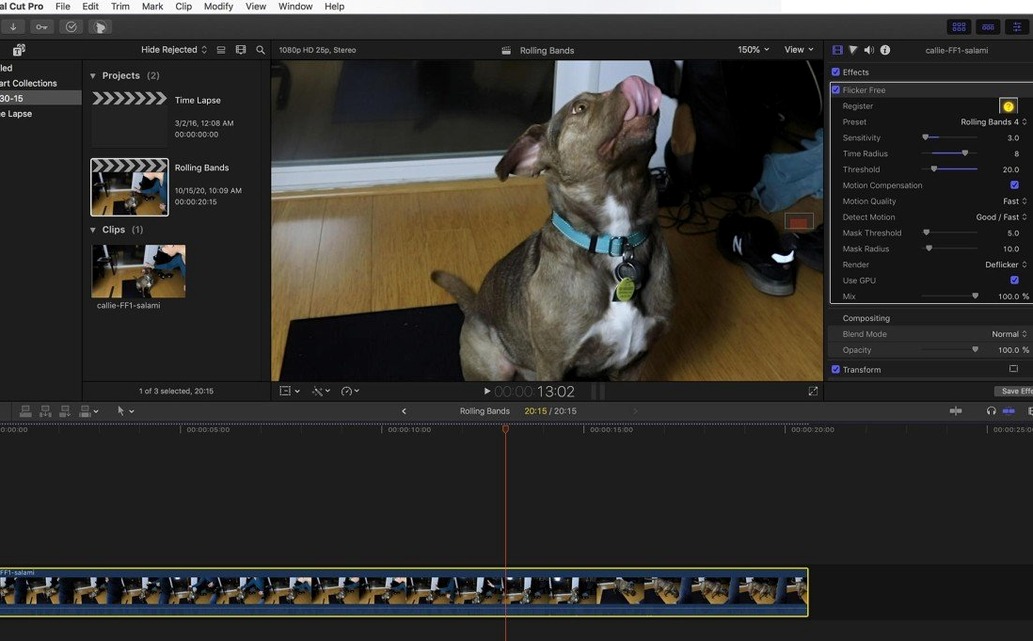
Phantom Flex, Sony FS700U, GoPro HERO3 Black — any camera that falls out of sync with a light source produces the same rolling bands of flicker. Flicker Free fixes it by analyzing frames as they process, instead of relying on a baked-in editor effect.
Set the detection window
Adjust the number of frames the plugin scans to match the flicker cycle. A short window catches fast fluorescent pulses; a longer one smooths slow, rolling shutter waves from computer monitors.
Pick the correction method
Choose between global luminance correction or per-channel colour correction. When flicker shifts colour temperature as well as brightness, the per-channel path rebuilds a neutral frame without washing out the image.
Test on a short render
Apply the effect to a representative clip and render a small section before committing the full timeline. The real-time feedback loop lets you confirm the settings hold across a whole time-lapse sequence, not just the first few seconds.
Start with the Right Light-Source Preset
A few touches in Flicker Free save real time once you know they exist.
- Presets before fine-tuning. Start from a preset that matches the light source, then adjust only the detection window. Most footage clears up without touching the correction method at all.
- Copy and paste settings between clips. Batch-apply the same deflicker values across an entire time-lapse sequence instead of configuring each shot separately.
- Preview on the clip, not just the frame. Scrubbing shows the effect on a single frame; a short render through a flicker-heavy section confirms the motion looks right.
- Works the same across hosts. Whether the plugin sits in After Effects, Premiere Pro, Final Cut Pro, DaVinci Resolve, or another OpenFX host, the core controls stay consistent.
Match Your Detection Window to the Flicker Cycle
Two adjustments make more difference than everything else combined.
Detection window length. Match it to the flicker cycle. LED and fluorescent sources often pulse at mains frequency, so a window of two to four frames handles most indoor footage. High-frame-rate material from a Phantom Flex or FS700U may need a longer span to catch slower rolling bands.
Correction method. Leave it on luminance for brightness-only flicker. Switch to per-channel colour correction when the bands shift hue as well — common with cheap LED fixtures and older computer monitors.
Apply both changes before testing a short render. The order matters less than confirming the result on moving footage.
Native Apple Silicon Keeps Previews Responsive
Version 2.1.6 runs natively on Apple Silicon and Intel Macs as a 64-bit plugin, which keeps previews responsive on newer hardware. The current build refines how frames are analyzed during processing, so deflicker decisions happen with less lag between source and output.
In everyday use, that means fewer surprises when switching between time-lapse, slow-motion, and standard frame-rate clips. The same preset logic holds across all three, with less manual retuning between formats.
- ARM and x86 64-bit architecture
- Compatible host application that supports third-party video plugins
Questions I get before install
What kind of flicker does Flicker Free handle?
It targets flicker from fluorescent lamps, computer monitors, and cameras that are unsynchronized with the electrical frequency of the light source, including rolling bands in time-lapse and high-speed footage.
Can I try the settings before processing the whole project?
Yes. Apply the plugin, adjust the controls, and render a short representative clip to confirm the deflicker effect holds before processing the entire timeline.
Comments 0
Sign in to leave a comment.Sign inCreate an account
No comments yet. If a step is still there after you install it, say so.
More in Mac Apps
All in Mac Apps FL Studio
Builds beats in the pattern playlist and piano roll, from the first loop to the mixdown.
7 steps saved
 Folder Preview Pro
Lets you peek inside any folder or archive without opening it.
19 steps saved
 Folder Quick Look
Adds folders to the Space bar Quick Look workflow on macOS.
12 steps saved
 Firewall Scudo
Lets you allow or block an app's network access the moment it first tries to connect.
23 steps saved
 FontLab
Draws, kerns and exports professional typefaces and variable fonts.
20 steps saved
 Updated
ForkLift
Manages files across servers and cloud services in a dual-pane layout.
7 steps saved
 Find Any File
Searches the whole disk for files Spotlight misses, including hidden items and package contents.
16 steps saved
 FotoMagico
Turns a folder of photos into a timed presentation with captions and music.