
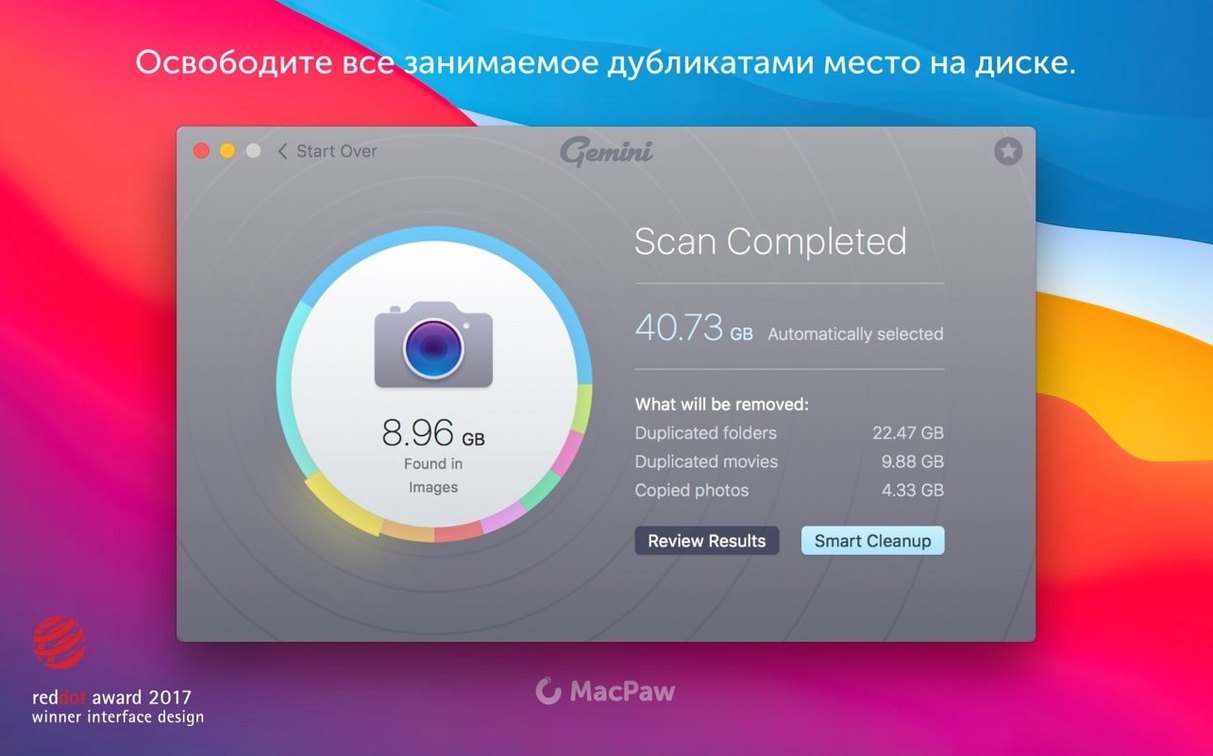
If you’ve ever used a tool like DaisyDisk to visualize storage, you already know that finding the bloat is half the battle. Gemini is what you reach for next. It picks up where storage mappers leave off, targeting the exact duplicate files that turn a clean drive into a mess of digital clutter.
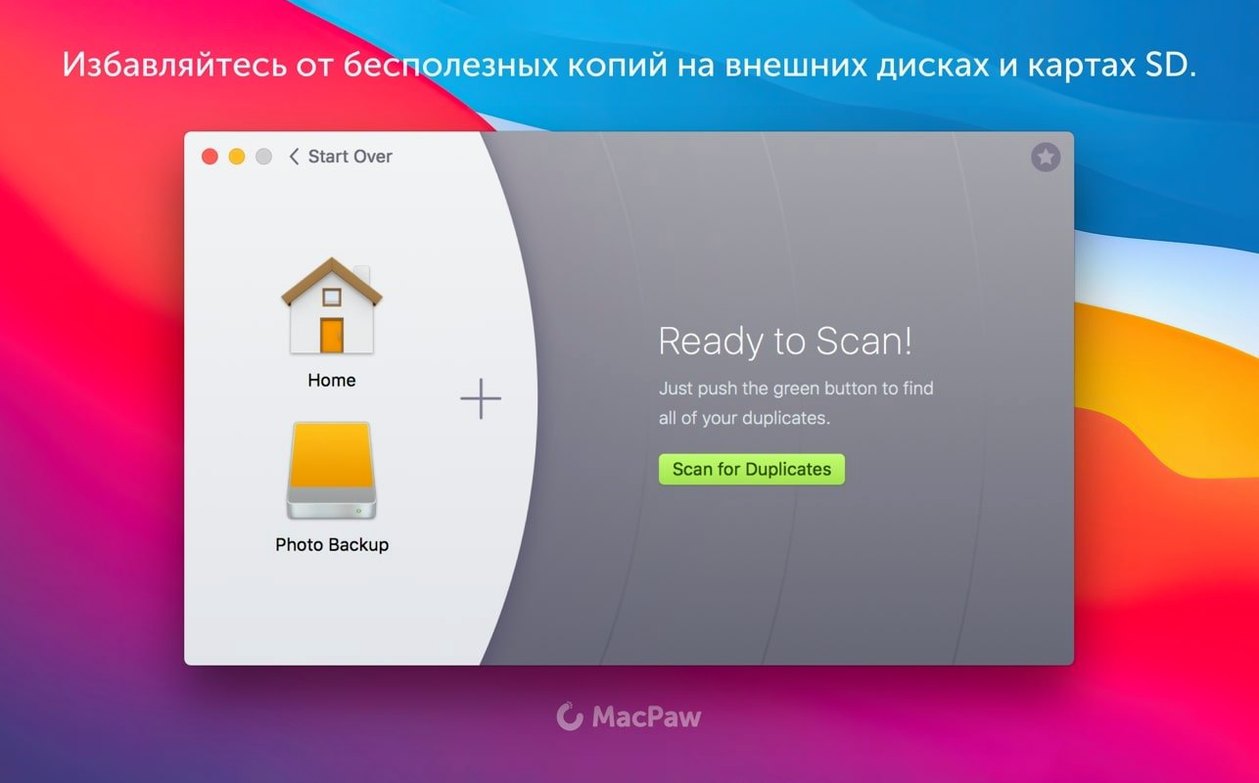
- Define the terrain. Point Gemini at specific hotspots — old backup folders, sprawling Photos libraries, or a cluttered iTunes media collection. It scans these alongside your whole home folder.
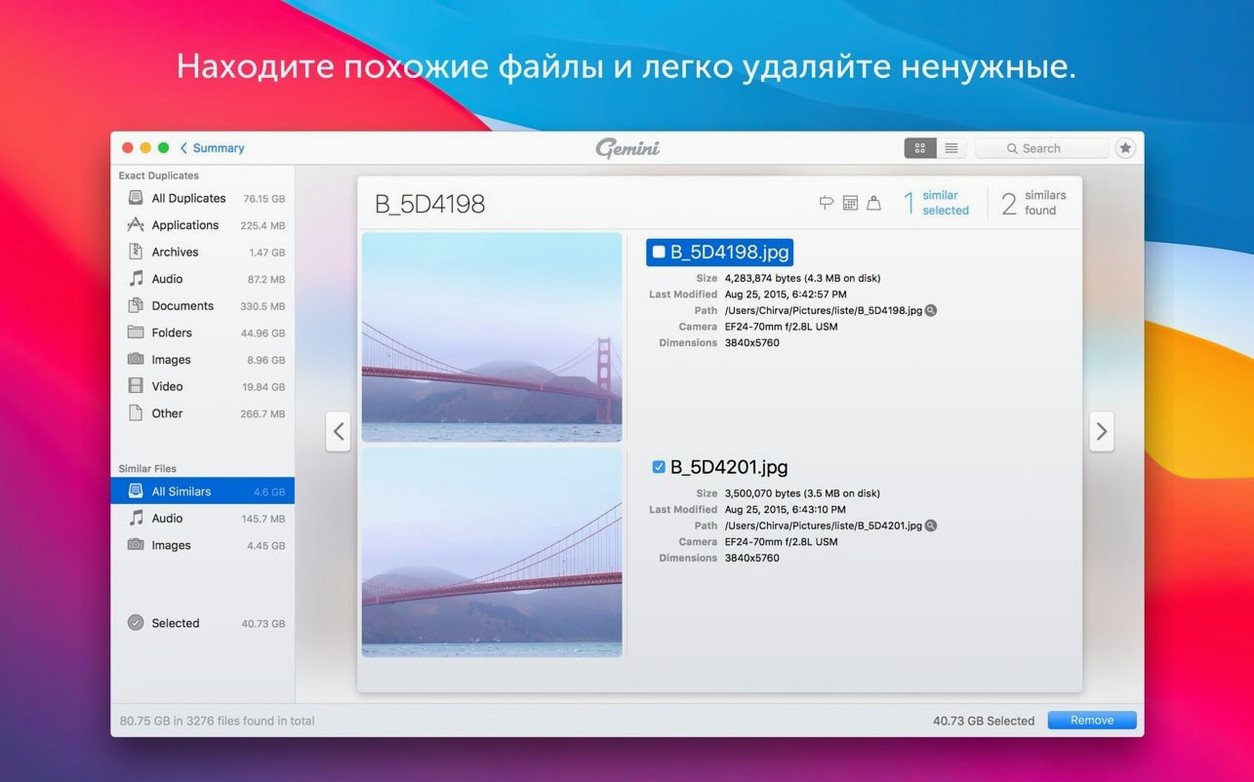
- Review the evidence. The results separate exact duplicates from similar files. An experienced eye can quickly spot the forgotten ZIP export next to an unpacked project folder.
- Control the cleanup. Smart Select isn’t just a delete button. You configure rules for which copy to keep. Prioritize the file in a specific folder, or keep the version with the most readable name. The tool files the duplicates, and you hand-pick the final list.
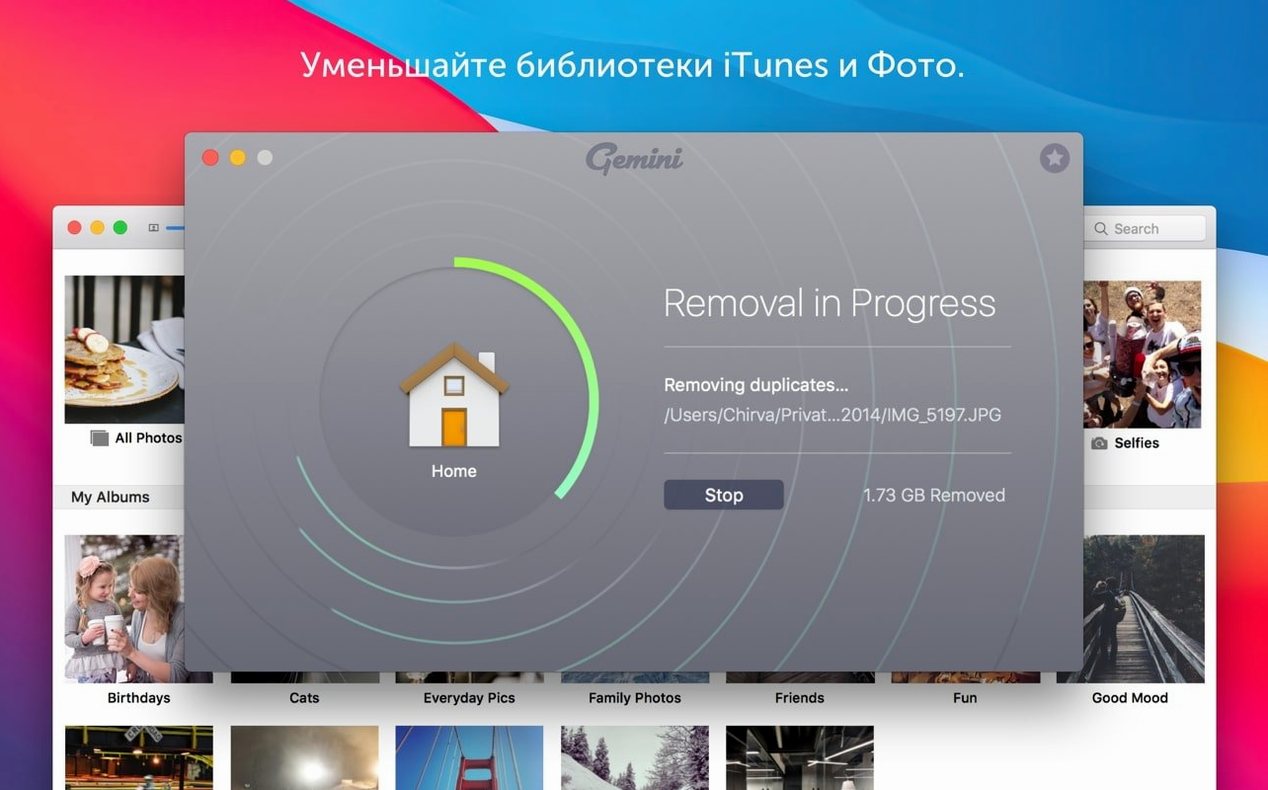
- Execute, then verify. The removal is a deliberate action, not an automated wipe. Group the files you’re trashing one last time before they’re gone.
This isn’t about a quick scan of your downloads folder. Gemini digs into the remote corners of your system where duplicates hide inside packages and libraries, applying the kind of selective logic that manual sorting can’t match at scale.
Where New Users Go Wrong
Most first-time cleanup jobs fail before a single file is removed. Not because Gemini misses duplicates, but because the scan targets everything, and the user agrees to everything. A full home-folder sweep with default settings is the fastest way to stare at a results list that feels unreadable.
- Scanning without a goal. If you can’t name the folder you expect to clean, you’re not ready to review results. Start with one library — Photos, iTunes, or an old backup — before going wide.
- Trusting Smart Select blindly. Smart Select applies your past decisions, which is useful, but it has no idea that the duplicate raw file is the one you planned to edit next week. Review the preselected group before confirming.
- Skipping the similar-files pass. New users often delete exact copies and call it done. The real waste is in near-identical images — burst photos, resized exports, re-encoded video. That’s where gigabytes actually go.
- Treating Recently Deleted as a safety net. It is a restore area, yes, but if you wait too long to check what landed there, you’ll forget what you removed and why.
A Focused Cleanup: Old Photo Library
Here’s a concrete run-through for a common job: reclaiming space from an old Photos library that’s been migrated twice.
- Point the scan. In the scan setup, choose only the old Photos library file, not the whole home folder. That keeps the results readable.
- Sort for similar files first. When the scan finishes, switch the results view to show similar images. The groups here are often burst shots and old exports.
- Set a keep rule. Tell Smart Select to prefer files with the shorter path — usually the master image inside the library. The exported JPEG copies become the removal candidates.
- Walk the preselection. Skim each group. The rule gets you most of the way; you’re looking for the groups where the rule picked the wrong copy.
- Remove, then spot-check. After removal, open the library and confirm the albums still load. The Recently Deleted area in Gemini shows exactly what was moved out.
Where Gemini Fits in a Mac Toolkit
Gemini works best as the second step in a storage routine, not the whole routine. A typical order: map disk usage first, then remove duplicates, then archive what remains.
- Storage mappers. A tool like DaisyDisk shows which folders are consuming the most space. Use that to pick your Gemini scan targets — don’t guess.
- macOS Spotlight and Finder. After a cleanup, rebuild the Spotlight index if search feels slow. Finder’s own “Merge” dialog appears if you accidentally copy folders back into place; Gemini prevents that by catching the duplicates before they’re reintroduced.
- Archive utilities. Once the duplicates are gone, compress the surviving project folders. Clean storage compresses faster and uploads to cloud backups with less waste.
- Photo and music apps. Run Gemini before importing a large camera card or a batch of downloads. A clean library means fewer prompts about duplicates later.
- macOS 10.13 High Sierra or later
- Intel processor
Questions I get before install
Can Gemini 2 find similar files, not just exact duplicates?
Yes. It identifies similar files, which helps clean up near-duplicate photos or multiple revisions of the same document.
How does Gemini handle the file selection process during a large cleanup?
Its Smart Select feature lets you set rules for bulk-selecting files, so you can decide which copies to keep based on their location or name before deleting the rest.
Comments 0
Sign in to leave a comment.Sign inCreate an account
No comments yet. If a step is still there after you install it, say so.
More in Mac Apps
All in Mac Apps Updated
Ghost Buster Pro
Cleans up orphaned support files left behind by deleted apps.
22 steps saved
 Glyphs
Creates and edits complete font families, from the first glyph to export.
13 steps saved
 Updated
FxFactory Pro
Installs and manages video effect plugins for Final Cut Pro, Motion and Premiere.
17 steps saved
 GoLand
Surfaces goroutine leak data inline to start debugging immediately.
16 steps saved
 FotoMagico
Turns a folder of photos into a timed presentation with captions and music.
20 steps saved
 Updated
ForkLift
Manages files across servers and cloud services in a dual-pane layout.
23 steps saved
 FontLab
Draws, kerns and exports professional typefaces and variable fonts.
8 steps saved
 Guitar Pro
Writes and plays back tablature and sheet music for stringed instruments.