
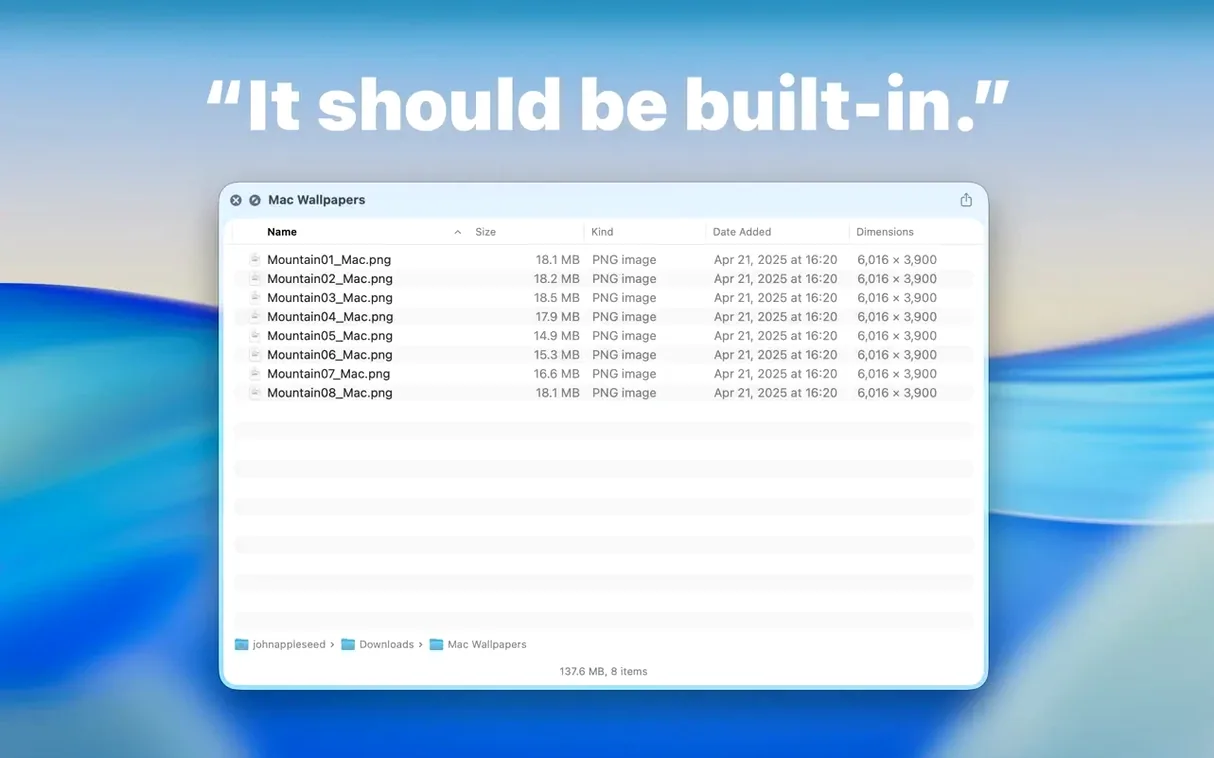
Dual Columns view changes how you scan nested folders without opening them.
Quick Look for folders — Press Space or Command-Y on any folder to see its contents instantly.
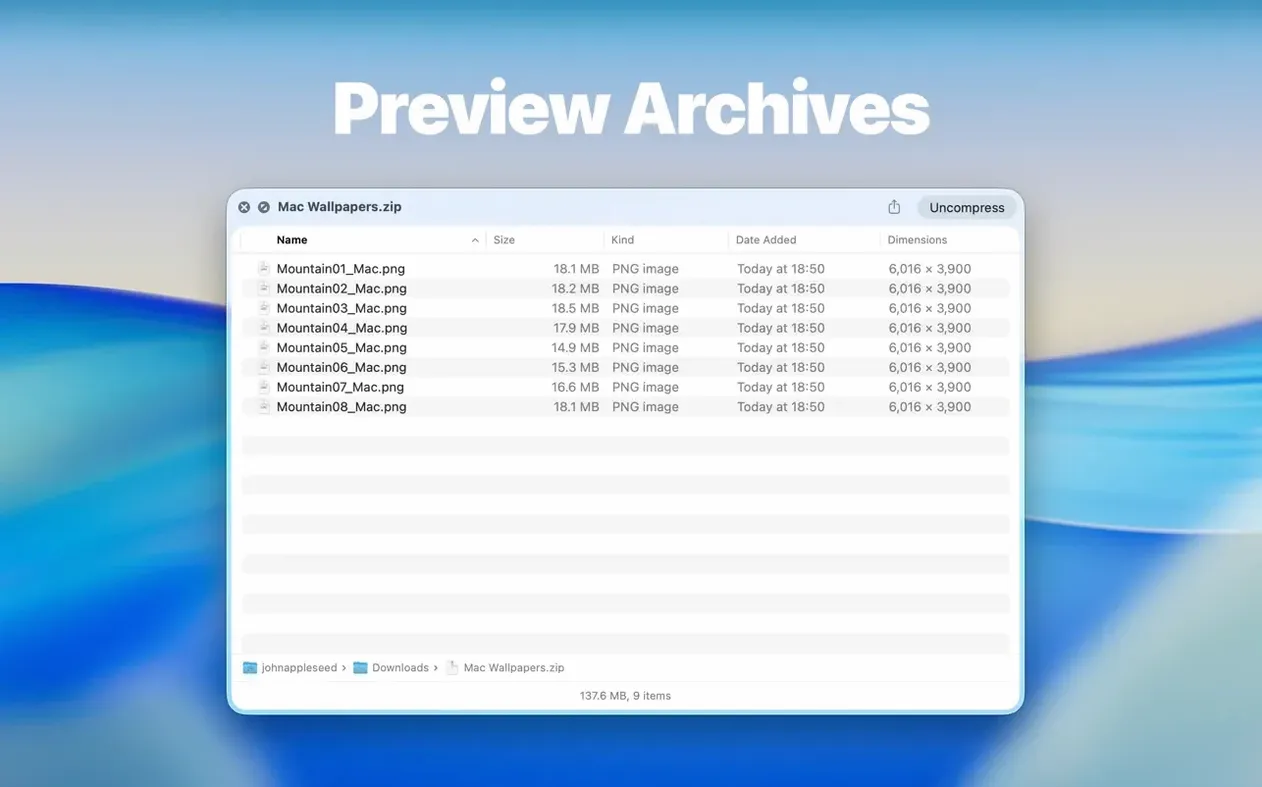
Archive browsing — ZIP, TAR, GZ, 7Z, and RAR files preview the same way, no extraction needed.
Dual Columns — Two side-by-side panels let you compare folders or navigate parent and child directories at once.
Contents menu — Right-click a folder in the preview and choose Contents to drill down level by level without leaving the panel.
Drag-out support — Files can be dragged straight from the list or icon preview to a Finder window or another app.
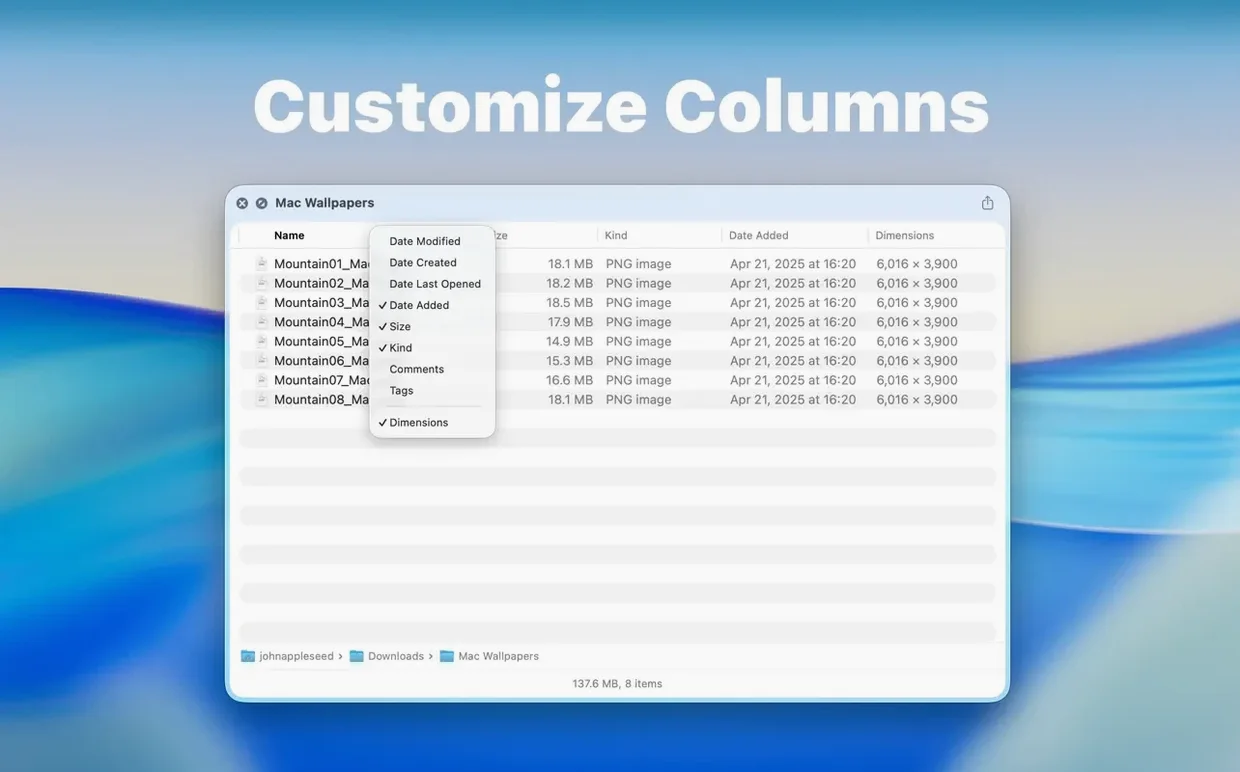
Column control — Right-click any column header to show or hide details, keeping the view clean for the task at hand.
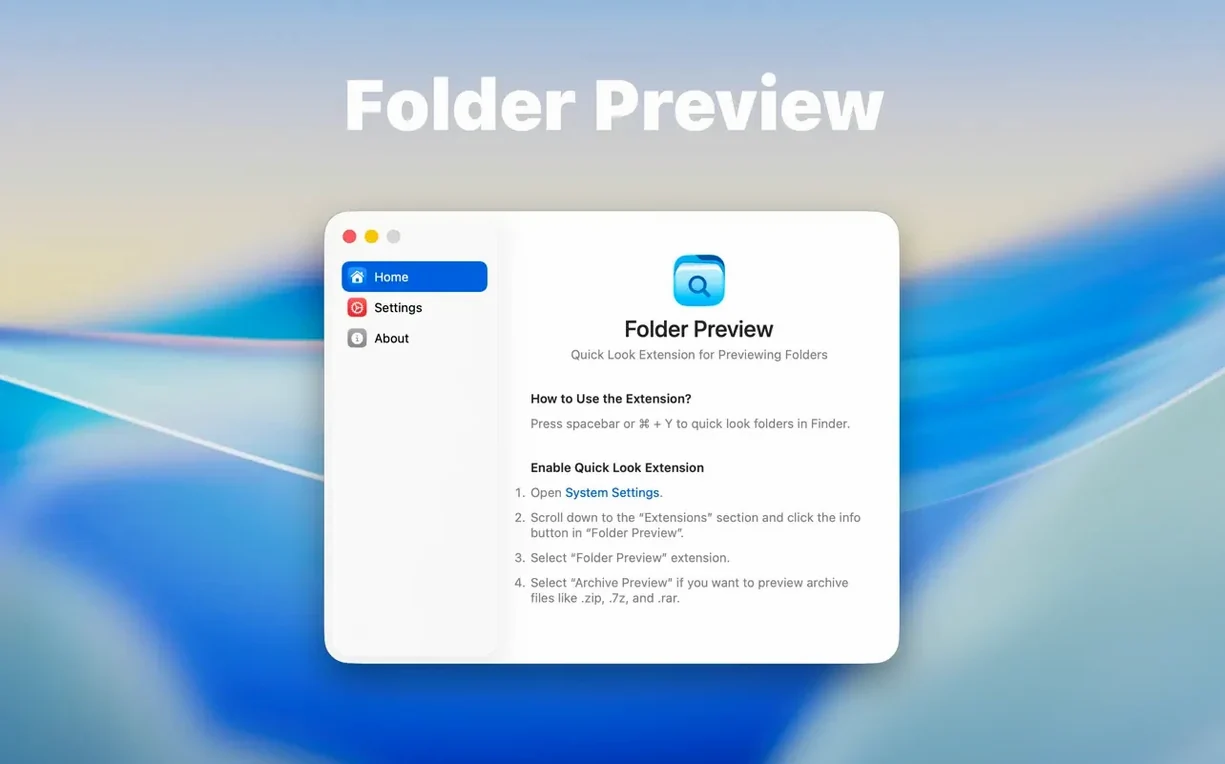
Quick Look needs to be switched on before Folder Preview Pro can do anything. Open System Settings, go to the Quick Look section, and make sure the extension is enabled. The app will prompt for this on first launch, but it is easy to miss if you click through quickly.
Prevent macOS stalling on large collections by raising the archive scan limit
- Archive size limit — Default scanning is fine for small files, but for large collections set the limit to 5 GB or 10 GB. It stops macOS from stalling while the preview calculates every nested item.
- Column layout — Right-click any header in the preview and switch off columns you rarely need, like date modified or file size. A leaner column set makes scanning faster.
- Default view — Decide between icon and list view before heavy use. Icon view suits folders full of images or design assets; list view suits archives and document folders.
- Dual Columns toggle — Keep it off for everyday browsing, and turn it on when you compare two folders or move files between a parent and a child directory.
Bypass opening every file manually in a chaotic project folder
You are in Finder, sorting a project folder that has grown out of control. There are client files, exported PDFs, a few old ZIP archives, and a folder called Final_v3 that you do not trust. Instead of opening each one, you select the first folder and press Space. The contents appear in a Quick Look panel: a clean list of filenames, sizes, and dates.
You press the Down arrow to move to the next item. A RAR archive from last month shows its internal structure without extraction. You spot a duplicate set of invoices, right-click the folder inside the preview, and choose Contents. The panel drills one level deeper. You drag two PDFs out of the icon view onto the Desktop before closing the panel.
Then you compare Final_v2 and Final_v3 in Dual Columns view. The difference is obvious in ten seconds: one extra folder and a missing cover image. You copy the missing file across and close the preview. The whole check takes under a minute.
Compare mirrored directories without opening a second Finder window
The most visible update is Dual Columns view. It removed the need to open two Finder windows side by side just to compare folder contents. For anyone who juggles mirrored project directories, this alone changes the habit: press Space, compare, close.
The Contents item in the context menu made archive and nested-folder browsing more direct. Instead of opening a folder to preview its child, you right-click and step down one level inside the same panel. That cut down on repeated Quick Look calls.
Drag-and-drop out of the preview was a small change that feels larger in daily use. Before, you had to close the preview, open the folder, then drag what you needed. Now the preview works as a temporary source window. Files go straight to Finder, an email draft, or a chat window.
Archive size options of 5 GB and 10 GB matter for teams that work with media bundles or database dumps. The old ceiling was too low for those cases, so the extension would either refuse the preview or take long enough that people gave up. The 3.1 limit options made folder preview pro useful on bigger archives without losing responsiveness.
Finally, moving folder size information from the status bar to the toolbar under the folder name tightened the layout. The number now sits closer to the folder title, where your eye goes first.
- New — Dual Columns view for side-by-side folder browsing.
- New — Contents item in the context menu for drilling into folders level by level.
- Improved — Files can now be dragged out of list and icon previews directly.
- macOS 13 or later
- Apple Silicon or Intel Mac
Questions I get before install
Does Folder Preview Pro work on Apple Silicon Macs?
Yes, it runs natively on both Apple Silicon and Intel Macs.
What macOS version is required?
The app requires macOS 13 or later.
How do I open the folder preview?
Select a folder or supported archive in Finder and press Space or Command-Y, just like any Quick Look preview.
Comments 0
Sign in to leave a comment.Sign inCreate an account
No comments yet. If a step is still there after you install it, say so.
More in Mac Apps
All in Mac Apps Flicker Free
Removes rolling light-source flicker from any camera's footage.
19 steps saved
 Folder Quick Look
Adds folders to the Space bar Quick Look workflow on macOS.
10 steps saved
 FL Studio
Builds beats in the pattern playlist and piano roll, from the first loop to the mixdown.
23 steps saved
 FontLab
Draws, kerns and exports professional typefaces and variable fonts.
20 steps saved
 Updated
ForkLift
Manages files across servers and cloud services in a dual-pane layout.
12 steps saved
 Firewall Scudo
Lets you allow or block an app's network access the moment it first tries to connect.
16 steps saved
 FotoMagico
Turns a folder of photos into a timed presentation with captions and music.
7 steps saved
 Find Any File
Searches the whole disk for files Spotlight misses, including hidden items and package contents.