
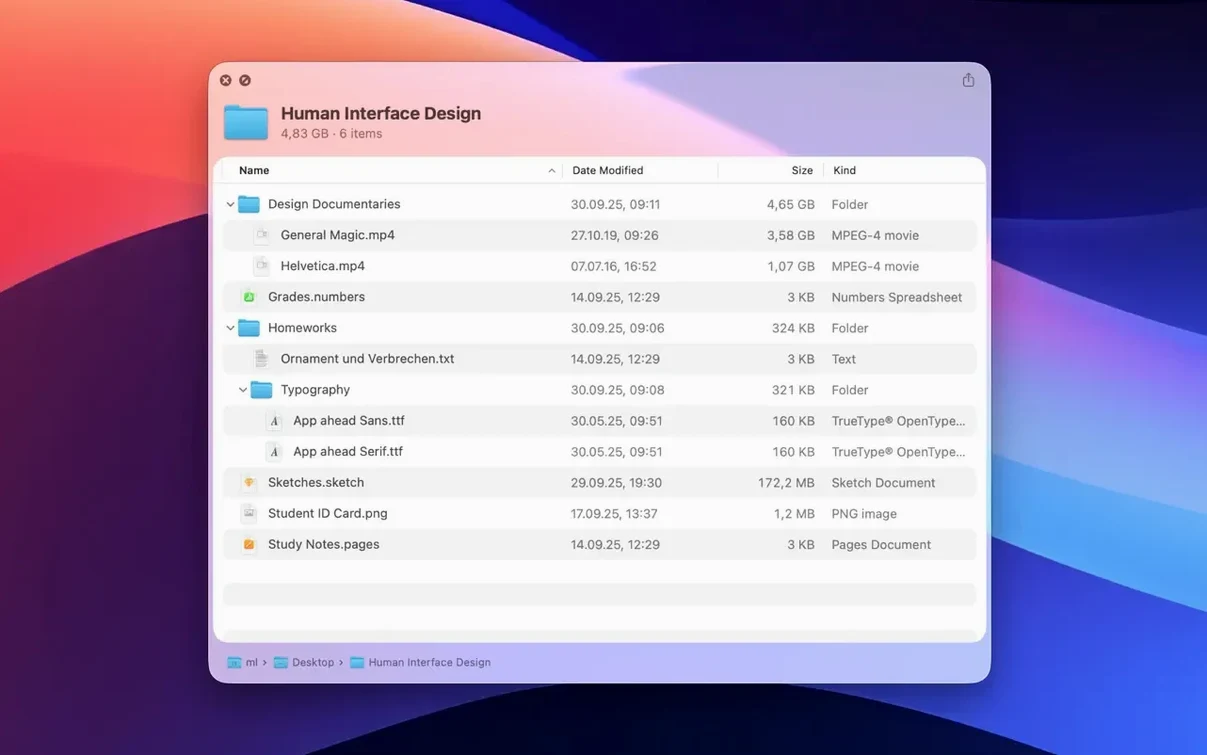
Quick Look on macOS is fast: tap the Space bar on a file, and you see its contents immediately. Folders, however, sit there showing nothing but a name and a size. Folder Quick Look closes that gap. It adds folders to the Quick Look workflow you already use, so a single key press reveals what is inside without opening a new Finder window.
What it previews
The app displays folder contents directly in the Quick Look panel. A recent update brings a grid view, so you see thumbnails of the files inside, arranged neatly. Archives get the same treatment — treat a zip as a folder and preview its contents before you extract anything.
Press Space, Peek Inside Without Leaving Finder
This is not a file manager replacement. It lives beside Finder, right in the muscle memory of the Space bar. You stay in your current window, check what a folder holds, and carry on. The interface languages cover English, German, Spanish, Italian, Simplified Chinese, Portuguese, French, Hindi, and Japanese.
It Previews Folders, But Won’t Move or Rename Files
Most early missteps come from expecting a file manager. Folder Quick Look shows a preview — it does not let you move, rename, or delete items from inside the panel. Selecting a thumbnail and pressing Return does nothing. Navigation works one level at a time: you can peek inside a subfolder, but you cannot click through a whole tree the way you would in Finder.
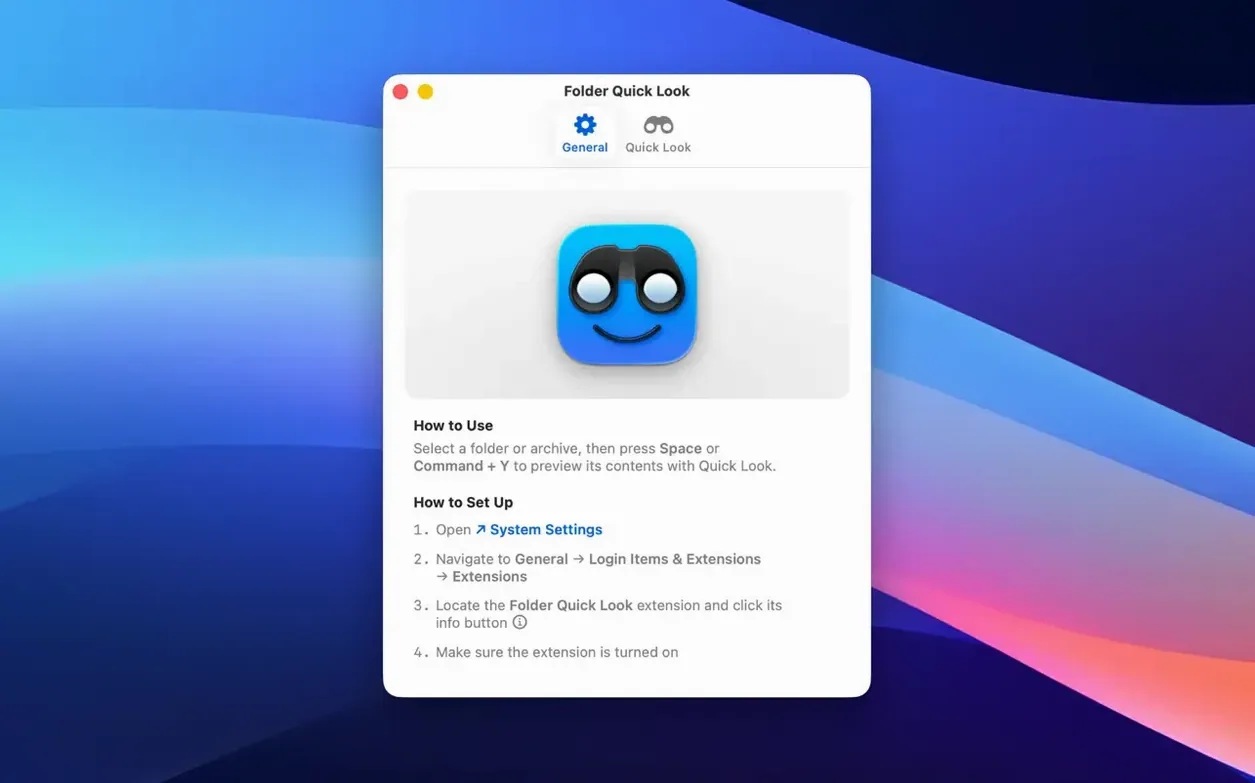
Another common pattern: people launch the app, see no window, and assume it failed. It runs as a Quick Look extension, so nothing appears until you select a folder and press the Space bar. If you switch away from Finder and try the same shortcut in a save dialog, the preview may not appear — Quick Look extensions follow Finder's context.
Beginners also overlook that archives preview as folders. A .rar file behaves like a directory in the panel, which surprises anyone expecting a blank preview or an error.
Conveniences easy to miss
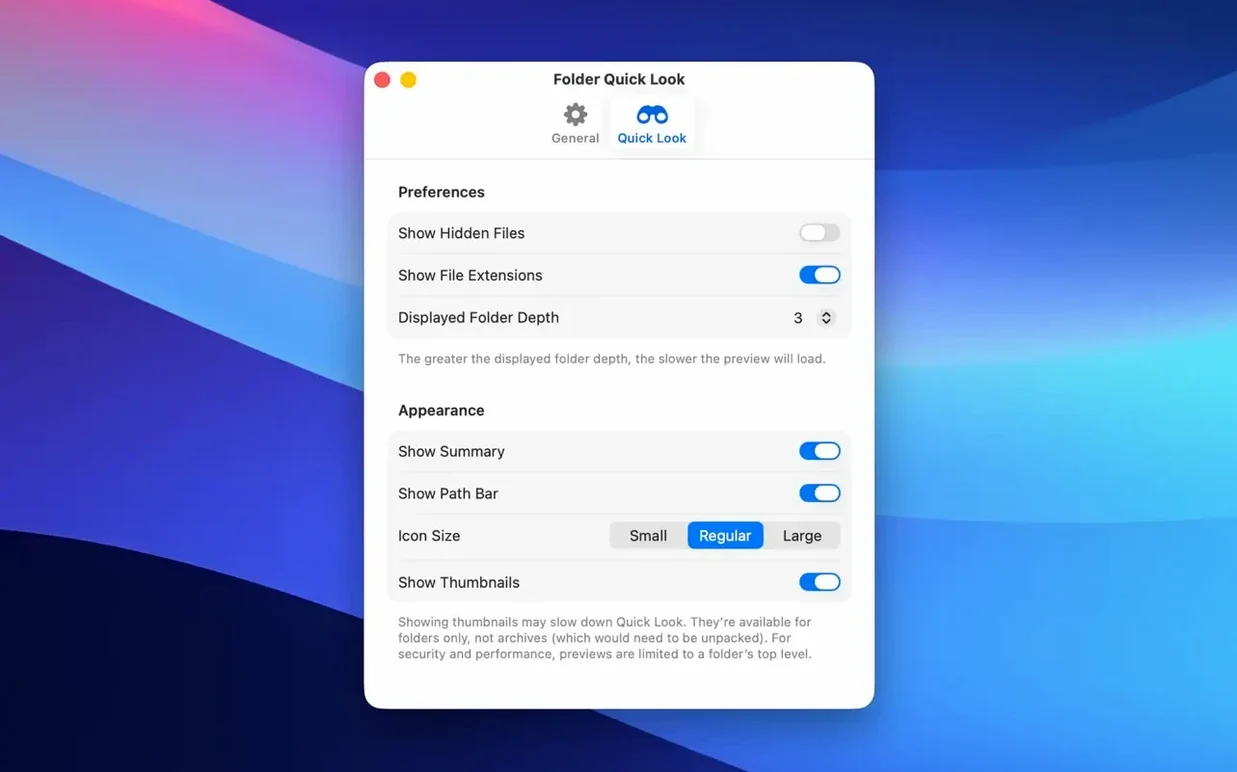
- Grid view toggle — Version 1.5 added a grid layout, but the switch is small. Press the grid icon in the preview toolbar to flip between list and thumbnail views.
- Space bar on archives — No extraction needed. Tap Space on any zip or rar, and the contents appear immediately.
- Subfolder peeks — Click a folder inside the preview to step one level deeper. The Space bar still closes the panel from anywhere.
- File details — Hover a thumbnail to see the name and size without opening anything.
- Language coverage — The interface follows your system language across nine options, so no manual setting is required.
One workflow worth adopting: keep a folder of reference images and use folder quick look for mac cracked searches when you need the archive preview behaviour. The app handles both, so the same Space bar press covers everyday folders and downloaded archives alike.
- New — Quick Look previews can be shown in a grid view.
- macOS 15.6 or later
- Apple Silicon and Intel 64-bit Macs
Comments 0
Sign in to leave a comment.Sign inCreate an account
No comments yet. If a step is still there after you install it, say so.
More in Mac Apps
All in Mac Apps Folder Preview Pro
Lets you peek inside any folder or archive without opening it.
23 steps saved
 Flicker Free
Removes rolling light-source flicker from any camera's footage.
23 steps saved
 FontLab
Draws, kerns and exports professional typefaces and variable fonts.
10 steps saved
 FL Studio
Builds beats in the pattern playlist and piano roll, from the first loop to the mixdown.
20 steps saved
 Updated
ForkLift
Manages files across servers and cloud services in a dual-pane layout.
16 steps saved
 FotoMagico
Turns a folder of photos into a timed presentation with captions and music.
12 steps saved
 Firewall Scudo
Lets you allow or block an app's network access the moment it first tries to connect.
13 steps saved
 Updated
FxFactory Pro
Installs and manages video effect plugins for Final Cut Pro, Motion and Premiere.