
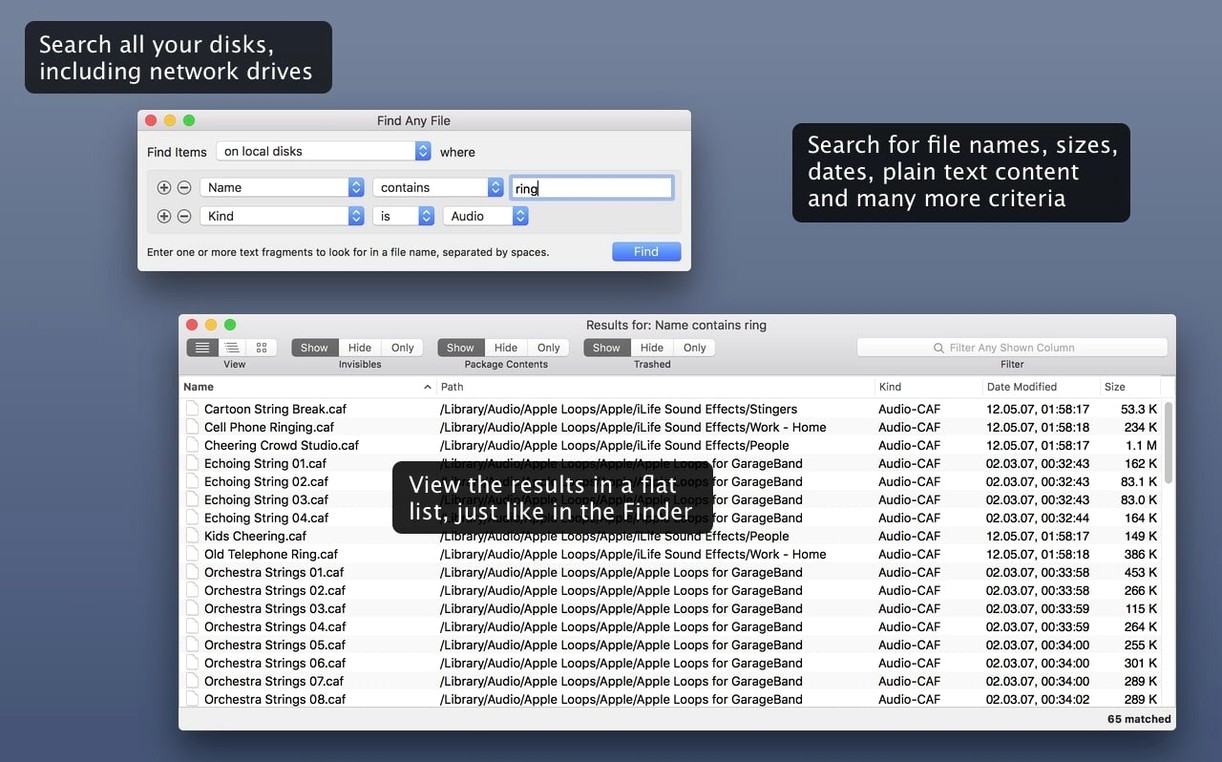
Spotlight skips system folders, bundles, and hidden files. Find Any File searches the disk itself, with no database in between.
What should I search for first?
Try a filename you know Spotlight misses — something inside a package, a system folder, or a hidden directory. The results appear as a flat list, not a grouped one.
Which searches suit a beginner?
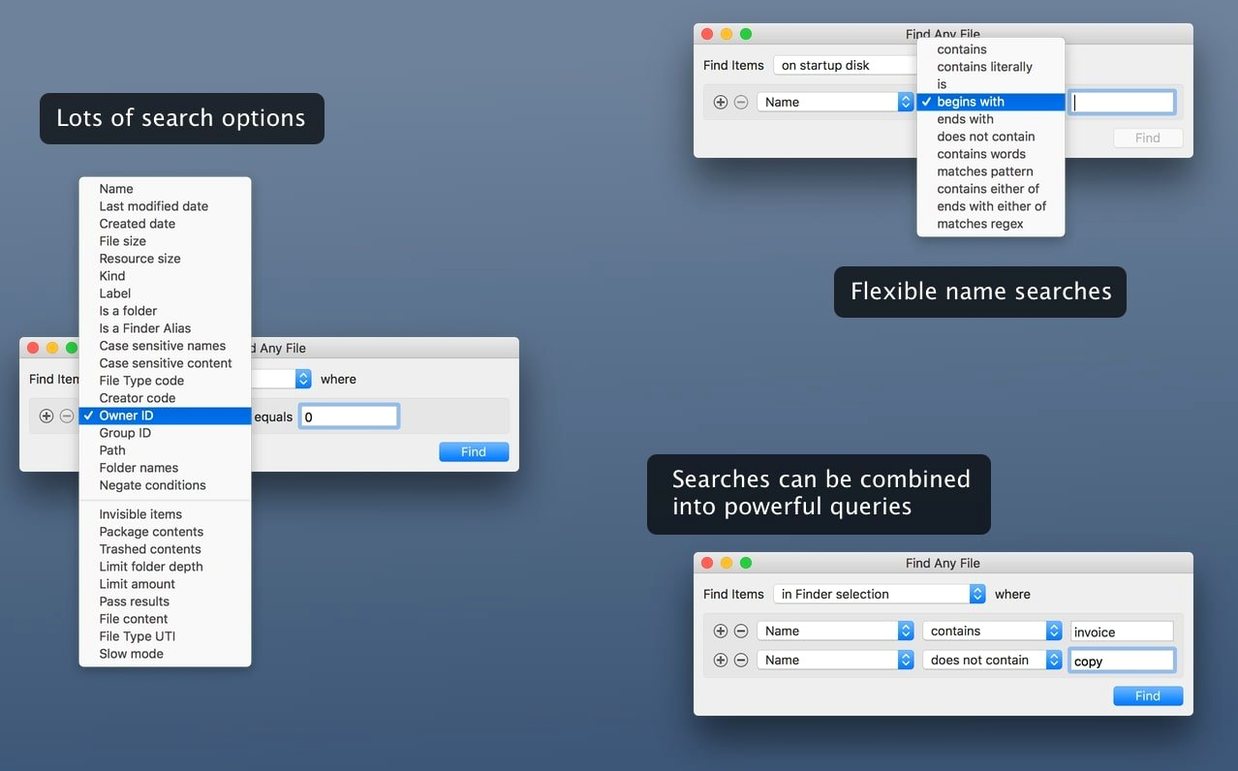
Start with name and date filters. Size and plain-text searches come next, once you see how the app reads the disk directly.
What does it not do?
It won't search inside Word, PDF, or email the way Spotlight does. Keep Spotlight for those, and use Find Any File for files Spotlight ignores.
Where does comments search fit in?
Switch a results list to a flat sortable table
A few touches make daily use faster than a first glance suggests.
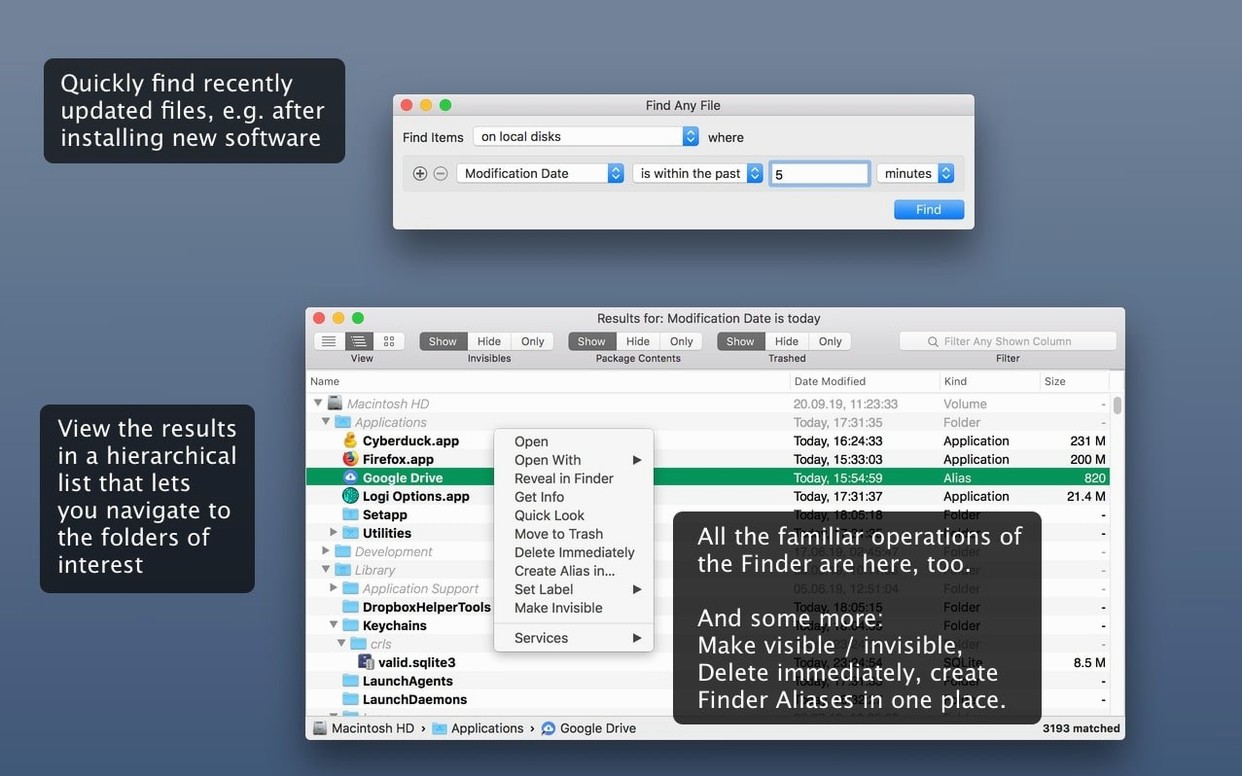
- Hierarchical view toggle — results default to a folder tree. Switch to a flat list when you need to sort everything by date or size without folder grouping.
- Reveal from results — select any file and hit
Command-Rto reveal it in Finder. Faster than right-clicking every time. - Drag-out results — drag a file straight from the results window into another app, a Finder window, or an email. No need to locate it first.
- Saved searches — the search field keeps recent terms, so repeated hunts take two keystrokes instead of retyping a long filename.
- Column sorting — click Comments, Trashed, or Hidden to group odd files quickly. The Trashed column alone saves a trip to the Trash when you suspect a file was deleted but not emptied.
Why a known folder returns zero matches
Most issues trace back to permissions or overlooked settings.
- No results in a folder you know has files — check that the search scope includes that volume. Network shares and secondary disks are not always selected by default.
- Search feels slow on a large disk — narrow the location before searching. Point the app at a subfolder instead of the whole volume; a direct disk scan is thorough but not instant.
- Text search returns nothing — remember it reads plain text only. A bundled file with rich formatting will not match. Export to
.txtfirst if you must search inside it. - Can’t find a file Spotlight sees — the reverse also happens. For email, PDFs, and Office documents, Spotlight remains the better tool. Use both side by side.
- Hidden files missing from results — confirm the Hidden column is active or include hidden files in the search criteria. Some views collapse them without warning.
Exclude your bootable backup from every search
Install, then spend ten minutes on a short routine that pays off later.
- Set your default search scope. Choose the volumes you search most. Exclude bootable backups if you have them — results double quickly.
- Run one search inside a package. Any app bundle works. This confirms the app sees what Spotlight skips.
- Create a saved search for recent large files. Size filter above 500 MB, sorted by date. Useful for freeing space on short notice.
- Note the Gatekeeper bypass. The installer walks through it once; after that the app opens normally from the Applications folder.
- Keep Spotlight enabled. Find Any File complements it. Run both when a search matters, then compare results once to understand where each one wins.
Version 2.6 added Comments, Trashed, and Hidden columns. Comments search is now more reliable, so a comment-based search is a good second step.
- New — AppleScript support for automating searches.
- New — Columns for Comments, Trashed, and Hidden.
- Improved — Finding comments is now more reliable.
- macOS 10.11 or later
- Intel and Apple Silicon
- Interface: English
Comments 0
Sign in to leave a comment.Sign inCreate an account
No comments yet. If a step is still there after you install it, say so.
More in Mac Apps
All in Mac Apps Updated
Final Cut Pro
Handles editing from a single angle to a 64-angle multicam shoot inside a magnetic timeline.
12 steps saved
 Firewall Scudo
Lets you allow or block an app's network access the moment it first tries to connect.
4 steps saved
 FileMaker Pro
Builds custom databases and business apps with forms, layouts and scripts.
20 steps saved
 Fig Player - play mp4 mkv mp3
Plays formats like mkv and flac that macOS won't open, without a cluttered interface.
10 steps saved
 FL Studio
Builds beats in the pattern playlist and piano roll, from the first loop to the mixdown.
14 steps saved
 Festivitas
Adds a string of holiday lights to your Dock and menu bar on launch.
23 steps saved
 Flicker Free
Removes rolling light-source flicker from any camera's footage.
12 steps saved
 Fender Studio Pro
Records, edits, and mixes inside one window, with tools to split a mixed track into stems.