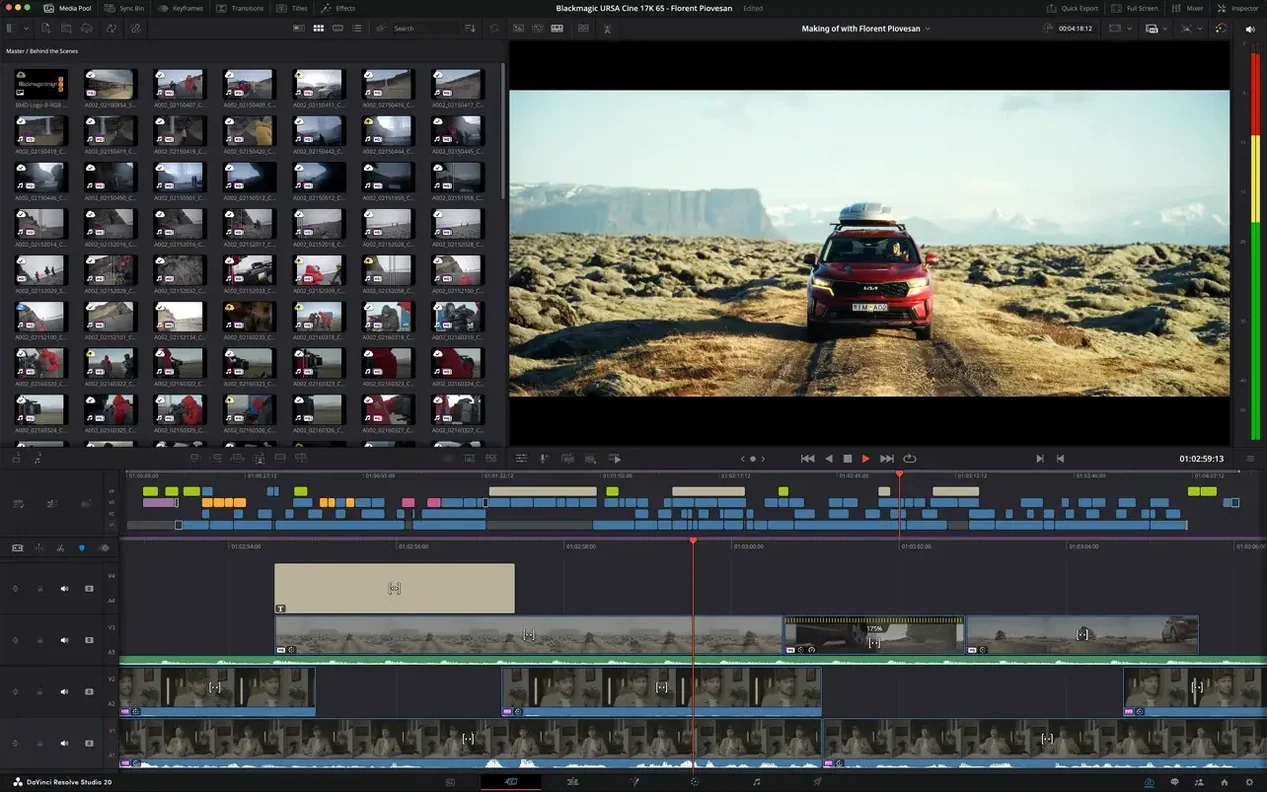
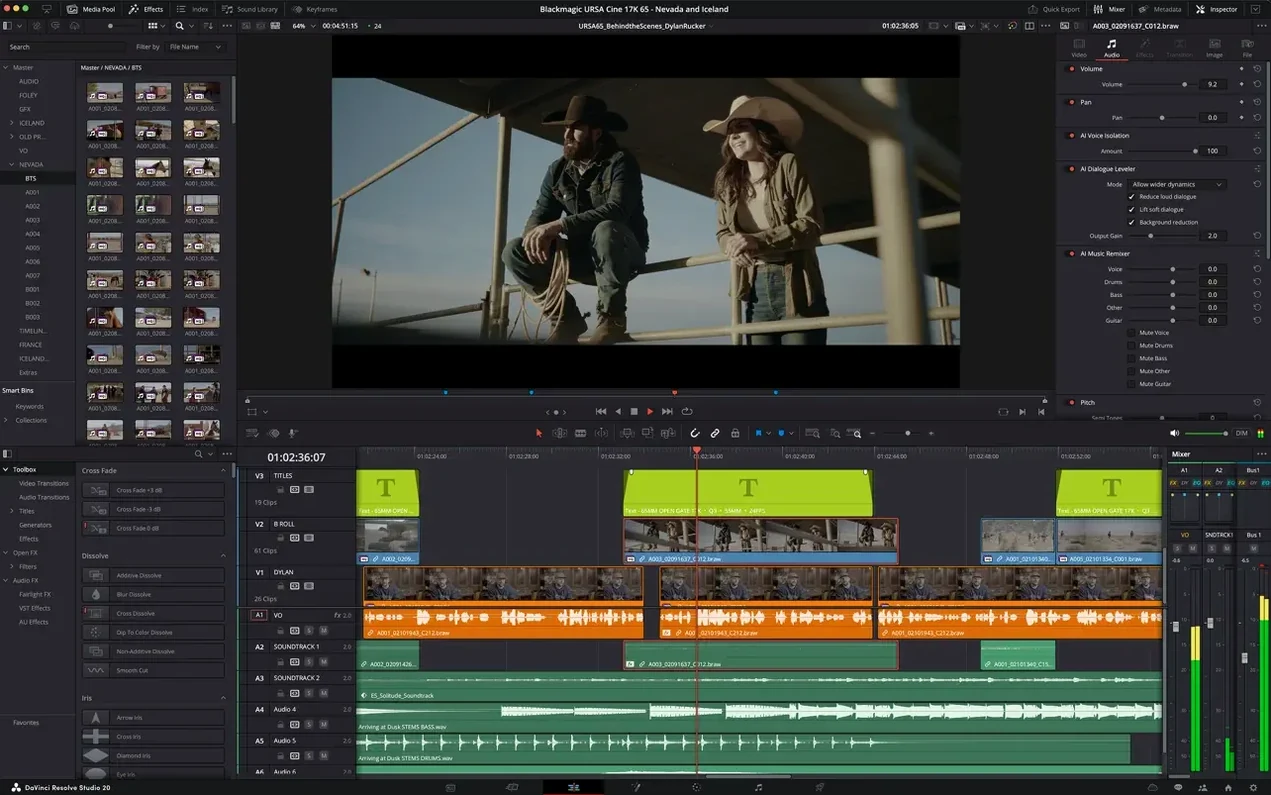
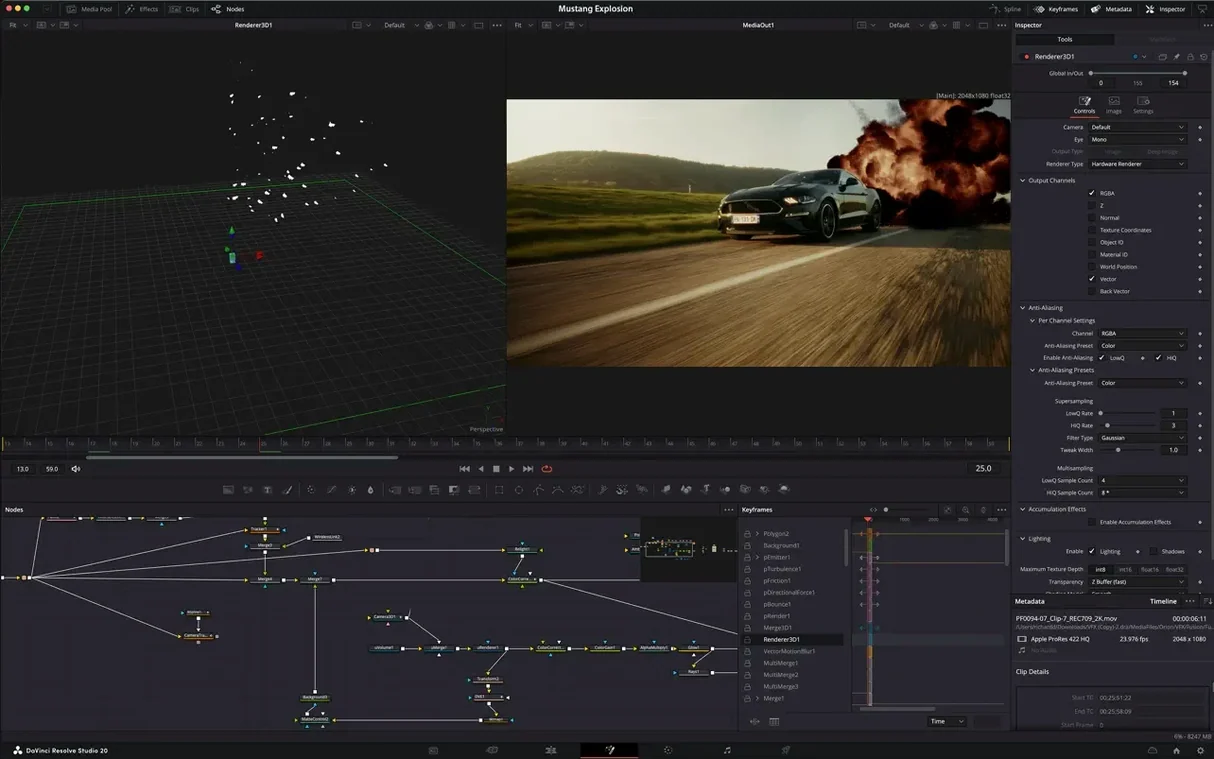
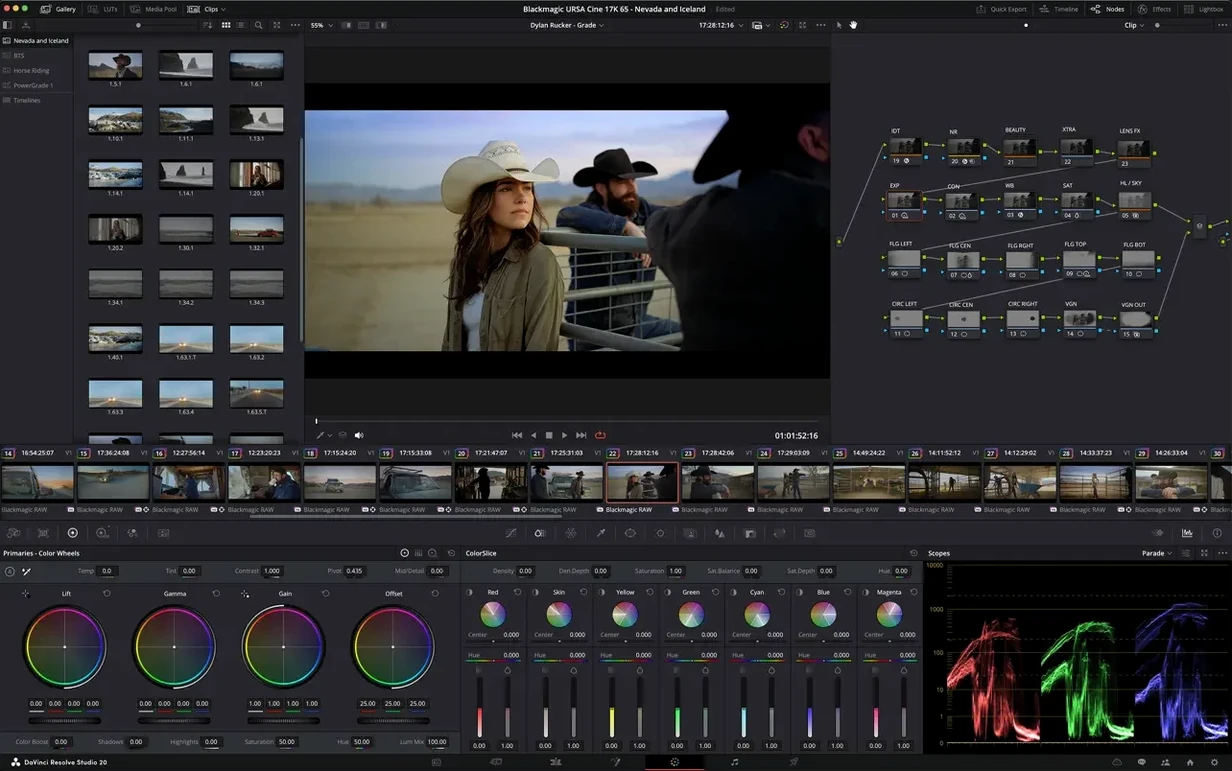
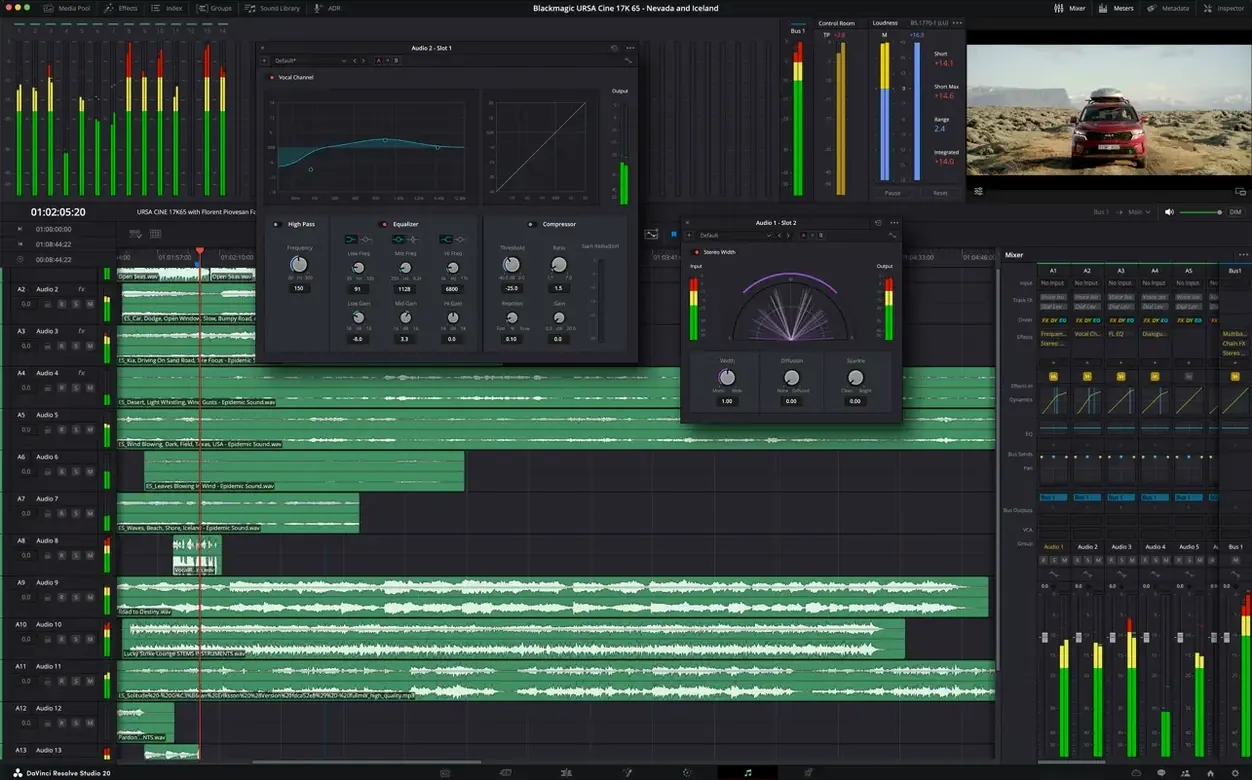
DaVinci Resolve Studio is a single Mac application that covers editing, colour correction, visual effects, and audio post-production.
- Media organization — Drop a folder of clips into the Media Pool and let the new AI assistant sort them by scene, camera, or metadata before you make a single edit.
- Cut page — A streamlined timeline built for speed. Drag selects, smart insert edits, and a source tape view keep assembly fast without touching the full Edit page.
- Colour wheels — The primary tool on the Colour page. Lift, gamma, gain, and offset controls sit below scopes that update live — a practical place to learn balancing.
- Fusion nodes — A node-based workspace for compositing. Start with a Text+ node, connect it to a MediaOut, and you have a title; add a Transform node next to move it.
- Fairlight mixer — A full audio console with EQ, dynamics, and bus routing. Load a clip, open the mixer, and set levels with real-time meters.
F9 Three-Point Edits That Skip the Dialog Box
A handful of shortcuts sit just below the surface and change how fast you move through a timeline.
- Three-point editing without dialogs — Mark In and Out in the source viewer, mark In on the timeline, and press F9. The insert lands without a single menu click.
- Middle-click paste — In the Edit page, a middle mouse click pastes a clip at the playhead position, no ctrl-V needed. Works across tracks and keeps the clipboard intact.
- Smart bin auto-population — Right-click a bin, choose “Create Smart Bin,” set a filter like Resolution > 4K or Shot on day 2, and every matching clip appears automatically as you ingest.
- Adjustment clips for colour grades — Drop an Adjustment Clip onto a track above your timeline, apply a grade, and every clip below inherits it. Change the grade once; the whole scene updates.
- Ripple delete with Shift+Delete — Removes a clip and closes the gap in one motion. Faster than delete-then-drag.
- Power bins — Clips stored in a Power Bin appear in every project. Keep stock lower thirds, logo bugs, or intro stingers there and never re-import.
ProRes and EXR Round-Trips With Other Apps
DaVinci Resolve Studio doesn't demand isolation. It reads and writes formats that other tools understand, and it leans on macOS features that keep workflows tidy.
- ProRes and EXR round-trips — Export a clip as ProRes 4444 or EXR, work on it in Motion, After Effects, or Blender, and bring it back. The colour pipeline holds because Resolve writes clean, unclamped data.
- XML and AAF handoff — Import an XML from Final Cut Pro or an AAF from Avid Media Composer and Resolve rebuilds the timeline with most cuts and markers intact. In reverse, export an XML to finish sound in Logic Pro or Pro Tools.
- Sidecar metadata — Resolve follows macOS file tagging. Assign a coloured tag to a folder of raw footage in the Finder, and the Media Pool picks up the same label.
- Spotlight and Quick Look — Rendered files are indexed by Spotlight. Press the spacebar on a deliverable in the Finder and you get a full-screen preview without opening the app.
- Continuity Camera — With an iPhone nearby, Resolve sees it as a live video source for voiceover recording or scratch tracks directly into the Fairlight timeline.
- Third-party OFX plugins — The Studio edition supports OFX plugins from Sapphire, Dehancer, FilmConvert, and others. Install once; they appear in the Effects Library on the Colour and Edit pages without extra configuration.
Clone Tool Starts Every Monday With Verified Footage
A documentary editor opens Resolve on a Monday morning with a card full of interview footage.
Step 1: Ingest. She connects the card reader. The Clone tool on the Media page copies everything to an external SSD with checksum verification. While the copy runs, she opens the Media Pool, creates a Smart Bin filtered by the day's shoot date, and the new AI assistant starts suggesting scene groupings based on shot content.
Step 2: Rough cut. She moves to the Cut page. The source tape view stacks every clip end to end. She scrubs at 4x speed, marks In points with I on the keyboard, and builds a timeline entirely with the F9 insert key. Ten minutes in, she has a six-minute stringout.
Step 3: Tighten. She switches to the Edit page. With the trim tools, she rolls edits frame by frame using the comma and period keys. A three-minute section needs tightening; she enables the Speed Editor and dials in 110% speed ripple edits that keep the conversation natural but shorter.
Step 4: Colour pass. The Colour page opens. She adds a node, pulls down the lift wheel to set the blacks, and copies the grade across all clips from the same camera with a middle-click. One adjustment clip over the b-roll track warms the exteriors without touching the interview shots.
Step 5: Sound mix. In Fairlight, she normalizes dialogue to -23 LUFS, adds a noise gate on the lav track, and routes all music to a sub-bus with a subtle compressor. The meters stay green; nothing clips.
Step 6: Deliver. She queues two renders: an H.265 master for the client review and a ProRes 422 HQ for the colourist who'll pick up next. Both kick off with a single click in the Deliver page, and she closes the laptop while the renders write to disk.
Stability, Speed, and Resource Use
On Apple Silicon, the interface stays responsive even with a 6K timeline loaded. Playback at full resolution rarely stutters once the render cache warms up. The GPU-accelerated HTJ2K decoding added in 21.1 makes scrubbing through compressed raw files feel nearly as smooth as ProRes.
RAM consumption sits around 3–5 GB for a typical HD project, climbing toward 12–16 GB with heavy Fusion comps and noise reduction active. The app releases memory cleanly when you close a project — no creeping usage over a long editing day.
Background processes stay quiet. The render cache writes to disk incrementally and never blocks playback. Background auto-save happens silently every few minutes; if the app ever does quit unexpectedly — rare in daily use — the project restore dialog appears on the next launch with versions timestamped to the minute.
Fusion loads heavy comps more slowly than the Cut or Edit pages, but once a composition is open, node tweaks refresh in real time. The new Krokodove tools in 21.1 add shape and text generators that render on the GPU and don't spike CPU usage. Fairlight processes dozens of tracks with effects without measurable latency on M-series chips — a real-time roundtrip from timeline scrub to headphones stays under 10 milliseconds.
The app loads in under eight seconds from a cold start on an Apple Silicon Mac. Switching between pages — Media to Cut to Colour — feels instant. The only time a beach ball appears is during heavy OFX plugin initialization, and even then it's brief. For a tool that bundles five applications into one binary, the daily experience is remarkably uneventful — in the best sense.
- macOS 15 or later
- Apple Silicon or Intel 64-bit
Comments 0
Sign in to leave a comment.Sign inCreate an account
No comments yet. If a step is still there after you install it, say so.
More in Mac Apps
All in Mac Apps DataSpell
Combines notebooks, datasets, and a Python console for focused data exploration.
22 steps saved
 Updated
DataGrip
Reads your database schema and catches query mistakes before you run them.
17 steps saved
 Updated
Dash
Gives developers instant offline access to API docs and code snippet libraries.
5 steps saved
 Deep Glow
Generates physically accurate light falloff so glows bloom without clipping highlights.
20 steps saved
 Dehancer Pro
Emulates film stock colour and grain as a plugin inside your existing editing timeline.
21 steps saved
 Depth Scanner
Generates a depth matte from any video clip or photo directly inside After Effects.
17 steps saved
 DaisyDisk
Maps disk usage as an interactive sunburst chart so you spot what is eating space in seconds.
4 steps saved
 Cycling '74 Max
Patches together custom audio, MIDI and visual tools from connectable objects.