

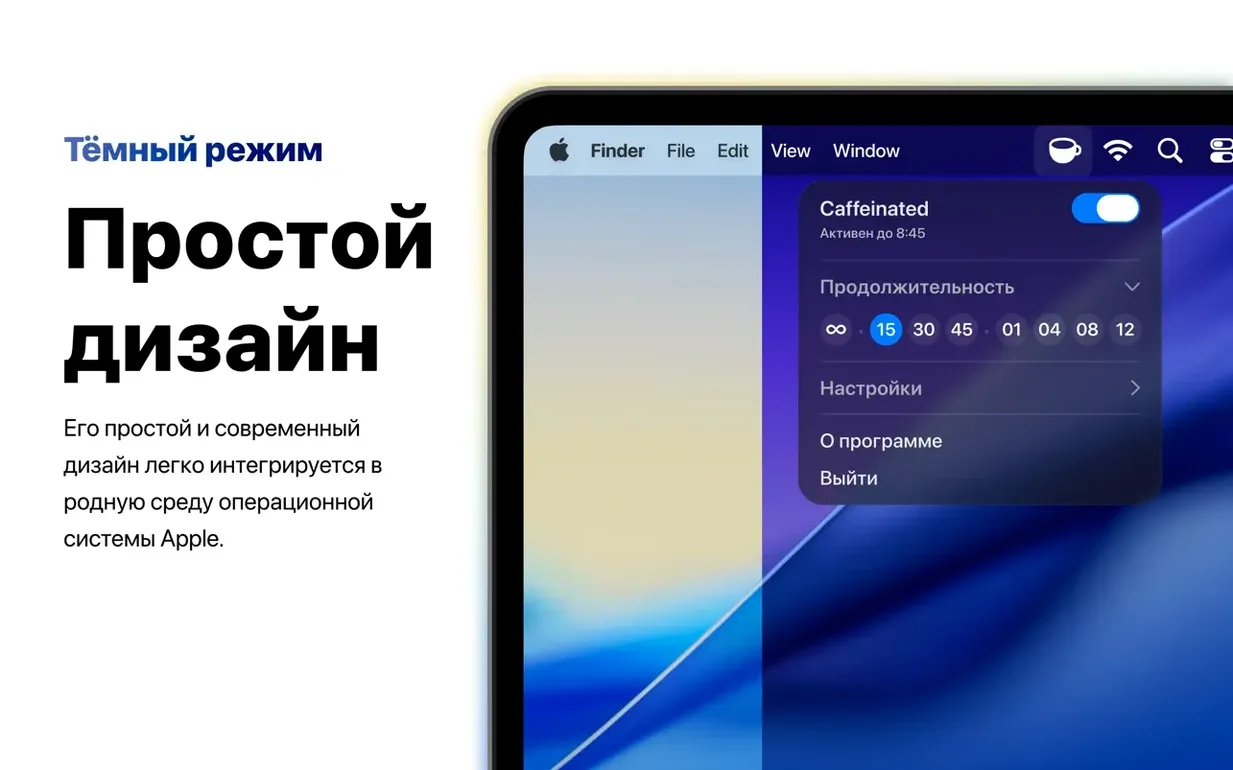


One menu bar icon, three behaviours switched off. Caffeinated prevents the system from going to sleep, stops the display from dimming, and keeps the screensaver from starting. That is the entire job, and it does it without a Dock icon or a settings window you have to babysit.
The app follows the pattern set by the earlier Caffeine utility. You click, the Mac stays awake. You click again, normal behaviour returns. No timers to configure unless you want them, no profiles to manage. It is a toggle, not a project.
Under the hood, the current build is optimized for Apple Silicon and Retina displays. It runs on modern versions of macOS and adds a setting for keeping the system awake with the lid closed — useful for external displays and long-running tasks.
Interface languages cover a wide range, from Arabic and Hebrew to Hindi and Japanese. For teams that occasionally need a machine to stay alert during a presentation or a long export, it replaces fiddling with Energy Saver settings.
Lid-Closed Operation Keeps Your MacBook Awake
The most practical addition in the current release is lid-closed operation. On a MacBook connected to an external display, you can now shut the lid without the machine going to sleep. Large file transfers, rendering queues, and backups keep running while the desk stays clear.
An earlier behaviour — left-click activation on macOS 27 — is fixed. Prior to the patch, the toggle sometimes ignored a direct left click on the menu bar icon and required a right click instead. That inconsistency is resolved. The cup now responds the same way every time.
For everyday use, these two changes remove friction. The lid-closed setting turns Caffeinated from a presentation tool into a background utility. The left-click fix restores muscle memory for users who prefer a single tap over a right-click menu dive.
Swap Clicks So the Left Button Toggles
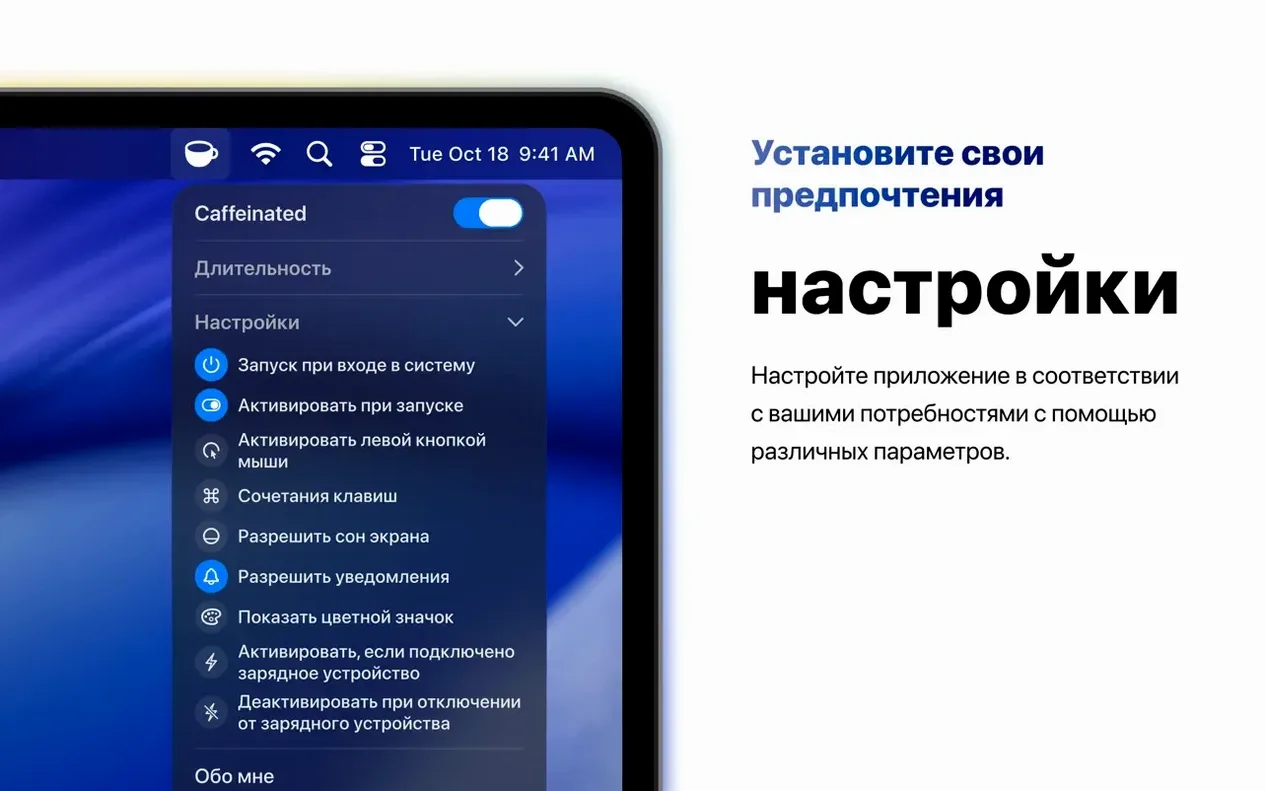
Out of the box, right click toggles activation and left click opens the menu. If you activate the app dozens of times a day, swap this immediately. Set left click to toggle and right click to open the menu. The coffee cup becomes a one-handed switch.
Next, turn on the built-in timer with notifications. A 45-minute window is a sensible default for focused work blocks. When the timer ends, the system returns to its normal sleep behaviour. You will not forget a machine left awake overnight.
Finally, enable the keep system awake with lid closed option if you use an external monitor. Without it, closing the lid still sends the Mac to sleep on battery power. With it, a closed-lid MacBook behaves like a desktop.
- New — The expanded or collapsed state of the duration menu now sticks between launches.
- Fixed — Removed tick marks from the duration slider on macOS 15.
- Fixed — Global shortcut recorder stability addressed on macOS 15.
- macOS 15 or later
- Apple Silicon or Intel 64-bit Mac
Questions I get before install
Does Caffeinated have a Dock icon?
No. It lives in the menu bar only, so it stays out of the way while the Mac is awake.
Comments 0
Sign in to leave a comment.Sign inCreate an account
No comments yet. If a step is still there after you install it, say so.
More in Mac Apps
All in Mac Apps Camo Studio
Turns a phone or tablet camera into a high-quality webcam with overlay controls.
19 steps saved
 Updated
Camtasia
Records a screen and provides a timeline editor to trim, annotate, and narrate the result.
20 steps saved
 BuhoLaunchpad
Replaces the standard app grid with a snappier, folder-friendly launcher.
13 steps saved
 Canopy
Shows playback controls and a countdown timer in a small overlay at the top of the screen.
13 steps saved
 CapCut
Cuts short social videos fast with templates, auto captions and effects.
6 steps saved
 BuhoCleaner
Removes leftover files from uninstalled apps and clears system clutter.
17 steps saved
 Updated
Capture One
Gives tethered shooters direct raw-file control over colour and detail before retouching.
6 steps saved
 Bootstrap Studio
Builds responsive layouts on the desktop without writing repetitive HTML and CSS grids.