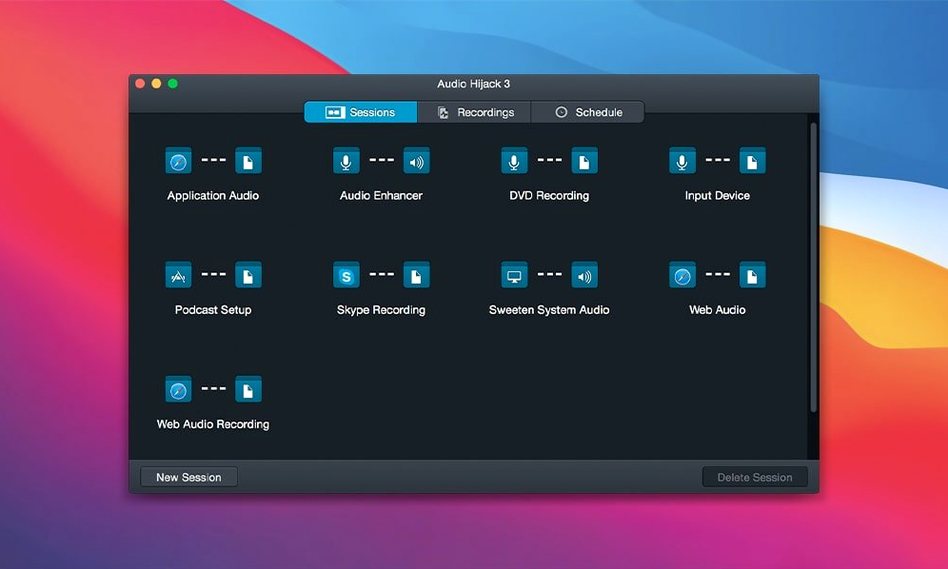
The Denoise filter alone makes Audio Hijack worth keeping open. It pulls hiss and hum out of live audio before the file even hits your disk, saving a separate clean-up pass later.
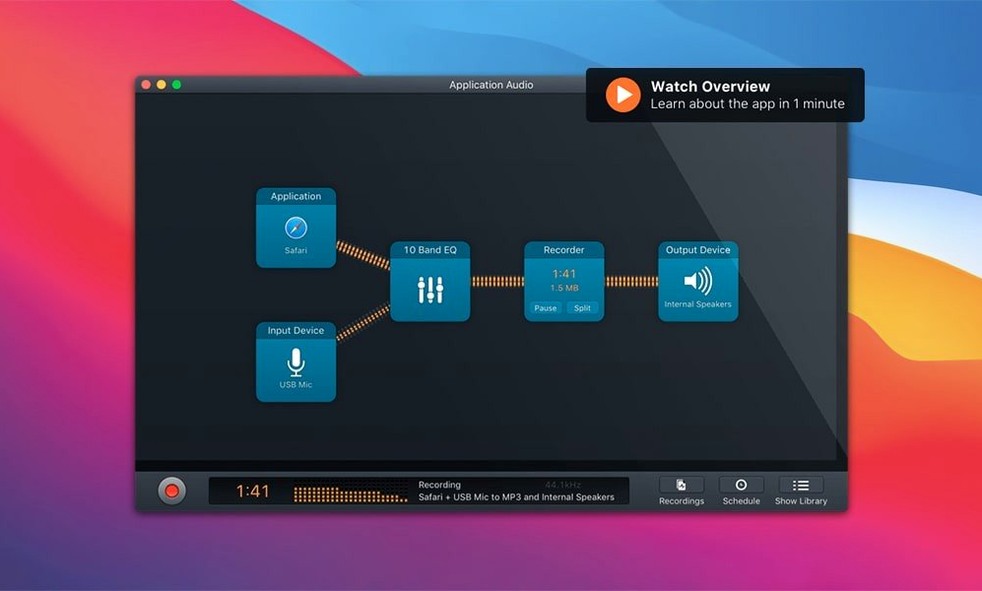
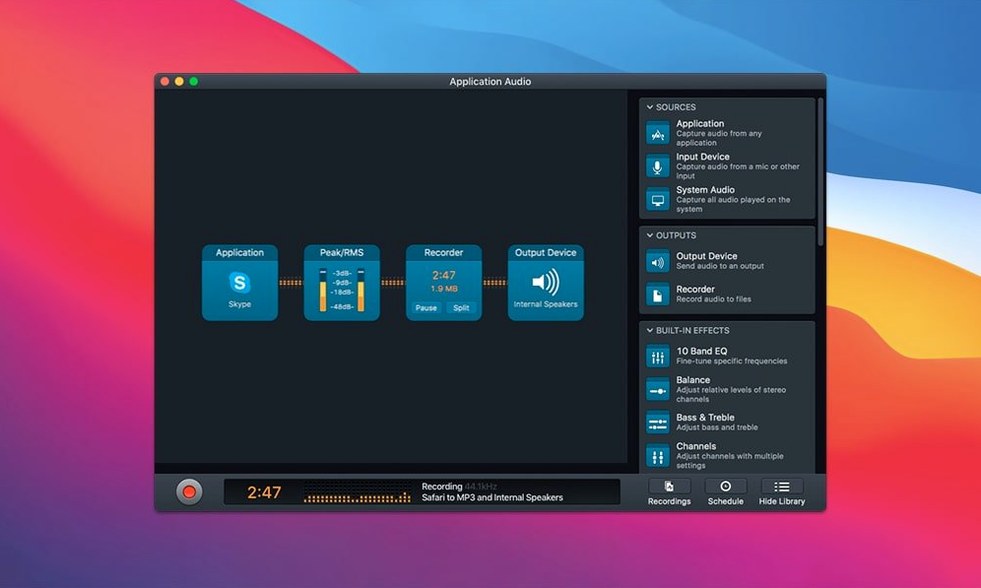
At its core, the app records anything your Mac can hear—a browser tab, a video call, a USB microphone, a turntable connected through an interface. You build a workflow by dragging blocks into a session: an application source, a few effects, and a recorder that saves to a folder you choose. Templates get you started for common tasks like capturing Skype calls or digitizing old cassette tapes.
Version 4.6.0 ships ready for macOS 27 and sharpens the built-in Transcribe block. It now defaults to a Recommended transcription model and moves the Whisper.cpp backend from 1.7.4 to 1.9.2. That means cleaner transcripts with less fiddling over settings.
Recording a Remote Interview with Live Noise Reduction
Here’s a session from start to finish—two people, one remote, one at a desk with a condenser mic that picks up the fridge hum across the room.
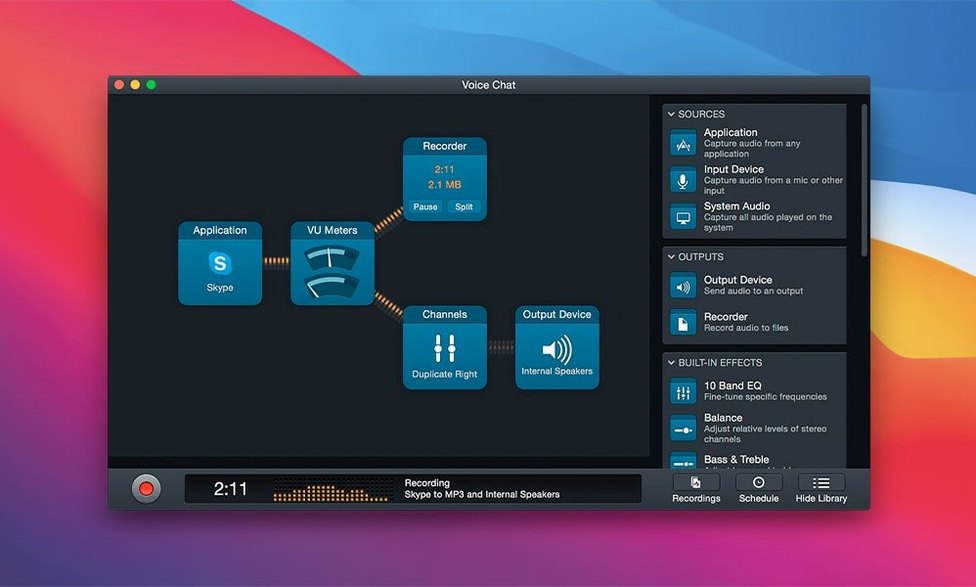
- Open Audio Hijack and choose the Voice Chat + Effects template. It drops four blocks onto the canvas: an application source (Zoom), a chain of effects, a recorder, and a live output so you can monitor.
- Click the application source and pick Zoom from the list. Audio Hijack grabs only that app’s sound—no dings, no email alerts bleeding through.
- Add a second input block: your USB microphone. Drag it in, set it as a separate source. The session now captures both sides discreetly.
- Drop Denoise and Dehum into the effects chain. Twist the Dehum frequency to 60 Hz (North American mains hum) and watch the background whine vanish from the monitor meter. Declick stays off; no vinyl involved here.
- Set the recorder block to 24-bit FLAC, mono, with automatic gain control enabled. Name the file by date and guest initials—keeps the archive searchable.
- Hit the orange record button. As the conversation runs, the meters show the cleaned signal, not the raw feed. What you hear is what you’ll get.
When the call ends, the FLAC file is already trimmed and sitting in the project folder. No post-processing, no RX pass, no waiting. The transcript block would have added a text file alongside it if you’d dropped it in.
Where Audio Hijack Sits in a Working Setup
Think of it as a patch bay that lives between your sources and your editors. It doesn’t replace a DAW—it feeds one, or bypasses it entirely when the task is simple capture.
Common connections:
- Into Logic Pro or Reaper — Record a clean voice track through Audio Hijack’s effects, then export as a WAV that drops straight into a timeline. Mixing starts with gain-staged, noise-free audio.
- Alongside Shortcuts — macOS Shortcuts can fire off a pre-built Audio Hijack session at a scheduled time. One shortcut triggers a weekly internet radio capture; the file lands in a synced iCloud folder for listening later.
- With Loopback — Rogue Amoeba’s own Loopback creates virtual audio devices. Combine Audio Hijack and Loopback to route a podcast mix (local mic + remote guest + soundboard) into a single virtual input that OBS or Zoom sees as one microphone.
- Quick Look integration — After recording, tap the Space bar on the output file. Quick Look plays it immediately. No app launch, no import step.
It also respects macOS privacy controls. Microphone and screen capture permissions live in System Settings; Audio Hijack only accesses what you grant, and the session canvas shows every source openly.
A Morning with Audio Hijack
8:42 AM. You’ve got a podcast intro to record, a client call to capture, and a vinyl side to digitize before lunch.
You open the app and three saved sessions appear in the sidebar. Click the first—Morning Monologue—and the canvas loads: Shure SM7B input → light compression → Denoise → MP3 recorder. You tap record, speak for six minutes, and stop. The file is already in the Podcast/Raw folder. Finder tags it automatically via an app preference you set months ago.
Next, the client call. You launch the Call Record session. FaceTime appears as the source; the recorder flips to AAC 256 kbps. You join the call and forget the app is running until, an hour later, you see the green waveform icon in the menu bar flicker and stop when the call ends. No post-call scramble to remember what was said.
By 10:30 AM the turntable is warmed up. You switch to the Vinyl Rip session: USB audio interface on input, Declick block active, 24-bit/96 kHz FLAC on output. You drop the needle on side A. The session splits tracks automatically when it detects silence longer than two seconds. Side B follows while you make coffee. Two clean album sides land as separate files, metadata ready to add in MusicBrainz.
Three tasks, zero busywork, one app that stays out of the way until the waveform stops moving.
- New — Full support for macOS 27 (Golden Gate).
- Improved — The Transcribe block now picks a Recommended transcription model automatically.
- Updated — Whisper.cpp backend moved from 1.7.4 to 1.9.2 for better accuracy.
- macOS 14.4 or later, including macOS 27 Golden Gate.
- Apple Silicon or Intel Mac.
Questions I get before install
What does Audio Hijack actually record?
It captures audio from specific applications, hardware inputs like microphones and turntables, and VoIP calls in apps such as Skype and FaceTime—all selectable as individual sources in a recording session.
Comments 0
Sign in to leave a comment.Sign inCreate an account
No comments yet. If a step is still there after you install it, say so.
More in Mac Apps
All in Mac Apps attn LED
Flashes the camera LED instead of popping a banner for important notifications.
20 steps saved
 Audiobook Builder
Stitches a stack of audio files into one structured, chaptered audiobook.
8 steps saved
 Astro Gold
Calculates natal charts, transits and progressions for serious astrology work.
7 steps saved
 Audiofile Engineering Fidelia
Plays a local music library with audiophile-grade output and per-device settings.
4 steps saved
 BAO Mask Avenger
Exposes every mask point as an animatable keyframe for detailed rotoscoping.
16 steps saved
 Bartender
Hides the menu bar icons you rarely need behind a single click.
5 steps saved
 BBEdit
Opens massive plain-text files and lets you edit them without a lag spike.
14 steps saved
 Beauty Box Photo
Smooths skin texture automatically while keeping eyes and hair sharp.