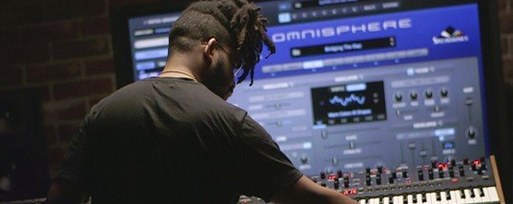
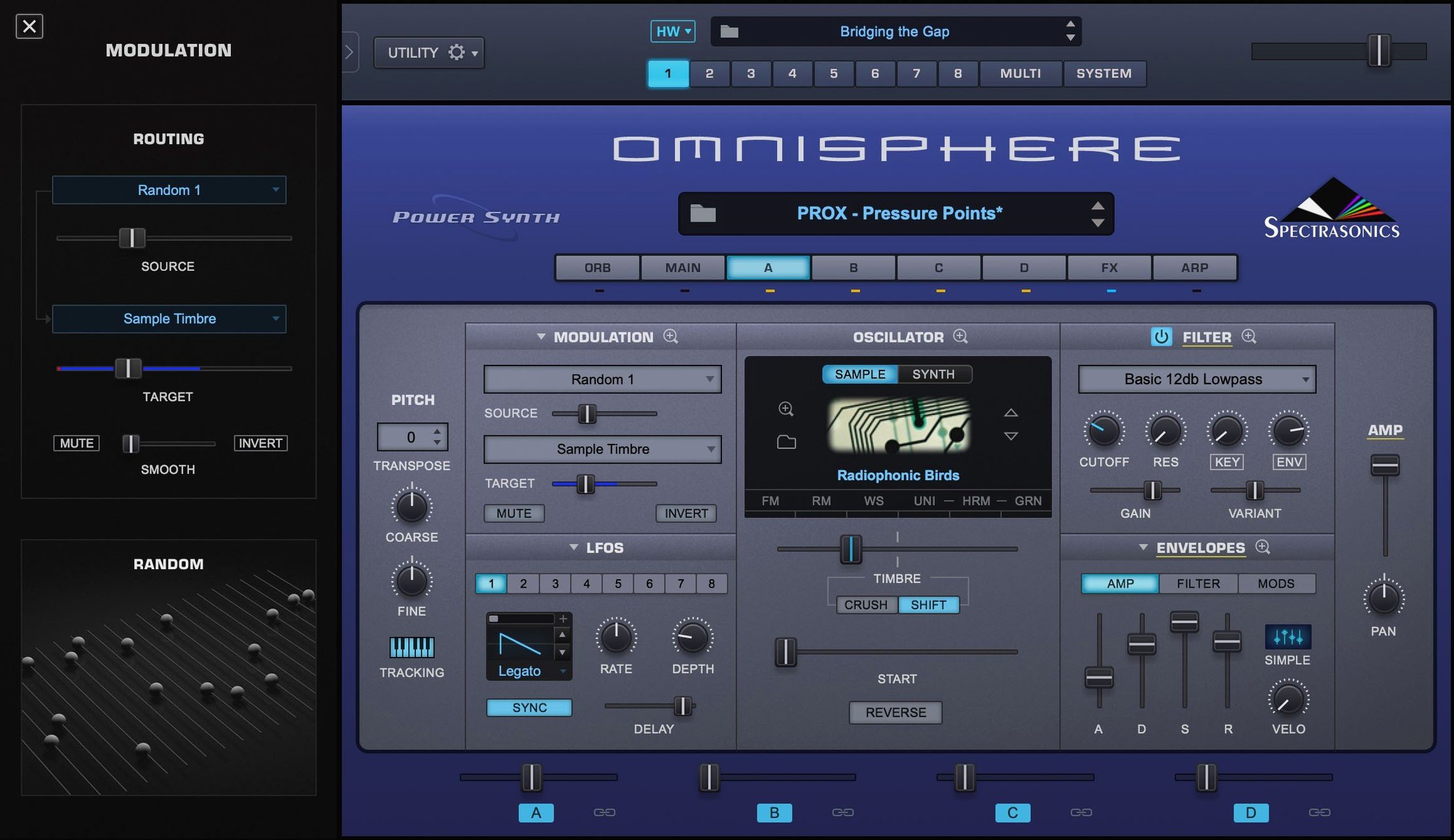
Most software instruments lock you into a single plug-in format or DAW. Omnisphere solves that before you even reach for a preset. It runs as a standalone app and loads in every major host—VST, AU, and AAX—so your go-to synth stays available no matter where a project begins. That broad compatibility pairs with native support for both Apple Silicon and Intel 64-bit Macs, all from a single installer.
- Loads as a standalone instrument without opening a DAW
- VST, AU, and AAX plug-in formats in one package
- Runs natively on ARM and x86 64-bit Macs
- Works in Logic Pro, Ableton Live, Pro Tools, and other major hosts
- Requires macOS 11 or newer
Under the hood, this is Spectrasonics’ flagship synthesizer—a deep sound engine that rewards sound designers and preset browsers alike. The English-language interface stays responsive whether you are stacking layers or mapping modulation. Version 3.0.2c keeps the focus on stability across current Mac hardware.
Streaming Mode Switch to Server
Out of the box, Omnisphere loads with sensible defaults—but three adjustments make an immediate difference to everyday use.
- Streaming mode — Open the System pane and check the Streaming section. Switch from Standard to Server mode if your Mac has 16 GB of RAM or more. Server mode keeps the synth engine alive between patch changes, so browsing the library doesn't trigger a reload delay every time.
- Microtuning files — Omnisphere reads Scala tuning files natively, but the folder path isn't obvious. Drop your .tun files into the
STEAM/Omnisphere/Settings Library/Patches/Tuning Filesfolder. They'll appear in the Tuning menu without a restart. - MIDI Learn persistence — By default, MIDI Learn assignments clear when you change patches. Head to the System pane, find the MIDI Learn section, and uncheck Clear on Patch Change. Your hardware synth integration stays mapped across the whole session.
Also worth a look: the Graphics Engine toggle. On older Intel Macs or machines running multiple displays, switching from OpenGL to Software rendering in the same System pane can smooth out interface lag without touching the audio engine.
Synthesis Engines Carve Different Lanes
Three synthesizers dominate the conversation among Mac producers working with large sound libraries, and each carves out a different lane.
Omnisphere vs. Arturia Pigments
Pigments excels at visual feedback—every modulation route is a coloured cable on screen, and the wavetable editor invites experimentation. Omnisphere counters with raw breadth: its factory library dwarfs Pigments', and the Hardware Synth Integration feature has no equivalent in Arturia's world. A sound designer who already owns a supported hardware synth will get more mileage from Omnisphere's bi-directional control. Pigments suits anyone who wants to see the signal path laid out before touching a manual.
Omnisphere vs. Native Instruments Kontakt
Kontakt is a sampler platform first; Omnisphere is a synthesizer. The overlap sits in the "powered by" libraries—third-party sound designers build for both ecosystems. Kontakt's scripting engine allows deeply sampled instruments with performance articulations that Omnisphere doesn't attempt. Omnisphere returns the favour with granular synthesis, wavetable import, and a modulation system that isn't tied to sample mapping. Producers who build multisampled acoustic instruments gravitate toward Kontakt. Those shaping electronic textures, hybrid scores, or morphing pads find Omnisphere's engine more direct.
Omnisphere vs. u-he Diva
Diva models analogue circuits with painstaking accuracy, and its filters and oscillators sound unmistakably analogue. Omnisphere covers that territory through its sampled waveforms and DSP oscillators, but it doesn't chase component-level emulation. Diva wins on analogue warmth per voice; Omnisphere wins on range—a single instance can layer granular, wavetable, and sample-based sources, which Diva simply doesn't do. Many studios keep both: Diva for analogue bass and leads, Omnisphere for everything else.
STEAM Folder Location Headaches
The first hour with Omnisphere trips up even experienced producers. These are the patterns that create support headaches—and how to skip them entirely.
- Ignoring the STEAM folder location — The factory library lives in a dedicated STEAM folder, and Omnisphere expects it at
/Users/Shared/Spectrasonics/STEAM. Moving it elsewhere without creating a symlink causes the plug-in to scan endlessly on launch. During the omnisphere 3 mac setup, the library is provided separately from the application installer—both pieces need to be in place before the first run. - Loading patches without checking layer gain — Many multi-source patches stack four layers with independent volume settings and insert effects. A patch that sounds thin on a solo track often has one layer carrying most of the weight while the others sit at -12 dB. Open the Layer view and check the faders before reaching for external EQ.
- Forgetting about Live Mode — The Stack page lets you organise eight patches into a live set, each assigned to a MIDI channel or key range. Beginners who load separate instances for every song section eat RAM unnecessarily. One instance in Live Mode handles patch changes faster and keeps the streaming engine settled.
- Leaving the arpeggiator clock source on Internal — When the arpeggiator drifts against the DAW grid, the Clock Source setting in the Arp page is almost always set to Internal instead of Host. Fix it once per patch, and the timing locks to your project tempo.
For anyone grabbing an omnisphere free download mac bundle or a torrent, the key setup step is matching the STEAM folder version to the application build. If the plug-in loads but the browser shows empty categories, the library structure isn't what version 3.0.2c expects. Lining up the correct library snapshot solves it immediately.
- New — Software 3.0.2c brings the reference guide up to date.
- macOS 11 or newer
- Apple Silicon or Intel 64-bit processor
Questions I get before install
Does Omnisphere work on Apple Silicon Macs?
Yes. Version 3 runs natively on both ARM (Apple Silicon) and x86 64-bit Macs.
Which plug-in formats are included?
The installation provides VST, AU, and AAX plug-ins, plus a standalone application.
What macOS version do I need?
Omnisphere requires macOS 11 or newer.
Comments 0
Sign in to leave a comment.Sign inCreate an account
No comments yet. If a step is still there after you install it, say so.
More in VST Plugins
All in VST Plugins Output Portal
Grains incoming audio and rearranges the pieces into new, shifting textures.
10 steps saved
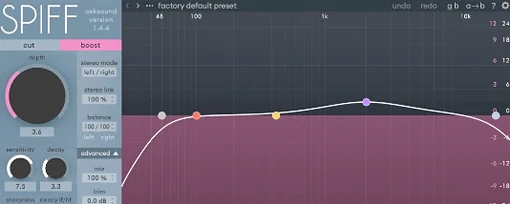 oeksound Spiff
Cuts or boosts transient detail to soften a pick attack or lift finger noise.
23 steps saved
 Nudist Audio Nudistort
Shapes a polite, buried signal into a dense and confrontational sound.
19 steps saved
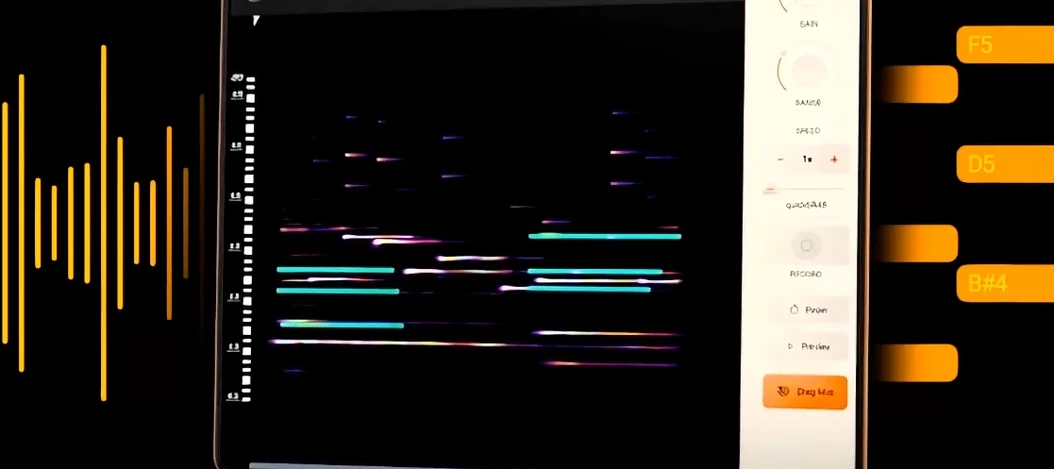 noteGRABBER
Converts a melody from any audio source into editable MIDI data.
17 steps saved
 Neural DSP Soldano SLO-100 X
Recreates the Soldano SLO-100 high-gain amp with cabs and effects.
17 steps saved
 Neural DSP Parallax X
Processes bass through three distinct tube-modelled distortion bands.
18 steps saved
 Neural DSP Fortin Nameless Suite X
Produces an articulate, percussive guitar overdrive that cuts through a dense mix.
6 steps saved
 Neural DSP Archetype Rabea X
Models Rabea Massaad's amp rig, from clean chords to heavy riffs.