
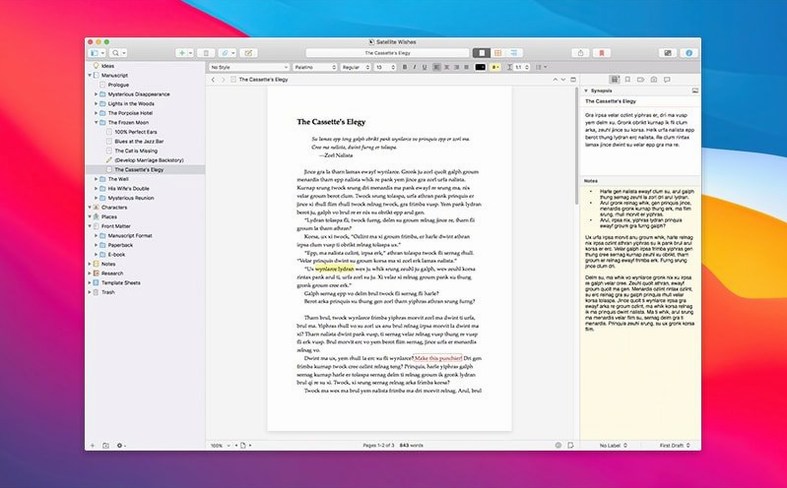
Long projects fall apart when research, drafts and notes live in different places. Scrivener keeps them in one project, and its strength is structure. A new project shows a binder on the left and the page on the right. Start by dragging a few PDFs, images, and text notes into the Research folder. That folder lives inside your project and keeps reference material visible alongside your draft.
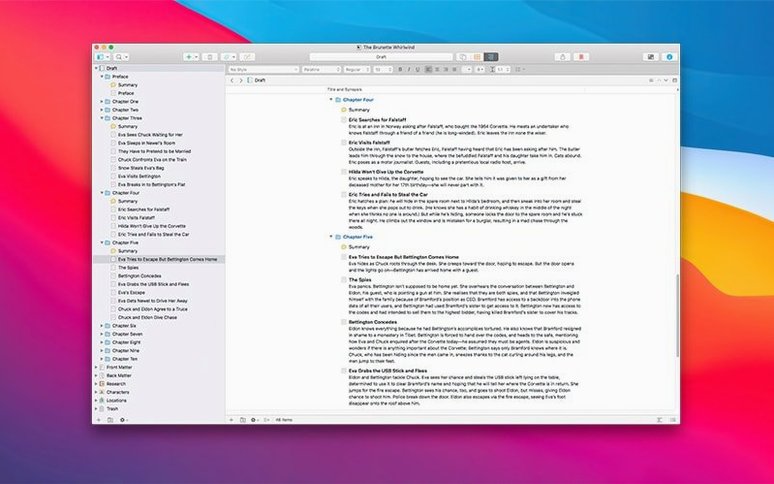
Next, create three folders in the binder: Draft, Notes, and Archive. Folders group scenes, chapters, or whatever unit you work in. Drag them around later to rearrange. The order you see in the binder is the order they compile into a finished document.
Write a paragraph, then take a snapshot. Scrivener stores a copy of that text as it looked right before you experiment with a rewrite. You can roll back a single fragment or an entire document. This removes the fear of cutting a paragraph you might need later.
Get comfortable with these three moves—collecting research, grouping with folders, and snapshotting drafts—before touching any other feature. They form the core loop that keeps a long project manageable.
How Scrivener Fits into a macOS Workflow
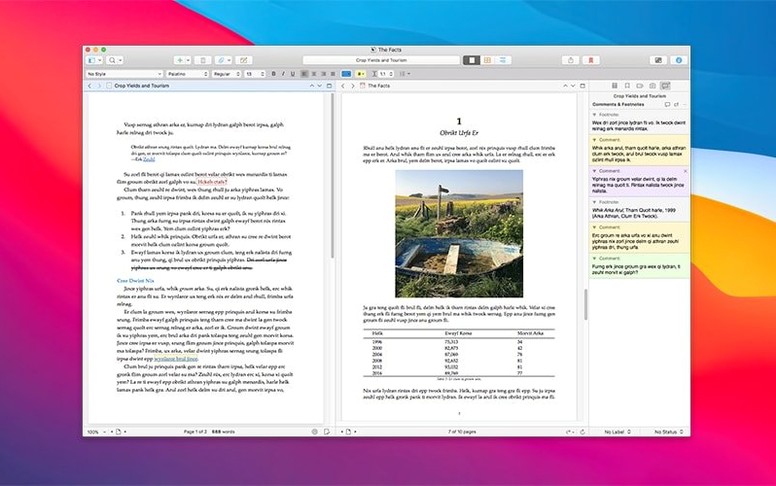
Scrivener works well with other Mac apps, not as a replacement for them. A common setup: draft in Scrivener, then export to another tool for final polish. The Compile command can produce a clean .docx for Microsoft Word or Pages. Some writers send chapters to a grammar checker or style editor, then paste the revised text back into the binder.
Drag and drop between apps is straightforward. A PDF from Finder lands in the Research folder. An image from Photos slides straight into a character sketch. You can also drag text selections from Safari into a research note — useful for gathering quotes without leaving the manuscript.
macOS features like Spotlight do not index inside Scrivener projects, so a saved search won't reach into your binder. That is by design: the project file is a package, locked to outside search. For project-wide search, use Scrivener’s own search bar, which scans every document, note, and synopsis in the binder.
Quick Look works on individual documents exported from a project but not on items inside the binder. For a fast preview of research images, open them in the built-in editor instead. Split-screen mode with two Mac apps side by side — Scrivener on the left, a browser or PDF reader on the right — is a quiet productivity pattern that costs no extra setup.
Launch Speed Hinges on Binder Bulk
Scrivener opens a single project at a time, and the load time depends on project size. A manuscript with a few hundred pages and a modest Research folder launches in seconds. Projects that pack in dozens of large PDFs and audio files take longer. Once the project is open, scrolling and typing stay responsive.
Memory use is moderate. On a typical workday with a 200-page draft and a handful of research PDFs, Scrivener sits under 400 MB of RAM. That number climbs when you open heavy media files inside the editor. Closing unused PDF tabs inside the Research folder brings it back down.
Auto-save fires after every pause in typing. No lag accompanies it. The snapshot feature writes a copy to the project file, and creating ten snapshots in quick succession does not slow the editor. Backups land in a separate folder you set in Preferences, and the default is to keep the last five copies — a quiet safety net that costs no system resources worth mentioning.
The 3.5.2 bug-fix release addressed a few edge-case crashes reported with large compile operations. In daily use, unexpected quits are rare. If a crash happens, the auto-save leaves you exactly where you stopped.
Flattening the Binder into Chaos
Treating the binder like a file system. New users sometimes create ten top-level folders with no hierarchy. A flat list becomes unwieldy fast. Instead, nest folders: a Manuscript container with chapter folders inside, and a Characters folder that holds one document per person.
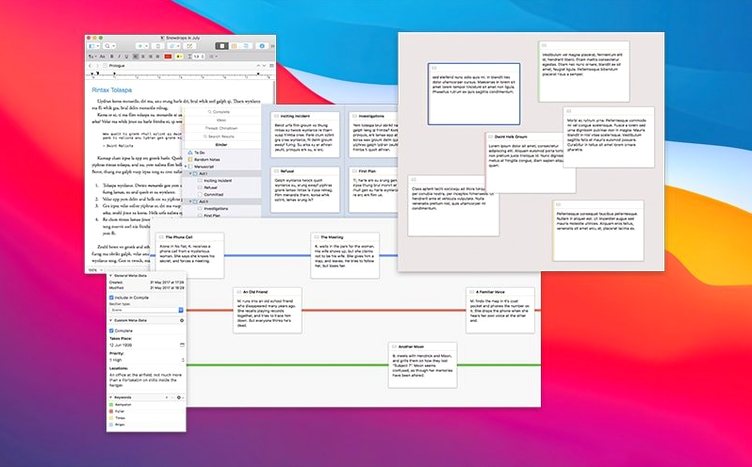
Ignoring the Inspector. The right-hand panel holds a synopsis card and custom metadata. Writers skip it, then lose track of what a scene does. Type a one-line summary into the synopsis field. Later, the Outline view turns those summaries into a readable map of the whole project.
Collecting too much research too early. The Research folder tempts you to drag in every PDF that touches the topic. A 3 GB project with sixty unread papers feels productive but isn't. Add material when a specific chapter needs it. The binder stays light, and search returns relevant results faster.
Forgetting to set a compile target early. Compile feels mysterious if you leave it until the day you need a finished manuscript. Pick a format — paperback novel, screenplay, essay — and run a test compile with placeholder text. Seeing the output early removes the panic later.
- Fixed — Bug-fix release.
- macOS 10.13 or later
- Apple Silicon or Intel 64-bit processor
Questions I get before install
What kind of files can I store in the Research folder?
You can import text notes, PDF files, audio recordings, and images directly into the Research folder to keep everything beside your draft.
Can I protect a section of text before rewriting it?
Yes. Use the Snapshots feature to save a copy of a selected fragment or an entire document, then roll back to that version at any time.
Does Scrivener 3.5 run on Apple Silicon Macs?
Yes, Scrivener 3.5.2 supports both ARM (Apple Silicon) and 64-bit Intel Macs running macOS 10.13 or later.
Comments 0
Sign in to leave a comment.Sign inCreate an account
No comments yet. If a step is still there after you install it, say so.
More in Office
All in Office QuickBooks Mac Plus
Gives a small business a clean, guided path from setup to daily tracking.
14 steps saved
 Soulver 3
Turns a plain-text notepad into an instant calculator for day-to-day math problems.
9 steps saved
 Things
Gives you just enough structure to clear your head without setup overhead.
9 steps saved
 OmniReader Pro
Opens PDFs, ebooks and documents in one reader with notes and reading modes.
13 steps saved
 OmniPlan Pro
Breaks a complex initiative into trackable tasks linked by dependencies and resources.
7 steps saved
 OmniFocus Pro
Flattens vague plans into tagged, location-aware actions you can actually complete.
9 steps saved
 Updated
Typora
Removes the preview pane so you write formatted Markdown directly on the page.
19 steps saved
 Updated
Vellum
Synchronises a single manuscript across Kindle, Kobo, Apple Books and print editions.