
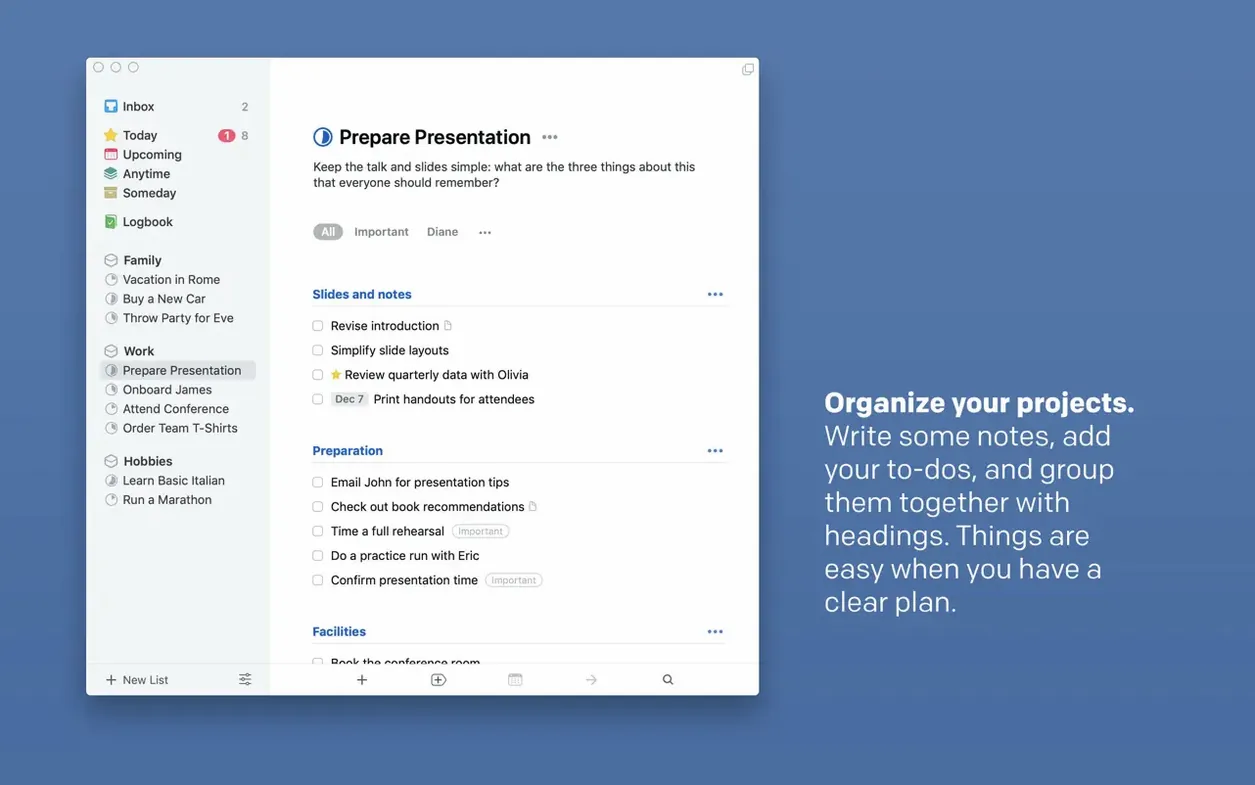
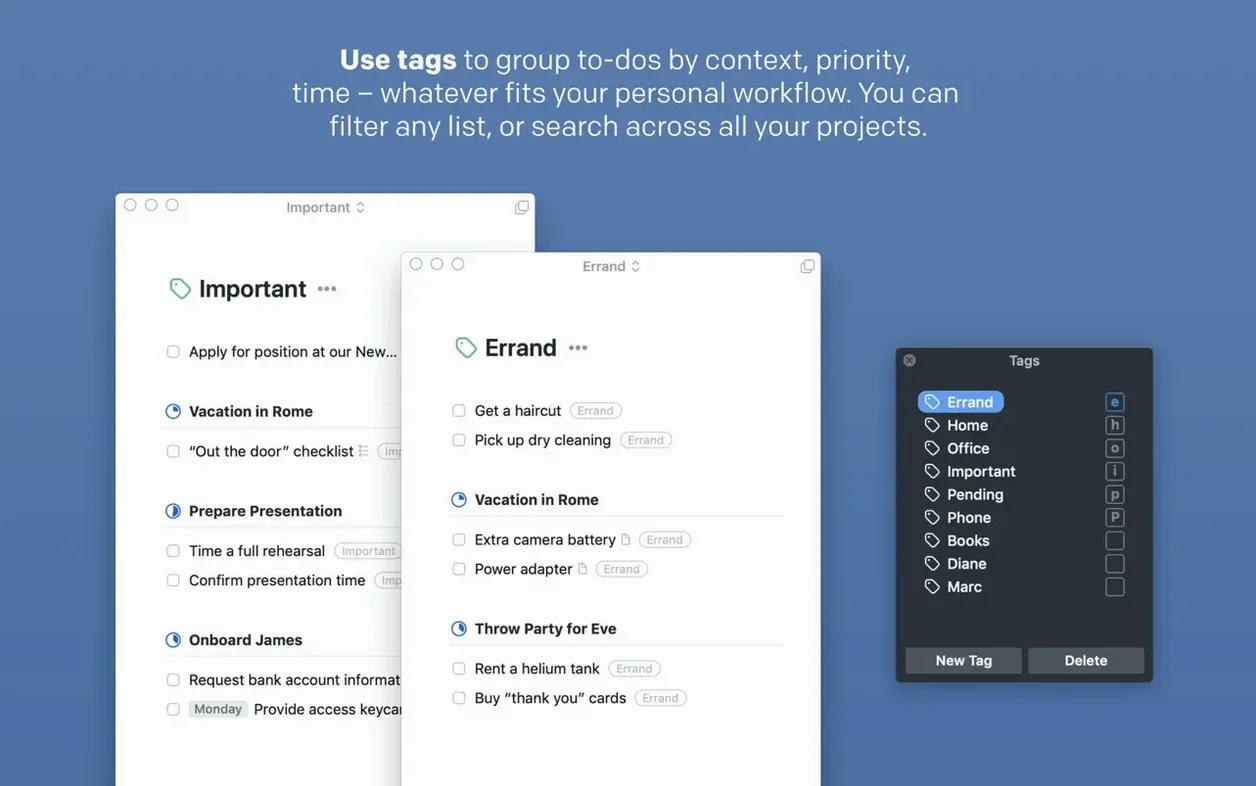
Most task managers hand you a blank slate and a hundred features you’ll never touch. The result is another piece of software that collects dust instead of clearing your head. Things sidesteps that trap by giving you just enough structure to get started without the setup becoming a project of its own.
Capturing stray thoughts before they vanish
- Capturing thoughts before they evaporate — the quick-entry window pops up with a keyboard shortcut, no matter what you’re doing.
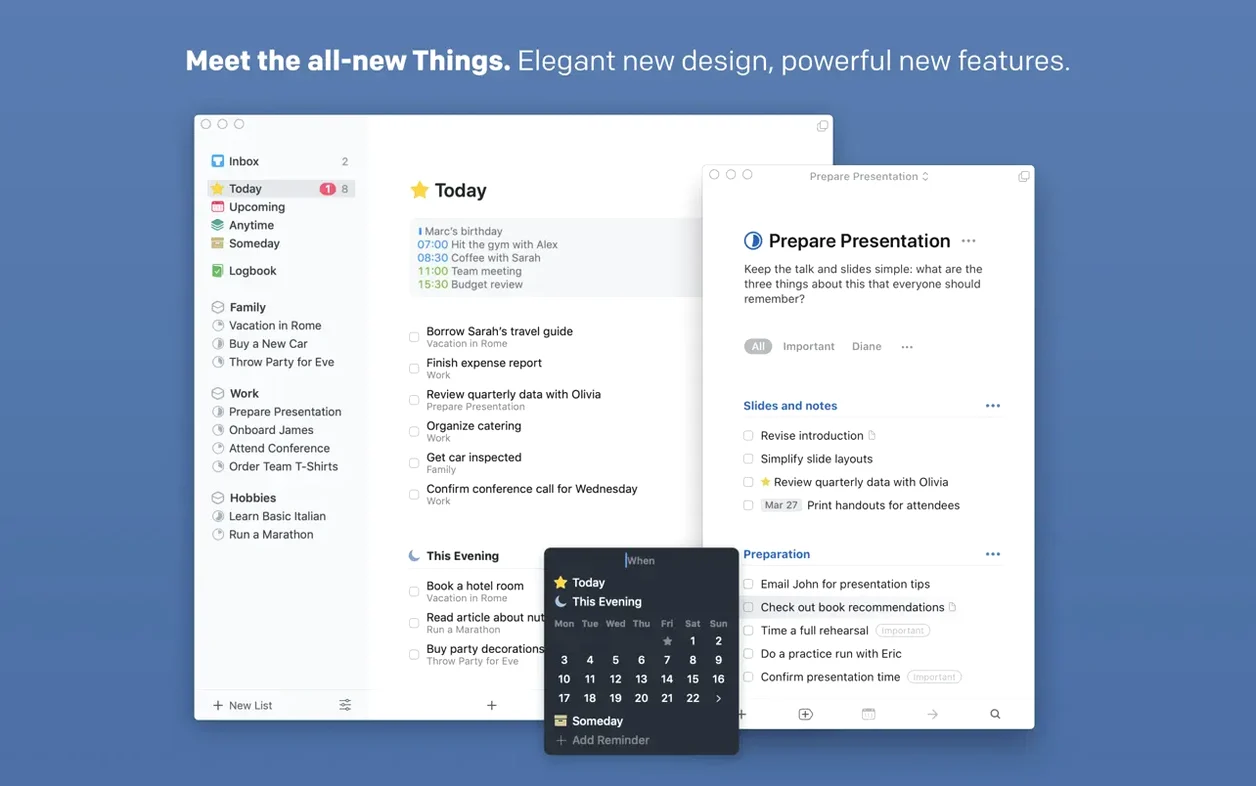
- Grouping errands, calls, and deep work into separate areas so your day doesn’t feel like one long to-do soup.
- Tagging tasks by energy level or tool needed, then filtering to see only the ones you can tackle right now.
- Surfacing repeating chores (weekly review, invoice reminders) so they stop living in your head rent-free.
- Checking off a day’s work and watching the progress ring fill up — a small nudge that signals done.
A solo Mac app with no shared lists
- The Mac app is a separate app from the iPhone, iPad, and Vision versions.
- Sync between devices requires a free Things Cloud account.
- Collaboration and shared task lists are not part of the design — this is a personal tool.
Launching in under a second, even with thousands of tasks
Things launches fast and stays out of the way. On an Apple Silicon Mac, the window appears in under a second even with a library of hundreds of projects and several thousand completed tasks. Scrolling through long lists stays smooth because the app draws text natively — no sluggish web frames underneath. Memory use hovers around 180 MB during a normal workday, which is modest for an app that syncs continuously in the background.
Sync through Things Cloud is the quiet kind you stop noticing. Add a task on the Mac, glance at the iPhone widget, and it's already there. Conflicts are rare; when two devices edit the same task, the app keeps both versions and flags the duplicate instead of silently discarding your words.
Stability on macOS 15 and 16 has been uneventful in the best way. The 3.24 release shipped with Spotlight integration that works without indexing delays, and the app hasn't thrown a single beachball in weeks of mixed use — quick entry, drag-and-drop reordering, and calendar toggling included.
Next to the alternatives
Things vs. Apple Reminders — Reminders wins on price and Siri integration, but its flat list structure buckles under project work. Things adds headings, deadlines, and a proper Today view that separates active tasks from someday-maybe noise. If your task system spans more than a grocery list, the difference is structural, not cosmetic.
Things vs. Todoist — Todoist gives you collaboration, filters written in query language, and a web app. Things counters with a focused Mac-native interface that never nags you to upgrade and doesn't run inside a browser shell. Choose Todoist when you share tasks; choose Things when you want the tool to disappear.
Things vs. OmniFocus — OmniFocus is the power tool: custom perspectives, review intervals, deep AppleScript hooks. Things deliberately offers less. For most small teams and solo workers, the missing complexity is the feature. You spend time doing tasks instead of configuring a system to organise them.
Conveniences worth knowing
- Type Travel — start typing a project or area name after opening quick entry, and Things narrows the destination instantly. No mousing, no scrolling.
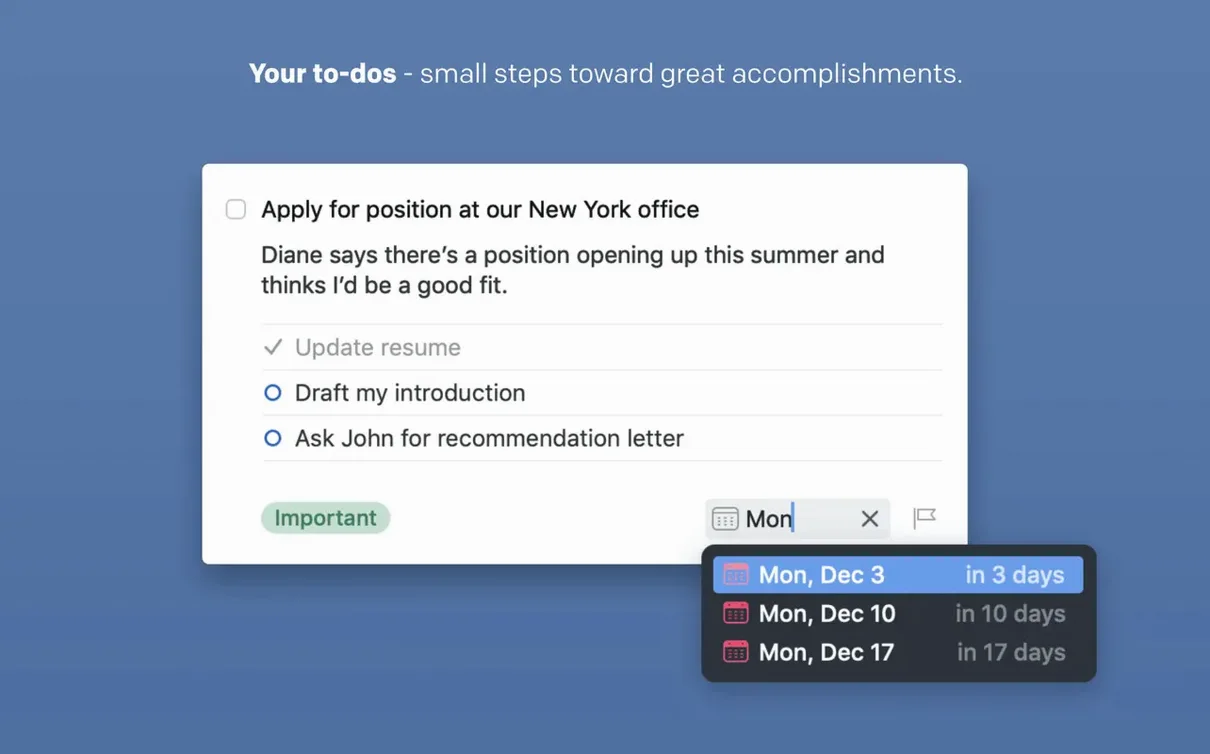
- Swipe to schedule — on a trackpad, a two-finger swipe right on any task reveals shortcuts for This Evening, Tomorrow, or a custom date. The same gesture works for moving items to Someday.
- Drag the plus button — the small + icon in the toolbar is a drag source. Pull it into a list to place a new task exactly between two existing items instead of appending to the bottom.
- Mail to Things — forward an email to a private Things Cloud address and the subject line becomes a task with the body as a note. No extension required.
- Paste a list — copy several lines of text and paste them into a project. Things asks whether to create one task with line breaks or split each line into its own task.
Things 3.24.1 lands with the developer's current set of fixes and performance refinements.
- macOS 10.15 or later
- Apple Silicon or Intel 64-bit
Questions I get before install
Does Things sync between a Mac and an iPhone?
Yes. It uses Things Cloud for sync, which requires a free account and works across the Mac, iPhone, iPad, and Vision versions.
Can I set up repeating tasks in Things?
Absolutely. You can create repeating to-dos for any interval — daily, weekly, monthly, or a custom schedule.
What languages does the Mac app support?
The interface is available in English, German, Spanish, French, Italian, Russian, Japanese, Simplified Chinese, and Traditional Chinese.
Comments 0
Sign in to leave a comment.Sign inCreate an account
No comments yet. If a step is still there after you install it, say so.
More in Office
All in Office Updated
Typora
Removes the preview pane so you write formatted Markdown directly on the page.
19 steps saved
 Updated
Vellum
Synchronises a single manuscript across Kindle, Kobo, Apple Books and print editions.
14 steps saved
 Soulver 3
Turns a plain-text notepad into an instant calculator for day-to-day math problems.
15 steps saved
 VueScan Pro
Brings current drivers to scanners whose makers stopped supporting macOS.
11 steps saved
 Updated
Wolfram Mathematica
Handles calculations through symbolic notation and typeset results instead of cell references.
19 steps saved
 Scrivener
Gathers research, drafts, and notes into a single structured writing project.
13 steps saved
 XMind Pro
Turns scattered lists into one reorderable map for meeting prep and project plans.
21 steps saved
 QuickBooks Mac Plus
Gives a small business a clean, guided path from setup to daily tracking.