
Typora is a Markdown editor that removes the preview window, the mode switcher, and the source syntax symbols. You write formatted text directly — what you see is what you get.
Good for
- Long-form writing where a split view feels distracting
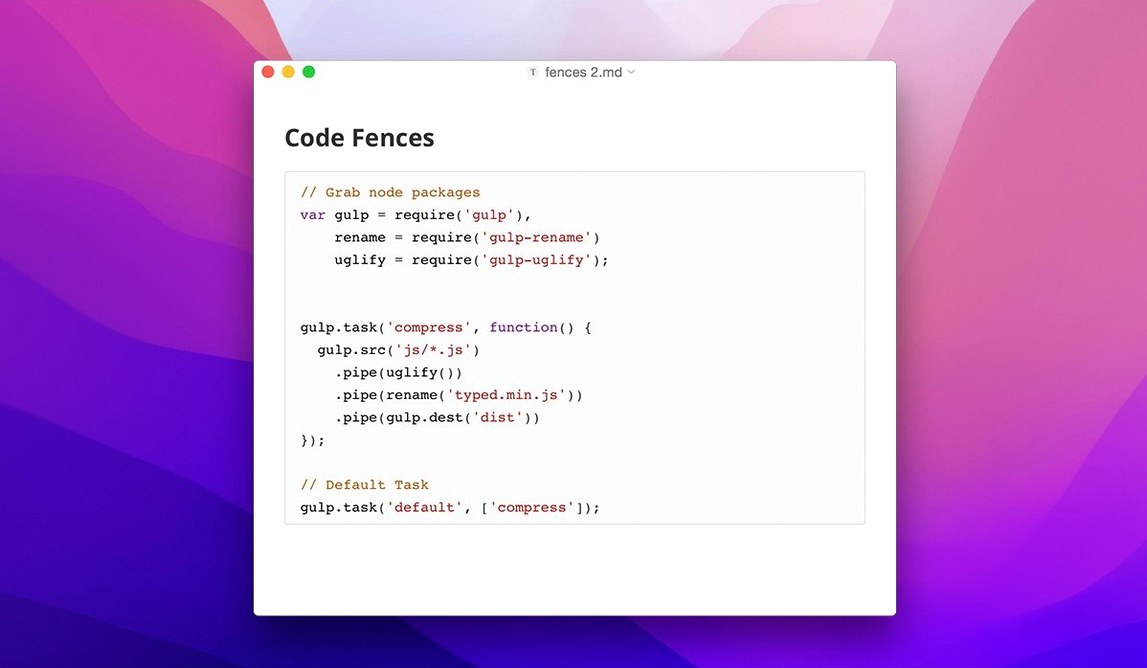
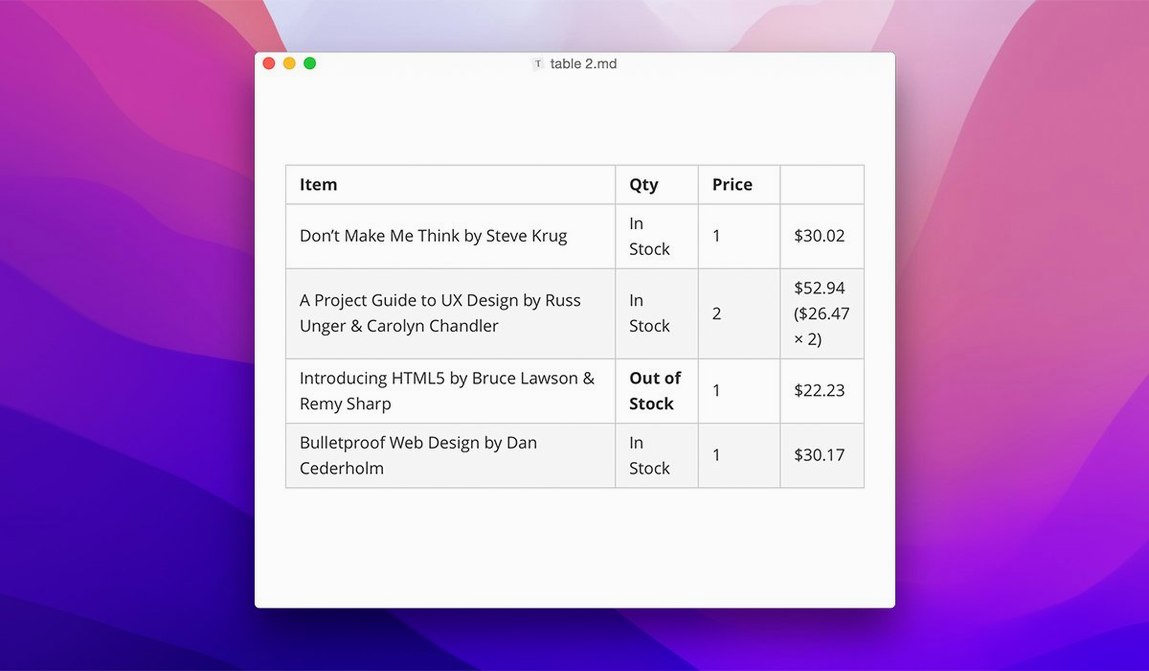
- Structuring notes with tables, code fences, and a table of contents
- Applying a custom look through CSS themes
- Quick light-weight export without leaving the editor
- Navigating project folders with the sidebar file tree
Keep in mind
- Version 1.14 added a floating editor toolbar and an option to show hidden files in the sidebar
- LaTeX renders inline, in the same view as the text
- Syntax highlighting covers common languages; it is not a code editor
Pick a theme and switch off typewriter mode right away
Open Preferences the first time you launch Typora and a handful of defaults will catch your eye. Changing them early saves friction later.
Appearance — pick a theme that matches your working light. Newsprint reads well for long drafts; Night keeps glare down after dark. The theme applies across every document, so settle on one before you write much.
Editor — enable Typewriter mode. It keeps the active line centred vertically, which matters on a tall display. Turn on Indent first line if you come from a word processor background. Disable Show line numbers unless you pair-write with someone who references lines.
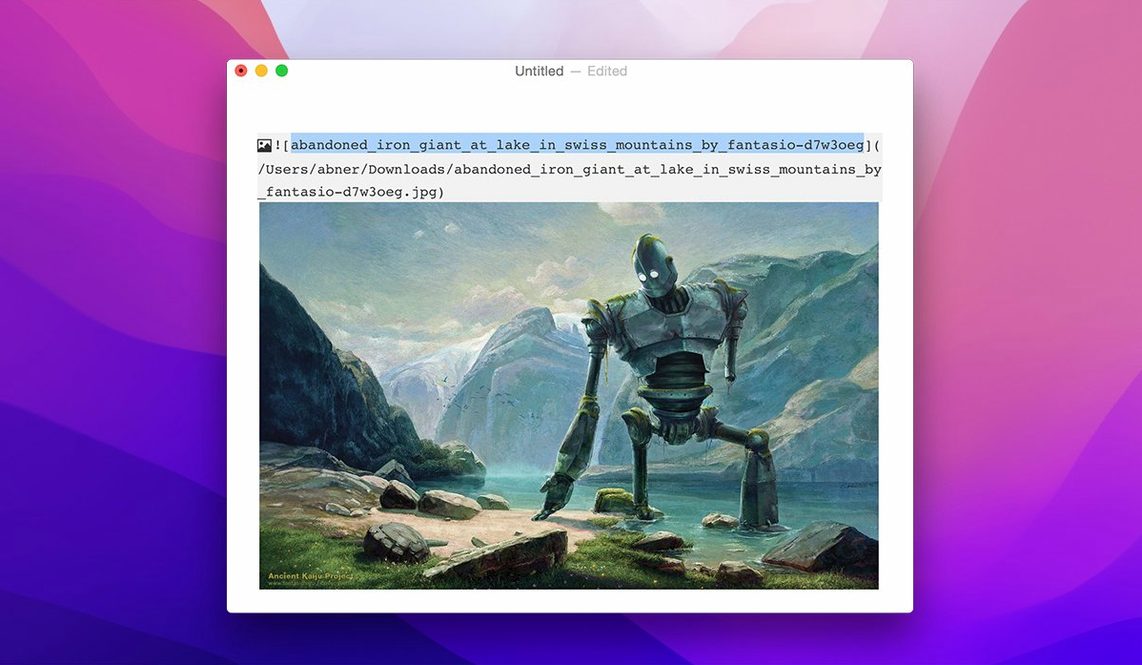
Images — set the default insert location to Copy image to custom folder. Point it at an assets directory relative to the document. That keeps your Markdown portable instead of scattering absolute paths across the file system.
Files — switch the default new-file extension to .md if you work outside the Typora ecosystem. While you are there, confirm Save on blur is checked. You will never think about saving again.
It works offline with plain local files, no account needed
Does Typora work offline, or does it sync through a cloud? Typora is a local editor. It reads and writes plain files on your disk. There is no cloud component, no account required. If your files live in an iCloud Drive or Dropbox folder, Typora simply edits them where they sit — the sync is the folder’s job, not the app’s.
Will it break my existing Markdown notes? It will not. Typora saves standard Markdown with no proprietary wrappers. Open a .md file from Obsidian, VSCode, or Ulysses, and Typora renders it live while keeping the source identical. Round-trip editing works cleanly.
How does the sidebar file tree handle large folders? Version 1.14 introduced keyboard navigation and an option to show hidden files. Typora reads the directory structure live; a folder with thousands of files may take a moment to index on first open, but after that it stays responsive. Non-Markdown files can be shown or hidden with a toggle.
Does the floating toolbar get in the way? It disappears when you are not selecting text. Hover near a selection and it surfaces with formatting shortcuts. If you prefer the keyboard exclusively, ignore it — the toolbar fades back out without a click.
Is the TNT release the full application? The build is complete. All features described in the official changelog — sidebar options, toolbar, context-menu style settings, pandoc export — are present and function normally on both Intel and Apple Silicon Macs running macOS 10.13.6 or later.
Click a file in the sidebar and write without a preview toggle
You open Typora with a folder in the sidebar: a project called release-notes. The file tree shows seven Markdown files and an assets directory. You click draft-2.md and the document fills the window — no preview toggle, no split panes.
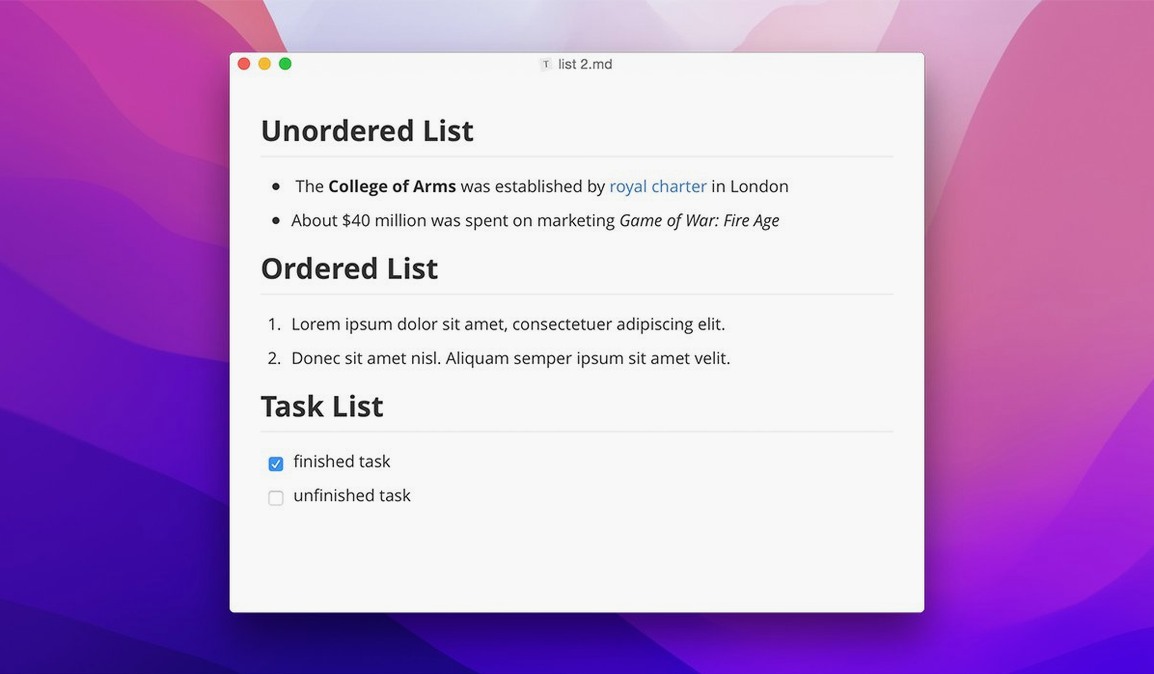
You type a heading. It renders bold and large the moment you press Return. Below it, a bullet list forms as you hyphen your way down the page. You insert a table from the floating toolbar; columns resize as you fill cells with version numbers and descriptions. A code fence near the bottom gets a bash tag, and the terminal snippet gains syntax colour — keywords in green, flags in blue.
A LaTeX expression needs a tweak. You double-click it and the equation opens for editing inline. The preview updates on each keystroke. Satisfied, you move on and the expression settles back into rendered form.
The sidebar catches your eye: a hidden .draft-notes file is visible because the setting is on. You drag it into the open document as a link, then toggle hidden files off for a cleaner view.
Export is the last step. You pick File → Export → PDF. The dialog offers page size and margin options. You confirm, and the PDF lands on the desktop — styled exactly as the theme previewed. The whole session stays in one window, one mode, no context switches.
- macOS 10.13.6 or later
- Apple Silicon or Intel 64-bit
Questions I get before install
Does Typora support macOS 10.13?
Typora runs on macOS 10.13.6 and later, though macOS 11.0 or later is listed for the latest version.
Can I customize how Typora looks?
Typora supports custom CSS themes, so you can adjust the writing surface to suit your taste.
Comments 0
Sign in to leave a comment.Sign inCreate an account
No comments yet. If a step is still there after you install it, say so.
More in Office
All in Office Updated
Vellum
Synchronises a single manuscript across Kindle, Kobo, Apple Books and print editions.
15 steps saved
 VueScan Pro
Brings current drivers to scanners whose makers stopped supporting macOS.
9 steps saved
 Things
Gives you just enough structure to clear your head without setup overhead.
11 steps saved
 Updated
Wolfram Mathematica
Handles calculations through symbolic notation and typeset results instead of cell references.
13 steps saved
 XMind Pro
Turns scattered lists into one reorderable map for meeting prep and project plans.
14 steps saved
 Soulver 3
Turns a plain-text notepad into an instant calculator for day-to-day math problems.
19 steps saved
 Scrivener
Gathers research, drafts, and notes into a single structured writing project.
21 steps saved
 QuickBooks Mac Plus
Gives a small business a clean, guided path from setup to daily tracking.