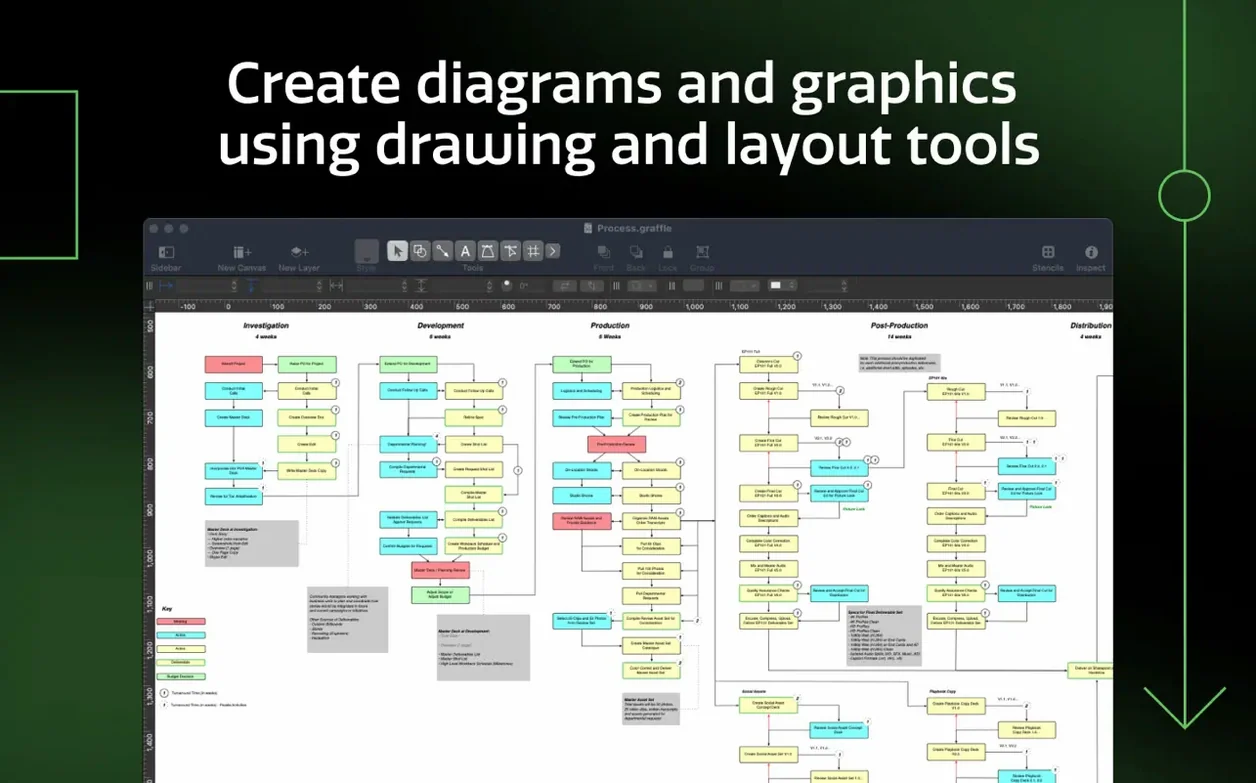
OmniGraffle Pro is a diagramming and visual communication app for macOS built for work that goes beyond basic boxes and arrows.
Who is OmniGraffle Pro for?
It suits people who need precise control over complex graphics — software architects, UX designers, and technical writers. The Pro edition adds shared layers and the ability to share keyboard shortcut sets, which helps small teams stay consistent.
What can it handle?
It covers simple sketches and highly complex diagrams. You can import Microsoft Visio VSD, VDX, VSS, and VST files, and export Visio documents as VDX. It can also generate Xcode project diagrams automatically.
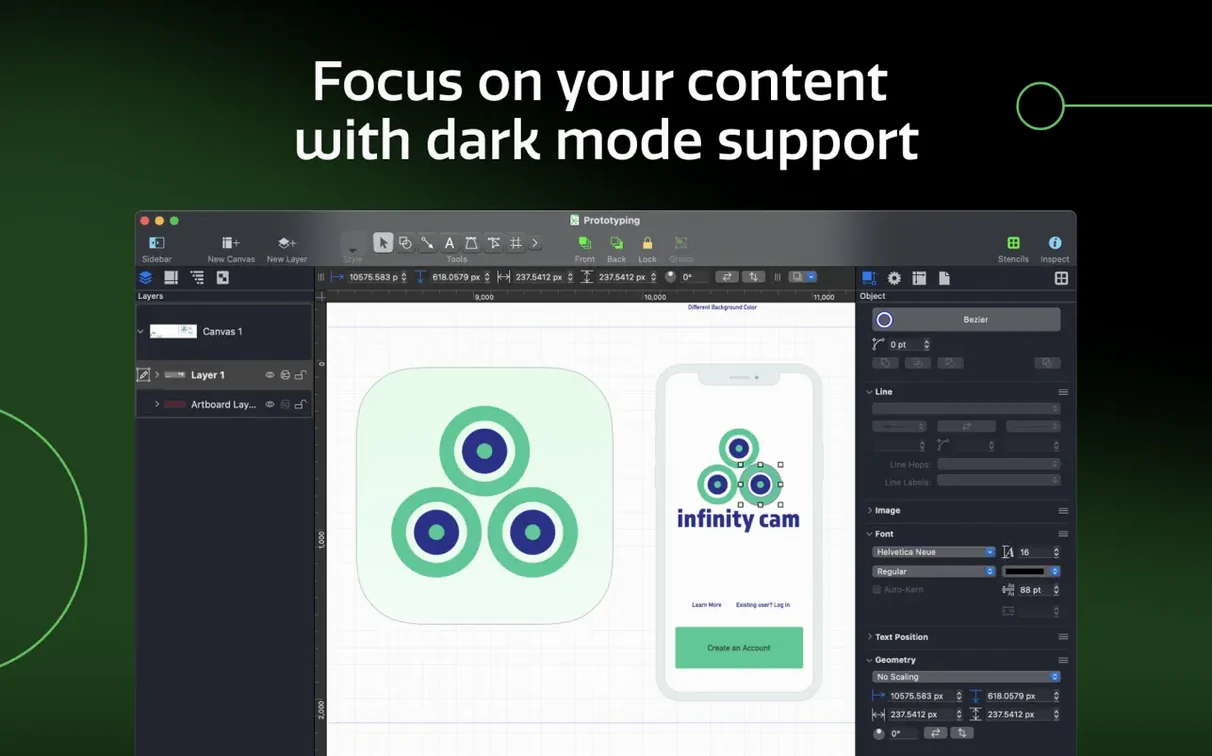
What does the interface look like?
Option-drag to duplicate any shape instantly
A few shortcuts and behaviours live just below the surface. They save a surprising amount of time once they become habit.
- Option-drag to duplicate — hold Option while dragging any shape or group, and OmniGraffle copies it instantly. Faster than copy-paste when you are laying out repeated elements.
- Smart alignment guides — the app shows temporary lines when you drag objects near the centre or edges of others. Hold
Shiftwhile dragging to constrain movement to horizontal, vertical, or 45° angles. - Click-through selection — for diagrams with overlapping shapes, hold
Commandand click repeatedly to cycle through objects under the pointer. No need to move things out of the way first. - Copy style, paste style —
Option-Command-Ccopies the visual style of a selected object, andOption-Command-Vapplies it elsewhere. Useful when you have tuned a shape's stroke, fill, and shadow just right. - Canvas zoom shortcuts —
Command-0fits the canvas to the window, andCommand-1jumps to actual size. TheZkey toggles the zoom tool temporarily without switching away from your current tool.
A real workflow: wireframing a settings screen
Here is how a typical wireframing session might run, start to finish.
- Set up artboards. Create one artboard per screen state — default, empty, and error. Name them clearly in the sidebar. Artboards keep variants together without cluttering separate canvases.
- Block out the structure. Drag rectangles for the navigation bar, content area, and tab bar. Use the alignment guides to snap them into place. Group each section (
Command-G) so they move as units. - Add shared elements. Place headers and footers on a shared layer so they appear identically across all artboards. Edit once, update everywhere — that alone justifies the Pro edition for multi-screen work.
- Wireframe the controls. Use the stencil library for standard iOS or web widgets. Drop in text fields, toggles, and buttons. Adjust spacing with the inspector's geometry tab, not by eye.
- Convert text to shapes. For custom icons or unusual labels, type the text, then use the Format > Convert Text to Shape command. The letters become editable Bézier paths you can tweak with the pen tool.
- Export for feedback. Export the artboards as a multi-page PDF or, if a colleague works in Photoshop, use the Export OmniGraffle Layers to Photoshop Layers option. Each layer lands on its own Photoshop layer with names intact.
Bumps even experienced users hit and their fixes
Even experienced users hit a few predictable bumps. Here is what tends to come up and how to work through it.
Visio imports that look scrambled
When a Visio VSD or VDX file opens with misplaced text or missing connectors, the culprit is usually a font that is not installed on your Mac. OmniGraffle substitutes a system font, which shifts spacing. Install the original font if you have it, or select all affected shapes and pick a close match from the font inspector, then adjust line breaks manually.
For VSS stencils that refuse to open, check whether the file is from a very old Visio version. Try re-saving the stencil as VDX from Visio first, then import it. The VDX path is more reliable than binary VSD.
Performance dragging on large diagrams
Canvases with hundreds of objects can feel sluggish, especially on Intel Macs. Two things help immediately: turn off snap to grid and snap to objects in the canvas inspector when you are doing bulk layout work, and hide layers you are not actively editing. The app recalculates fewer relationships that way.
Shared layers that will not stay in sync
If a shared layer seems to have forked — some artboards show old content — check whether you accidentally clicked Layer > Convert to Regular Layer. Once a shared layer becomes regular, it loses its link. Undo the action or re-create the shared layer and move your objects onto it. Always verify the layer icon in the sidebar: shared layers show a distinct badge.
Activation hiccups after updating macOS
After a major macOS upgrade, some people find the app asks for a licence again. If you are using a version from an omnigraffle torrent or a pre-activated omnigraffle crack mac build, re-running the Gatekeeper-friendly installer and restarting usually restores normal behaviour. The omnigraffle download process itself does not change — mount the image, run the terminal command, and drag the app into place as before. A clean reboot after installation prevents leftover cache files from confusing the activation check.
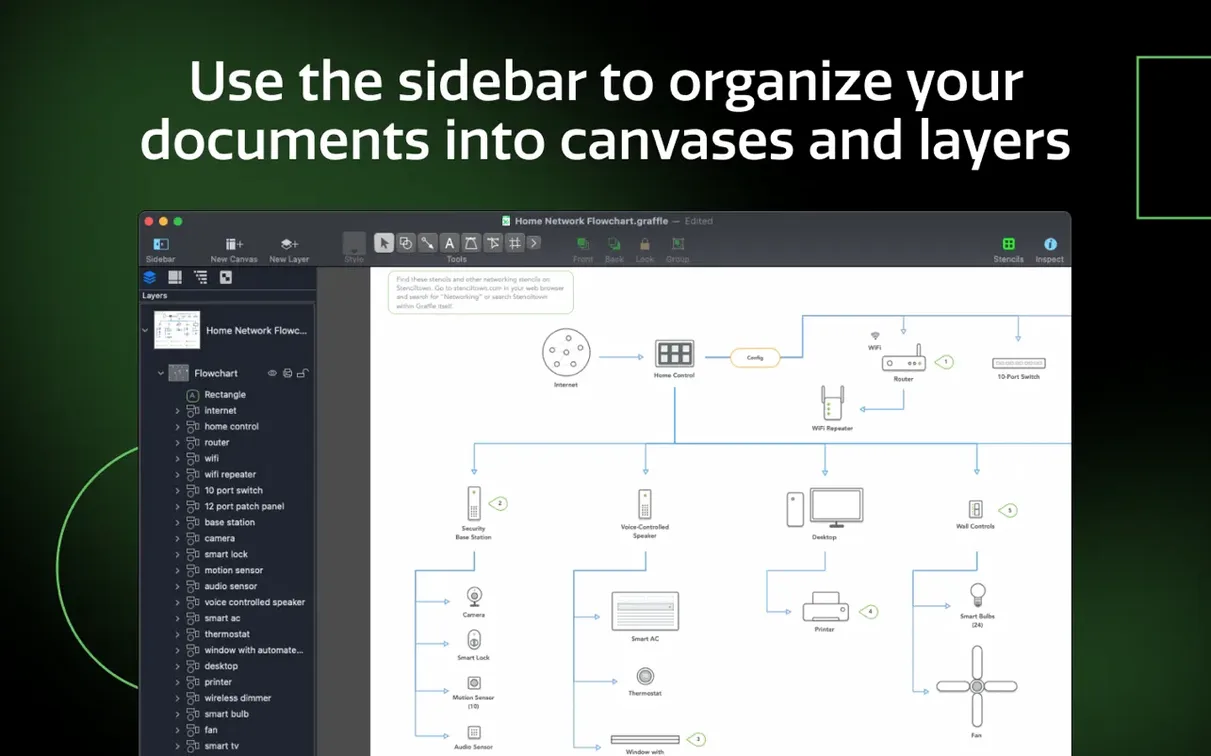
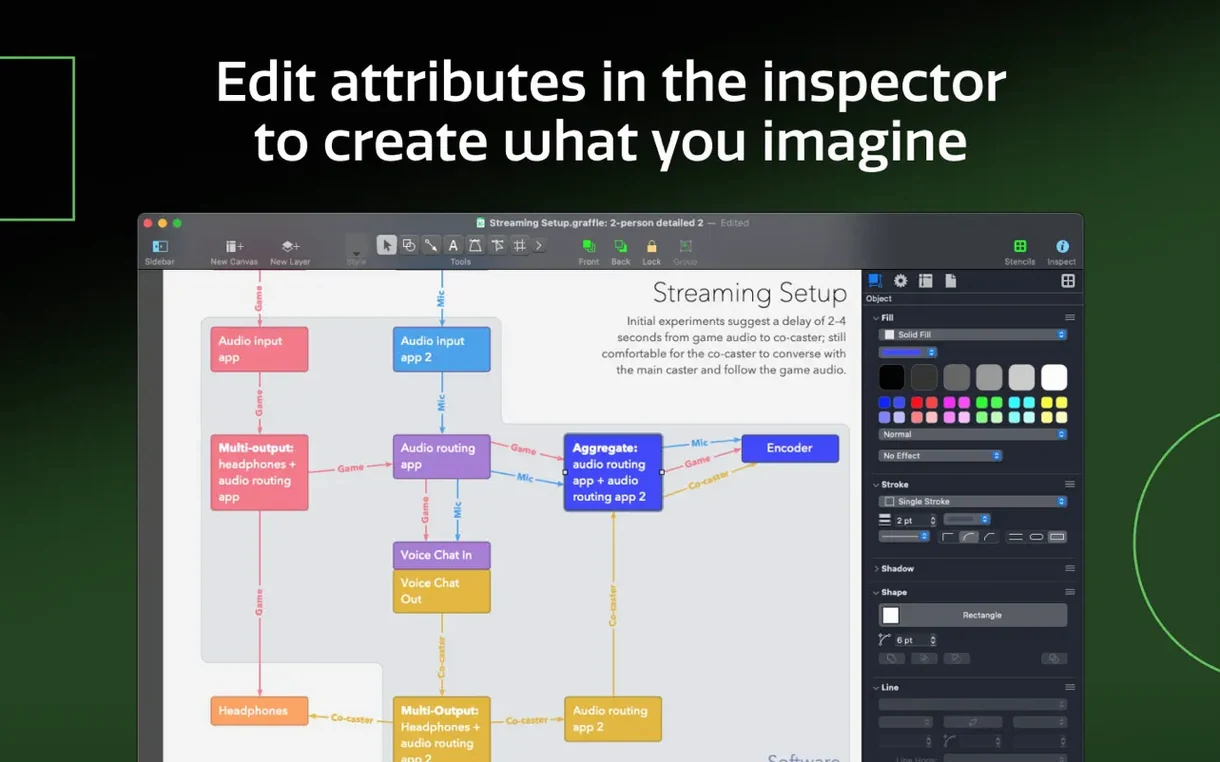
A sidebar and inspectors manage canvases, layers, and object properties. The layout keeps frequent actions visible instead of buried in menus.
- New — Compatibility with macOS Golden Gate 27.
- Changed — Requires macOS 14 or newer.
- macOS 14 or newer
- Intel or Apple Silicon Mac
Questions I get before install
What version of macOS does OmniGraffle Pro 7.26 require?
OmniGraffle Pro 7.26 requires macOS 14 or newer and works on both Intel and Apple Silicon Macs.
Which languages does OmniGraffle Pro support?
The interface is available in English, German, Spanish, Italian, Simplified Chinese, Korean, Dutch, Portuguese, French, Japanese, and Russian.
Can OmniGraffle Pro open Microsoft Visio files?
Yes, it imports Visio VSD and VDX documents plus VSS stencils and VST templates, and can export Visio documents as VDX.
Comments 0
Sign in to leave a comment.Sign inCreate an account
No comments yet. If a step is still there after you install it, say so.
More in Mac Apps
All in Mac Apps OmniPlayer: MKV Video Player Pro
Handles subtitle timing, playback speed, and server streams without interface clutter.
9 steps saved
 Updated
OK JSON - Viewer & Formatter
Structures raw API responses into a readable format instead of staring at text walls.
13 steps saved
 Updated
ON1 Photo RAW
Lets you browse, develop, and retouch raw photos without switching between modules.
13 steps saved
 NTFS Disk by Omi NTFS
Adds read and write access to Windows-formatted external drives on a Mac.
18 steps saved
 One Switch
Collapses scattered system controls like Dark Mode and Do Not Disturb into one menu bar panel.
15 steps saved
 Pacifist
Peers inside installer packages to inspect or extract files before you commit to running them.
5 steps saved
 Updated
NotchNook
Consolidates AirPlay, calendar, and playback controls into the menu bar notch.
21 steps saved
 NotchBox
Turns the camera cutout into a temporary shelf for files and media controls.