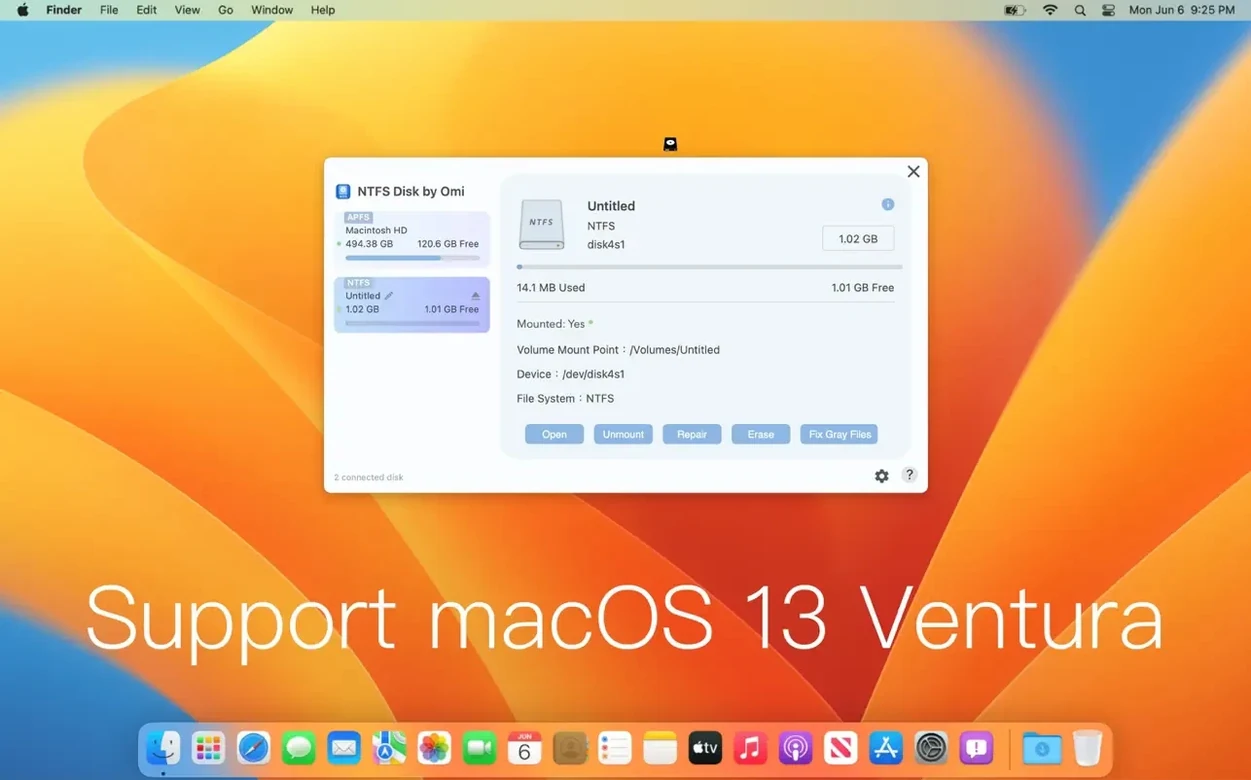
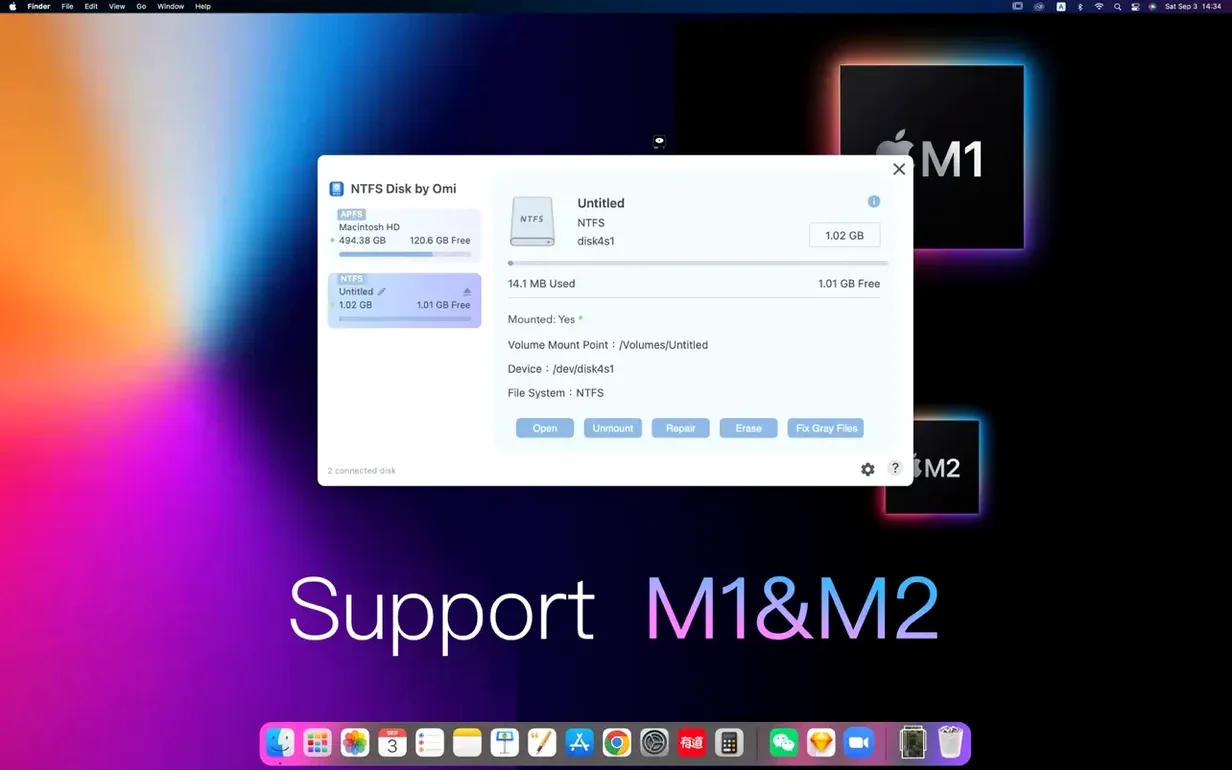
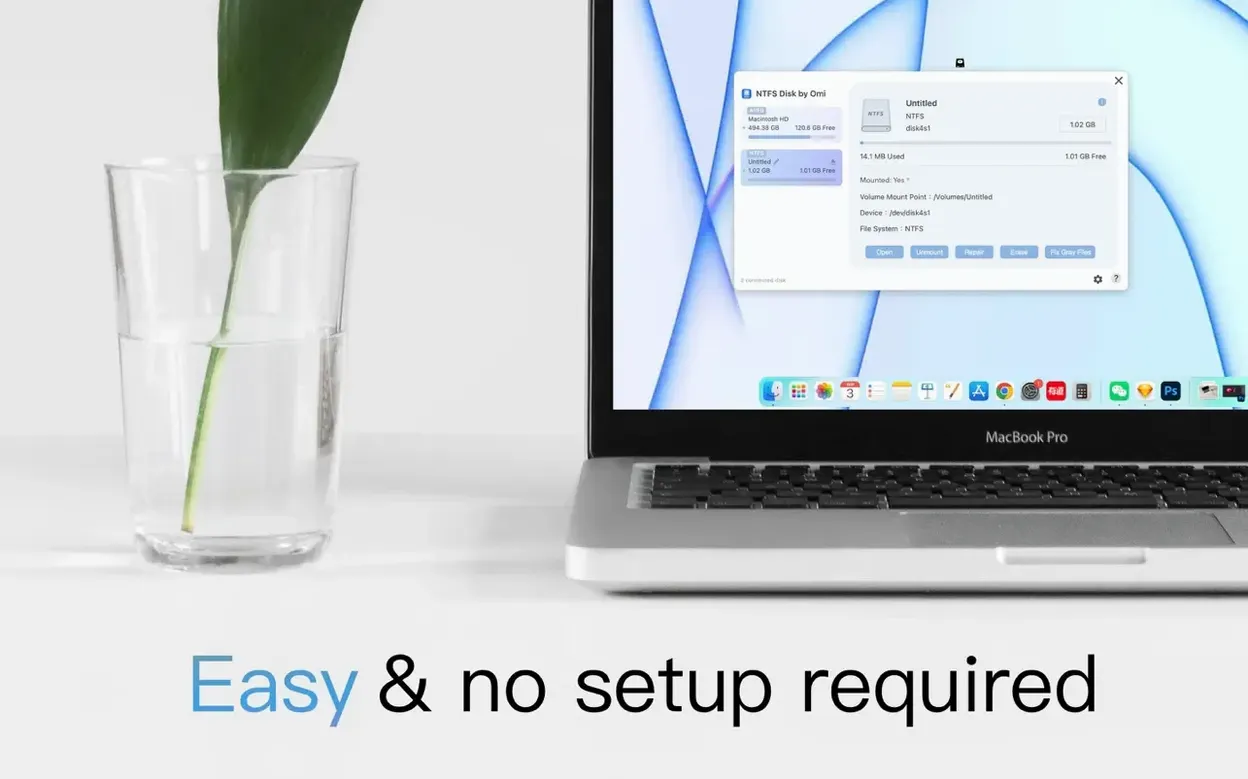
One partition table, two operating systems, and a silent refusal to cooperate. That is the situation when you plug an NTFS-formatted external drive into a Mac. NTFS Disk by Omi NTFS removes the deadlock.
What does the tool actually do?
It adds full read-write support for NTFS volumes. You can open, copy, edit, and save files on Windows-formatted disks directly from macOS, without reformatting.
How do you move a large video file from Mac to an NTFS drive?
Connect the disk. The app mounts it in read-write mode automatically. Drag the video file from your Mac desktop onto the NTFS drive in Finder and wait for the copy to complete. You can then open the file from the disk to verify it is intact.
What if the disk needs repair before you even start?
The utility includes disk-fixing functions. If a drive mounts with errors, you can run a check and repair routine before copying files, so you do not inherit a corrupted directory.
A start-to-finish workflow: rescue files from a corrupted NTFS backup drive
- Connect the external NTFS disk. Allow NTFS Disk by Omi to mount it automatically.
- Spot a mount warning or garbled folder names. Open the app and select Fix for that volume.
- Let the repair pass complete. Eject the disk, reconnect it, and confirm Finder now lists a clean directory tree.
- Create a dated rescue folder on your Mac desktop. Select the project folders you need from the NTFS disk and drag them across. The copy runs with full read-write throughput, no Finder lockout.
- Once the transfer finishes, format the NTFS disk through the app to wipe lingering directory damage. Choose Format, assign a label, and mount the fresh volume.
- Copy the rescued folders back to the freshly formatted disk. You now have a clean backup set, fully usable from both Mac and Windows machines.
Pulling the cable before the flush finishes
- Pulling the cable mid-write. An NTFS transfer that looks complete in Finder may still be flushing. Eject the volume properly or risk a corrupted file table that the repair tool then has to fix.
- Ignoring the mount mode. Beginners sometimes launch the app, see the disk icon, and assume read-write is active. Check the status bar inside NTFS Disk by Omi: a read-only mount means you skipped the automatic remount step. Re-plug the drive.
- Formatting before attempting a repair. If a disk shows errors, run Fix first. A format erases the very data you wanted to keep. The repair routine often salvages the volume without data loss.
- Using the disk as a permanent Mac workspace. NTFS is a Windows file system. Long-term, heavy-lift editing directly on the NTFS disk is slower than working from APFS and copying finished work across. Use the NTFS volume as a transfer shuttle, not a primary scratch disk.
Those who download ntfs disk by omi ntfs for mac typically land here because Finder alone cannot write. Once the app handles the mount, treat the volume like any other writeable drive—just remember to eject cleanly and run a repair check every month if the disk travels between machines.
- macOS 11 or later
- Intel processor
- 64-bit x86 build
Questions I get before install
Which Macs can run this version?
Version 1.1.5 requires macOS 11 or later and runs on Intel-based Macs as a 64-bit x86 build.
Comments 0
Sign in to leave a comment.Sign inCreate an account
No comments yet. If a step is still there after you install it, say so.
More in Mac Apps
All in Mac Apps Updated
NotchNook
Consolidates AirPlay, calendar, and playback controls into the menu bar notch.
9 steps saved
 Updated
OK JSON - Viewer & Formatter
Structures raw API responses into a readable format instead of staring at text walls.
21 steps saved
 NotchBox
Turns the camera cutout into a temporary shelf for files and media controls.
4 steps saved
 Updated
Nook X
Puts tasks, lyrics, and AI chat into the MacBook notch so you skip opening separate apps.
7 steps saved
 OmniGraffle Pro
Draws precise diagrams for workflows that outgrow basic boxes and arrows.
5 steps saved
 OmniPlayer: MKV Video Player Pro
Handles subtitle timing, playback speed, and server streams without interface clutter.
21 steps saved
 Nik Collection
Adds film looks, black-and-white and detail filters to photos as plugins.
13 steps saved
 Updated
ON1 Photo RAW
Lets you browse, develop, and retouch raw photos without switching between modules.