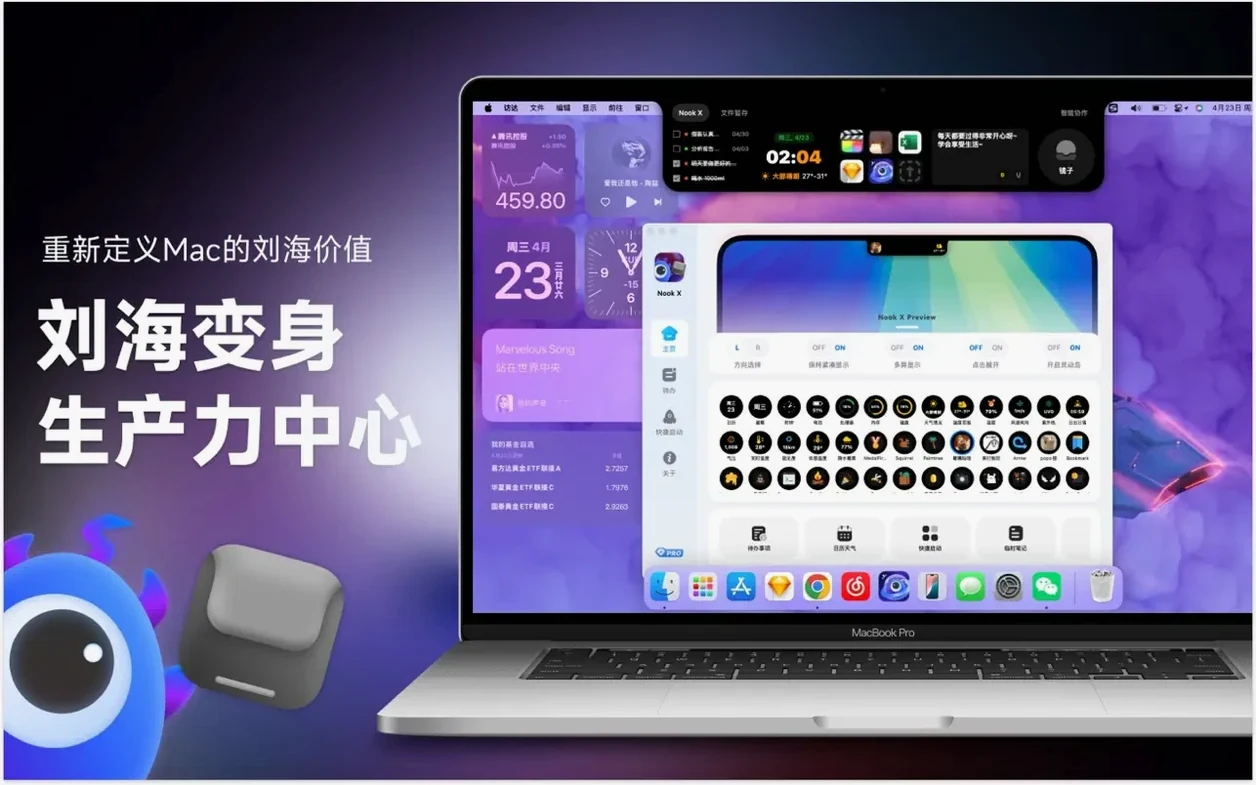

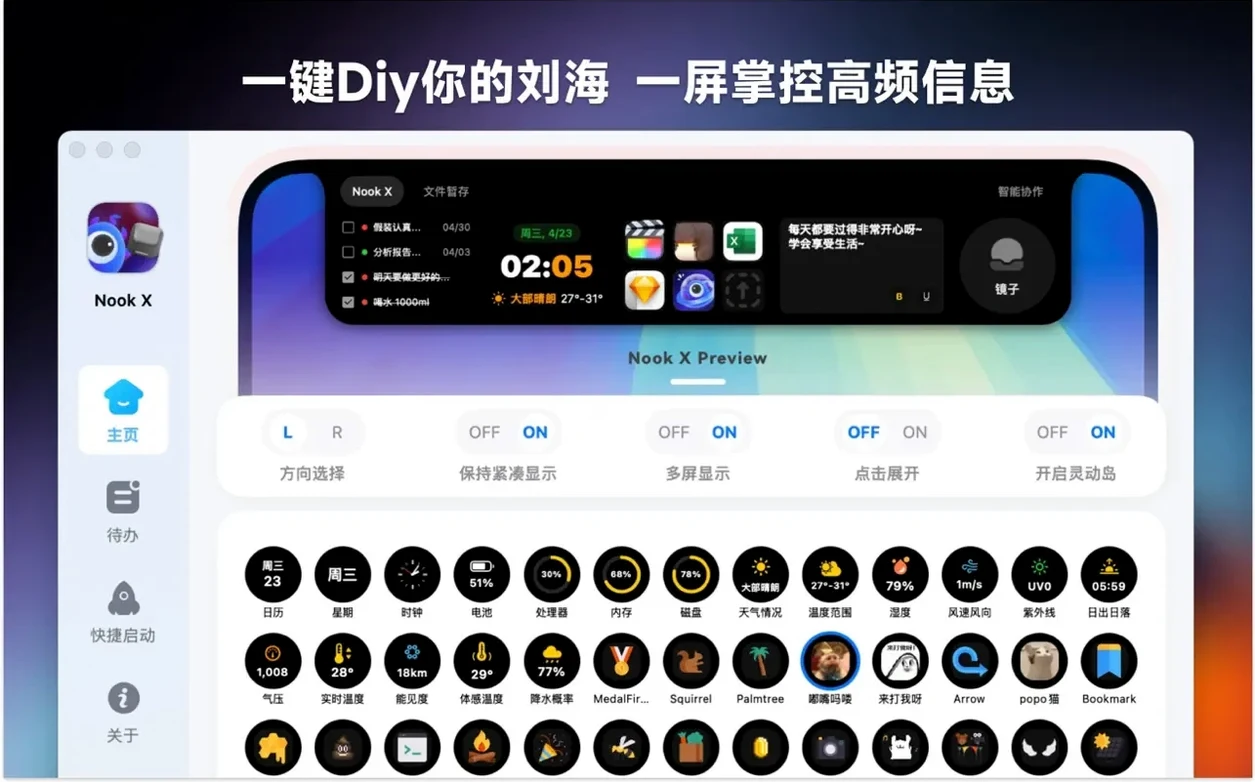
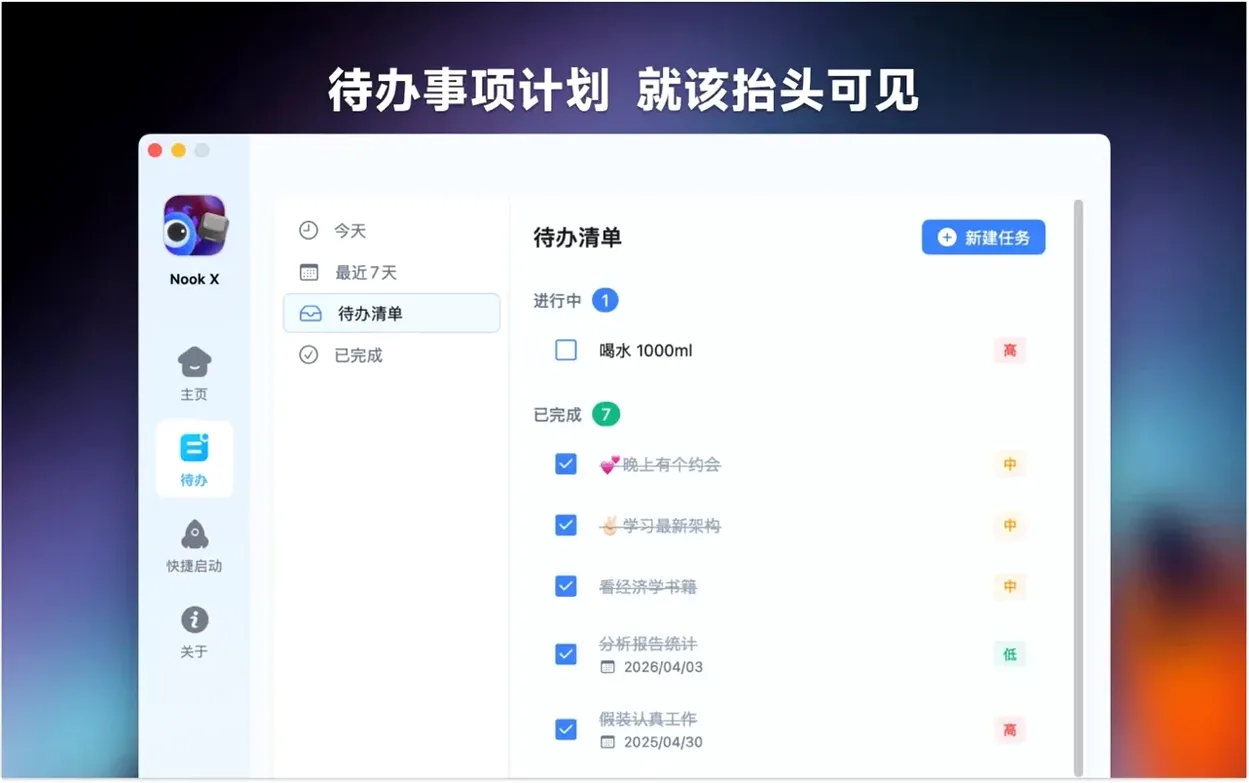
14 interface languages and one fixed spot on your screen. Nook X operates from the notch, putting three tools where nothing else lives.
Task Lists, Karaoke Lyrics, and AI Chat in One Panel
- Managing a quick task list without opening a separate app
- Following song lyrics in karaoke mode, with results you can find by typing a line you remember
- Running an AI chat for translations, idea generation, or straight answers, with voice input as an option
Notch-Dependent Design Needs macOS 13 or Later
- Requires macOS 13 or later
- Designed for Macs with a notch; utility is limited on screens without one
Dictating an Invoice Reminder from the Notch
A freelance translator starts the morning by opening Nook X from the notch. Three panels sit ready: tasks on the left, the player in the middle, chat on the right. She dictates a reminder — “send invoice to Müller by 3” — and Nook X drops it into the task list with a priority flag. Twenty minutes later, she’s checking a German paragraph against the AI assistant. She highlights the text, asks for a plain-English equivalent, and copies the result without leaving the notch view. While she works, a playlist runs in the background. When she wants the song title, she types two half-remembered lines into lyric search. The track appears in seconds, karaoke highlighting already moving through the verses.
Details that save a step
- Voice input anywhere — tap the microphone in the chat panel or task field; no need to open Dictation settings.
- Task from chat — any assistant reply can become a to-do with one click. The source line is kept as a note.
- Karaoke follow — the lyric view keeps the active line centred, even if the window is small.
- Search by fragment — a single distinctive phrase is enough; partial matches rank above exact-but-irrelevant ones.
- Notch behaviour — click the menu bar icon to collapse or expand panels; the app remembers which panel was last open.
- Language switching — the interface language changes without a restart, useful on shared Macs.
Planning a release day: a start-to-finish workflow
- Open Nook X from the notch and switch to the tasks panel.
- Dictate the day’s checklist: “publish build notes,” “tag release in Git,” “reply to beta testers.”
- Assign priorities to the first two items; leave the third as normal.
- Open the chat panel and ask the assistant to turn the build notes into a short announcement in Spanish.
- Review the draft, edit it in the chat field, then create a task from the reply so the copy is waiting when you need it.
- Start the built-in player with a local playlist. If a track feels right for the release video, search its lyrics to confirm the title.
- As tasks are completed, mark them off. The list stays visible below the notch the whole time.
- At day’s end, clear finished tasks and keep the two that roll into tomorrow.
Nook X works with both Apple Silicon and Intel 64-bit Macs. The same build covers both architectures, so a team with mixed hardware uses one workflow. For anyone who wants a nook x mac setup without juggling three separate utilities, the notch panel becomes the common surface. Tasks, lyrics, and AI replies all stay within one click from the menu bar. That is the main convenience: tools that usually compete for dock space are kept out of the way but never out of reach. A quick check of the nookx mac app during a busy afternoon takes seconds, not a context switch.
- macOS 13 or later
- Apple Silicon or Intel 64-bit processor
Questions I get before install
Can I search for a song if I only remember a snippet of the lyrics?
Yes, Nook X supports searching for songs by lyrics, so a remembered phrase is enough to identify the track.
Does the AI assistant work with spoken input?
It does. Voice input is supported for asking questions, translating text, and generating ideas.
What macOS version do I need?
Nook X requires macOS 13 or later and runs on both Intel and Apple Silicon Macs.
Comments 0
Sign in to leave a comment.Sign inCreate an account
No comments yet. If a step is still there after you install it, say so.
More in Mac Apps
All in Mac Apps NotchBox
Turns the camera cutout into a temporary shelf for files and media controls.
5 steps saved
 Updated
NotchNook
Consolidates AirPlay, calendar, and playback controls into the menu bar notch.
21 steps saved
 Nik Collection
Adds film looks, black-and-white and detail filters to photos as plugins.
13 steps saved
 NTFS Disk by Omi NTFS
Adds read and write access to Windows-formatted external drives on a Mac.
9 steps saved
 Updated
OK JSON - Viewer & Formatter
Structures raw API responses into a readable format instead of staring at text walls.
7 steps saved
 OmniGraffle Pro
Draws precise diagrams for workflows that outgrow basic boxes and arrows.
21 steps saved
 NeoFinder
Catalogues offline disks and folders into a searchable media asset database.
5 steps saved
 OmniPlayer: MKV Video Player Pro
Handles subtitle timing, playback speed, and server streams without interface clutter.