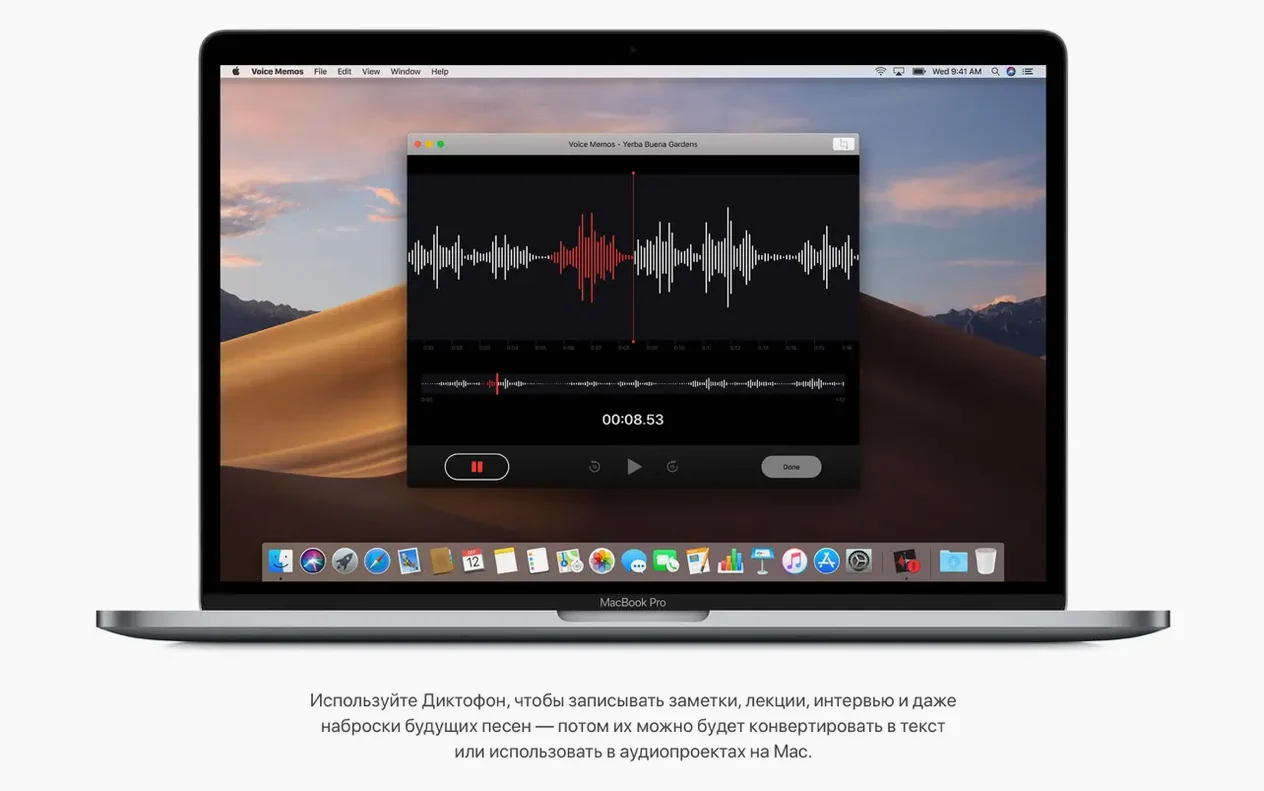
32 simultaneous faces on a single call. That was one marker macOS Mojave laid down for video communication, baked directly into the system's FaceTime app. This release, version 10.14.6, concentrates on stability and reliability, leaving the headline features — Dark Mode, Stacks for desktop organization, the News and Home apps — exactly where they landed at launch.
| Detail | Note |
|---|---|
| Version | 10.14.6 (18G103) |
| Architecture | 64-bit Intel |
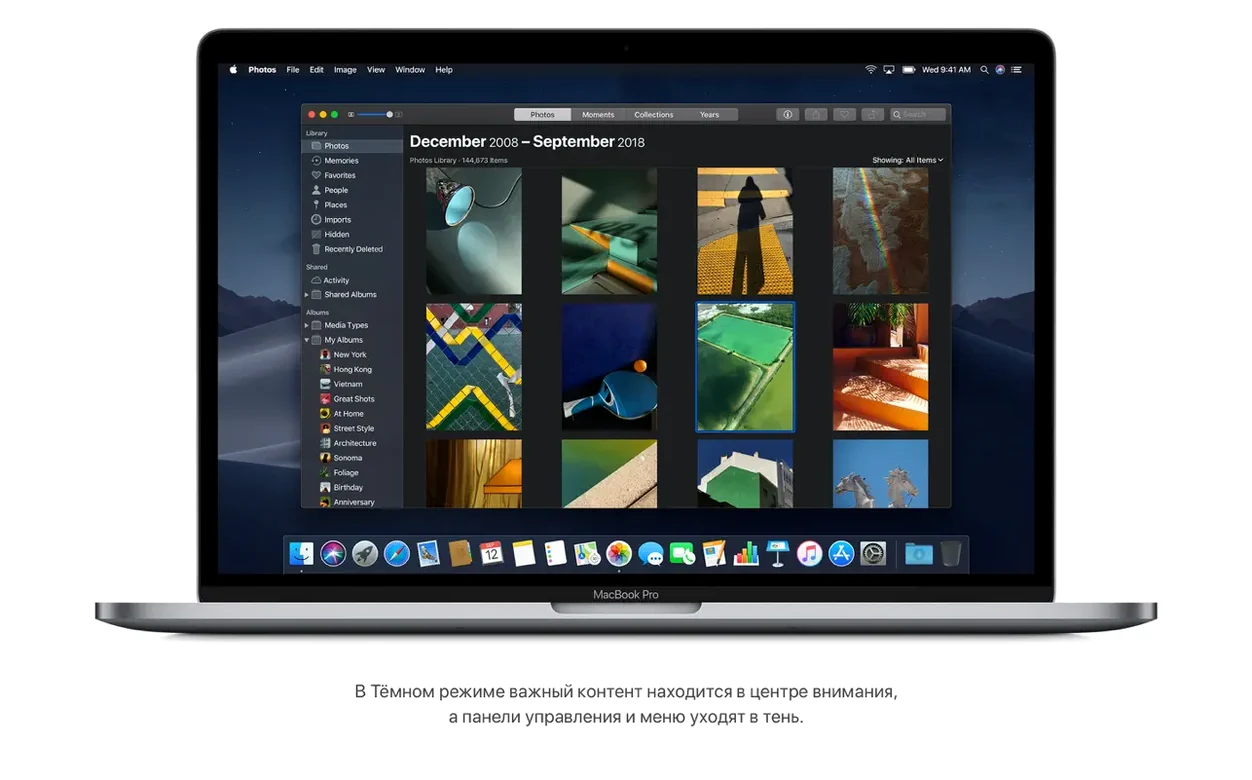
| Key visual | System-wide Dark Mode |
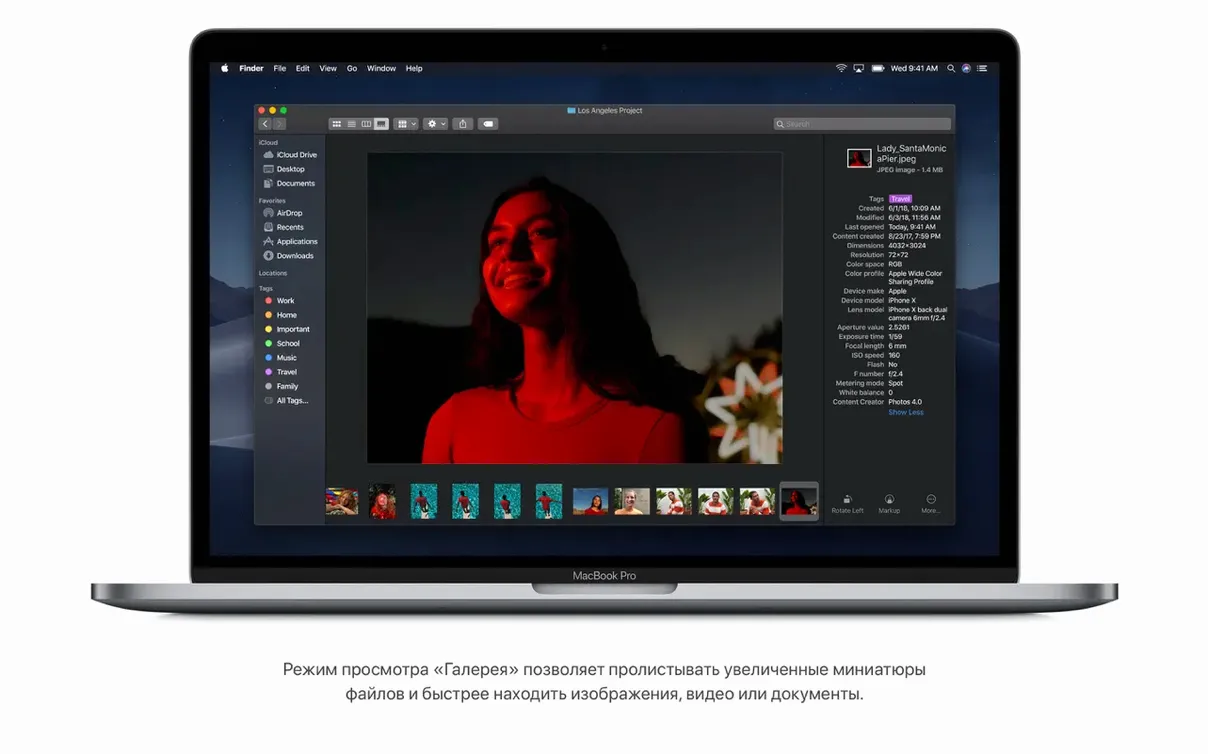
| Media in Finder | Trim and rotate without opening an editor |
Safari keeps its improved Intelligent Tracking Prevention, Mac Pro support stretches back to mid-2010 models with a Metal-capable graphics card swap, and Finder picks up the ability to trim and rotate media files directly. For anyone still running this build, the core job is unchanged: it puts a layer of deliberate, quiet capability between the hardware and the work, asking very little attention in return.
A screenshot-to-share workflow, end to end
Say a colleague asks for a marked-up screenshot of a Finder window with metadata visible. Here is one clean path through Mojave that avoids opening Preview or Photos.
- Press Shift-Command-4, then Space. The cursor turns into a camera. Click the Finder window. The screenshot lands on the desktop with a timestamped name.
- Wait about five seconds — a thumbnail slides into the bottom-right corner of the screen. Click it before it vanishes. The Markup panel opens immediately with cropping handles, a pen tool, and a shape library. Draw one arrow and type two words. Press Command-S to save the edits back to the desktop file — no new copy created. A single click on the share button in the top-right corner sends it to Mail or Messages.
If the desktop is a mess, right-click anywhere on it and choose Use Stacks. The screenshots jump into their own group, one click to fan them out. The file is still at hand, but the desktop looks empty. That combination — Instant Markup plus Stacks — turns a four-app task into something that takes under twenty seconds.
Adding a PDF password without launching Preview
Select a PDF on the desktop or in Gallery View. Press Space for Quick Look, then click the Share icon in the top-left corner. Choose Add Password from the menu. Type a password twice and confirm. Finder applies encryption without ever opening the document. The original file stays untouched; a new encrypted copy appears beside it. The same menu also offers to burn the file to disc or send it directly to Notes.
Quiet conveniences that hide in plain sight
- Gallery View metadata strip — Press Command-4 in any Finder window. The right-hand strip shows resolution, colour profile, lens model, and a map pin for geotagged photos. Click the More button at the bottom to add focal length or shutter speed fields. No inspector panel required.
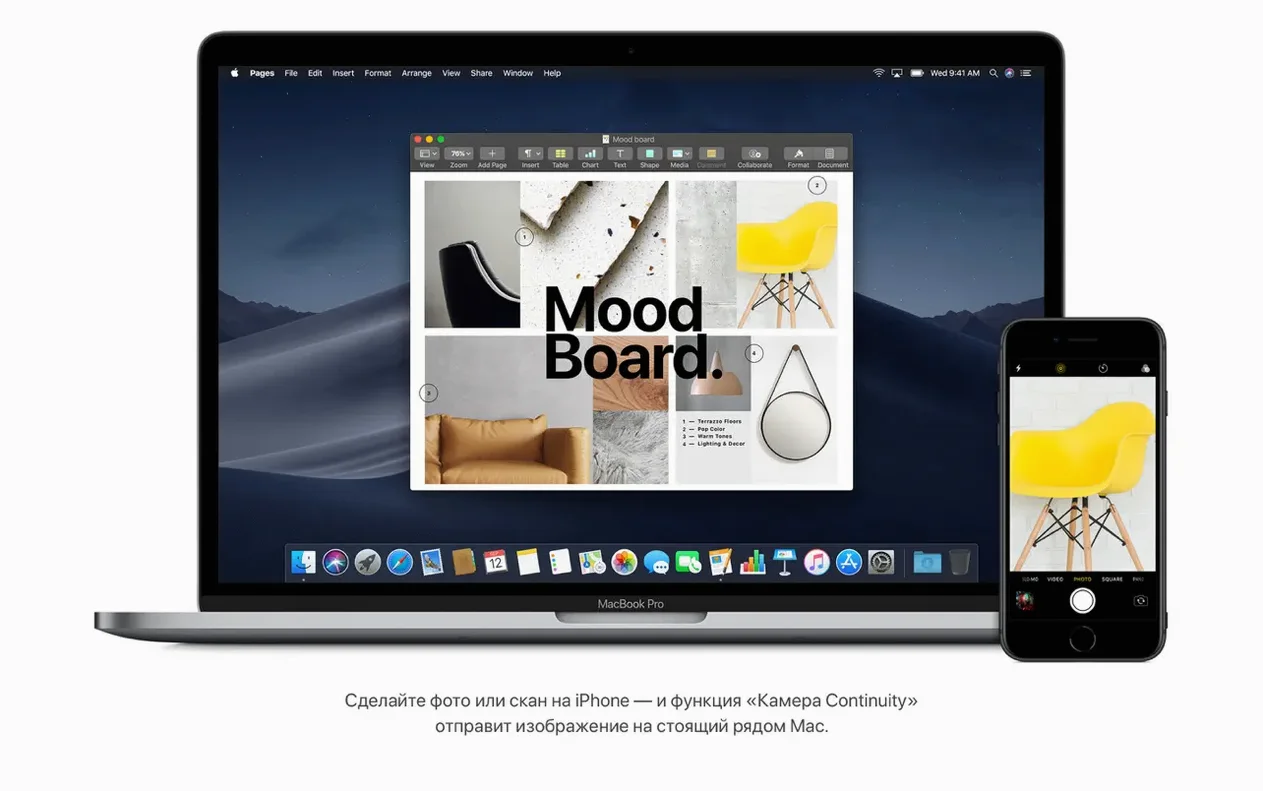
- Continuity camera in Mail — Inside a new message, right-click the body and pick Take Photo or Scan Documents. An iPhone running iOS 12 opens its camera instantly. Snap the document, and the scan appears inline in the draft. The phone never leaves the desk.
- Stack scrubbing — Hover over any desktop stack with two fingers on a trackpad and swipe sideways. The stack scrolls through its contents in place. Lift the fingers to restore the neat pile.
- System colour accent — Open System Preferences > General. Pick any accent colour besides graphite. The highlight on selected text, the radio buttons, and the folder badges all shift together. Dark Mode respects the same accent, so blue stays blue across light and dark appearances.
Footprint After Cold Boot on a Late-2015 MacBook Pro
On a late-2015 MacBook Pro with 8 GB of memory, version 10.14.6 settles at roughly 2.1 GB of RAM after a cold boot, with a dozen background services running. Launching Safari with five tabs, Mail, Notes, and Calendar pushes the figure to just under 4 GB — tight but workable. The system does not swap to disk under that load, and the fans stay below 2000 rpm during light document work.
Application launch times are consistent: Pages opens in two bounces, Numbers in three. Dark Mode switching is instant, completed inside a single display refresh cycle. The biggest resource spike observed came from Spotlight indexing after a fresh macos mojave 10.14.6 dmg install; Activity Monitor showed mds and mds_stores consuming 60-80% of one core for roughly twenty minutes. After indexing finished, idle CPU usage dropped back to 2-3%, which keeps the machine cool enough for unplugged work on a lap.
Continuity features — particularly the phone-call relay and the shared clipboard — introduce intermittent Bluetooth and Wi-Fi bursts, but they release the radios cleanly. No background process lingered after a call ended in testing. For anyone who pulled the macos mojave 10.14 dmg to build a stable reference environment, the memory footprint alone makes it a practical choice: it leaves room for a virtual machine running a second OS without the host grinding to a halt.
- Improved — System stability and reliability.
- macOS 10.8 or later for the initial download
- Intel 64-bit processor
- 2 GB of memory
- 12.5 GB of available storage
- MacBook Early 2015 or newer
- MacBook Air Mid 2012 or newer
- MacBook Pro Mid 2012 or newer
- Mac mini Late 2012 or newer
- iMac Late 2012 or newer
- iMac Pro (2017)
- Mac Pro Late 2013, or mid-2010/mid-2012 with recommended Metal-capable graphics
Questions I get before install
Which Macs can install macOS Mojave 10.14.6?
It supports MacBook Pro from mid-2012, MacBook Air from mid-2012, MacBook from early 2015, iMac from late 2012, iMac Pro (2017), Mac mini from late 2012, and Mac Pro from late 2013 — or mid-2010/mid-2012 models with a recommended Metal-capable graphics card.
Comments 0
Sign in to leave a comment.Sign inCreate an account
No comments yet. If a step is still there after you install it, say so.
More in Mac Apps
All in Mac Apps macOS High Sierra
Keeps older Intel Macs and 32-bit apps running on a stable, final build.
17 steps saved
 macOS Tahoe
Brings the Liquid Glass redesign and new system features to supported Macs.
4 steps saved
 macOS Golden Gate
Brings the newest macOS to Apple silicon Macs with fresh system features.
10 steps saved
 MacPilot
Toggles hundreds of hidden macOS settings with a checkbox instead of Terminal.
20 steps saved
 macOS Catalina
Moves iPhone sync and backups from iTunes straight into the Finder.
5 steps saved
 Updated
MacFamilyTree
Manages evidence and citations to build a family history that holds up to scrutiny.
22 steps saved
 MacDroid Pro
Mounts an Android phone as a writable Mac disk, no cloud upload needed.
4 steps saved
 Updated
MacCleaner Pro
Finds exactly what ate your disk space and removes leftover app clutter.