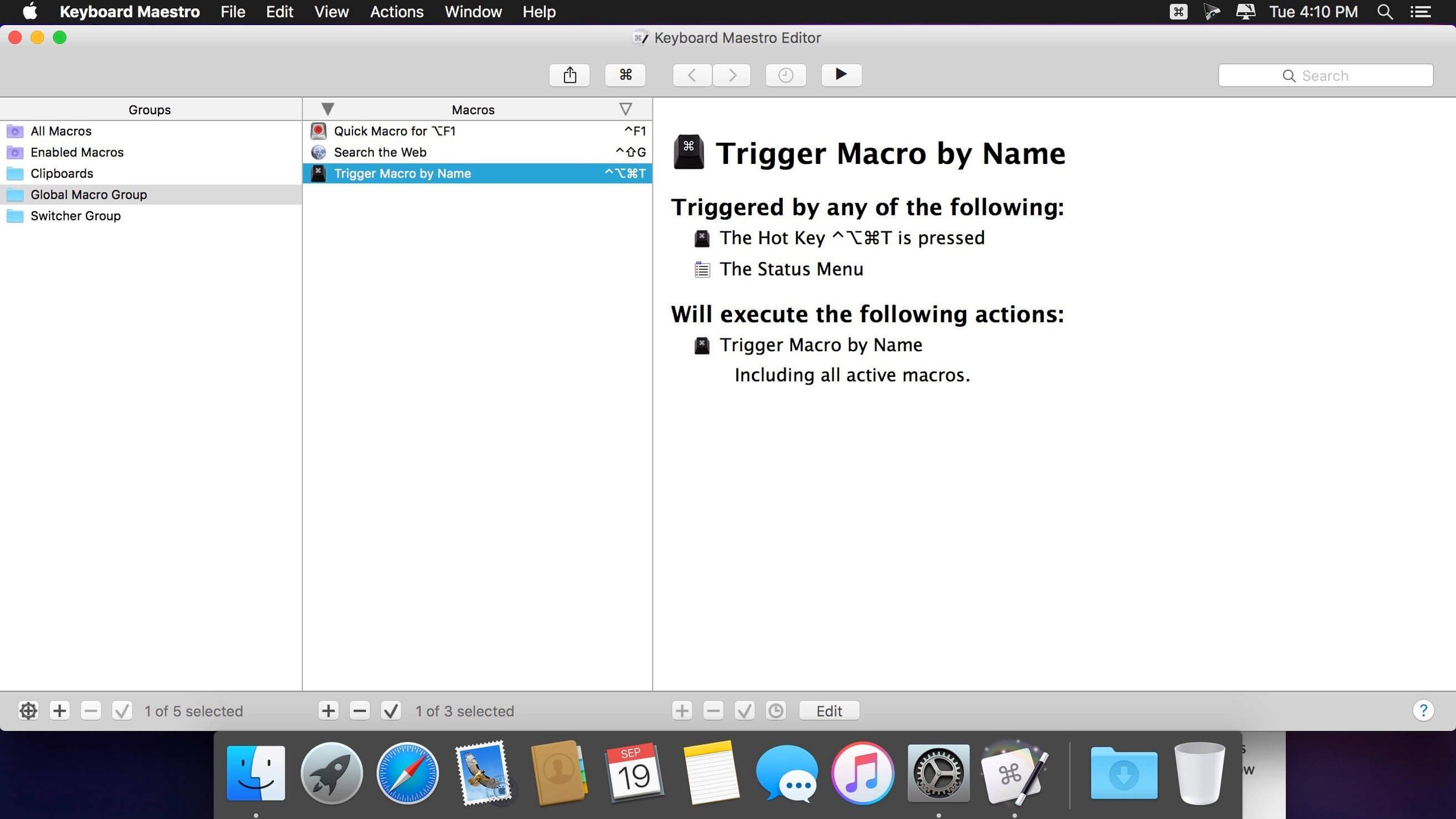
Keyboard Maestro runs on any Mac with macOS 10.13 High Sierra or newer, on both Intel and Apple Silicon machines. The engine is light; the automation is deep.
Resize windows into a split-screen layout
- Rearrange your workspace. Build a macro that resizes and positions Finder and Mail into a split-screen layout, triggered by a single hotkey.
- Expand text as you type. Set up a snippet group that turns a short abbreviation into a full address or a formatted email sign-off.
- Filter your clipboard. Activate the clipboard history, then create a filter that strips formatting from copied text before you paste it into a report.
What runs underneath
Every macro can use conditions, loops, and flow control. You can trigger actions on a schedule, watch a web page for changes, or process a folder of images with Apple Text Recognition. The engine automates applications, text, and images — simple or complex, on command or timed.
Repetitive daily app users
Keyboard Maestro suits people who touch the same apps daily and notice the repetition. Support teams that paste the same answers into tickets. Photographers who rename and move hundreds of files after a shoot. Writers who format manuscripts in three different ways for three different editors. Anyone whose work involves switching between four or five tools, copying data from one into another, and doing it again tomorrow.
Casual users can stop at text expansion and a few hotkeys. The real payoff comes when you start combining actions: open an app, resize its window, load a template, and place the cursor in the first field — all from one shortcut.
Recording clicks instead of assembling actions
- Recording instead of building. The macro recorder captures clicks and keystrokes, but recorded macros break when window positions change. Learn to assemble actions from the library early; it is slower at first and far more reliable later.
- Using too many global hotkeys. Every hotkey you assign removes that shortcut from every other app. Reserve global triggers for the five or six macros you run all day. Put the rest in palettes or app-specific groups.
- Ignoring the debugger. When a macro misbehaves, the Macro Debugger shows exactly which action fired and what it produced. The tool tips added in 11.0.4 make that window easier to read, especially inside Switch/Case branches.
- Skipping named clipboard entries. The clipboard history holds more than one item. Name the entries you reuse — a standard reply, a shipping address — and insert them by name instead of hunting through the history.
Pick three repeat tasks and start there
- Pick three annoyances. Write down the three tasks you repeat most. Start with those. Do not try to automate your whole week on day one.
- Create a test group. Keep experimental macros in their own group, disabled by default. Turn them on one at a time as you trust them.
- Learn the conflict alerts. Keyboard Maestro warns you when a hotkey collides with another macro or a system shortcut. Pay attention to those warnings instead of clicking through them.
- Build one form filler. Take a web form you fill in regularly and automate it with the built-in web form actions. This teaches you more about flow control than any tutorial.
- Schedule something small. Set a macro to run on a timer — open your task list at 9 a.m. or clear a downloads folder every Friday. Scheduled automation teaches you to trust the engine when you are not watching.
Work through those five steps and you will know within a week whether you want to go deeper. Most people who do keep going find the clipboard filters and Apple Text Recognition add the kind of polish that recorded macros never had.
- New — Display on Switch/Case actions that shows which entries are true or would execute. Apple Text Recognition support in the OCR Condition. Tool tips added for the Macro Debugger window.
- Fixed — An issue with search highlighting triggers.
- macOS 10.13 or later
- Intel or Apple Silicon Mac
Comments 0
Sign in to leave a comment.Sign inCreate an account
No comments yet. If a step is still there after you install it, say so.
More in Mac Apps
All in Mac Apps Updated
KeyKey
Adjusts typing drills to focus on the keys that slow you down most.
15 steps saved
 Jump Desktop
Connects to remote screens with a protocol that adapts encoding to keep sessions responsive.
12 steps saved
 Juicy: Battery Alerts & Health
Surfaces battery health and cycle count in the menu bar before the service warning appears.
19 steps saved
 Updated
Kontakt
Hosts sampled instruments with deep editing, a wavetable engine, and direct MIDI manipulation tools.
23 steps saved
 iZotope Ozone
Reshapes a mix into a finished master using genre-specific tonal targets.
6 steps saved
 LanScan
Scans every active network interface and lists connected devices automatically.
6 steps saved
 LaunchOS
Replaces the default app launcher with a grid you arrange on your own terms.
6 steps saved
 iStat Menus
Puts CPU, memory, and network graphs in your menu bar to catch issues early.