
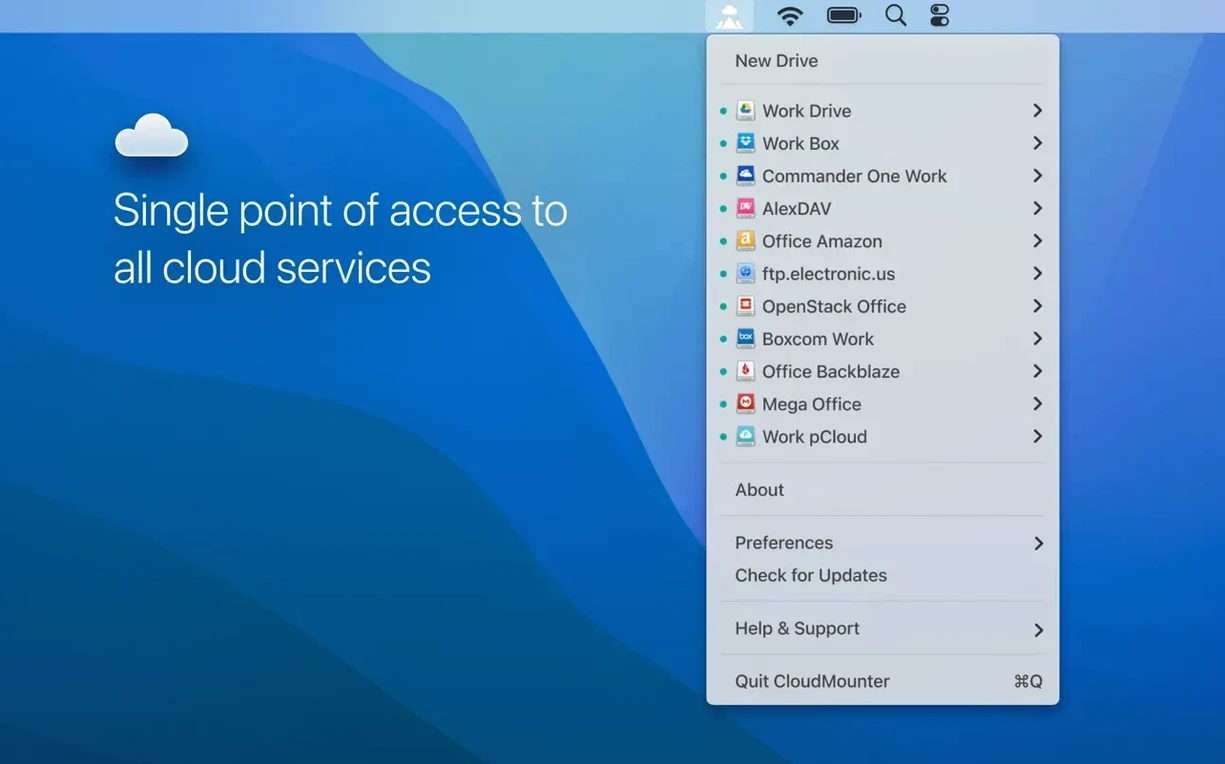
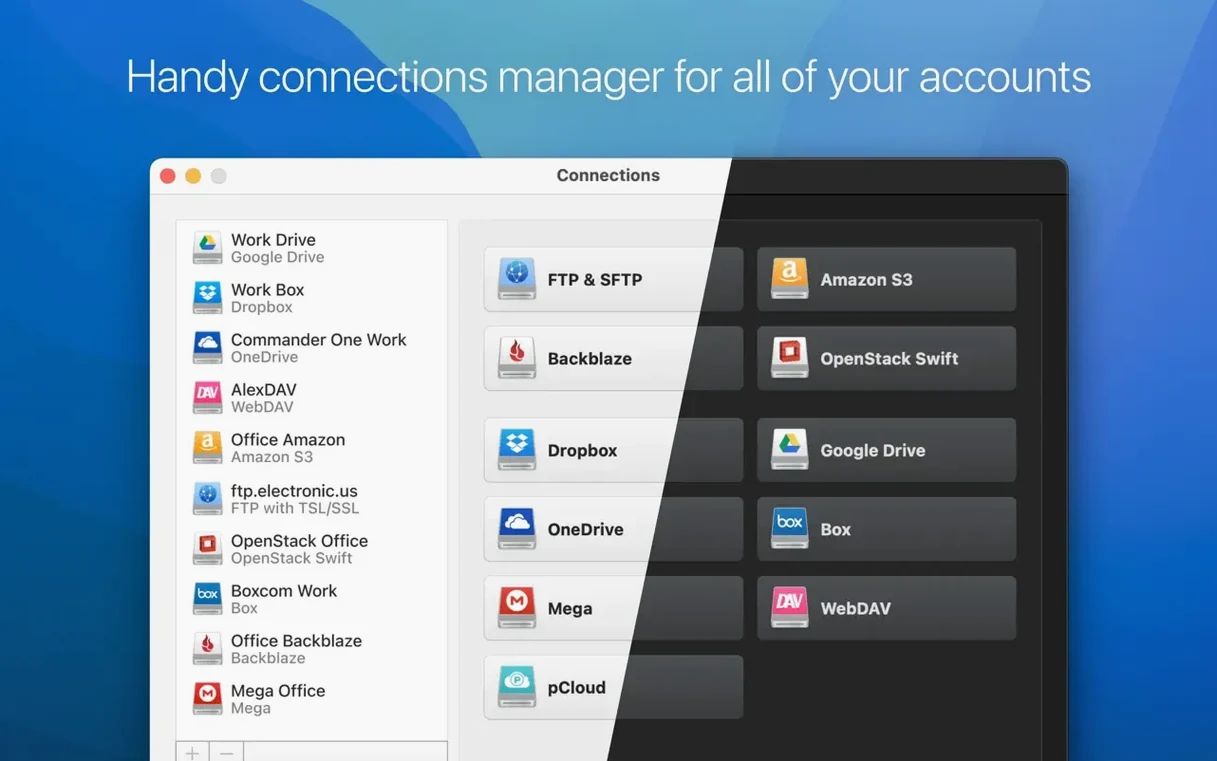
CloudMounter is a Mac app that connects cloud storage accounts and remote servers to Finder, letting you work with them as though they were local drives.
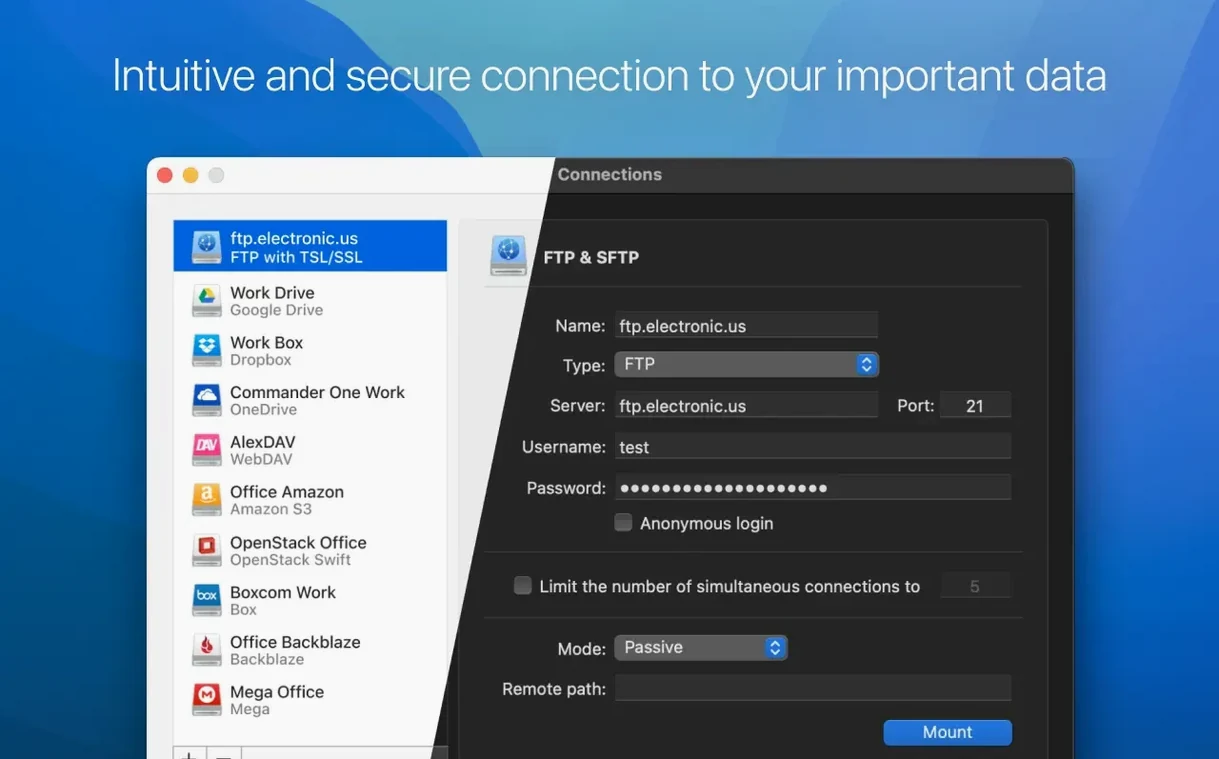
People usually ask three things before installing: which services it talks to, how it handles security, and what the actual install process looks like. The service list covers the obvious names—Google Drive, Dropbox, OneDrive, Box—alongside Amazon S3, Backblaze B2, OpenStack Swift, and WebDAV. For servers, it handles FTP, SFTP, and FTPS connections.
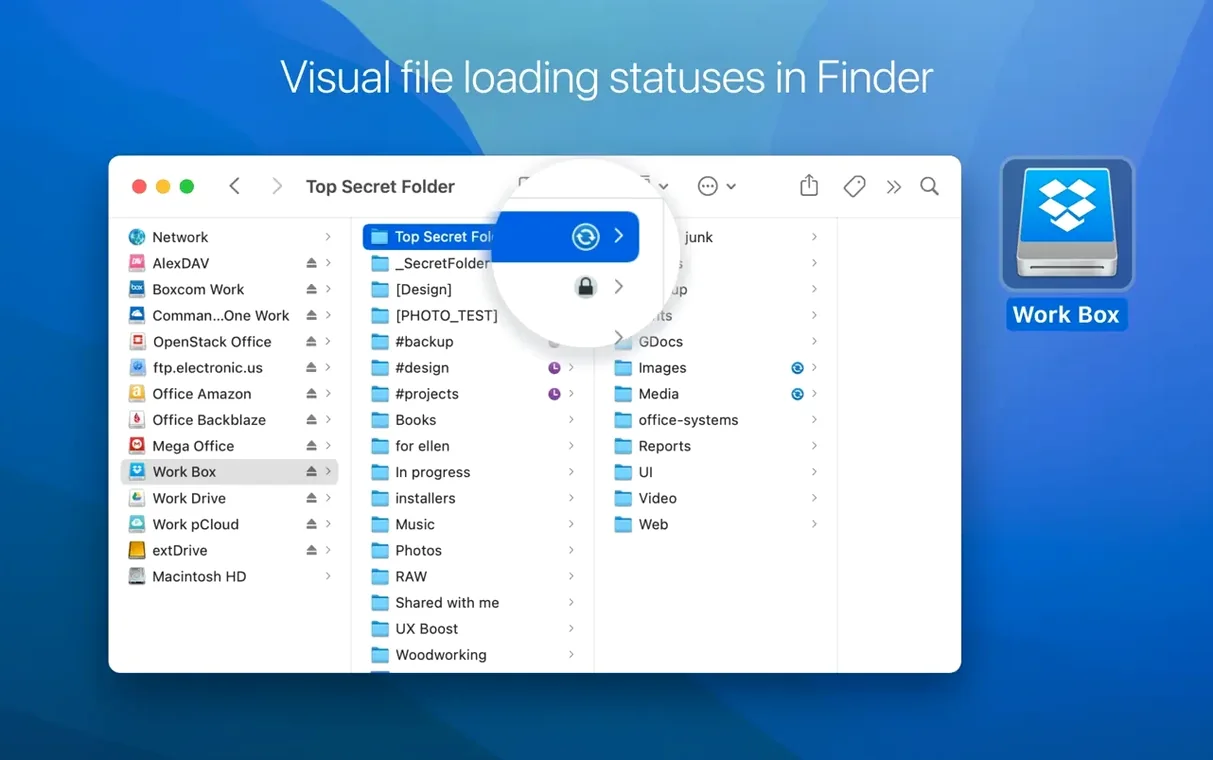
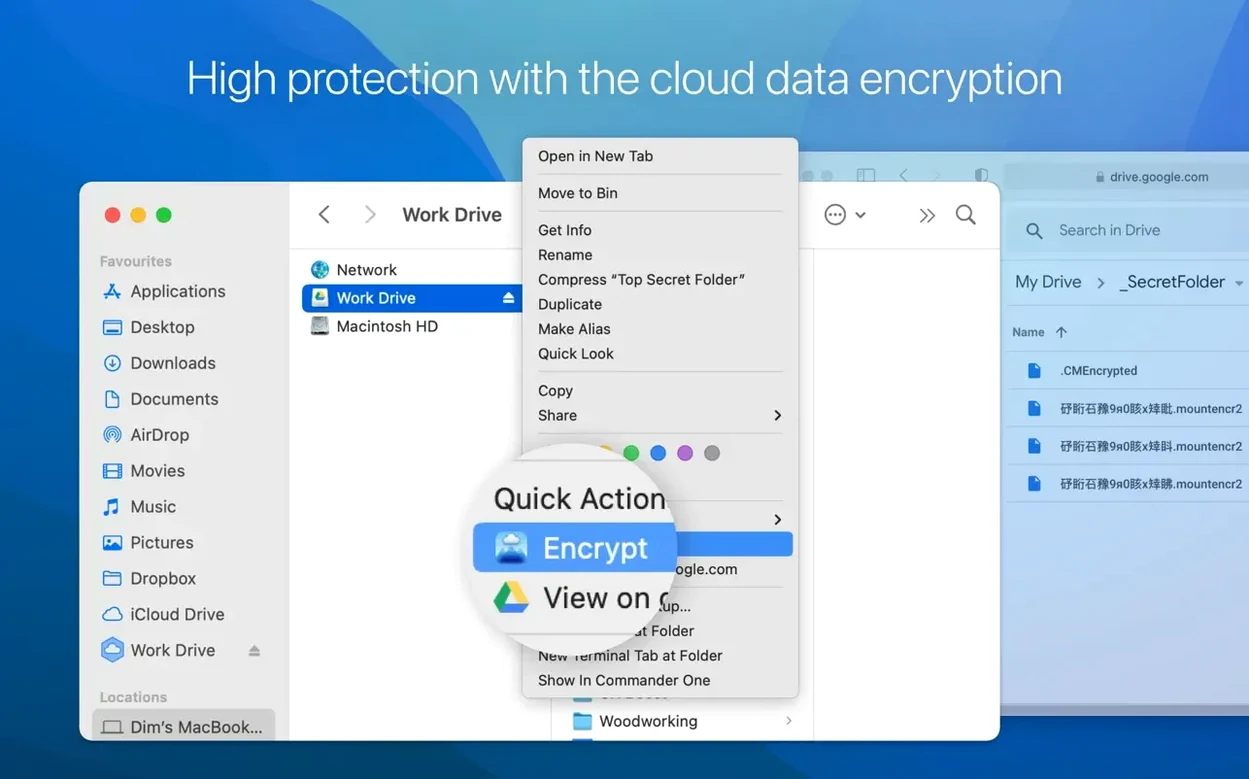
On security, CloudMounter can encrypt cloud data with AES-256. That means files are encrypted on your Mac before they leave the machine, so the cloud provider never sees the unencrypted content. Progress for transfers, uploads, and moves shows up with clear status icons, so you always know what the app is doing.
The current version 4.18, released June 2026, improved large-file uploads and MEGA connection handling, while squashing a few bugs around SFTP downloads and cache-volume changes. The app runs on Intel Macs with macOS 10.14 or later, and the interface ships in eleven languages including English, German, French, Japanese, and Simplified Chinese.
Favorites sidebar and Finder free-space glance
Most people drag CloudMounter onto the menu bar and forget about it. That's fine—but a few tucked-away touches make daily use smoother.
- Right-click a mounted drive in Finder and choose “Get Info.” The capacity bar shows free space from the cloud account, not your local disk. Handy when you are about to drop a large folder onto a nearly full Google Drive.
- Hold Option while opening a file from a mounted volume. CloudMounter downloads it to a temporary location and opens it without caching a permanent copy. Useful for one-off PDFs you will never need again.
- Status icons in the menu bar drop-down are colour-coded per connection. A quick glance tells you whether your SFTP server is still connected or whether that S3 bucket timed out overnight.
The “Show in Finder” button inside each connection panel jumps straight to the mount point—no hunting through /Volumes. And the app remembers window positions per connection, so your FTP pane opens where you left it last week.
Consumer clouds vs. server-protocol rival
Mountain Duck mounts cloud storage into Finder the same way CloudMounter does, and both support encryption. Mountain Duck leans harder on server protocols and scripting, while CloudMounter feels more at home managing consumer cloud accounts side by side. If your day involves three Google Drives and a Dropbox, CloudMounter's multi-account handling is cleaner. If you live in SSH tunnels and bucket policies, Mountain Duck gives you more knobs.
ExpanDrive covers a similar service list—Google Drive, Dropbox, S3, SFTP—and also integrates with Finder. ExpanDrive includes a built-in search that queries remote files without downloading them first, something CloudMounter does not offer. The trade-off: ExpanDrive pushes a sync-like model more aggressively, whereas CloudMounter stays strictly on-demand. People hunting for a CloudMounter crack often cite that on-demand behaviour as the reason they prefer it; the app never fills your SSD with files you opened once.
Commander One (also from Eltima) handles FTP, SFTP, and cloud connections inside a dual-pane file manager. It covers different ground—Commander One replaces Finder workflows, while CloudMounter extends Finder itself. Some people run both: CloudMounter for quick Finder access to everyday accounts, Commander One for heavy server-side file operations.
No single app wins on all fronts, but CloudMounter's Finder-first approach and AES-256 encryption make it the right pick when the goal is making cloud storage behave like a local drive without background syncing or a separate window. If you have been looking for a CloudMounter activation code or a CloudMounter torrent to test that behaviour, just connect your existing services and you're set—no extra account layer, no dashboard, just your drives in Finder.
- Improved uploading of large files.
- Improved work with MEGA connections.
- Fixed download cancellation for files on SFTP connections.
- Fixed file downloading issues when cache volume is changed.
- Fixed displaying of storage usage information for online connections.
- macOS 10.14 or later
- Intel-based Mac
Questions I get before install
Which cloud services does CloudMounter support?
It supports Google Drive, Dropbox, OneDrive, Box, Amazon S3, Backblaze B2, OpenStack Swift, and WebDAV, plus FTP, SFTP, and FTPS for remote servers.
How does CloudMounter handle security?
It offers AES-256 encryption so files are encrypted on your Mac before uploading—the cloud provider only sees encrypted data.
What macOS version does CloudMounter require?
Version 4.18 runs on Intel-based Macs with macOS 10.14 or later.
Comments 0
Sign in to leave a comment.Sign inCreate an account
No comments yet. If a step is still there after you install it, say so.
More in Mac Apps
All in Mac Apps Cockos REAPER
Records and mixes multitrack audio in a light, endlessly customizable DAW.
21 steps saved
 Clop Pro
Hands back a compressed copy the moment you copy an image or video.
9 steps saved
 Cocktail Sequoia Edition
Runs maintenance scripts, cache cleanup and repairs from one control panel.
13 steps saved
 Clip Studio Paint
Draws comics, manga and illustrations with pen tools built for line art.
5 steps saved
 Coherence X
Isolates each web tool into its own app so one crash stops nothing.
7 steps saved
 Color Finale
Lets you grade inside the Final Cut Pro timeline with no roundtripping.
12 steps saved
 Updated
CleanShot X
Captures, annotates, and pins a window without leaving your screen.
15 steps saved
 CleanMyMac
Clears system junk, mail attachments, and privacy traces in one scan.