
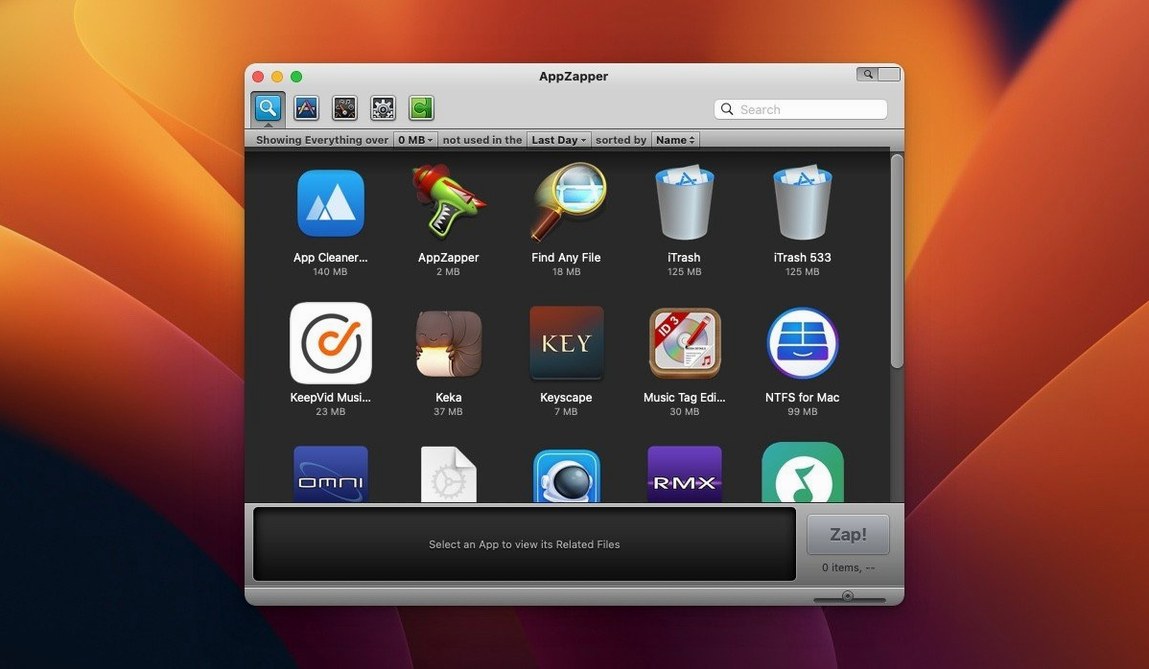
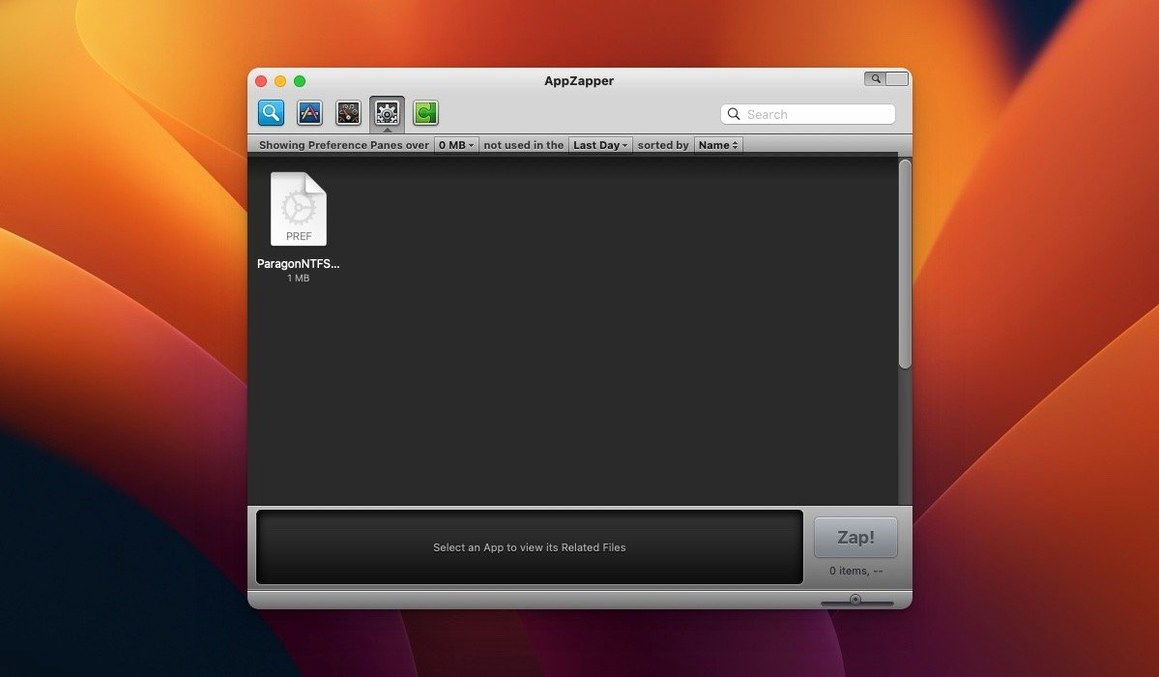
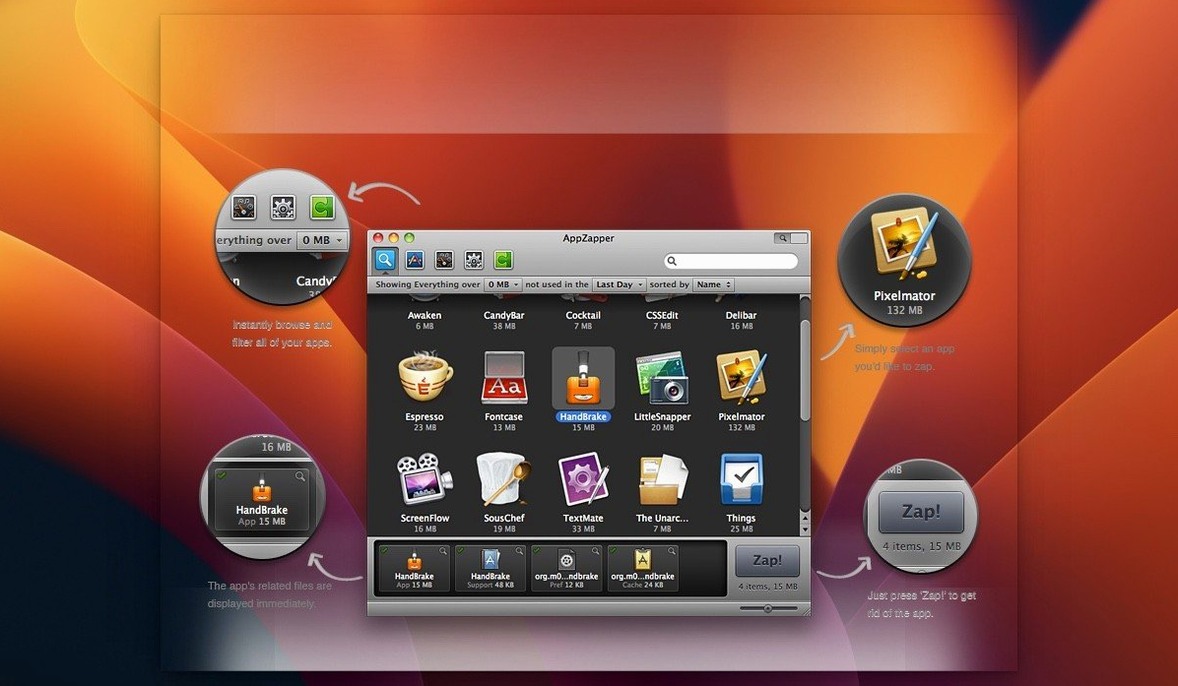
AppZapper is a dedicated uninstaller that finds and removes every file connected to the macOS app you drop into it.
How does the current version handle leftovers?
Before it deletes anything, AppZapper lists every system file, preference pane, and cache it has linked to the app. You review the list first, then confirm to send the whole lot to the Trash—where a single file could otherwise be pulled back.
Switching to the large-icon grid browser
Version 2 introduced a large-icon grid browser, arranging your applications in rows and columns. A button tucked into the upper-right corner of the window switches you straight into it.
Has the core behaviour stayed the same?
Yes. You still drag an app onto the window to trigger a scan for associated files. The goal remains a clean removal of the application and its scattered support items in one action, running on OS X 10.9 or later.
Shortcuts you probably walk past every day
The interface keeps things simple, which means a few handy moves stay hidden in plain sight.
- Drag multiple apps at once. Select a handful in Finder, drag them onto the AppZapper window, and work through each one in sequence without reopening anything.
- Spacebar preview. Highlight any file in the zap list and tap the spacebar for a Quick Look preview. Useful when a filename gives you no clue what it actually holds.
- Undo from the Trash. If you zap something and regret it, open the Trash, find the file, and choose Put Back. No recovery wizard required—it behaves exactly like a regular deletion.
The grid view (that little button top-right) earns its keep when you are hunting by sight. Large icons help you spot an app whose name you cannot recall, especially old utilities with generic labels.
Enabling the safety prompt before you trash
Out of the box, AppZapper works. A couple of adjustments make it work the way you think.
- Turn on the safety prompt. The preferences pane lets you enable a confirmation dialogue before anything hits the Trash. Switch it on. The extra click costs nothing compared to accidentally zapping the wrong app.
- Review the exclusion list early. Some apps share support folders. If you use a suite of tools from one developer, add the shared folder to the exclusion list in preferences so AppZapper does not offer to delete it when you remove just one component.
- Set the default view. If you prefer scanning by icon, set the grid as the default. If you work by name, keep the list. The toggle is sticky once you set it.
Zapping before scrolling the detected file list
Most trouble comes not from the tool but from overconfidence with it.
Zapping before checking the list. AppZapper shows every file it connects to the app. Clicking Zap without scrolling is the single quickest way to delete a preference file you actually wanted—especially for apps you reinstall later and expect to remember your settings. Slow down. Skim the list.
Assuming all found files belong only to that app. Some support files carry generic names. If a plugin or helper appears in the zap list and you do not recognise it, leave it unchecked. The checkbox is there for a reason.
Forgetting exports before removal. If you are cleaning out an old app you might revisit, export its bundle and related files first. The export function packs everything into a portable archive you can stash, and it takes seconds longer than a straight zap.
Whether you found the tool through an appzapper mac search or grabbed an AppZapper torrent from a colleague, the habits stay the same: review, uncheck what you do not know, and export before you burn the bridge.
- New — Grid-style app browser with large icons.
- New — A button in the upper-right corner of the window to activate the grid view.
- Fixed — Under-the-hood corrections delivered in the 2.0.3 fix.
- OS X 10.9 or later
- Intel 64-bit processor
Comments 0
Sign in to leave a comment.Sign inCreate an account
No comments yet. If a step is still there after you install it, say so.
More in Mac Apps
All in Mac Apps Apple Remote Desktop
Controls, updates, and audits a fleet of Macs from a single screen.
14 steps saved
 Apple Keynote
Creates presentations from Apple-designed themes with charts, text, and shapes.
6 steps saved
 App Cleaner & Uninstaller
Reveals every permission and leftover file an app leaves behind before deletion.
18 steps saved
 AnyTrans for iOS
Lets you pick and move specific messages, memos, or app data between iPhones.
23 steps saved
 Updated
Antivirus Zap - Virus Scanner
Runs quick or deep scans to remove malware and adware from a Mac.
5 steps saved
 Amadeus Pro
Edits audio waveforms with markers, fades, and analysis tools on older Macs too.
5 steps saved
 Updated
AltTab Pro
Switches between open windows with live thumbnails and a fully custom shortcut.
17 steps saved
 Alfred 5 Powerpack
Chains file actions, searches, and scripts into automated sequences from the keyboard.