

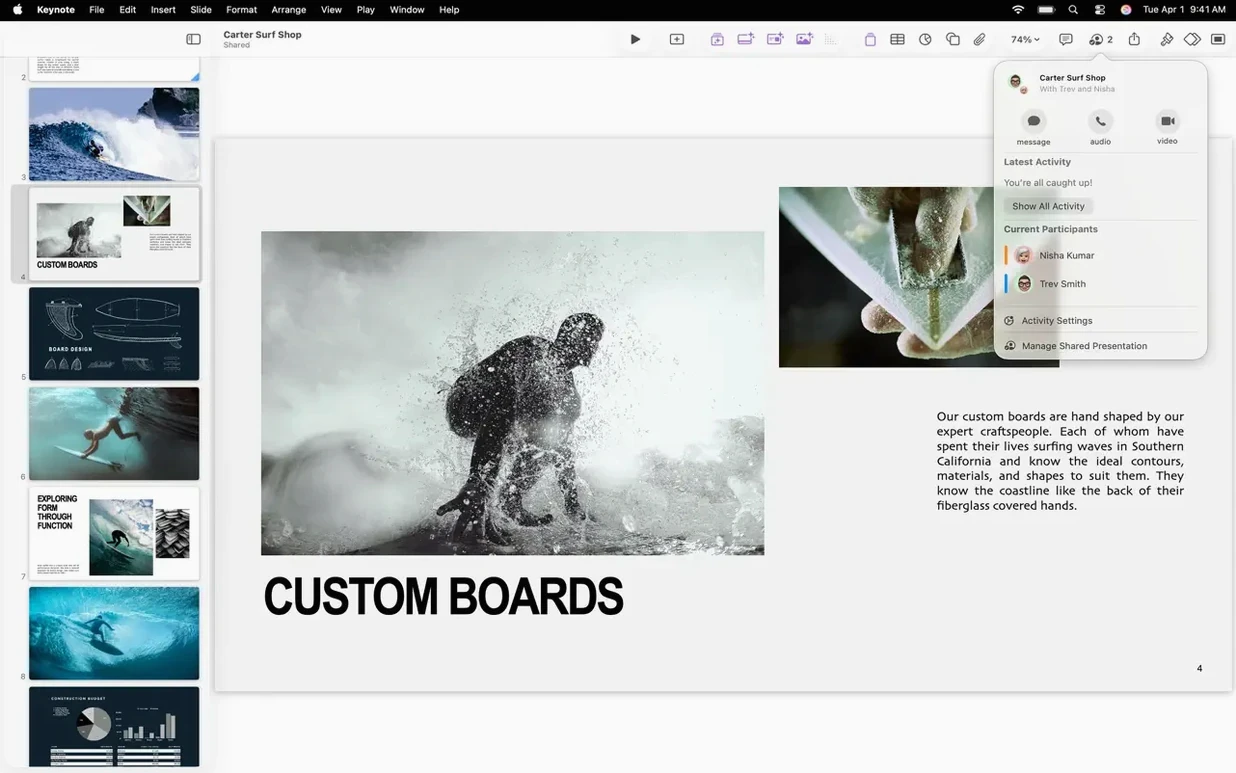
Pages handles your documents and Numbers manages spreadsheets. Apple Keynote sits right there with them, purpose-built for presentations that fit a Mac workflow — no file-format guesswork required.
Design with Apple themes
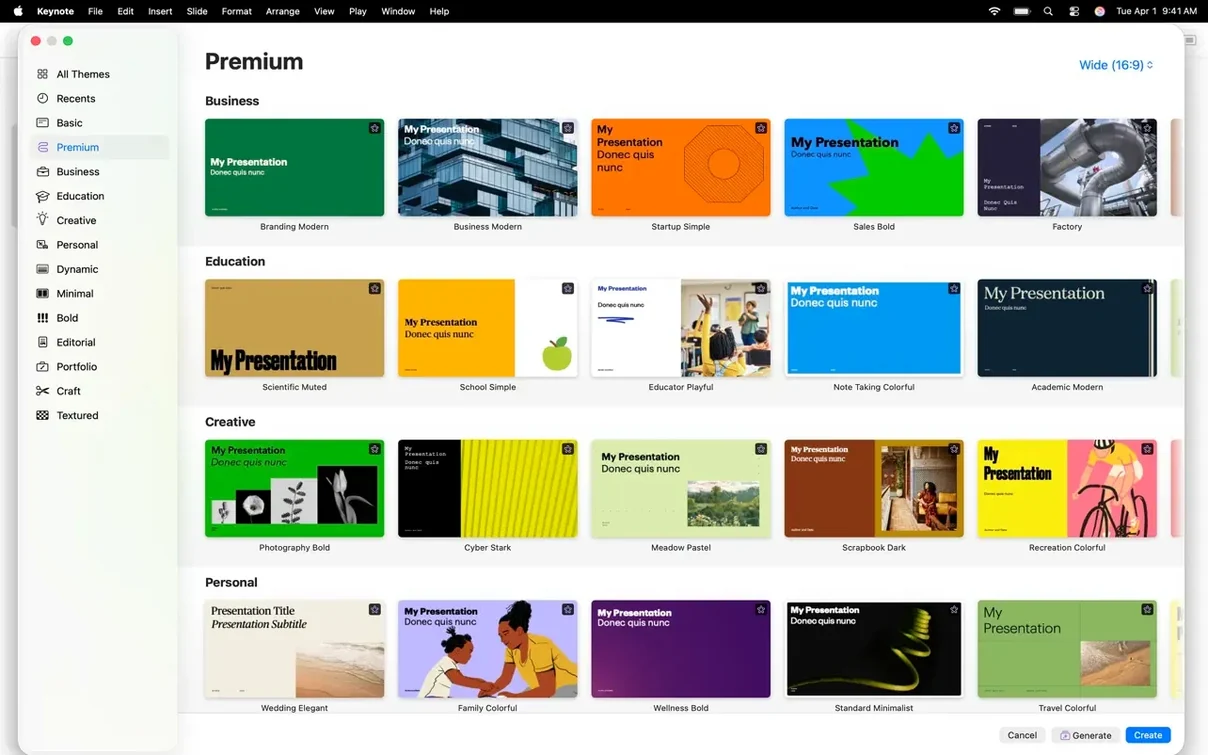
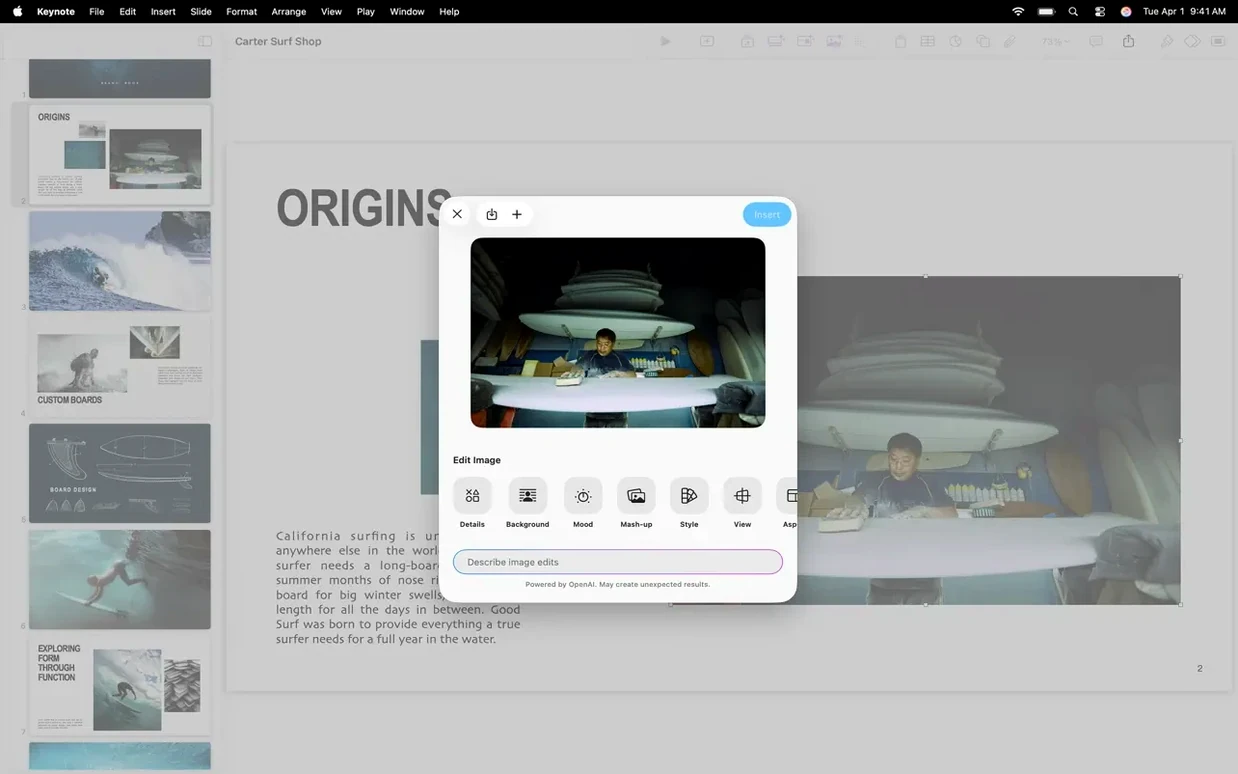
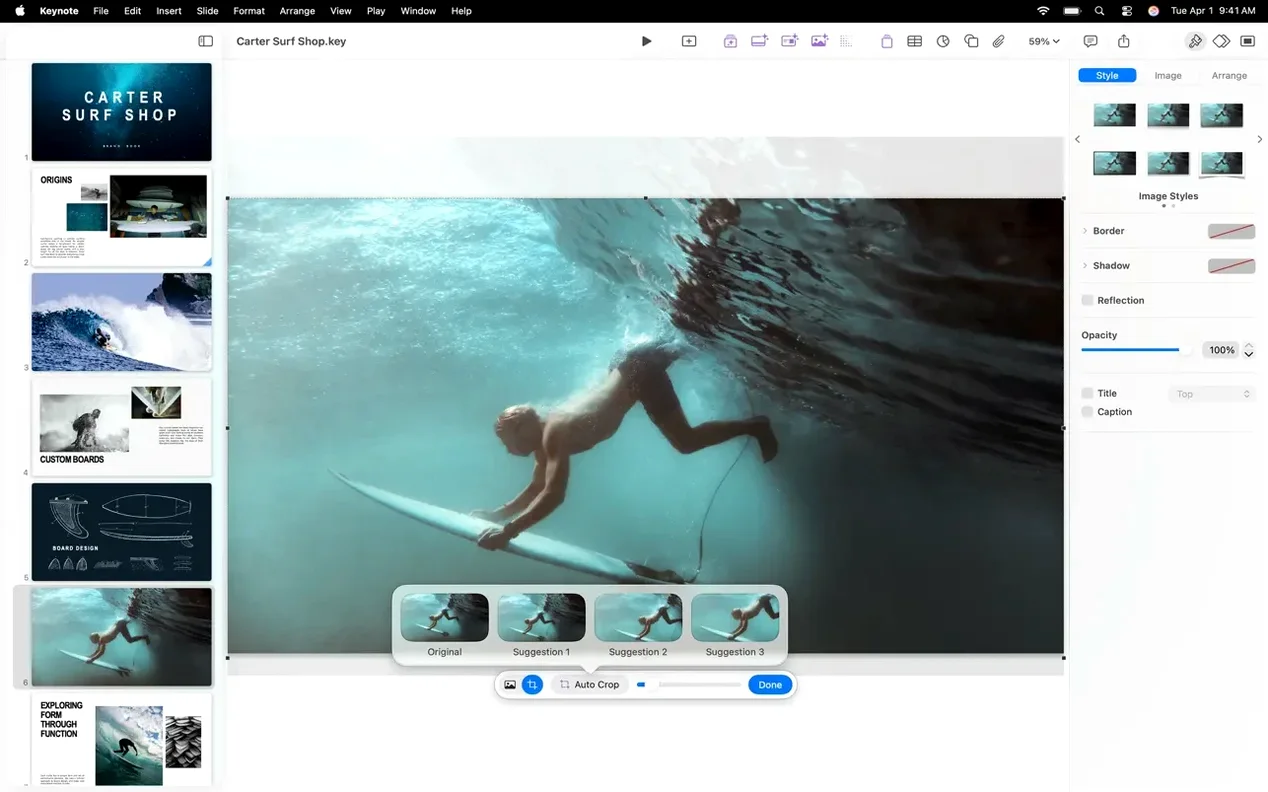
Start from a set of Apple-designed themes, then add custom text, charts, shapes, and images. Graphic tools like masks and instant background removal keep image editing inside the app.
Rehearse and present
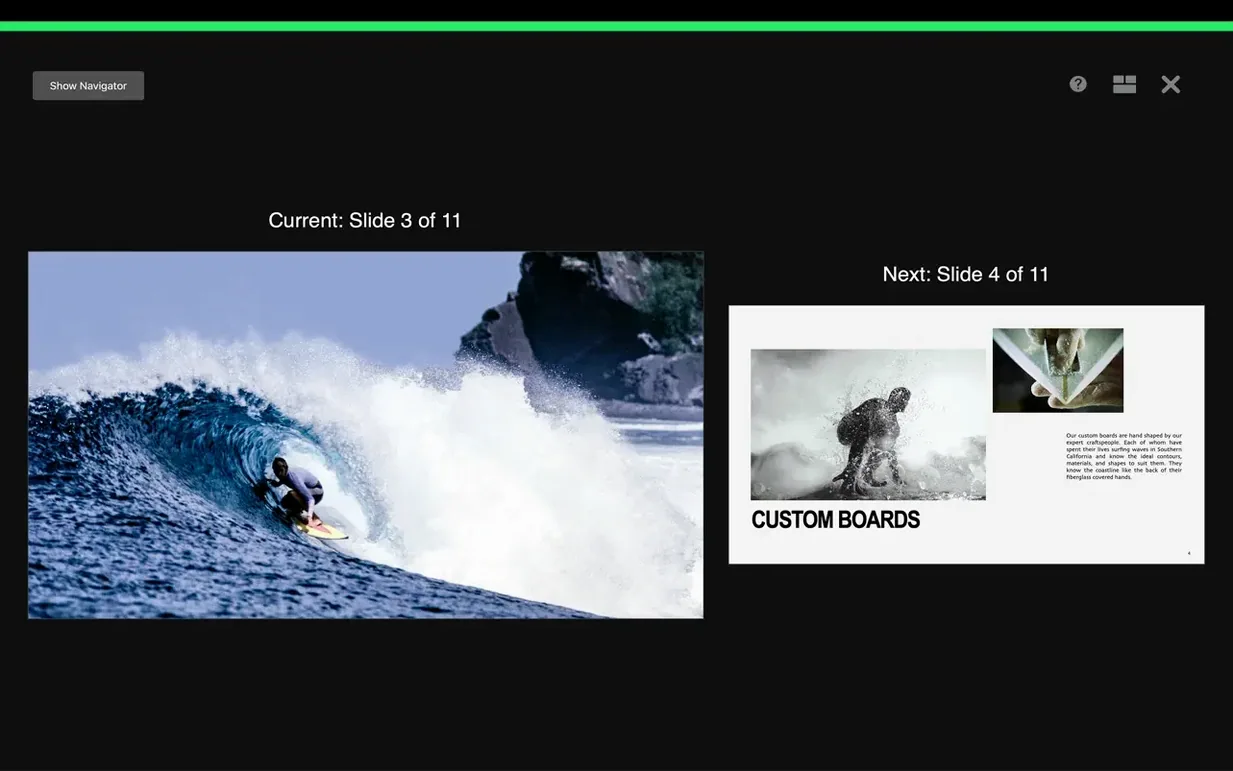
Use the customizable presenter display to practice your delivery. On Apple Vision Pro, test how slides look in the Conference Room and Cinema immersive spaces.
Exchange files with PowerPoint
Import and edit Microsoft PowerPoint presentations directly, or export your work to PowerPoint, PDF, HTML, movie files, and image files. Co-editing tracks changes in real time across devices.
Lock your rehearsal layout before slide one
Start with the presenter display. Open Keynote, go to Play > Rehearse Slideshow, and spend five minutes arranging the layout you want on screen — current slide, next slide, notes, timer. Lock that layout once it works. You will not want to fiddle with it five minutes before a talk.
Next, set a default theme. Apple ships more than a dozen, and every new deck inherits the last one you picked. Choose one deliberately for a week so your early decks do not look scattered.
Two more quiet settings help on day one:
- Auto-save to iCloud — keeps every edit on every device without export steps.
- Optimize movies for streaming — export a smaller file when you send a deck by email or through a portal.
Option-drag duplications and one-click background removal
A handful of details do more work than their menus suggest:
- Option-drag a shape duplicates it with the same style, aligned to the same baseline.
- Instant alpha removes a solid background from a logo or product photo in roughly two clicks.
- Magic Move animates the same object across two slides, so a label can glide while the background stays put.
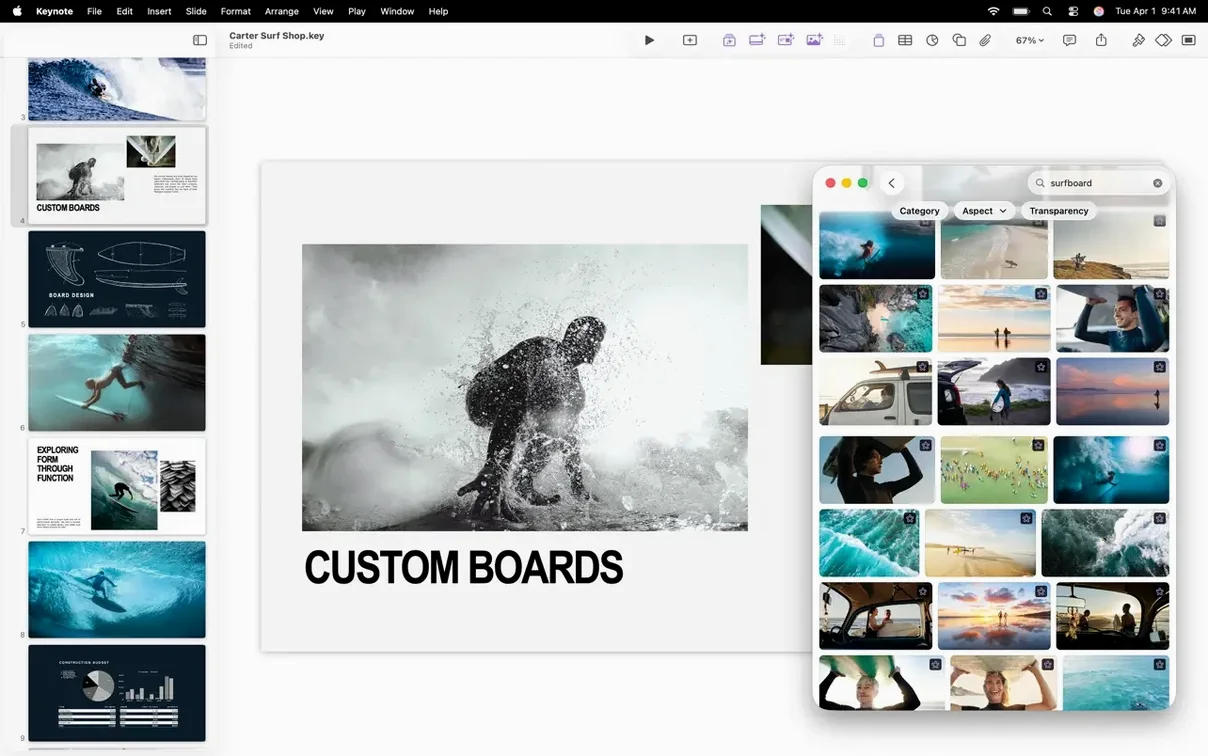
- Content Hub image replacement — swap an image on a slide without rebuilding its mask or frame.
- Apple Pencil annotation on iPad marks up slides live while you present, no extra mode to open.
Turn a text outline into a themed deck in 20 minutes
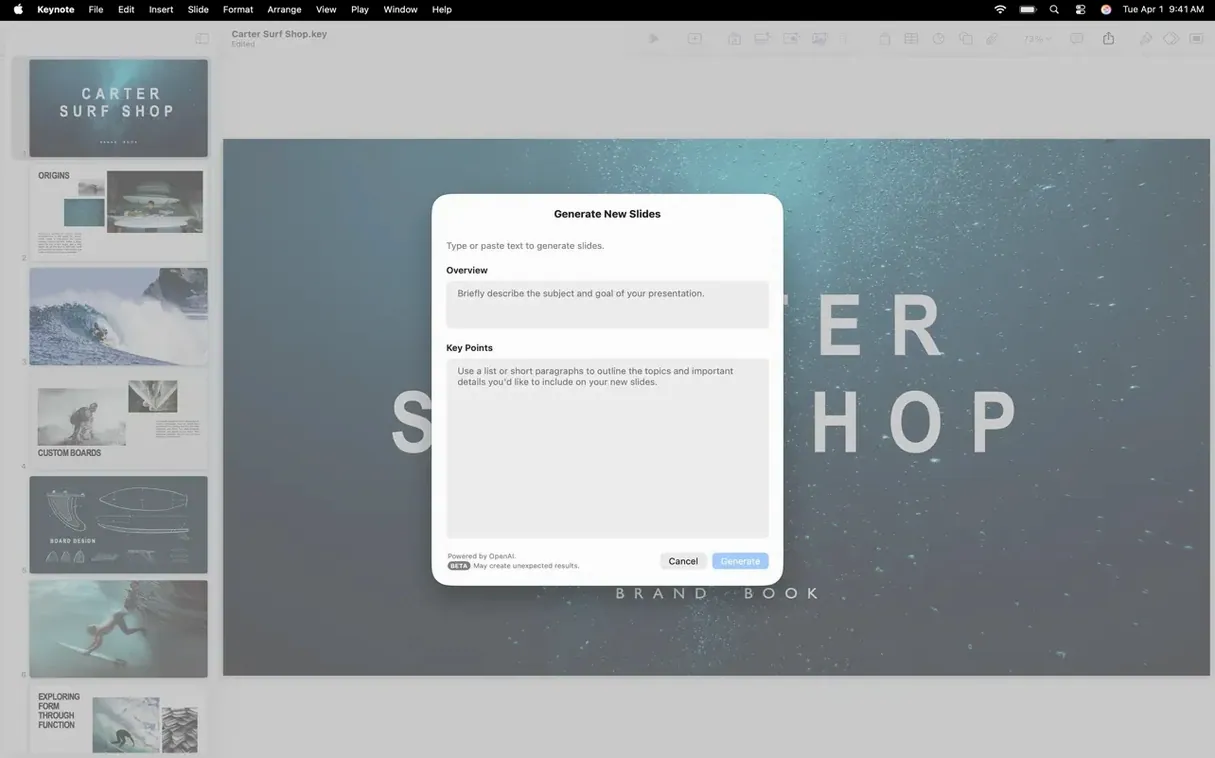
You open Keynote at nine in the morning with a loose outline in a text file. You pick a theme, paste the outline into a slide list, and let Keynote build the first structure. By nine twenty you are replacing placeholder images through the Content Hub — a product shot, a chart, a floor plan — each one masked and aligned without leaving the canvas.
You add a pair of slides for the pricing section. Option-drag a callout box from the previous slide, type new numbers, then set a shift build so the cost line appears after the feature list. The transition between the first and second pricing slide gets a radial wipe, fast enough to feel deliberate but not theatrical.
After lunch you rehearse in the presenter display. The timer sits in the corner; the next slide cue keeps you from glancing at the screen. You mark two notes to yourself — slow down here, mention the Toronto pilot — and they follow the deck, not the room.
Before you close for the day, you export two copies: a PDF for the client to review and an HTML file for the shared drive. Both take seconds. The deck itself stays in iCloud, ready if you need to edit from the train.
- New — Transitions and builds including shift, radial wipe, and character blur.
- Improved — Replace images in a presentation from the Content Hub more easily.
- Fixed — Bug fixes and performance improvements.
- macOS 15.6 or later
- Apple Silicon and Intel support
Questions I get before install
Can I use Keynote to open and edit PowerPoint files?
Yes, you can import and edit Microsoft PowerPoint presentations, and export your Keynote slides to the PowerPoint format.
Comments 0
Sign in to leave a comment.Sign inCreate an account
No comments yet. If a step is still there after you install it, say so.
More in Mac Apps
All in Mac Apps App Cleaner & Uninstaller
Reveals every permission and leftover file an app leaves behind before deletion.
14 steps saved
 Apple Remote Desktop
Controls, updates, and audits a fleet of Macs from a single screen.
5 steps saved
 AppZapper
Finds and lists every support file connected to an app before removing them.
18 steps saved
 AnyTrans for iOS
Lets you pick and move specific messages, memos, or app data between iPhones.
23 steps saved
 Updated
Antivirus Zap - Virus Scanner
Runs quick or deep scans to remove malware and adware from a Mac.
5 steps saved
 Amadeus Pro
Edits audio waveforms with markers, fades, and analysis tools on older Macs too.
5 steps saved
 Updated
AltTab Pro
Switches between open windows with live thumbnails and a fully custom shortcut.
17 steps saved
 Alfred 5 Powerpack
Chains file actions, searches, and scripts into automated sequences from the keyboard.