
Version 10 ships with three fresh tools: AI Summary, Privacy Audit, and Security Check. For a newcomer, the Privacy Audit is the right place to start. It surfaces every permission you have granted—camera, microphone, file access, screen recording—so you can revoke what looks overbroad in one pass.
- Run the Privacy Audit. Open the sidebar, click Privacy, then Audit. The list groups permissions by type. Click the switch next to any app you don't recognise or no longer trust.
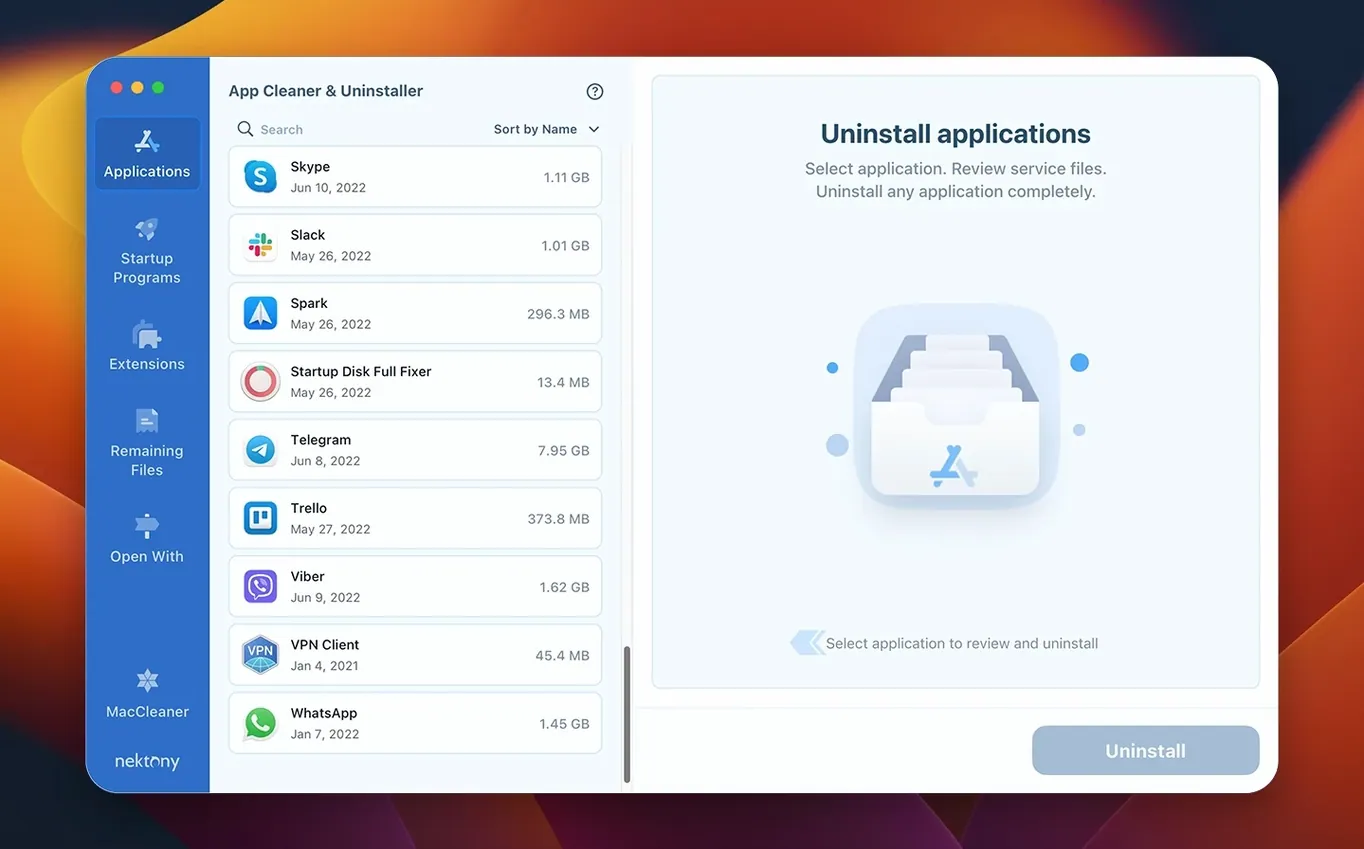
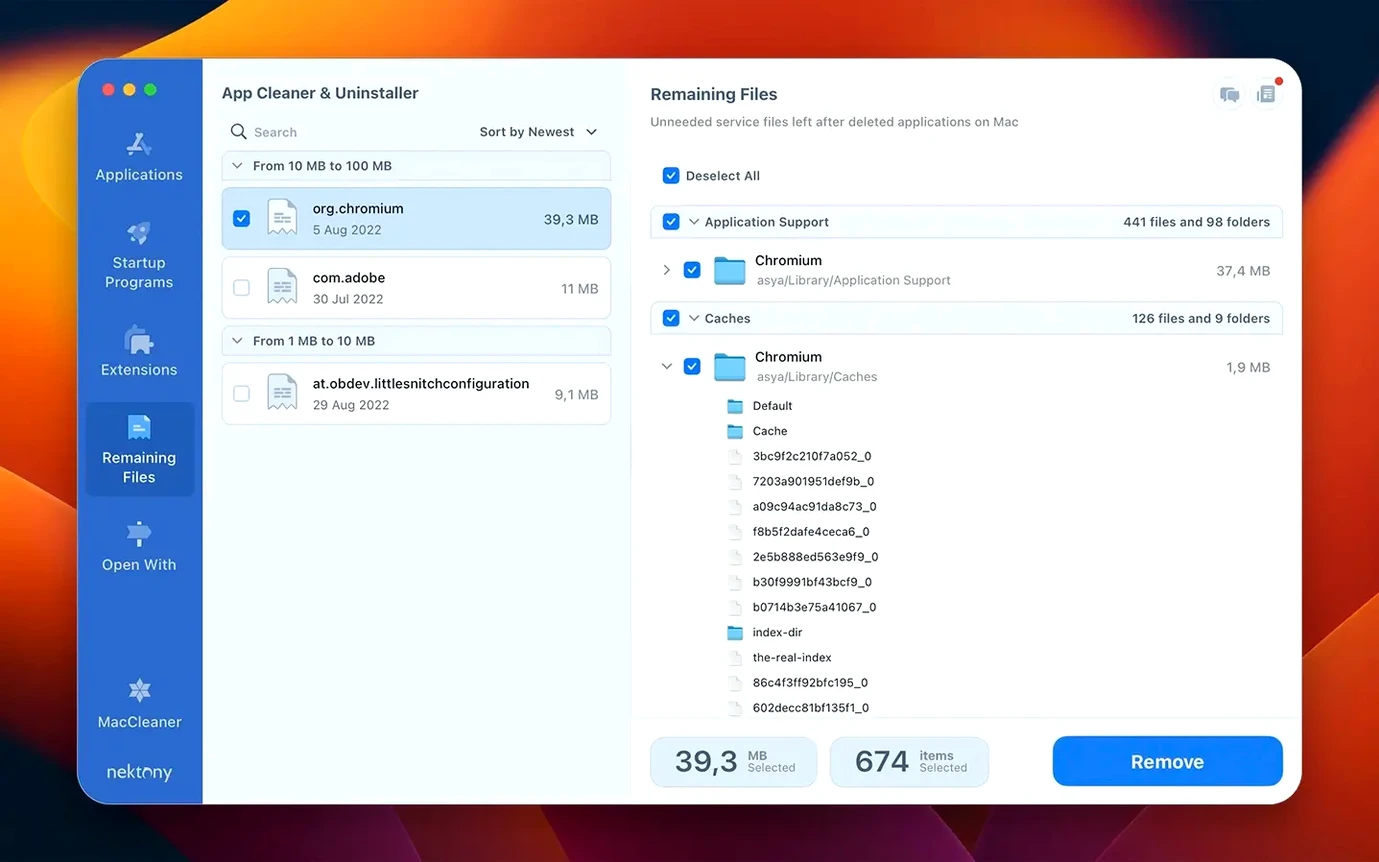
- Remove an app completely. Switch to the Apps tab. Select a program you installed months ago and never used again. Tick its checkbox and click Remove. The uninstaller hunts down support files in Library folders that a drag-to-Trash delete leaves behind.
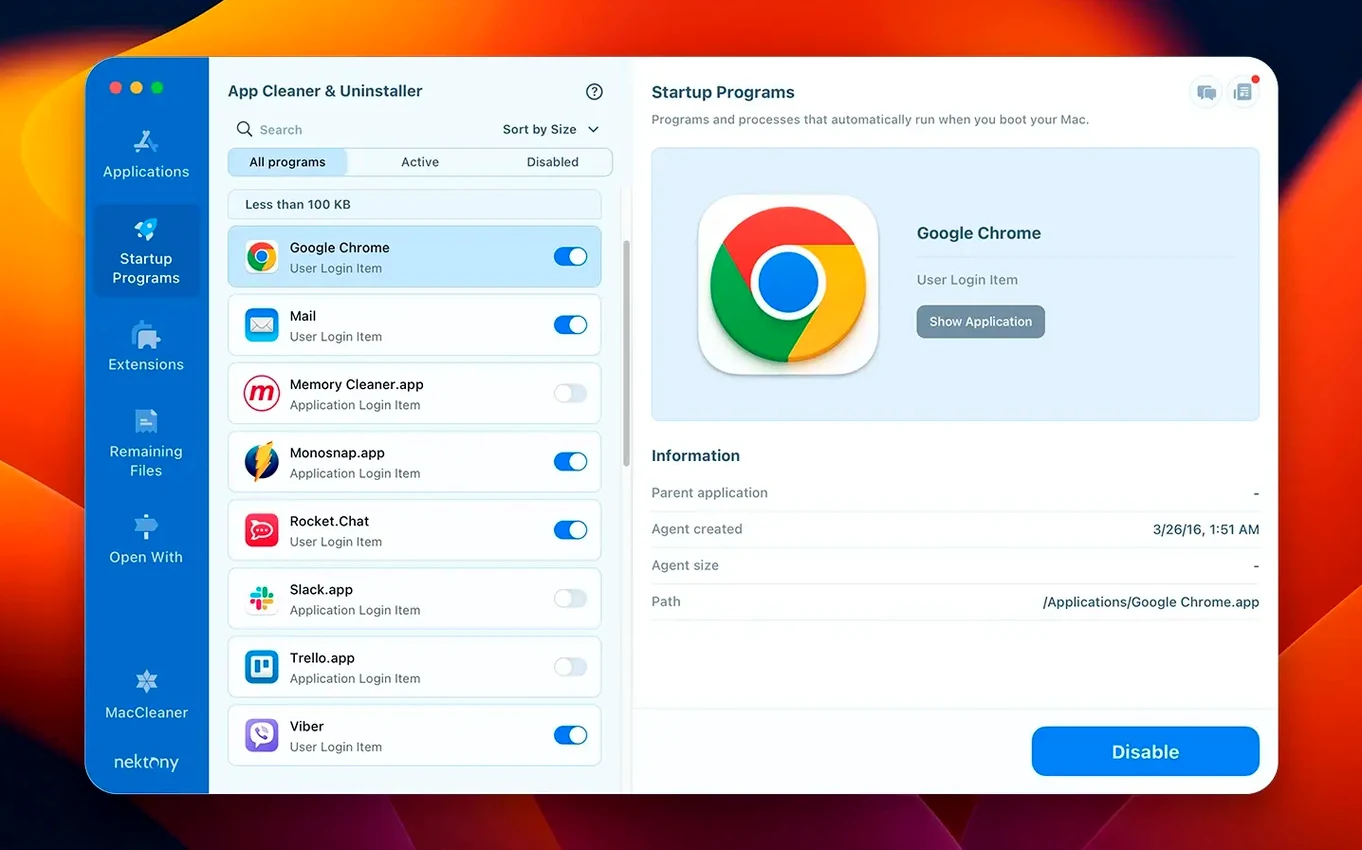
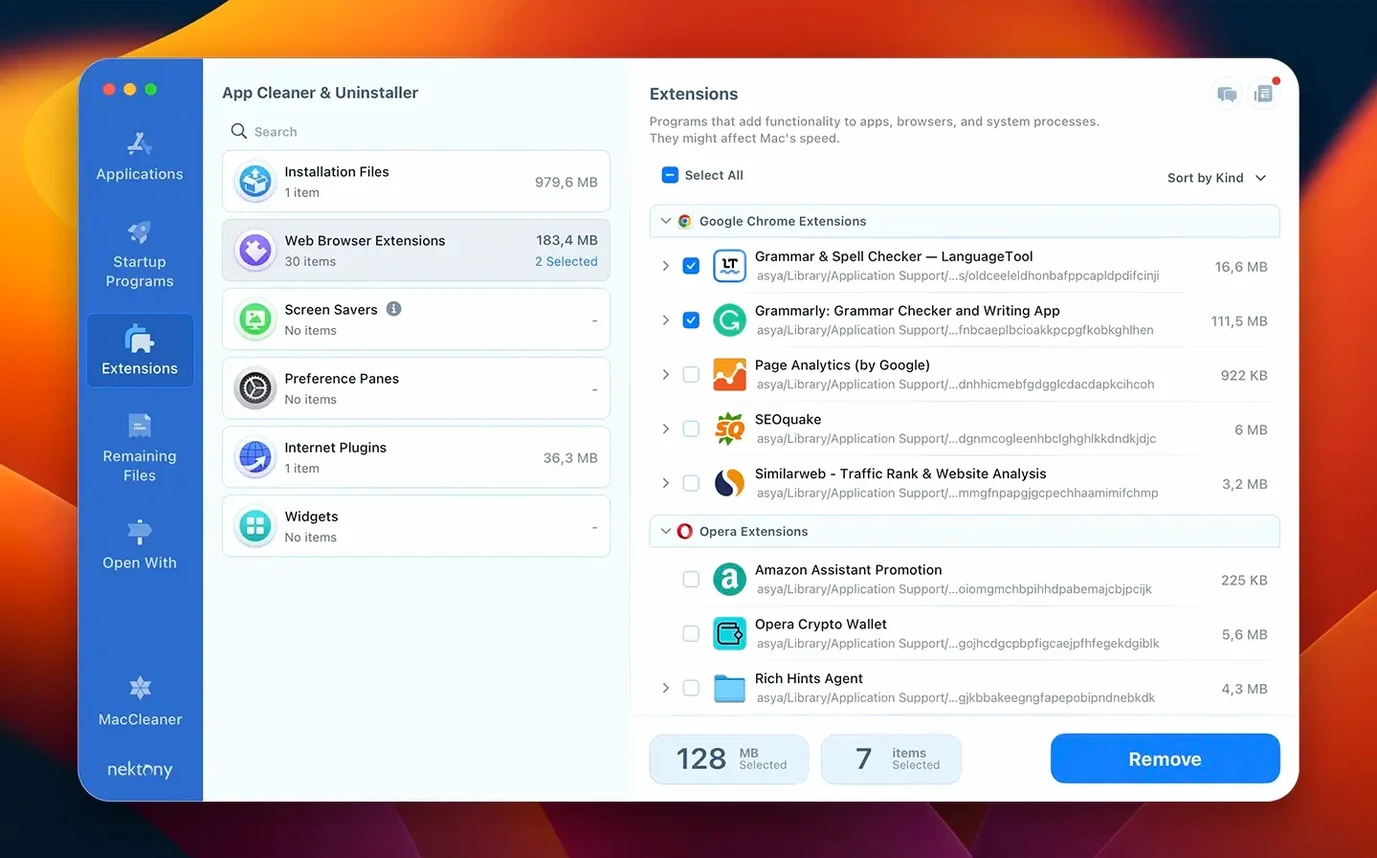
- Check what launches at login. Open the Extensions tab and choose Startup Programs. Disable anything that doesn't earn its place every morning. The same tab handles login items, launch agents, and browser extensions.
After those three moves, the app switches from a cleanup tool to a light maintenance dashboard. The update tracker monitors your installed apps, Safari extensions, and even Homebrew formulae, while the redesigned menu bar app keeps network traffic visible without opening the main window.
Monday Update Scans for Lingering Leftovers
Installing the app is the easy part. Building a small weekly routine around it is what keeps the Mac from sliding back into clutter. Start with these three habits.
- Check the update tracker on Mondays. The database now covers Safari extensions and Homebrew formulae, not just regular apps. A quick look at the start of the week catches outdated components before they become a problem.
- Sort the Apps tab by size once a month. The largest programs are not always the most useful. Sorting by size reveals the games, old video editors, or beta builds that quietly eat disk space.
- Run Security Check after major macOS updates. System updates occasionally reset permissions or introduce new background items. A five-minute pass after each update keeps the machine in a known state.
The menu bar app works well as a passive monitor between cleanups. Network traffic stays visible without opening a window, which suits anyone who prefers to notice problems early rather than hunt for them later.
Scenario: A Freelance Designer Reclaims 18 GB
A freelance designer who juggles client work across Sketch, Figma, Photoshop, and a rotating cast of prototyping tools accumulates leftovers quickly. Every trial app, every plugin installer, every beta of a design tool leaves service files behind.
The designer opens the app and lands on the Apps tab. Sorting by last used date surfaces three programs untouched in over a year. Removing them with the complete uninstall option clears not only the applications themselves but also their caches, preferences, and support folders. The leftover scan finds fragments from apps deleted manually months ago—an old icon set manager, a colour picker utility, a font manager trial.
Then the Extensions tab. Three design tools had installed login items that launched at every startup, two of them checking for updates silently. Disabling them cuts the login time noticeably. The final step: Privacy Audit shows one screen recording permission still active for a screen-measuring utility removed back in January. Revoking it closes the loop. Total recovered: around 18 GB, most of it from caches and leftover files rather than the applications themselves.
This is the core use case for an app cleaner & uninstaller for Mac: not dramatic rescues, but the steady removal of small accumulations that degrade a working machine.
Fits With macOS and Other Tools
The app slots into the existing macOS maintenance workflow rather than replacing it. Use it alongside:
- Finder smart folders. Create a smart folder for large files older than six months, then cross-check results against the app's own size sorting. The two views catch different things.
- Storage Management in System Settings. macOS shows broad categories; the app shows individual applications and their support files. Open Storage Management for the overview, then switch to the uninstaller for action.
- Time Machine. Run a backup before a day of heavy uninstalling. The complete removal process touches Library folders, and a fresh snapshot makes any rollback painless.
- Homebrew. The expanded update database now tracks formulae and casks. Developers who live in the terminal can keep most of their toolchain current from one interface.
The menu bar app complements macOS's built-in network activity monitor. Where Activity Monitor shows raw data, the redesigned menu bar app shows traffic per application with controls for stopping unwanted background transfer. For a Mac app uninstaller that also manages startup items and extensions, this dual role makes it a reasonable replacement for three or four single-purpose utilities.
- New — Network access tab shows which apps connect to the internet. Menu bar app redesigned with network traffic control. Updates database now covers Safari extensions and Homebrew command-line tools. Incompatible applications filter added to the app list.
- macOS — macOS 12 or later
- Architecture — Apple Silicon, Intel
Questions I get before install
Which versions of macOS does App Cleaner & Uninstaller support?
It runs on macOS 12 through to macOS 27, on both Apple Silicon and Intel Macs.
Comments 0
Sign in to leave a comment.Sign inCreate an account
No comments yet. If a step is still there after you install it, say so.
More in Mac Apps
All in Mac Apps Apple Keynote
Creates presentations from Apple-designed themes with charts, text, and shapes.
18 steps saved
 AnyTrans for iOS
Lets you pick and move specific messages, memos, or app data between iPhones.
14 steps saved
 Apple Remote Desktop
Controls, updates, and audits a fleet of Macs from a single screen.
23 steps saved
 Updated
Antivirus Zap - Virus Scanner
Runs quick or deep scans to remove malware and adware from a Mac.
5 steps saved
 AppZapper
Finds and lists every support file connected to an app before removing them.
5 steps saved
 Amadeus Pro
Edits audio waveforms with markers, fades, and analysis tools on older Macs too.
5 steps saved
 Updated
AltTab Pro
Switches between open windows with live thumbnails and a fully custom shortcut.
17 steps saved
 Alfred 5 Powerpack
Chains file actions, searches, and scripts into automated sequences from the keyboard.