Managing a room full of Macs without leaving your desk stops being a wish and becomes a standard Tuesday. Apple Remote Desktop puts administration, software distribution, and asset reporting for an entire fleet into one window, so you handle the network without walking the floor.
How do I control and observe client screens?
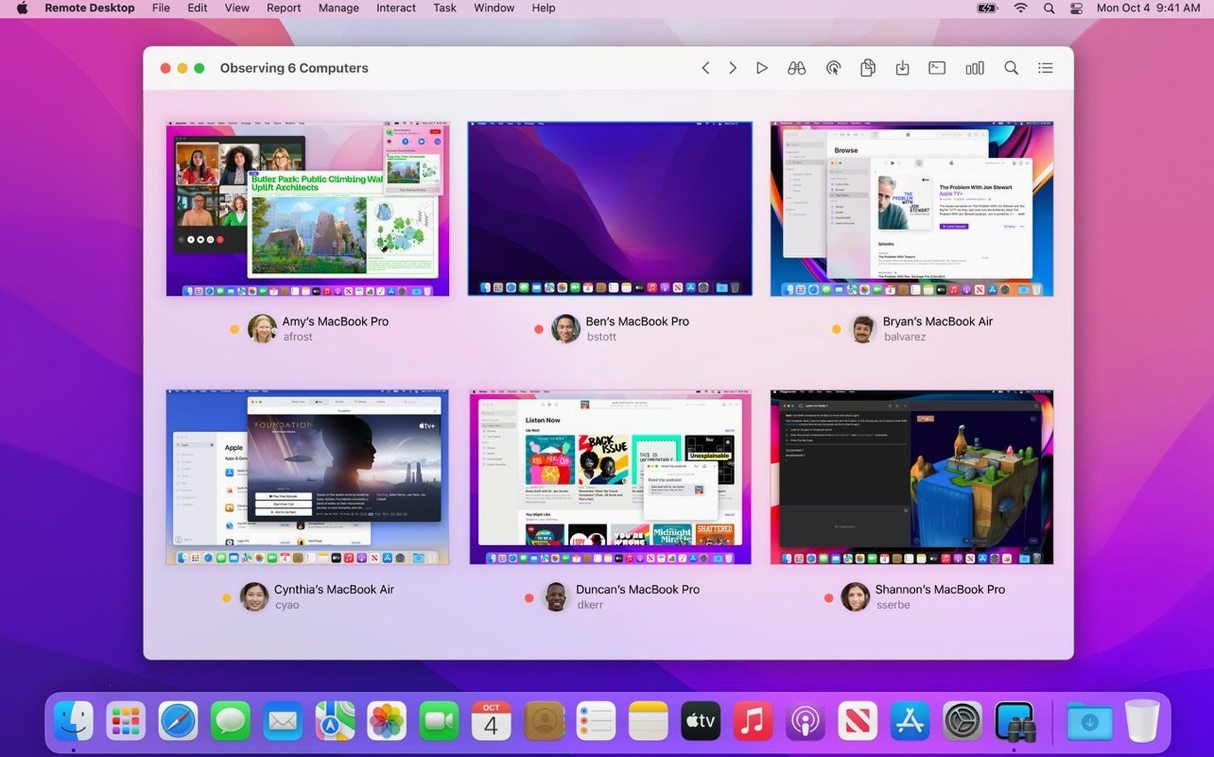
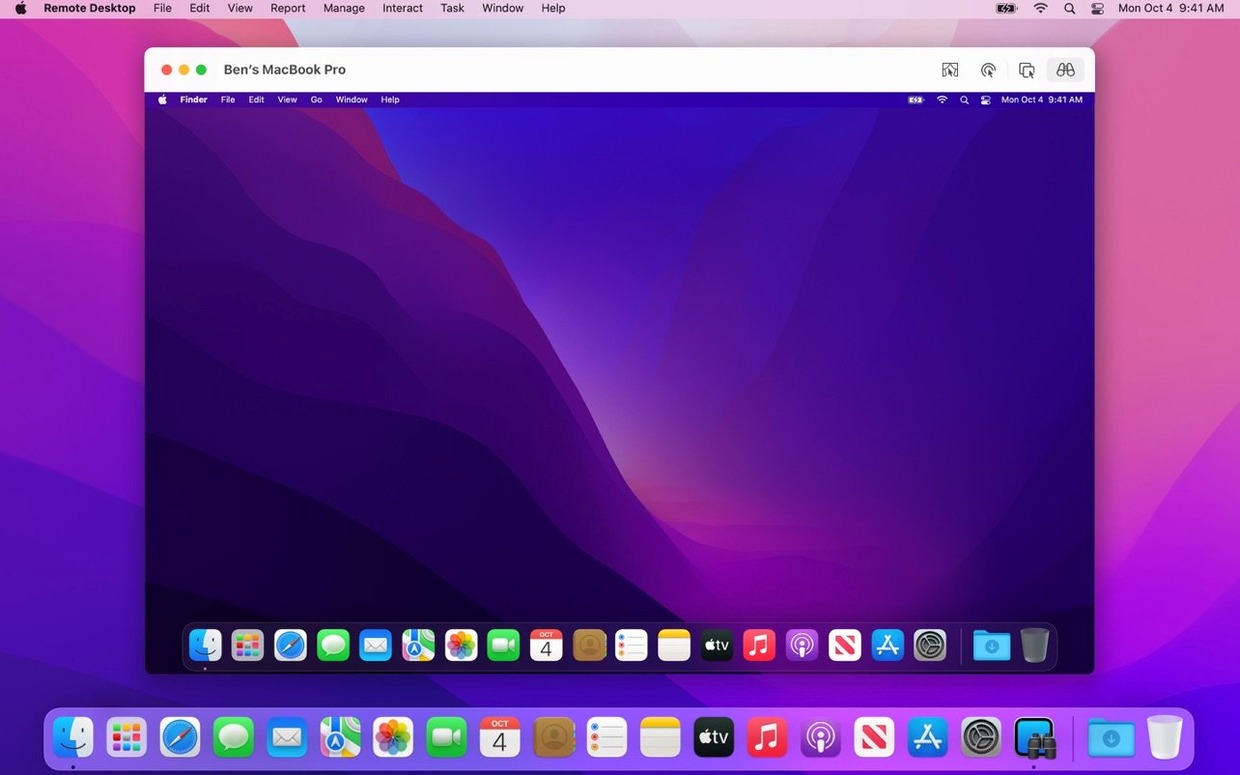
You can view and control remote Mac computers in real time. For sensitive work, activate Curtain Mode to hide the client screen during management, keeping onlookers out while you assist a user or apply a configuration change.
What does the reporting actually cover?
Reports pull from more than 200 hardware characteristics, from installed memory to serial numbers. It is a practical way to audit your fleet—run a single report, sort by age or available storage, and know exactly which machines need attention.
Can I push out software to offline machines?
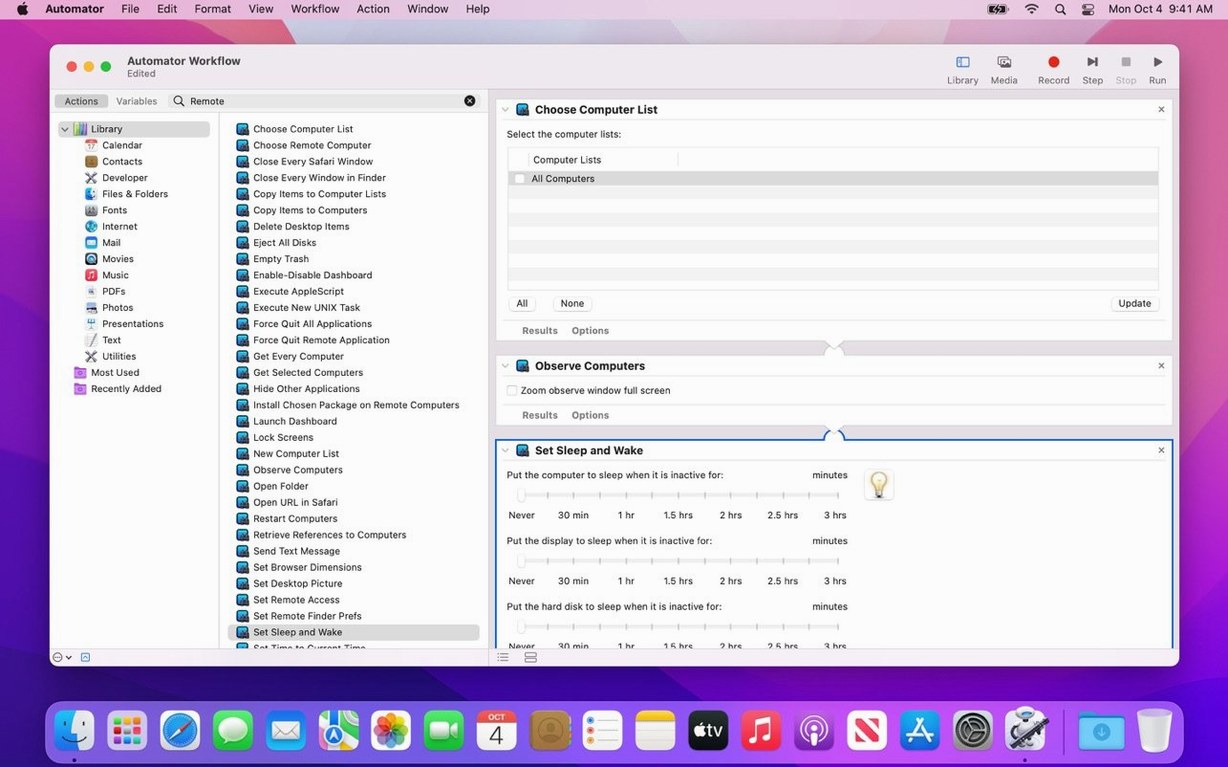
Yes. Schedule an installation task and it queues up for delivery the moment a computer comes back online. Combine this with over 40 Automator actions to build chains that install, configure, and report without manual steps.
What routine tasks can I automate?
Lock screens, sleep, wake, restart, shut down, or run shell commands on any group of Macs. You also get remote Spotlight search so you can locate a file across the network before you even connect to a client screen.
Clipboard and drag-drop transfers that feel invisible
Copy and paste between your admin Mac and a remote client works exactly as you expect — ⌘C here, ⌘V there. The same goes for file transfer: drag a package or folder onto a computer list entry and it lands on the client desktop without a dialogue.
A few less obvious touches worth knowing:
- Two-finger swipe for multi-monitor clients — when a remote Mac has more than one display, swiping left or right inside the control window flips between screens instead of opening a separate session.
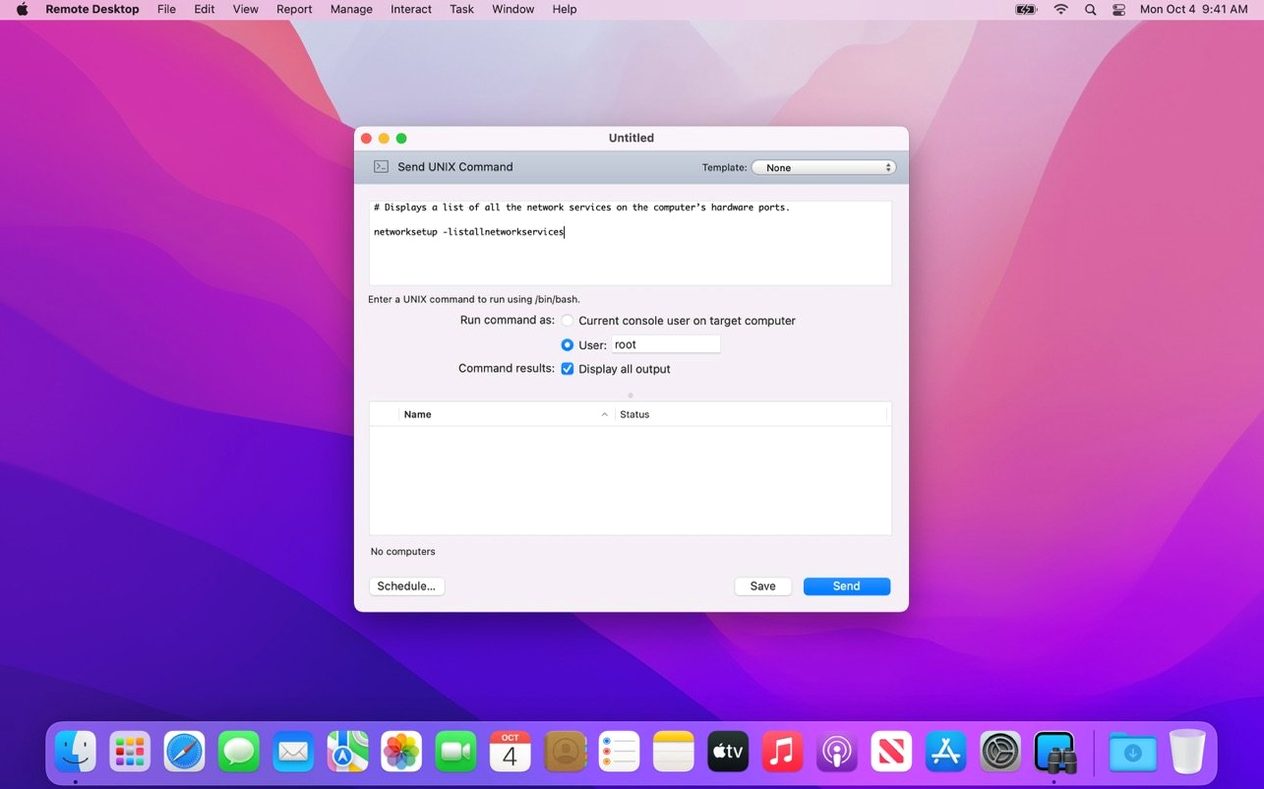
- Hold Option while clicking Send UNIX Command — the command runs as root without editing the task template. Good for one-off permission fixes.
- Task feedback in the sidebar — the History tab under each computer shows exactly which packages landed and which commands ran, with timestamps. Handy when a user swears they never received the update.
- Command-click computer names — selects non-contiguous machines in the list so you can target a handful without creating a temporary group.
Workflow: deploy a printer across the sales team
Say the sales floor gets a new network printer and six people need it by end of day. Here is the full sequence, no walking required.
- Create a static group. Select the six Macs in the scanner list, choose New Group from Selection, and name it Sales Floor.
- Grab the printer driver. If it is not already on your admin Mac, download the manufacturer’s installer package. Drop it into a folder you can reach quickly.
- Build the install task. Select the Sales Floor group, click Install, and drag the .pkg into the Packages list. Tick Run this task from the Task Server so it executes even if your own Mac goes to sleep.
- Add a configuration command. In the same task, append a UNIX command that runs
lpadminwith the printer’s IP and driver path. This maps the new printer as the default for each user account. - Run a quick audit. After the task completes, open the Report menu and run a Software Difference report on the Sales Floor group. It confirms the driver package installed on all six machines.
Each step takes under a minute once you know the interface. The real saving is not sending six separate emails with instructions.
Morning scan reveals a designer’s iMac with 12 GB free
You open Apple Remote Desktop around 8:30. The scanner already shows 43 Macs across three subnets, all green. You sort by Available Disk Space, descending, and spot a designer’s iMac with 12 GB free — enough to cause trouble by lunch.
You select that machine and two others that look tight, then send a quick UNIX command to purge system logs and user caches. The task completes in six seconds. You add a recurring task that repeats the same cleanup every Monday at 10:00.
A Helpdesk message pops up: someone cannot find a Keynote file they edited yesterday. You select their computer, hit Remote Spotlight, type the filename, and get the path in seconds. You drag the file from their desktop to yours, confirm it opens, and reply to the ticket.
Before heading into a meeting, you schedule a package install for three offline laptops you noticed earlier — a security update that will land the moment each one wakes. The Task Server handles delivery while you are away; the History list will show you what happened when you return.
- New — macOS Tahoe 26 compatibility; Accessibility and Remote Keyboard menu and toolbar items on macOS Tahoe 26 or later; VoiceOver support for remote Mac on macOS Tahoe 26 or later.
- Improved — Bug fixes and performance improvements.
- macOS 15.5 or later
- Apple Silicon or Intel 64-bit
Comments 0
Sign in to leave a comment.Sign inCreate an account
No comments yet. If a step is still there after you install it, say so.
More in Mac Apps
All in Mac Apps Apple Keynote
Creates presentations from Apple-designed themes with charts, text, and shapes.
5 steps saved
 AppZapper
Finds and lists every support file connected to an app before removing them.
6 steps saved
 App Cleaner & Uninstaller
Reveals every permission and leftover file an app leaves behind before deletion.
18 steps saved
 AnyTrans for iOS
Lets you pick and move specific messages, memos, or app data between iPhones.
23 steps saved
 Updated
Antivirus Zap - Virus Scanner
Runs quick or deep scans to remove malware and adware from a Mac.
5 steps saved
 Amadeus Pro
Edits audio waveforms with markers, fades, and analysis tools on older Macs too.
5 steps saved
 Updated
AltTab Pro
Switches between open windows with live thumbnails and a fully custom shortcut.
17 steps saved
 Alfred 5 Powerpack
Chains file actions, searches, and scripts into automated sequences from the keyboard.