
Antivirus Zap runs on macOS 13 and later, with native support for both Apple Silicon and Intel Macs.
What’s in the current version
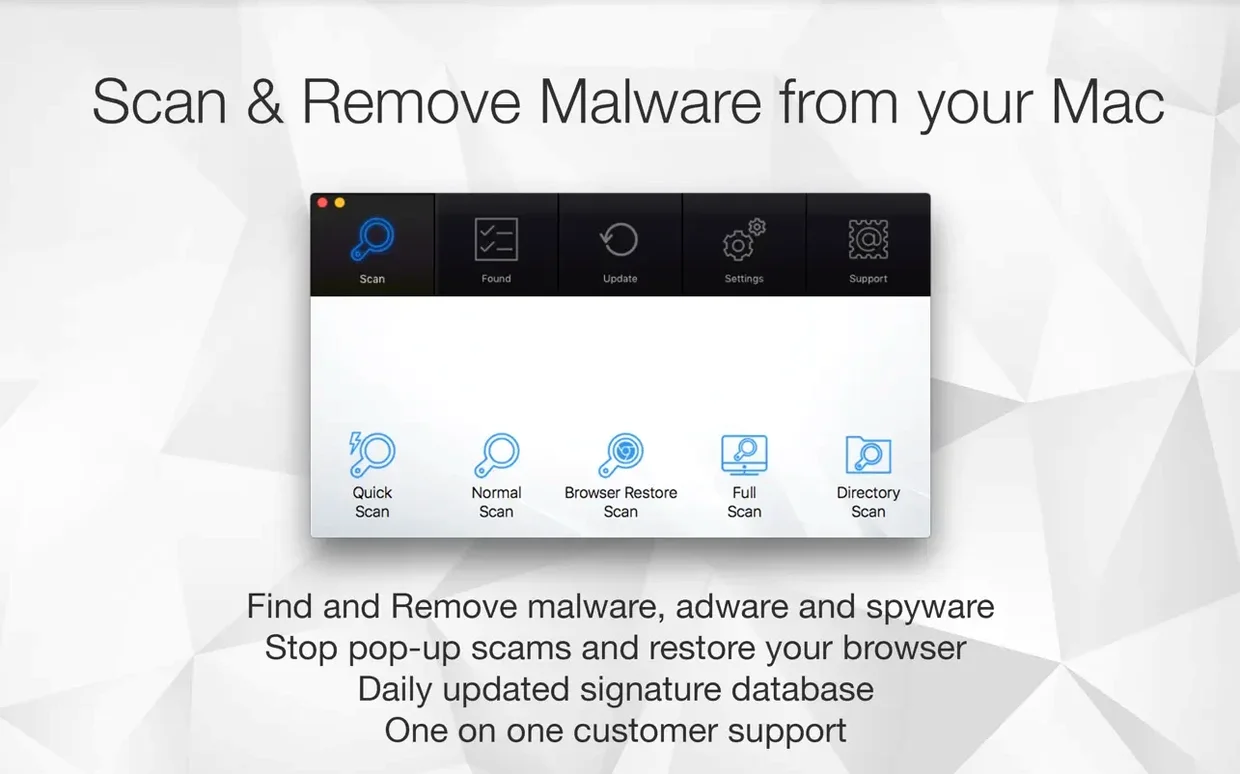
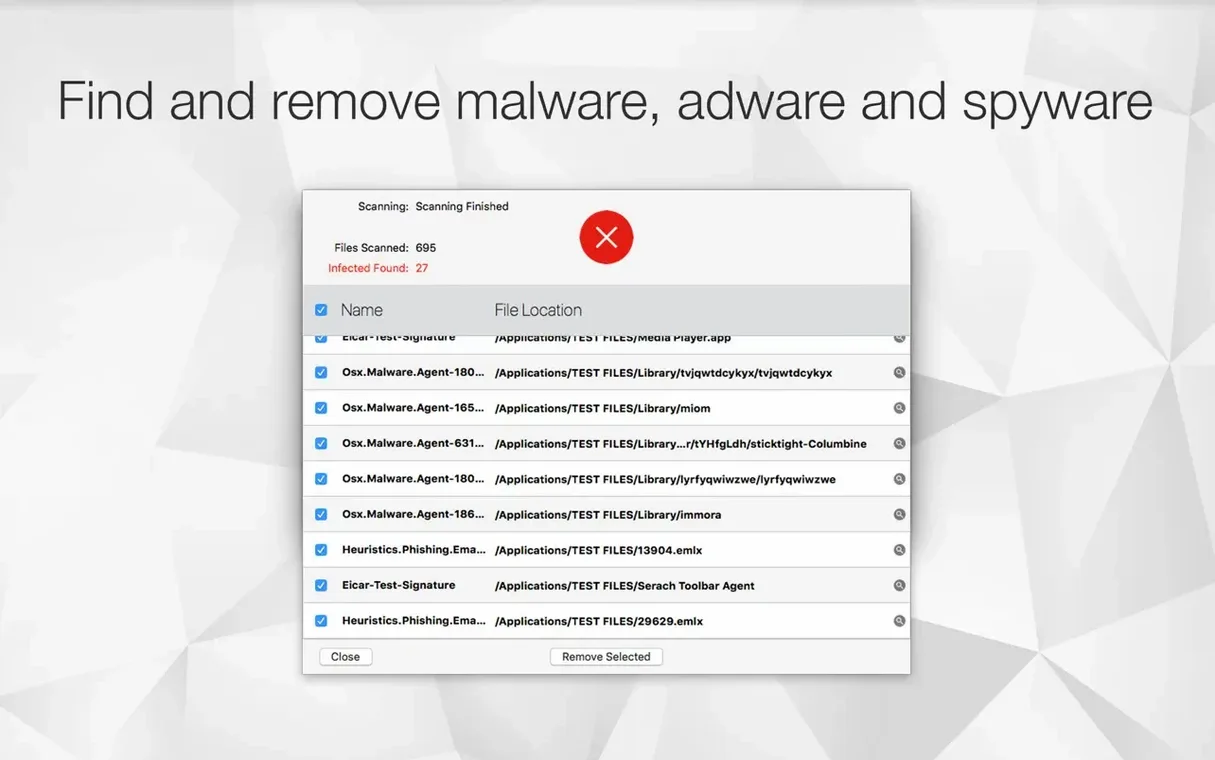
The core job hasn’t changed: it scans for and removes malware and adware. Two scanning modes give you control — a Quick Scan that checks the most vulnerable corners of your system, and a Standard Scan that covers the whole drive. You can also schedule scans to run once or multiple times per day, so the app works while you focus on other things.
Quick scan — targets common hiding spots for a fast security check.
Standard scan — a thorough sweep of the entire Mac.
Scheduled scans — set it once a day or several times; the app handles the rest.
Everything else remains consistent. The interface stays in English, the app launches from your Applications folder, and it continues to handle the same threats it was built for — no bloated extras, just a focused scanner.
Alongside your main security, not instead of it
Antivirus Zap doesn’t ask to replace your other tools. It slots in beside them. Run it after downloading a batch of files from an unfamiliar source. Run it when a browser starts acting oddly — toolbars appearing, search redirects, pop-ups with no clear origin. A quick scan before sharing a USB drive with a colleague takes under a minute.
The Shortcuts integration is the quiet workhorse here. Build a shortcut that runs a quick scan when you close your browser for the day, or one that triggers a standard scan after large downloads finish. No scripting knowledge needed — the action appears in the Shortcuts library once the app is installed.
Finder integration covers the manual side. Right-click a file or folder, choose the scan option, and the app checks just that selection. It’s the fastest way to vet a single download without waiting for a full-system pass.
First days: a simple routine
- Day one — install, then run a standard scan. Let it finish completely. Quarantine anything flagged, then restart the Mac.
- Day two — set a scheduled quick scan for a time you’re usually away from the desk. Mid-morning works well; the scan runs quietly in the background.
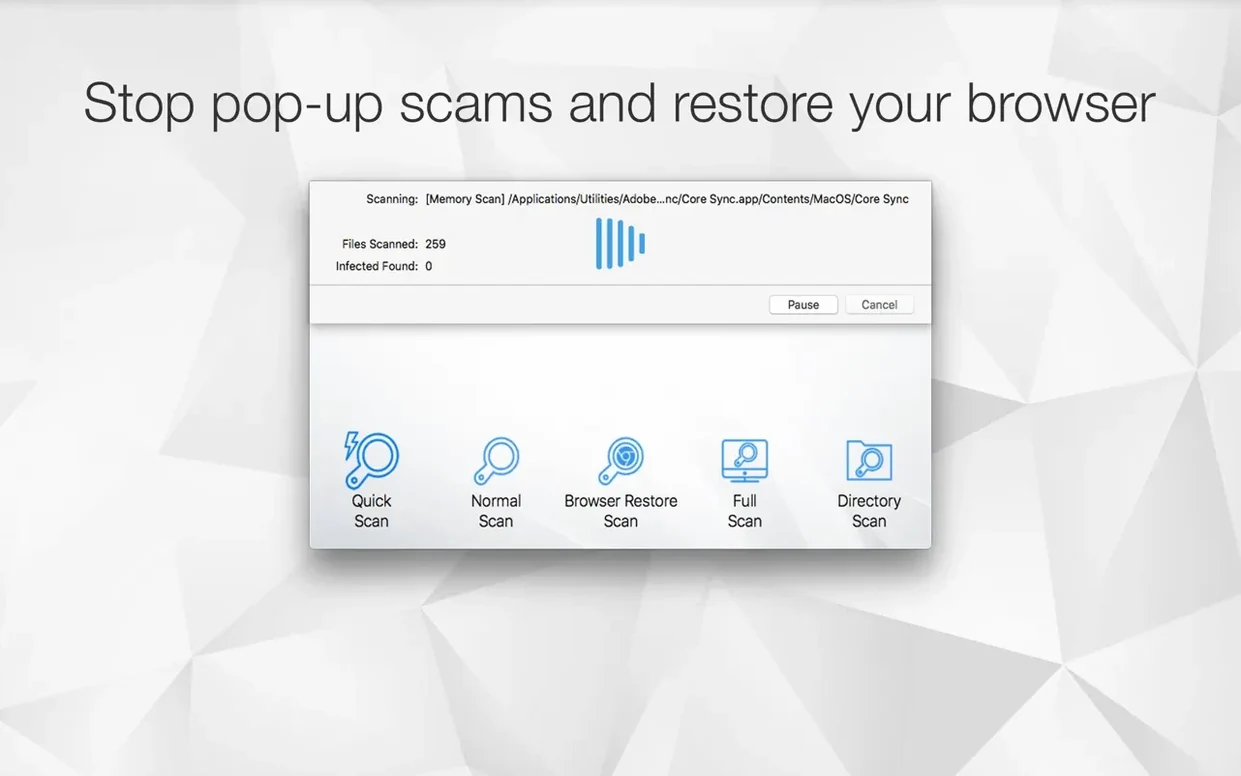
- Day three — try the Browser Restore Scan. It clears cookies, extensions and caches that adware often leaves behind. Your saved passwords and bookmarks stay untouched.
- Day four — add the Shortcut. Even a simple one — “scan Downloads folder” — builds the habit without extra effort.
After the first week you’ll have a rhythm: scheduled scans doing the routine work, manual scans for the moments that feel uncertain.
Speed up a full-drive scan
Scan feels slow. A standard scan covers the whole drive, including external volumes if they’re mounted. Eject drives you don’t need checked, close large apps, and the pass moves faster.
Browser Restore Scan removed something I wanted. That’s the point — it strips extensions and caches that adware relies on. Reinstall the extensions you actually use afterwards. The trade-off is deliberate.
Shortcut doesn’t appear. Open the Shortcuts app once after installing Antivirus Zap. macOS registers the action on first launch. If you installed via an antivirus mac torrent and the action is still missing, a quick restart of Shortcuts usually fixes it.
Scan finds the same item repeatedly. Some adware reinstalls itself through a leftover launch agent. Run a Browser Restore Scan, then a standard scan, and restart. The sequence matters.
For users who grabbed an antivirus zap mac build from a torrent, the same steps apply — the app behaves identically once it’s in your Applications folder.
New — Version 4.3.0.0 [MAS]
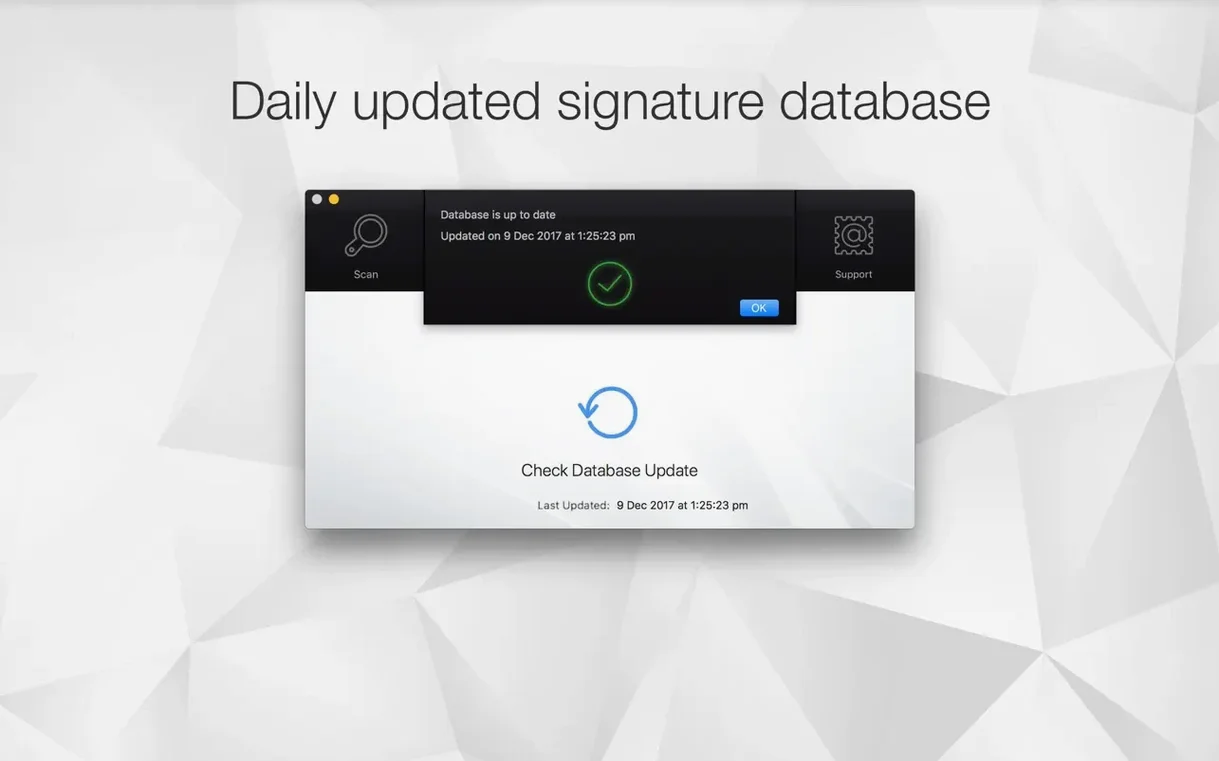
- Updated database and scan engine for the latest threat definitions.
- Performance refinements under the hood.
- macOS 12 or later
- Architecture — Apple Silicon, Intel 64-bit
Questions I get before install
What type of scanning does Antivirus Zap offer?
It provides a Quick Scan for checking common infection points and a Standard Scan that examines the entire system.
Comments 0
Sign in to leave a comment.Sign inCreate an account
No comments yet. If a step is still there after you install it, say so.
More in Mac Apps
All in Mac Apps AnyTrans for iOS
Lets you pick and move specific messages, memos, or app data between iPhones.
6 steps saved
 App Cleaner & Uninstaller
Reveals every permission and leftover file an app leaves behind before deletion.
14 steps saved
 Apple Keynote
Creates presentations from Apple-designed themes with charts, text, and shapes.
14 steps saved
 Apple Remote Desktop
Controls, updates, and audits a fleet of Macs from a single screen.
5 steps saved
 AppZapper
Finds and lists every support file connected to an app before removing them.
5 steps saved
 Amadeus Pro
Edits audio waveforms with markers, fades, and analysis tools on older Macs too.
5 steps saved
 Updated
AltTab Pro
Switches between open windows with live thumbnails and a fully custom shortcut.
17 steps saved
 Alfred 5 Powerpack
Chains file actions, searches, and scripts into automated sequences from the keyboard.