
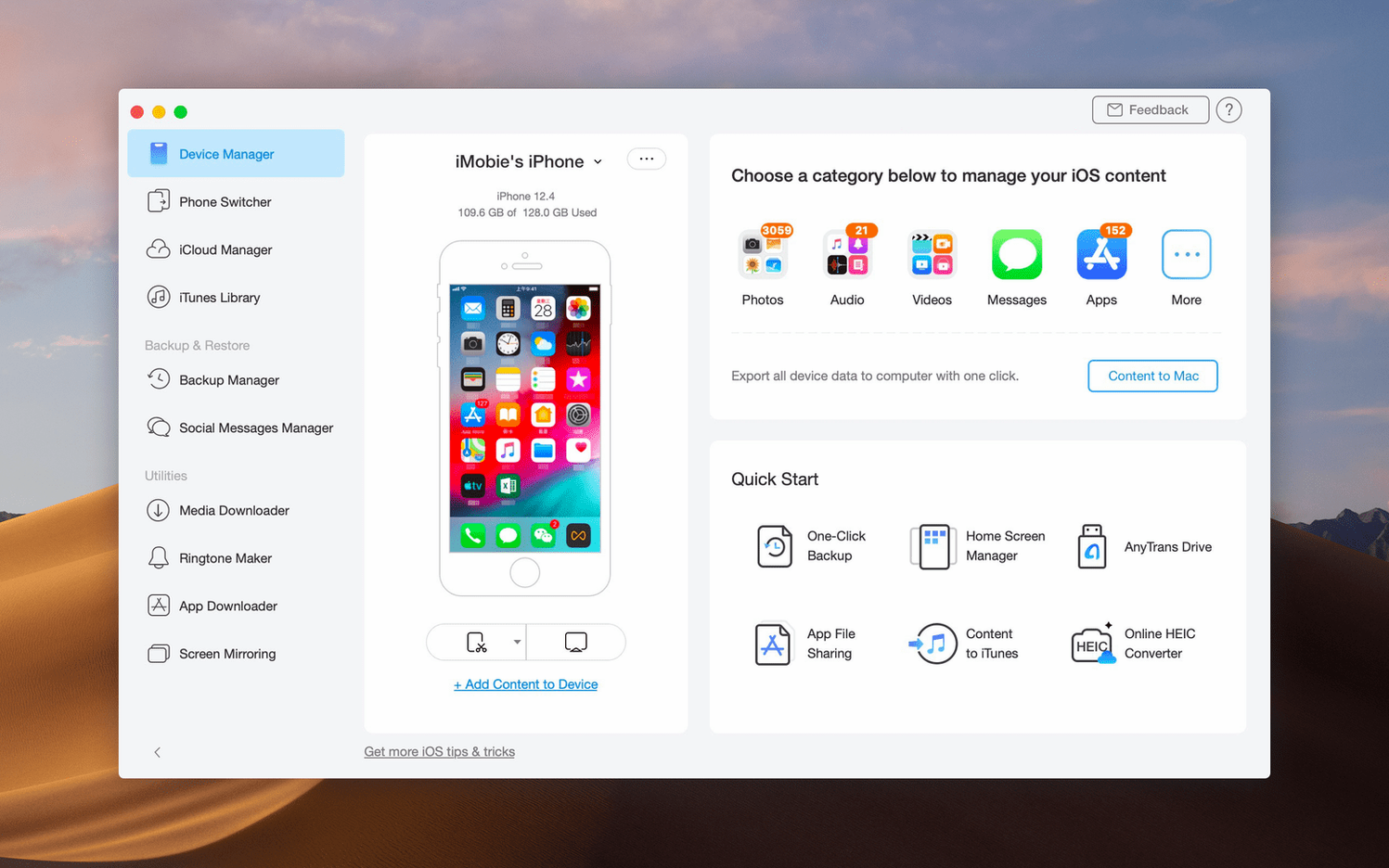

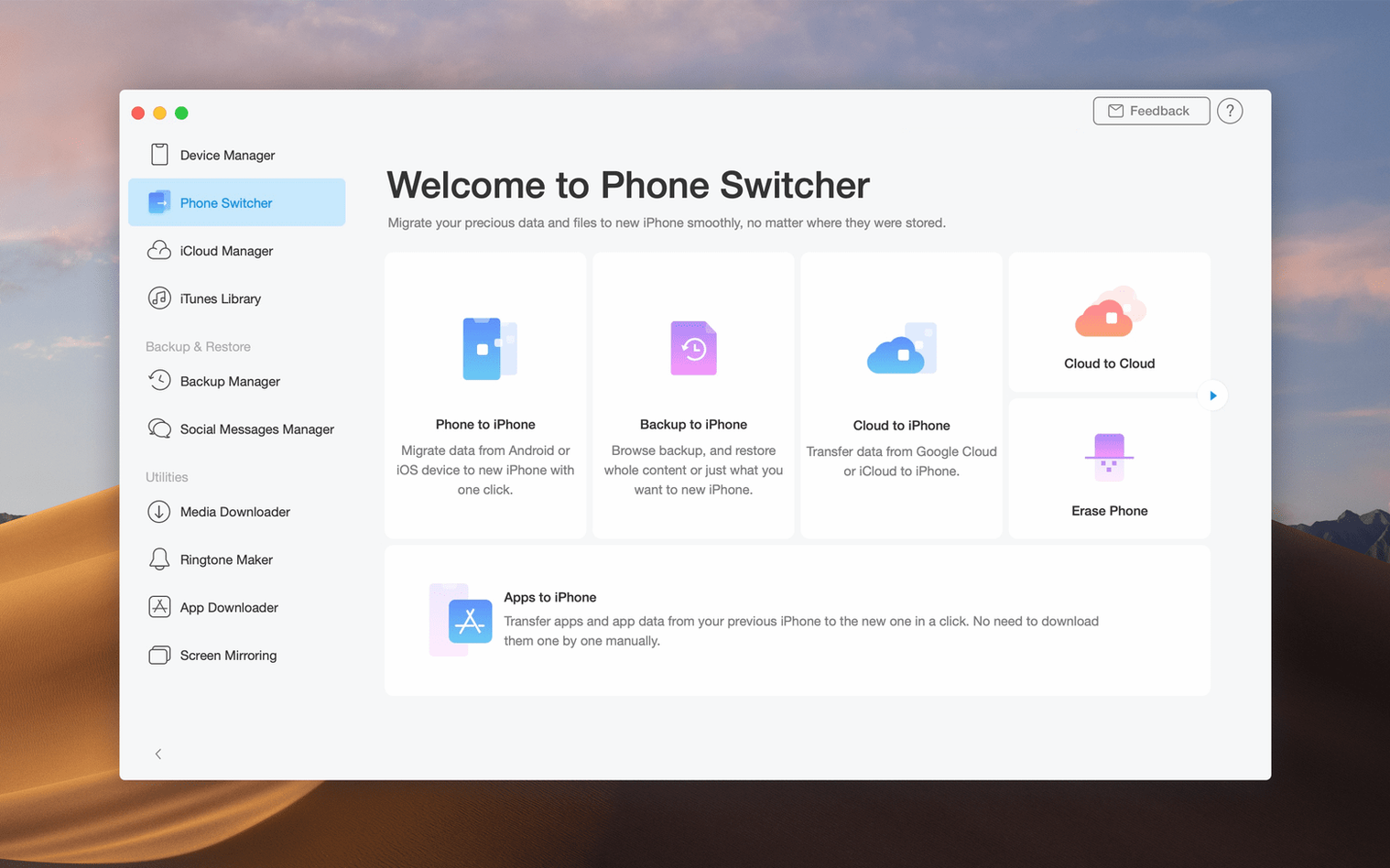
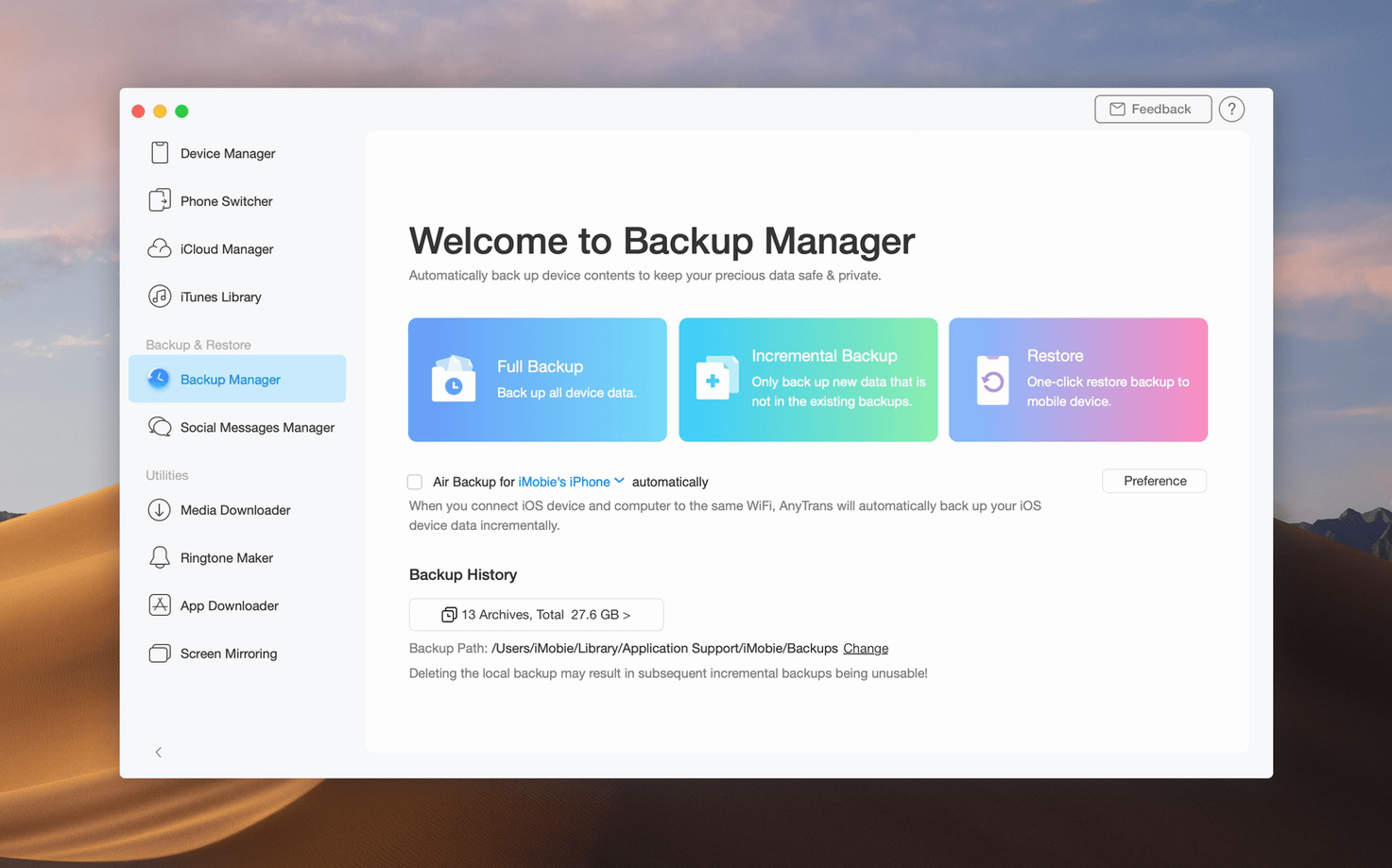
Plain iTunes lets you sync a whole library. It falls apart the moment you want to pick specific message threads, a single voice memo, or the app data from an old iPhone and place it precisely onto a new one. AnyTrans fixes that gap by making iOS data behave like files you can see, select, and move.
| Who it's for | What it replaces |
|---|---|
| Experienced users managing multiple devices | iTunes for category-level transfers; Finder for iOS backups |
| Android switchers | Manual migration tools |
| Teams sharing a single iCloud account | iCloud.com for bulk file saves |
A device manager sits at the core, letting you choose a destination before any transfer—so a photo lands in a specific Mac folder, not a generic library. You can pull data from an old Android phone, from iCloud, or from another iOS device through a USB connection. Category exports are the quiet power feature: extract all voice memos, save iCloud files locally, or archive message threads before wiping a device. The app reads like a cross-platform file browser for walled-garden data.
Export a single Messages thread as a PDF in week one
Don't open iTunes first. That habit gets in the way. Let AnyTrans stand as the default iOS companion for a week.
Start small:
- Export one conversation. Pick a thread in Messages, select it, and save it as a PDF to a local folder. You'll see how the app treats data categories as browsable trees, not monolithic sync targets.
- Grab every voice memo in one pass. Navigate to Voice Memos, click Select All, export to a dedicated folder on the Mac. This alone justifies the install for anyone who records interviews or lectures.
- Check the Device Manager pane. Before any transfer, confirm the destination path. Change it once for photos, once for music, and note how the app remembers per-category preferences.
- Build a quick backup of a single data slice. Right-click Contacts and back up to the Mac. A tiny, targeted safety net—no full iTunes backup required.
Resist the urge to migrate everything at once. Let the category-by-category rhythm settle in. After three or four small exports, the interface logic becomes muscle memory.
Workflow: moving WhatsApp history to a new iPhone
This task trips up even careful users. iCloud backup works, but it's all-or-nothing—and slow. Here's the focused route with AnyTrans.
- Connect the old iPhone via USB. Wait for AnyTrans to finish its device scan.
- Click Social Messages Manager from the home screen, then choose WhatsApp.
- Select Backup. The app packages the chat database and all media into a single file on the Mac. No iTunes involvement.
- Disconnect the old phone. Connect the new iPhone—already set up, already signed into the same Apple ID.
- Return to Social Messages Manager, choose Restore, point it at the backup file just created.
- Wait for the transfer. Media-heavy threads take a few extra minutes, but text-only histories move fast.
The restored chats appear threaded, with timestamps intact. No duplicate messages, no media gaps. For a switcher moving from Android, the same section handles the import differently—pulling from a local Android backup instead of a direct device connection—but the restore side on iPhone stays identical.
Memory climbs to 350 MB when you plug in 30 000 photos
On a daily-driver Mac with an Intel processor, AnyTrans idles around 120 MB of RAM with no device connected. Plug in an iPhone with 30 000 photos and a large music library, and memory climbs to roughly 300–350 MB during the initial scan—modest for a tool that indexes live iOS databases.
USB 3 transfers from a recent iPhone peak near 35 MB/s for large photo batches. Smaller files slow the average, as iOS still forces per-file handshakes the app cannot bypass. Wi‑Fi transfers, available as a fallback, run about half that speed and dip further on congested networks.
The app hasn't crashed during a transfer in the builds tested, though waking a Mac from sleep while a scan is in progress occasionally requires a replug. That's the only stability hiccup worth noting. Category exports finish cleanly; partial failures surface a clear error dialog instead of quietly corrupting the destination.
For users who keep AnyTrans open alongside Xcode, a browser, and a design tool, the load sits comfortably in the background. It never forces a device eject, never interferes with Finder backups, and never writes preference files outside its own container. That separation from system data keeps the tool predictable across macOS updates and iTunes version changes.
If you grabbed the anytrans for mac package or seek an anytrans mac download, this build behaves like a finished utility, not a beta—even on machines far past the macOS 10.13 baseline.
- macOS: 10.13 High Sierra or later
- Architecture: Intel
- Languages: English, German, Arabic, Spanish, Simplified Chinese, French, Japanese
Comments 0
Sign in to leave a comment.Sign inCreate an account
No comments yet. If a step is still there after you install it, say so.
More in Mac Apps
All in Mac Apps Updated
Antivirus Zap - Virus Scanner
Runs quick or deep scans to remove malware and adware from a Mac.
6 steps saved
 App Cleaner & Uninstaller
Reveals every permission and leftover file an app leaves behind before deletion.
14 steps saved
 Apple Keynote
Creates presentations from Apple-designed themes with charts, text, and shapes.
14 steps saved
 Apple Remote Desktop
Controls, updates, and audits a fleet of Macs from a single screen.
5 steps saved
 AppZapper
Finds and lists every support file connected to an app before removing them.
5 steps saved
 Amadeus Pro
Edits audio waveforms with markers, fades, and analysis tools on older Macs too.
5 steps saved
 Updated
AltTab Pro
Switches between open windows with live thumbnails and a fully custom shortcut.
17 steps saved
 Alfred 5 Powerpack
Chains file actions, searches, and scripts into automated sequences from the keyboard.