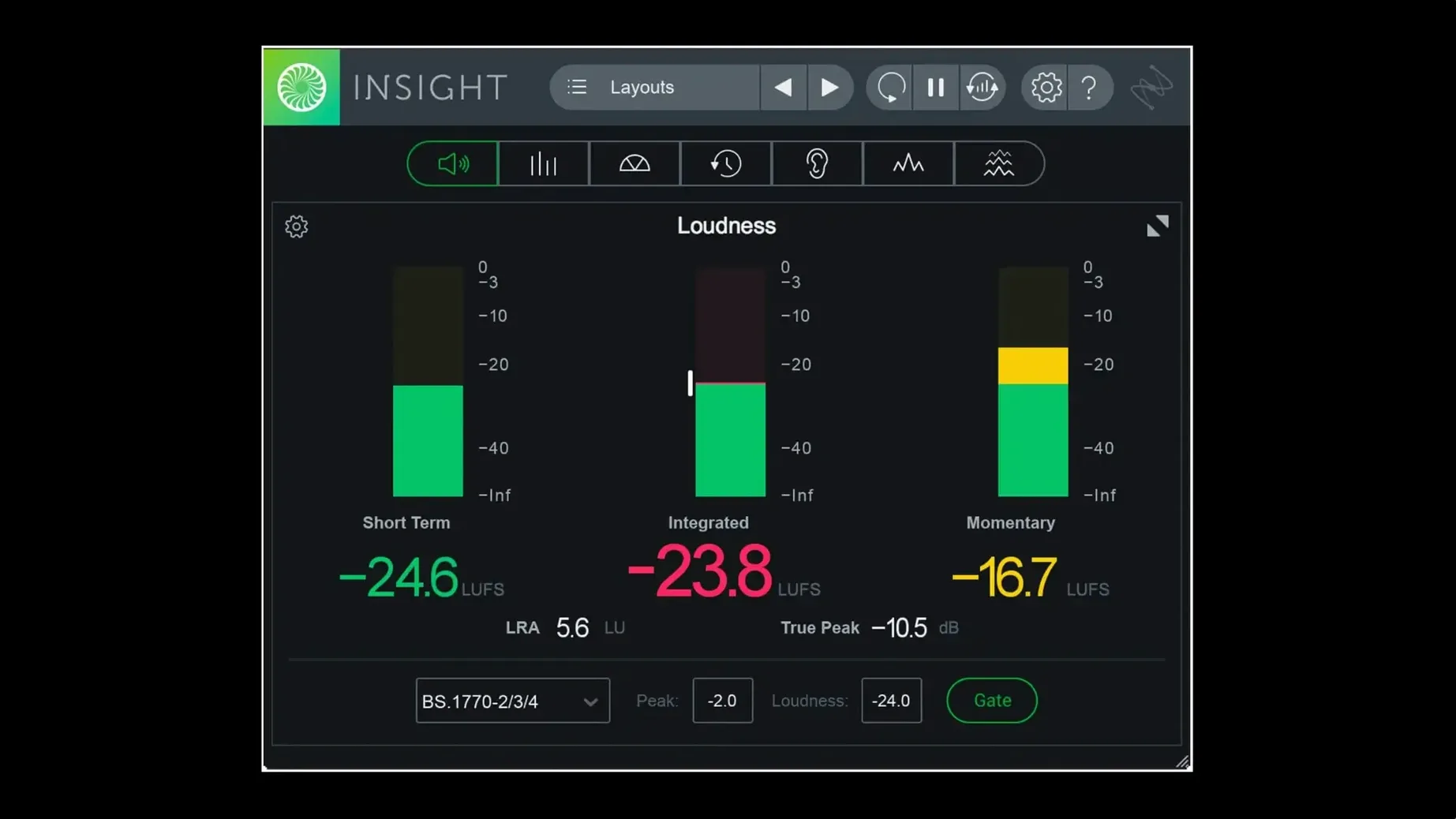
You drop Insight 2 onto your mix bus after a rough level pass. The loudness history graph starts plotting immediately, comparing your short-term LUFS against your delivery spec. A glance at the stereo vectorscope confirms the low end is sitting dead centre. Instead of guessing, you make three gain adjustments and move on—the session stays in flow because the data is right there, updating in real time from any track you route to it.
A diagnostic layer for auxes and Dolby Atmos masters
This is not a processor, it’s a diagnostic layer. Insert Insight 2 on auxes, stem buses, or the master output to verify dialogue intelligibility, spectral balance, and true peak headroom. The plug-in handles multichannel routing up to Dolby Atmos 7.1.2, so you can isolate the centre channel for a dialogue loudness check or monitor the full bed. Factory and custom preset tabs let you store measurement setups per delivery format—recall a Netflix preset on the print bus, then switch to a music master preset without rebuilding the layout.
Typical jobs it handles
Broadcast compliance is the obvious use case: the updated loudness standards engine verifies audio against current regional specs. A 2D spectrogram helps spot low-frequency build-up across stems before it hits a limiter. The surround scope visualizes spatial balance in a 5.1 or 7.1.2 mix. On simpler sessions, the spectrum analyzer and true peak meters replace a handful of single-purpose meters with one scalable window—route audio from any track, resize the plug-in, and check phase, peak, and loudness simultaneously.
First 48 hours: what to set up immediately
Route Insight 2 to a dedicated bus, not a single track. Create an aux labelled "Metering" and send your dialogue stem, your music stem, and your full mix there on separate instances. This lets you switch between readings without touching plug-in slots downstream. On day one, you will thank yourself for not chasing insert points across a 90-track session.
Build two presets before you start any real work. One for loudness compliance—set the loudness meter to your delivery spec (EBU R128, ATSC A/85, or whichever standard your deliverable demands) and park the loudness history graph beside it. One for spectral troubleshooting—open the spectrogram in 3D mode, slow the scroll rate, and widen the frequency range to catch subsonic rumble and HF spikes in a single view. Saving these now means you are never fiddling with meter config when a deadline is three hours away.
What catches people out early
The most common beginner mistake is staring at the spectrum analyzer without soloing frequency bands. A full mix looks chaotic in a spectrum view, which leads to chasing peaks that are not actually problems. Band-listen the low end first. Then work upward. An iZotope Insight 2 torrent install won't teach you that habit—only deliberate listening will.
Another error: trusting the true peak meter while your output ceiling is set to 0 dBFS. The meter tells you what is happening, not what to do about it. If true peak overshoots are showing, the fix is upstream—in your limiter, your clip gain, or your summing structure. Beginners tend to stare at the red lights and freeze, adjusting nothing. Read the data, make the gain change, and re-scan.
Misrouting the surround scope is common on first use. If your session is 5.1 but the scope pattern looks folded or incomplete, check the track routing in the plug-in header—Insight 2 does not auto-detect the bus width. Assign each channel leg manually. An iZotope Insight 2 free download Mac user who skips this step ends up monitoring phantom centre leakage, not the actual spatial image.
Integration habits worth forming now
Float the loudness history graph in its own window and leave it running during playback passes. After three or four passes, the graph reveals sections where loudness drifts—verses that land too quiet, choruses that spike—without you needing to watch the numbers in real time. Review the graph between listens, mark the problem sections, and adjust. The iZotope Insight 2 crack Mac crowd rarely discovers this because they miss the manual, but the history graph is the single most useful time-saver in the plug-in.
- New — Native arm64 AAX support for Pro Tools 2023.3 and later on Apple silicon Macs.
- New — Native arm64 install support across all plug-in formats on Apple silicon Macs.
- New — Factory and custom preset tabs added to the preset manager.
- macOS Big Sur or later
- Intel or Apple silicon Mac
Questions I get before install
Does Insight 2 run natively on Apple silicon Macs?
Yes. Version 2.4.0 added native arm64 support for the install, VST3, AU, and AAX formats, including AAX for Pro Tools 2023.3 and later.
Comments 0
Sign in to leave a comment.Sign inCreate an account
No comments yet. If a step is still there after you install it, say so.
More in VST Plugins
All in VST Plugins iZotope Nectar
Shapes a vocal track’s tone, dynamics, and space directly on the insert slot.
16 steps saved
 iZotope Neutron
Balances tone, dynamics, and stereo placement across individual tracks and buses.
11 steps saved
 Updated
iZotope RX
Isolates dialogue, music, and effects while cleaning bleed and breath from recordings.
12 steps saved
 iZotope Tonal Balance Control
Shows how a mix’s frequency balance compares to a chosen genre reference.
23 steps saved
 Kalifornia Dynamic KD Alkane
Adds weight and presence to a sterile kick drum with swift, focused processing.
9 steps saved
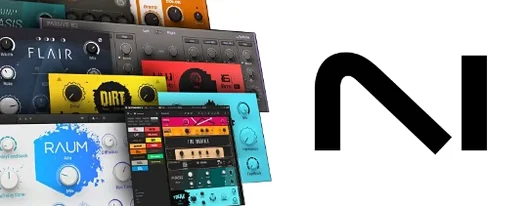 Komplete FX Bundle
Provides a rack of modulation, dynamics, and time-based effects for shaping any signal.
18 steps saved
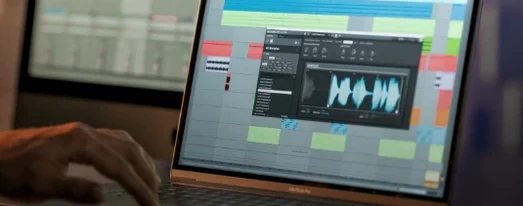 Komplete Kontrol
Unifies browsing, loading, and hands-on control of instruments and effects from one hub.
22 steps saved
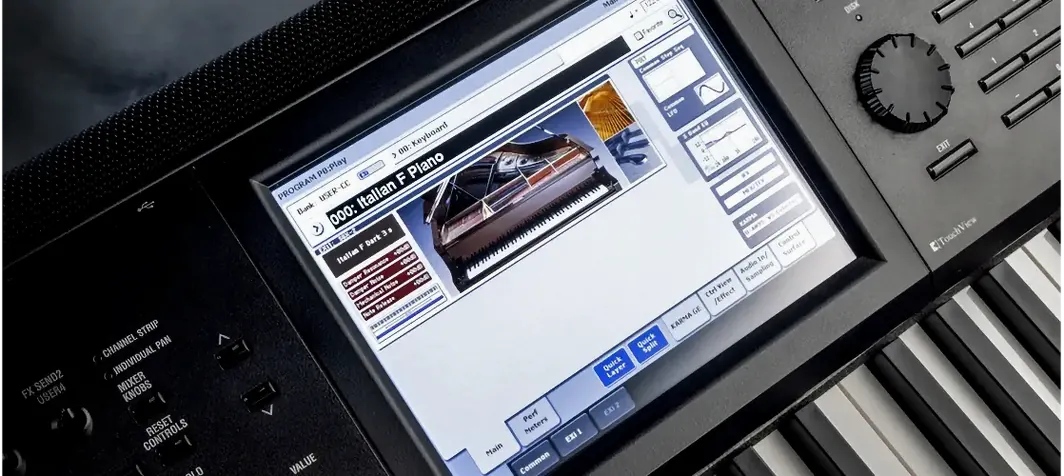 KORG Collection
Recreates classic KORG synths and workstations as plugins inside your DAW.