You know Preview, the built-in Mac tool that handles basic PDF viewing. PDF Expert builds on that familiarity, adding the editing power a default reader lacks. It loads a document with the same immediacy, then lets you actually change it.
Change text directly
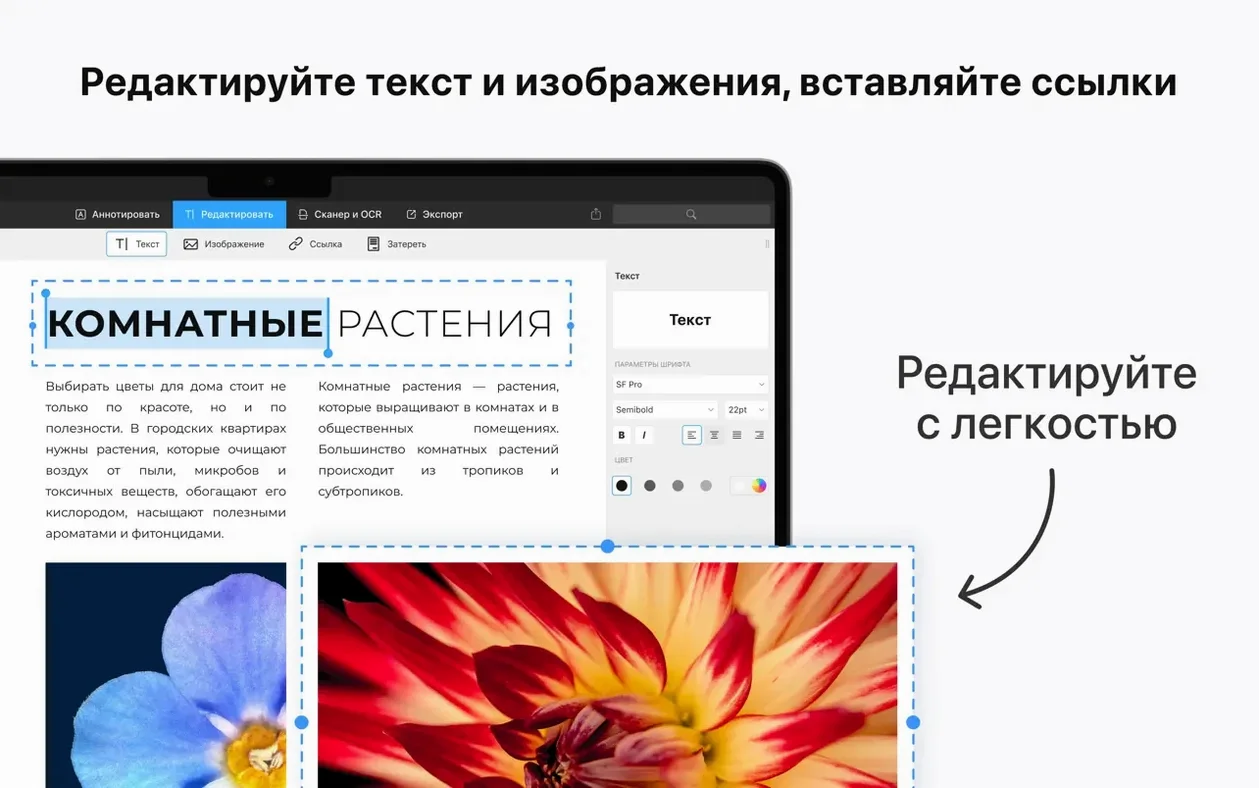
Fix a typo or update a paragraph without returning to the source file.
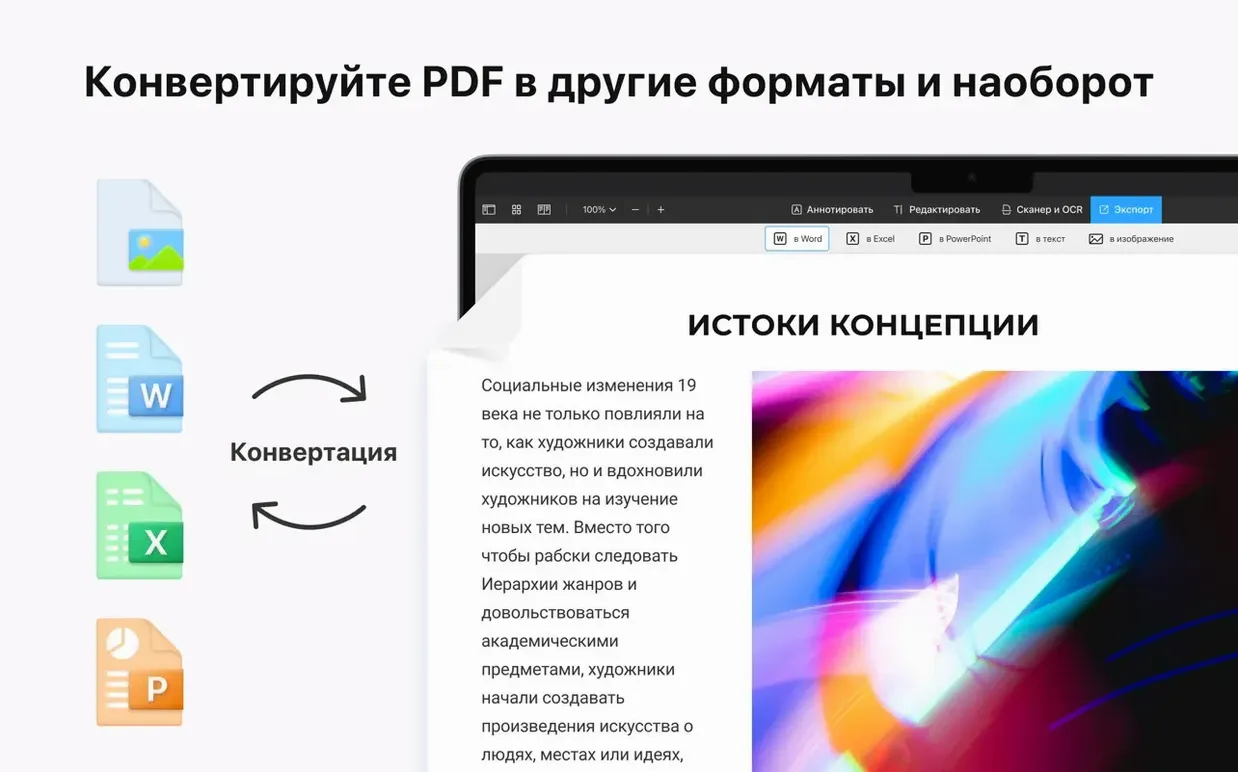
Assemble and convert documents
Merge pages from several files and drop Word, Pages, or Docs exports straight into a single PDF.
Complete and sign forms
Where PDF Expert fits in your tool stack
PDF Expert does not try to be a document management system. It works with the files you already have, wherever you keep them. Open a PDF from Finder, Mail, or the Downloads folder and start editing immediately. Save the result back to the same location. No importing, no library to maintain.
Handoff support bridges the Mac version with the iPhone and iPad editions. Start reading on your phone during a commute, mark a few sections, then pick up the same document on the Mac. The annotation state transfers without manual syncing.
For teams that use cloud storage, the app connects to iCloud Drive and any folder synced through a third-party service like Dropbox or OneDrive. Changes write back to the cloud folder in real time, so a colleague opens the latest version seconds later.
macOS integration points
- Quick Look — Preview a file with the spacebar, then click “Open with PDF Expert” from the title bar. No need to hunt for the app first.
- Share menu — Send a reduced-size copy or a flattened PDF directly from the app without opening Mail separately.
- Spotlight — The app registers as a PDF handler, so files appear in search results and open in PDF Expert when it is your default reader.
- Drag and drop — Pull a page thumbnail out of the sidebar onto the desktop to extract a single page as a new PDF.
For form-heavy workflows, the signature panel stores multiple saved signatures. Sign a contract, an onboarding form, and an expense report without re-drawing each time. The signature data persists across the Mac, iPhone, and iPad versions through the same iCloud keychain.
A real workflow: reviewing a client proposal
Say a proposal lands in your inbox as a PDF attachment. You need to mark it up, add your own notes, insert a missing paragraph, and return a signed copy within the hour.
Step one — open and assess. Click the attachment in Mail. PDF Expert launches and renders the full document. Scroll through once to get oriented. The page thumbnails in the sidebar let you jump between sections quickly.
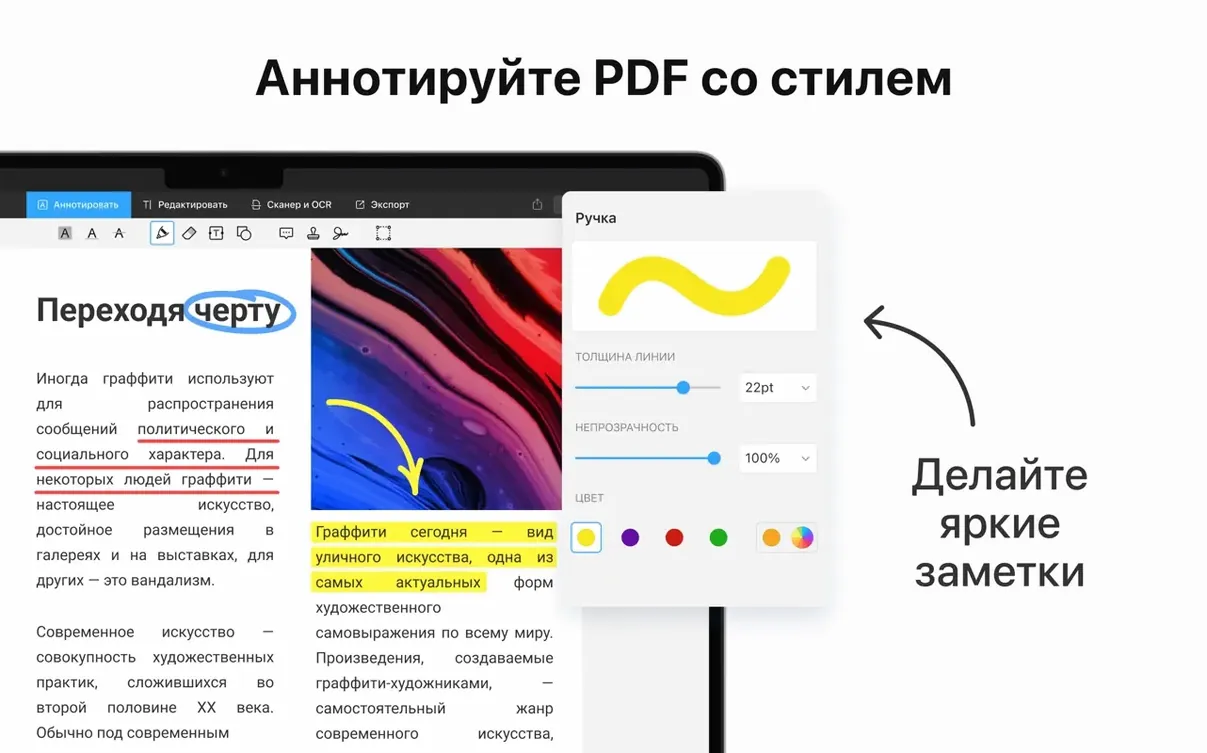
Step two — annotate. Switch to the Annotate tab. Highlight the fee structure in yellow. Strike through an outdated clause. Add a sticky note next to the timeline section with a question for the sender. Each annotation sits on its own layer, so nothing touches the original text underneath.
Step three — edit the body. The client left a placeholder for the project start date. Tap into the text block, select the placeholder, and type the agreed date. The surrounding text reflows to accommodate the change. Font matching keeps the edit from looking pasted-in.
Step four — add a missing section. You have a short paragraph in a Pages document that belongs after the scope-of-work page. Drag the file onto the PDF Expert window. The app converts it to PDF and inserts the pages where you drop them. Rearrange with the sidebar thumbnails if the order needs adjusting.
Step five — sign and return. Open the signature tool, select your saved signature, and place it on the last page. Flatten the document to lock annotations and signature in place. Use the Share menu to attach it to a reply email. Total time: under ten minutes.
Day-to-day performance notes
Launch speed sits in the same range as Preview. A 200-page technical manual opens in under two seconds on an Apple Silicon Mac. Scrolling through scanned documents stays smooth even when the file includes high-resolution colour images.
Memory usage stays modest. Editing a 40 MB PDF with mixed text and images typically consumes between 180 and 250 MB of RAM. The app releases memory when you close a tab. Leaving several documents open overnight on a MacBook Air did not trigger noticeable battery drain or swap pressure.
Stability holds up in extended sessions. Across a workday of annotating contracts, merging supplier invoices, and converting Word briefs, the app did not crash or beachball. Autosave fires with every change, so even if macOS restarts for an update, the last edit is preserved.
One edge to note: very large scanned PDFs — think 500-page architectural drawings — take a few extra seconds to render all thumbnails on first open. Once cached, navigation returns to normal speed. The app does not choke on them, but the initial thumbnail build is visible.
Choosing between keeping Preview alongside PDF Expert
Does it replace Preview entirely? Technically, yes. You can set PDF Expert as the default PDF handler and never open Preview again. In practice, many users keep both. Preview still handles quick lookups and system-level PDF rendering, while PDF Expert takes over editing and annotation duties.
Will it slow down an older Intel Mac? On a 2019 MacBook Pro with an i5 processor, the app runs without lag for typical tasks — editing text, filling forms, merging small documents. Heavy OCR on scanned books or batch-converting dozens of files will push the fans, but single-document work stays responsive.
What happens with fonts I do not own? When you edit text that uses a font not installed on your Mac, PDF Expert substitutes the closest system font it can find. The substitution is usually close enough for personal documents. For brand materials with strict typography rules, stick to annotating rather than editing the body text.
Can two people edit the same PDF at once? No live collaboration. The app works on local files. If the file lives in a shared cloud folder, one person edits, saves, and the next person opens the updated version. There is no lock mechanism, so coordinate with your team to avoid conflicting saves.
How does it handle password-protected PDFs? Open a protected file and the app prompts for the password. Once unlocked, you can edit, annotate, and save normally. You can also set a password on any PDF you create — useful for sending sensitive documents to clients.
People searching for a pdf expert mac torrent or a pdf expert full version often want the editing capabilities without friction. The app delivers that toolkit — text changes, image replacement, form completion, signatures — in a single window that does not feel heavy. No separate modules to launch, no web-based conversion step for Office files.
Those who look up pdf expert crack for mac or pdf expert for mac torrent typically need to process forms and sign documents on a deadline. The signature workflow alone justifies keeping the app in the dock. Draw once with the trackpad, save, and reuse across every document that lands on your desk.
A pdf expert for mac free download search often comes from students and freelancers who handle PDFs weekly but not daily. The reading and annotation tools serve that rhythm well. Mark up lecture slides, fill a tax form, merge a portfolio — each task takes a few minutes and the app stays out of the way between sessions.
Fill interactive fields and sign with a saved signature instead of printing and scanning.
- macOS 12 or later
- Apple Silicon or Intel 64-bit
Questions I get before install
Can PDF Expert run on an Intel Mac?
Yes, it supports both Intel and Apple Silicon Macs running macOS 12 or later.
Does the app let me organize long documents?
You can create a table of contents and annotate pages to structure a lengthy PDF.
Comments 0
Sign in to leave a comment.Sign inCreate an account
No comments yet. If a step is still there after you install it, say so.
More in PDF
All in PDF Updated
PDF Reader Pro
Marks up, merges, and hands off contracts without leaving one app.
20 steps saved
 PDF Squeezer
Shrinks PDF files without touching a settings panel.
9 steps saved
 PDFelement Pro
Edits, signs, and organizes PDFs so paperwork stops piling up.
13 steps saved
 Nitro PDF Pro
Edits PDF text, fills forms and signs documents in one window.
20 steps saved
 Adobe Acrobat Pro
Lets you retype a PDF paragraph or swap an image without leaving the page.
19 steps saved
 ABBYY FineReader PDF
Turns a paper scan into an editable Word file, tables and formatting intact.