
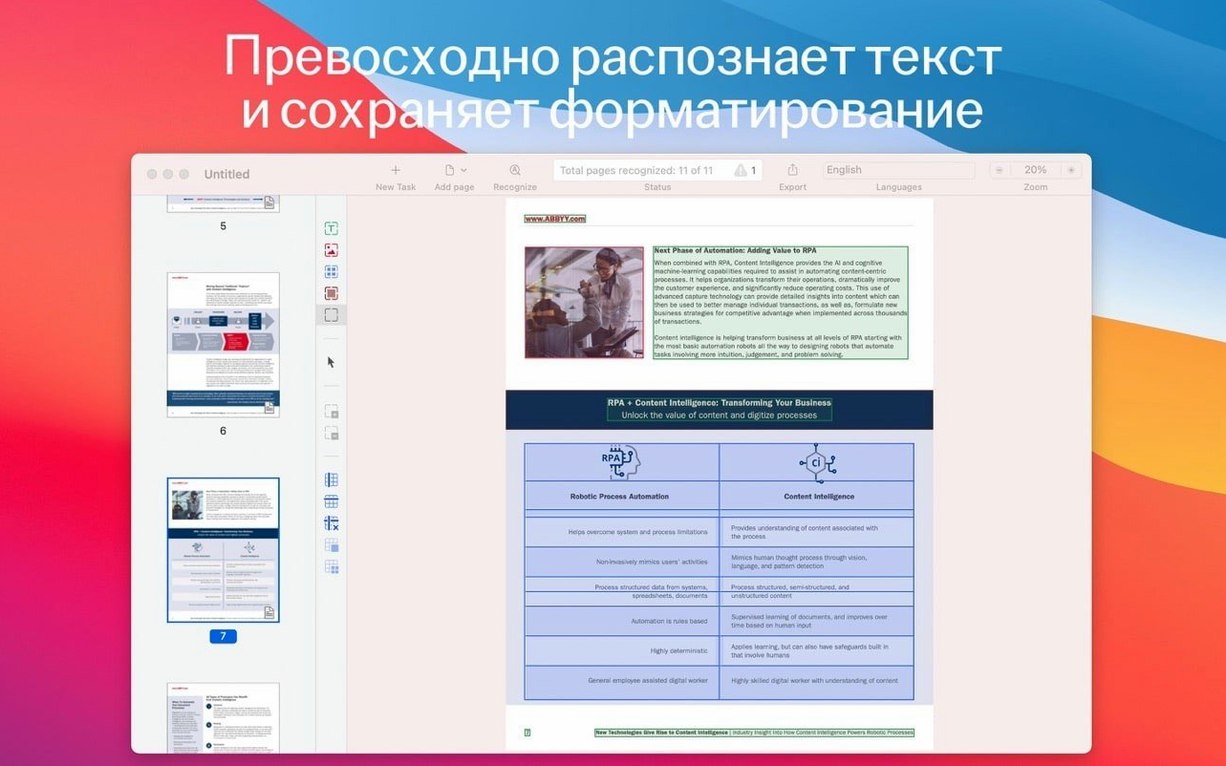
You pull a paper report off your desk, snap a photo with your iPhone, and drop it onto your Mac. The scan lands in ABBYY FineReader PDF as a fully editable Word file—tables, formatting and all.
Recognize text from scans
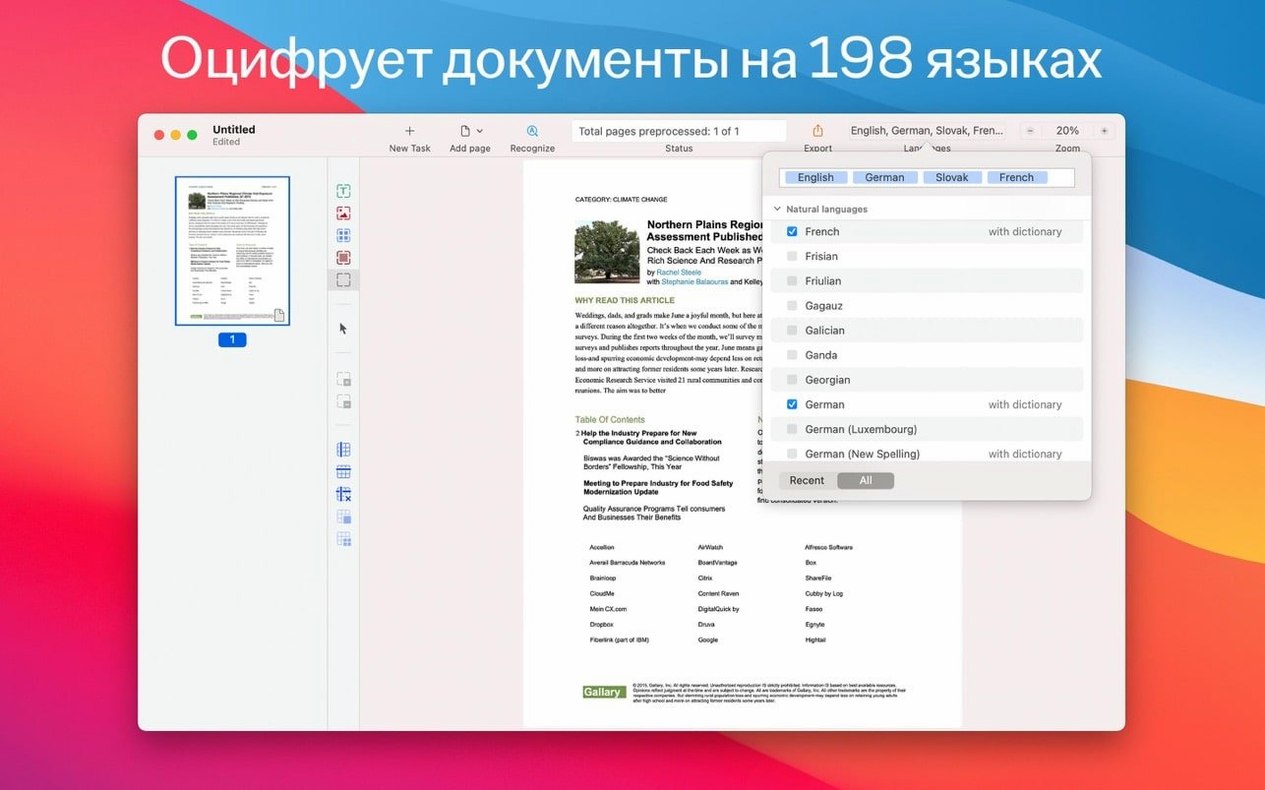
Pull clean, searchable text from paper documents, images or locked PDFs in 198 languages.
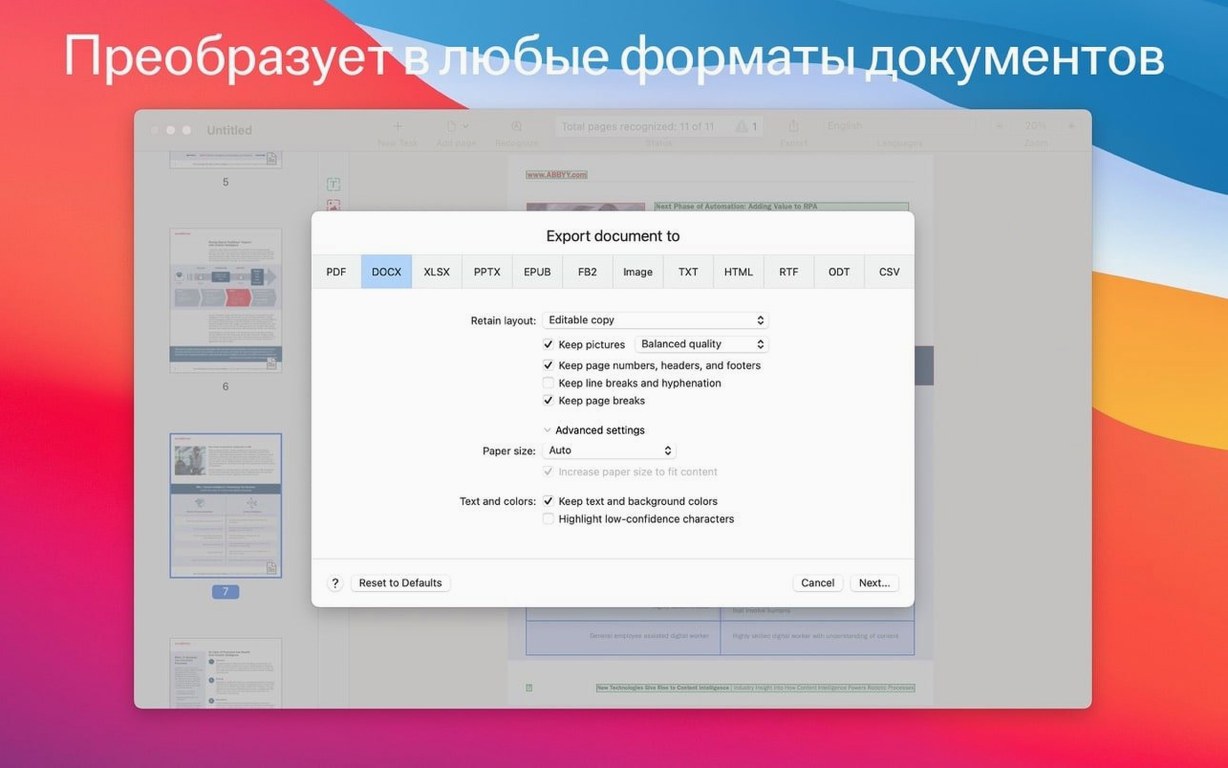
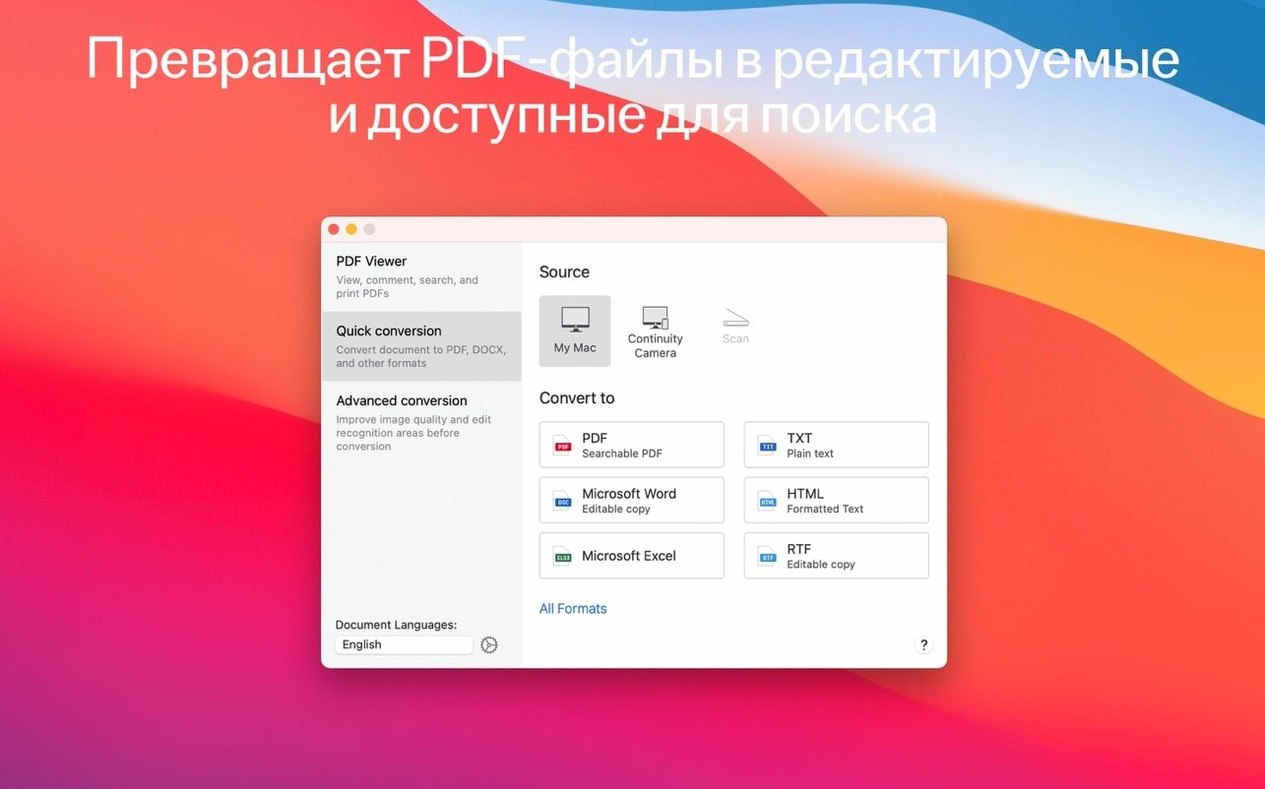
Convert documents to office formats
Export any document to DOCX, XLSX, RTF or ODT while preserving layout, columns and tables.
Edit text inside a PDF
First-day setup moves
Most people open the app, drop in a scan, and hunt through menus. A few deliberate minutes early on save hours later.
Set your default export format. Open Preferences → Save and pick your most-used output. If every document ends up in DOCX, tell FineReader now. It removes one dialogue box from every future task.
Train the recognition language list. The app ships with 198 languages, but the recognition engine loads faster when you limit it. Under Preferences → OCR, deselect every language you do not actively read. Keep three or four. Add others only when a multilingual project demands it.
Decide where scans land. Continuity Camera sends iPhone shots straight into the current document. But if you prefer to store raw images first and process later, switch the import behaviour under the File menu so scans open in a new window instead of merging immediately.
Build a quick-access folder. Create a “To OCR” folder in Finder and drag it into the FineReader sidebar. Every paper document that hits your desk goes there. Batch processing a pile becomes a two-click job.
What the last versions sharpened
Version 15 brought Continuity Camera support. The everyday effect is concrete: a contract arrives on paper, you hold up your phone, and the scan appears on the Mac screen already deskewed and ready. No intermediate app, no AirDrop dance.
Dark mode landed in the same release cycle. For anyone processing documents late in the evening, the interface now matches the system appearance automatically. The reading pane, toolbars and sidebar all shift together.
Recognition accuracy for CJK scripts improved measurably across the 15.x updates. Vertical text in scanned Japanese and Chinese pages now flows correctly into horizontal editable output, which used to trip earlier engines.
Build 15.2.14 stabilised PDF/A-2 and PDF/A-3 export. Archivists who need long-term compliant files got cleaner metadata embedding and fewer validation warnings from third-party checkers.
Memory handling on Intel Macs running macOS 11 through 13 received quiet tuning. Large batch jobs—fifty pages or more—no longer degrade the interface into beachball territory the way early 15.x builds occasionally did.
Switch on facing-page splitting before your first scan
Image processing defaults. In Preferences → Image Processing, switch on Split facing pages if you photograph open books. Turn off Deskew only when scanning perfectly flat originals; the auto-straightening is right nine times out of ten.
PDF viewer behaviour. The built-in viewer defaults to continuous scroll. Switch to single-page view under the View menu if you proofread page by page. The scroll position stays predictable, and you catch formatting drift faster.
Verification confidence threshold. The OCR engine marks uncertain characters with a highlight. The default threshold is conservative. Lower it by one notch in Preferences → Verification if you review every document anyway; fewer false flags mean faster proofing. Raise it if you trust the output and only want to see genuine errors flagged.
Table detection sensitivity. For financial documents and invoices, set table detection to Aggressive under the OCR options panel. For prose-heavy reports, leave it at Moderate; the engine otherwise tries to tabulate indented paragraphs.
Extracting lease clauses from a flat scanned PDF
A property lawyer receives a thirty-page lease from the other side—scanned, signed, and sent as a single flat PDF. She needs to extract three clauses for a counter-offer, compare the rent schedule against a spreadsheet from last month, and archive the original as a searchable document for the firm's records.
She opens the PDF in FineReader, selects the six pages covering rent and maintenance, and exports them to XLSX. The table detection pulls columns for year, base rent, and service charge without merging cells. She pastes the data into her comparison spreadsheet and spots the discrepancy in under a minute.
She then highlights the repair clause on page seventeen, copies the recognised text, and drops it into her draft letter. No retyping, no chance of introducing a typo that changes a legal obligation.
Finally, she runs the full document through OCR with the output set to PDF/A-2. The file joins the case folder as a text-searchable archive copy. The firm's document management system indexes it overnight. Six months later, a colleague searches for a tenant name and finds this exact lease in seconds.
Correct a heading or update a figure trapped in a scanned page without leaving the built-in PDF viewer.
- macOS: 11 or later
- Architecture: Intel (runs via Rosetta 2 on Apple Silicon)
- Dark mode: supported
Questions I get before install
Does ABBYY FineReader PDF work on Apple Silicon Macs?
It is an Intel-only x86 64-bit app, so it runs through Rosetta 2 on M-series Macs.
What languages can FineReader PDF recognize?
It supports 198 recognition languages, with the interface available in Russian, English, German, Italian, Simplified Chinese and French.
Can I use my iPhone to import a document?
Yes, the app supports Continuity Camera so you can snap a paper document on your iPhone or iPad and import it directly for OCR.
Comments 0
Sign in to leave a comment.Sign inCreate an account
No comments yet. If a step is still there after you install it, say so.
More in PDF
All in PDF Adobe Acrobat Pro
Lets you retype a PDF paragraph or swap an image without leaving the page.
13 steps saved
 Nitro PDF Pro
Edits PDF text, fills forms and signs documents in one window.
16 steps saved
 PDF Expert
Corrects a typo or updates a paragraph directly inside a PDF without switching to the source file.
8 steps saved
 Updated
PDF Reader Pro
Marks up, merges, and hands off contracts without leaving one app.
20 steps saved
 PDF Squeezer
Shrinks PDF files without touching a settings panel.
9 steps saved
 PDFelement Pro
Edits, signs, and organizes PDFs so paperwork stops piling up.