
If you have used a spreadsheet for calculations, Mathematica handles the same task but through symbolic notation and typeset results instead of cell references.
Notebook — your primary workspace, mixing code, text, and live graphics in one scrolling document.
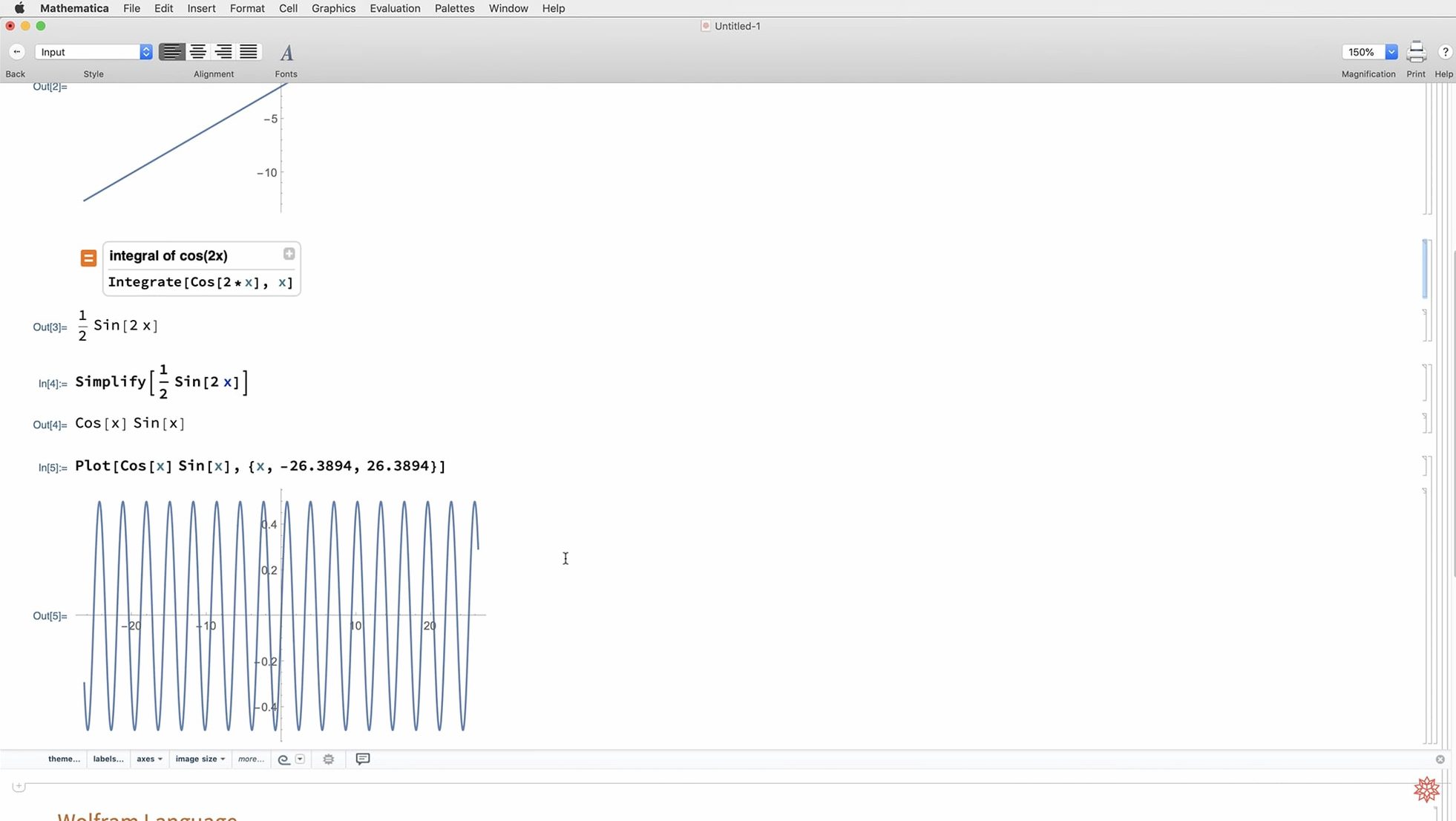
Symbolic computation — solving equations with variables left intact; factor a polynomial or integrate a function exactly.
Numerical computation — working with specific numbers, from high-precision constants to large datasets and statistical summaries.
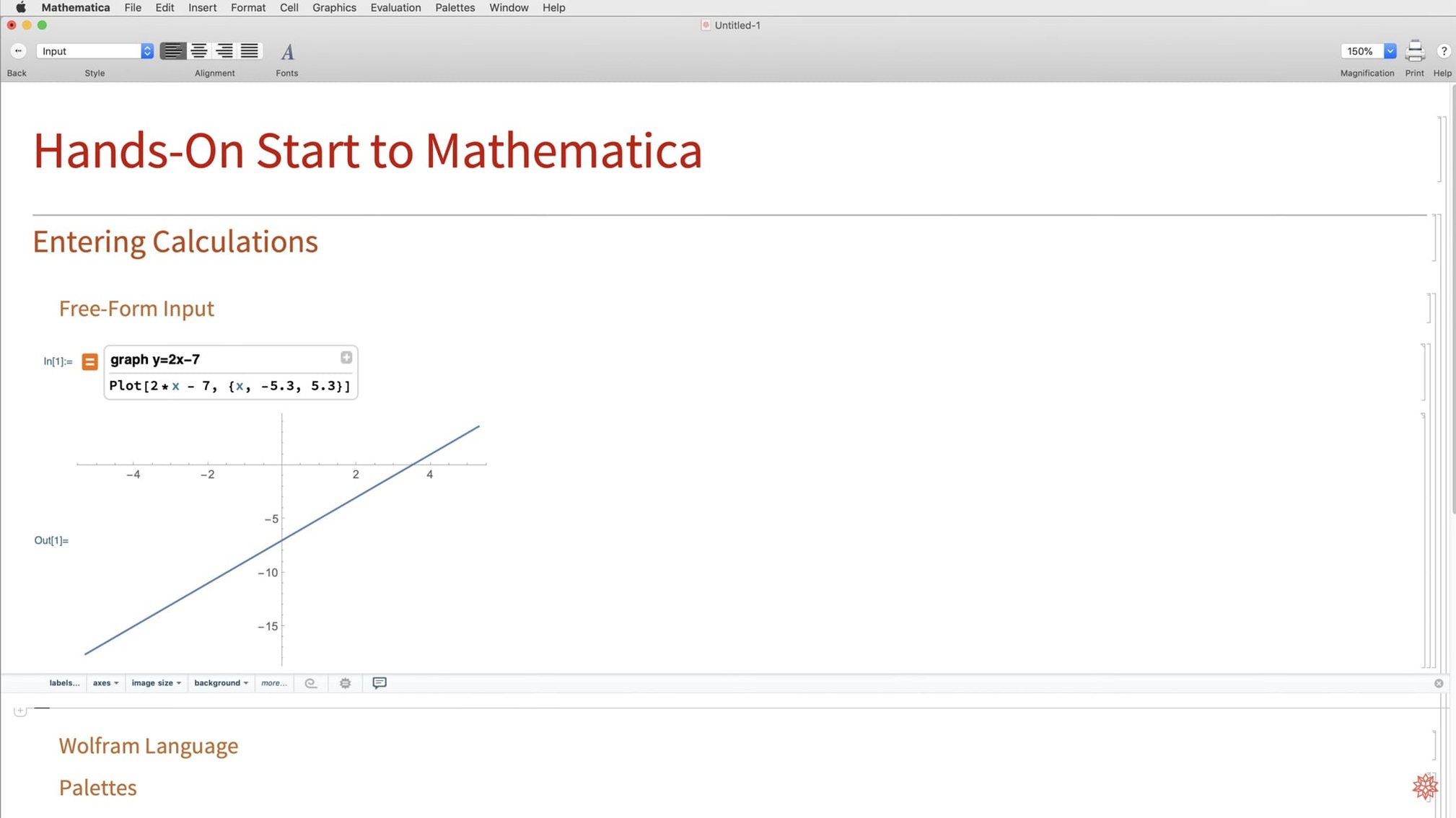
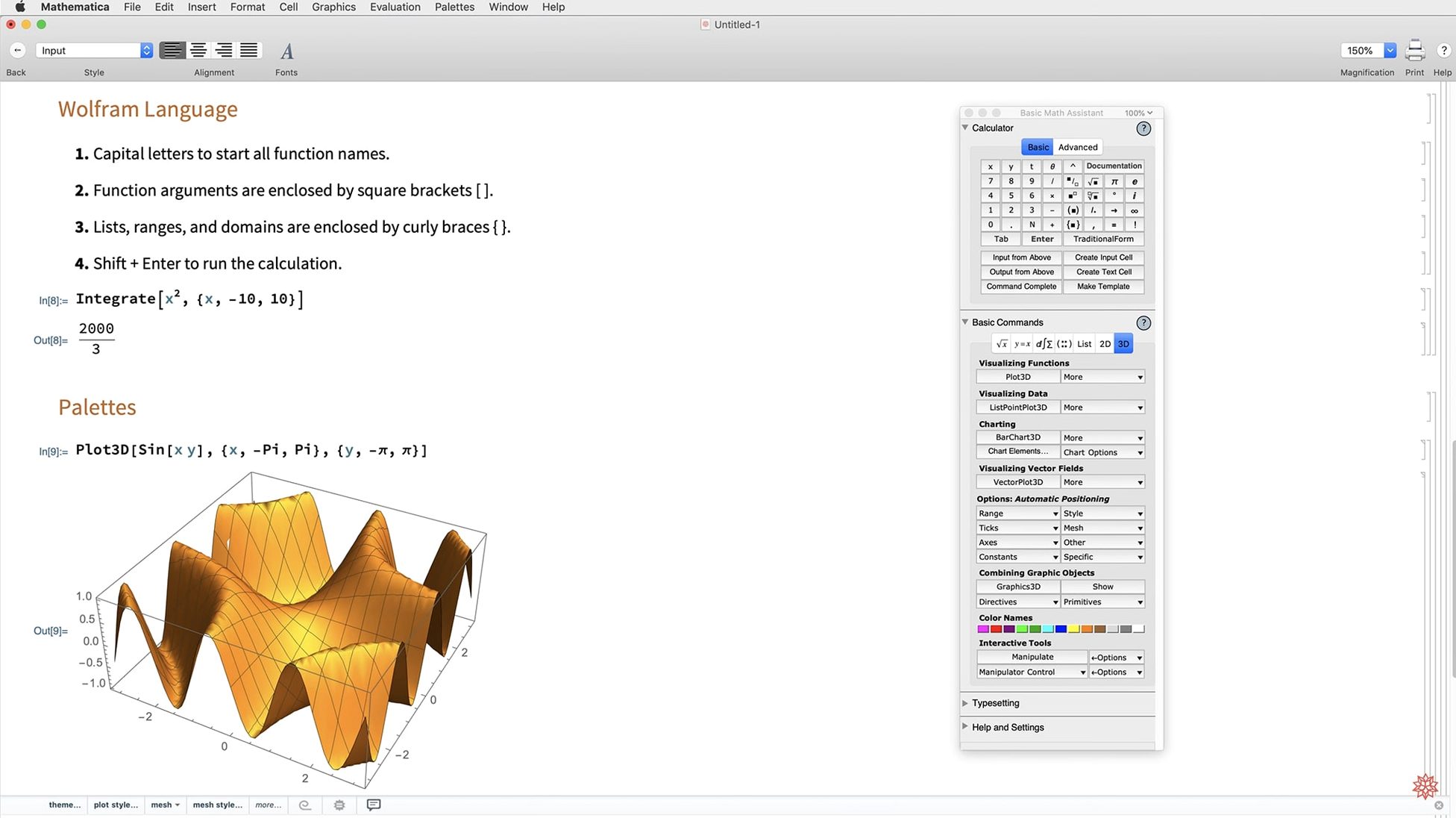
Visualization — generating 2D and 3D plots, histograms, maps, and mesh-based surfaces from expressions or data.
Manipulate — a single command that builds an interactive slider, letting you explore how a parameter changes a result in real time.
Start with a symbolic derivative, plot the result, then wrap it in Manipulate. Those three steps cover the core loop of the system.
Native feel on Apple Silicon
Most questions boil down to what it actually does on a Mac and whether it plays well with the rest of your toolchain.
Does it feel native on macOS? Yes — version 14.3 runs on both Intel and Apple Silicon Macs natively. Dark mode is now fully supported, so the interface follows your system appearance setting without extra steps. Keyboard shortcuts match Mac conventions where it counts: ⌘N for a new notebook, ⇧↩ to evaluate a cell, ⌘, for preferences.
What happens with existing Python or R scripts? Mathematica 14.3 tightened integration for both. You can call Python or R functions directly inside a notebook, pass data back, and the results land in Mathematica's typesetting system. The speed bump in this release is noticeable when looping over external code — fewer round-trip delays than earlier versions.
Can I use it offline? The desktop app runs entirely on your Mac. Cloud access through a browser is available as a separate option, but nothing in the local installation requires an internet connection once activated. That matters for field work, secure labs, or long flights.
How steep is the learning curve? Shallow enough to get started, deep enough to keep you busy for years. Natural-language input handles the first few commands — type a plain sentence like "plot sin x from 0 to 10" and Mathematica interprets it. After that, the Wolfram Language syntax is consistent and predictable, with function names that usually read like English.
Switch on syntax coloring immediately
Open Preferences early. Three changes make everyday work faster.
- Appearance → Syntax Coloring — switch it on if it is not already active. Colours for functions, strings, and comments reduce scanning time in dense notebooks. With 14.3's new standard colour sets for light and dark mode, the palette stays readable in either environment.
- Evaluation → Cell Evaluation Options — check "Evaluate cells in order they were created." This prevents surprises when a cell depends on a result you defined further down.
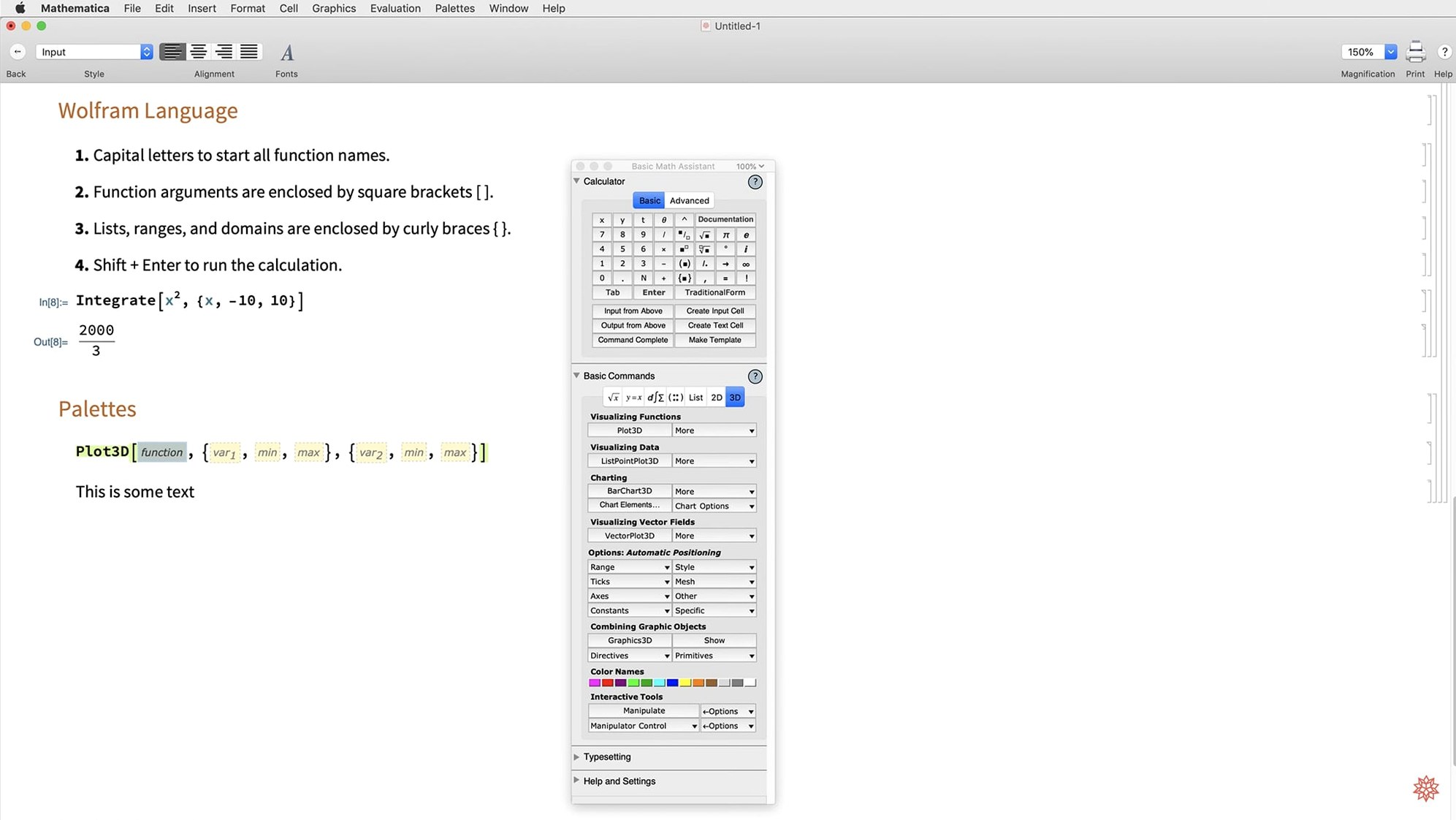
- Palettes → Show Palettes Menu — enable it. Palettes give you clickable templates for integrals, matrices, plot commands, and special characters. Much faster than looking up syntax for rarely used functions.
Also worth doing: set a default notebook style in the Format menu. The "Report" style works well for documented work; "Article" suits publication drafts. Whatever you pick, new notebooks will inherit it.
Ctrl+= turns plain English into code
Mathematica's depth means genuinely useful shortcuts sit buried unless someone points them out.
- Ctrl+= starts a free-form linguistics input box — type a fragment of natural language and Mathematica converts it into a Wolfram Language expression. Useful when you forget a function name.
- Double-click a plot to open the Drawing Tools palette. You can add arrows, text annotations, and geometric overlays directly onto graphics without writing a single graphics directive.
- Cmd+Shift+Enter evaluates an entire notebook in sequence. When you open a workbook after weeks away, one keystroke replays every calculation.
- Autocompletion appears after two or three characters of a function name. Tap
Tabto accept the suggestion and it fills in the template, placeholders and all. Works for options too — start typing an option name inside brackets and the list narrows. - Markdown export, new in 14.3, turns any notebook into a plain Markdown file via File → Save As. Code blocks, section headings, and images translate cleanly. Handy for publishing notes on a blog or a shared repo without reformatting.
- Geodesic computation and LLMGraph are specialty additions in 14.3. Geodesics calculate shortest paths on curved surfaces; LLMGraph lets you experiment with graph-structured language models inside a notebook. Both are niche, but if you need them, they save days of custom coding.
Release notes for 15.0 are published on the developer's site. This update brings the latest fixes, performance improvements, and feature refinements from Wolfram.
- macOS 12 or later
- Apple Silicon or Intel 64-bit
Comments 0
Sign in to leave a comment.Sign inCreate an account
No comments yet. If a step is still there after you install it, say so.
More in Office
All in Office XMind Pro
Turns scattered lists into one reorderable map for meeting prep and project plans.
15 steps saved
 VueScan Pro
Brings current drivers to scanners whose makers stopped supporting macOS.
19 steps saved
 Updated
Vellum
Synchronises a single manuscript across Kindle, Kobo, Apple Books and print editions.
9 steps saved
 Updated
Typora
Removes the preview pane so you write formatted Markdown directly on the page.
9 steps saved
 Things
Gives you just enough structure to clear your head without setup overhead.
14 steps saved
 Soulver 3
Turns a plain-text notepad into an instant calculator for day-to-day math problems.
19 steps saved
 Scrivener
Gathers research, drafts, and notes into a single structured writing project.
21 steps saved
 QuickBooks Mac Plus
Gives a small business a clean, guided path from setup to daily tracking.