
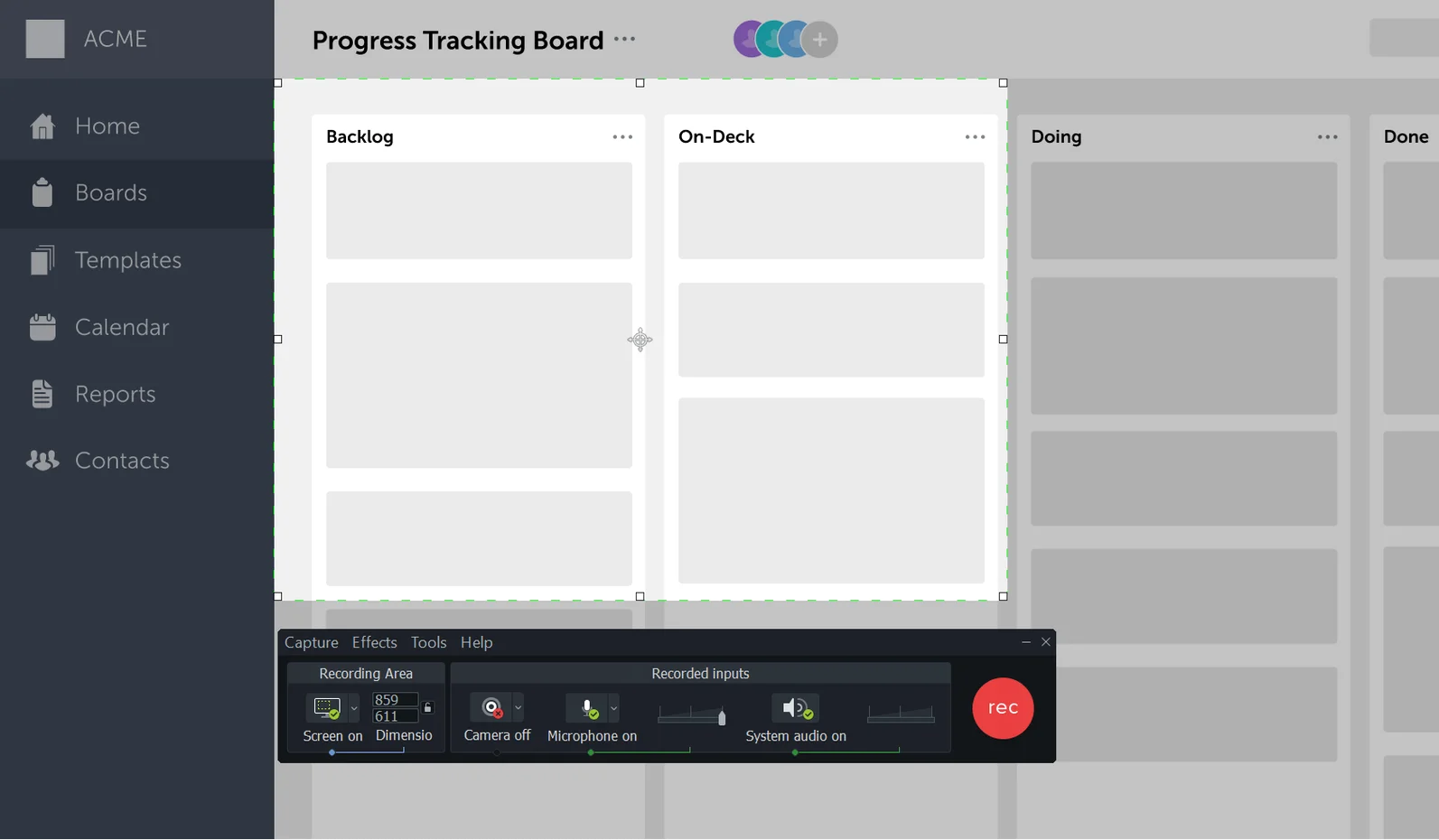
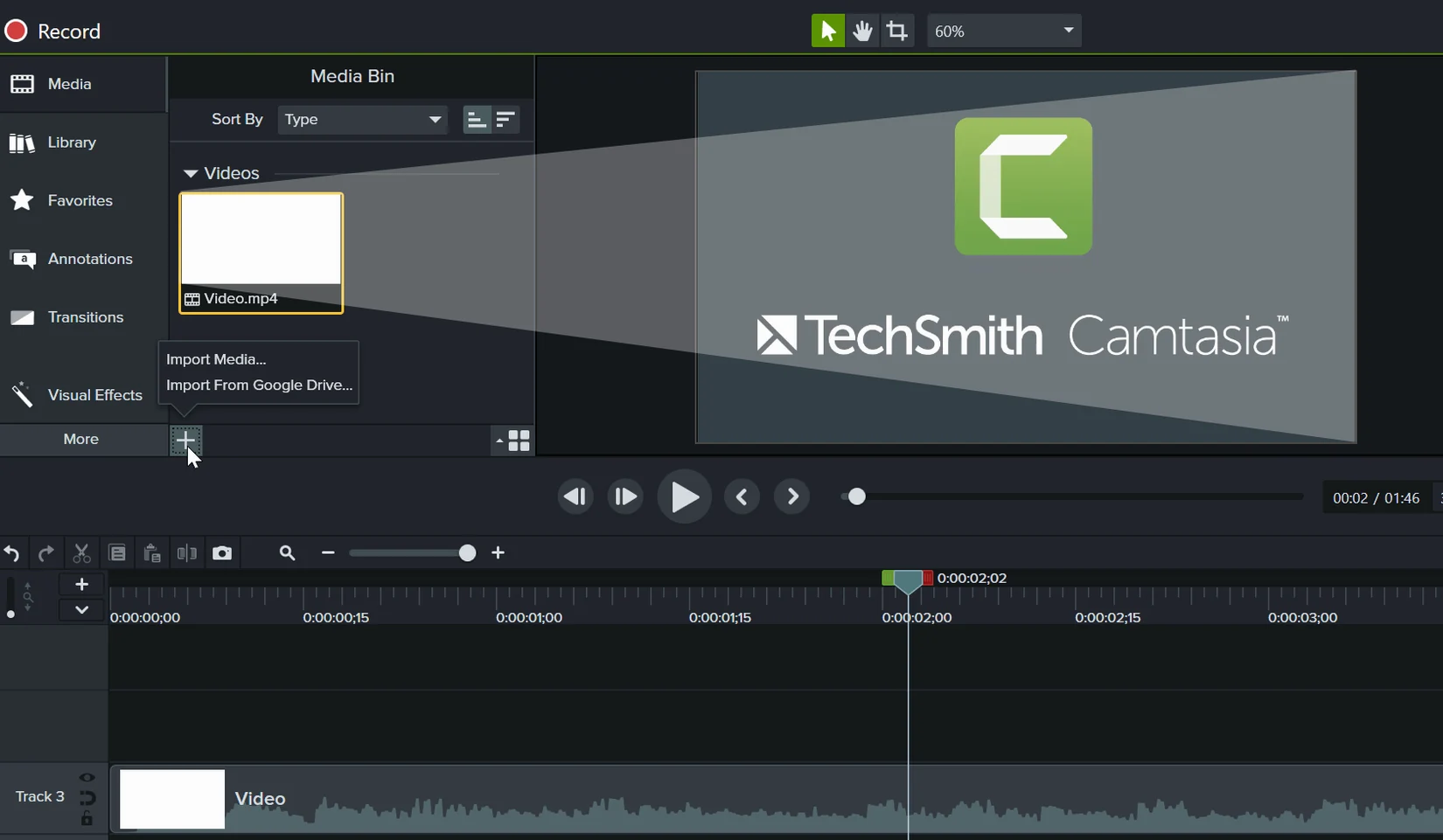
Camtasia captures your screen, then gives you a timeline editor to turn the recording into a clear lesson, demo, or presentation.
What kind of project fits best?
Walk someone through a software feature. Record the screen, trim the dead ends, and add a voiceover. You can also import PowerPoint slides to build a structured training module.
How do you polish a rough recording?
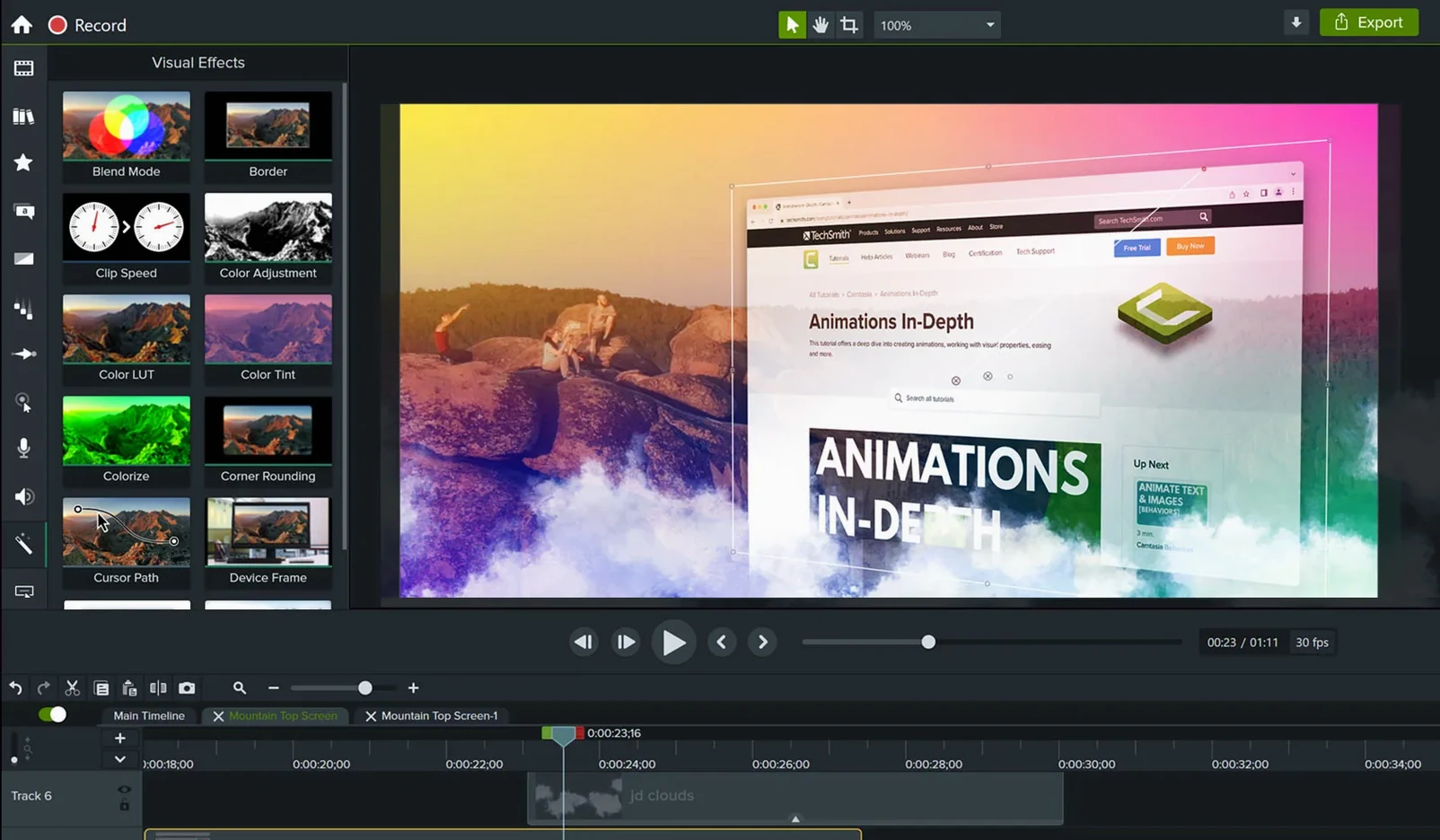
Drop in pre-built video templates for consistent intro and outro cards. Drag effects—zooms, highlights, text callouts—onto the timeline to guide the viewer's eye without extra steps.
Does it handle the final export cleanly?
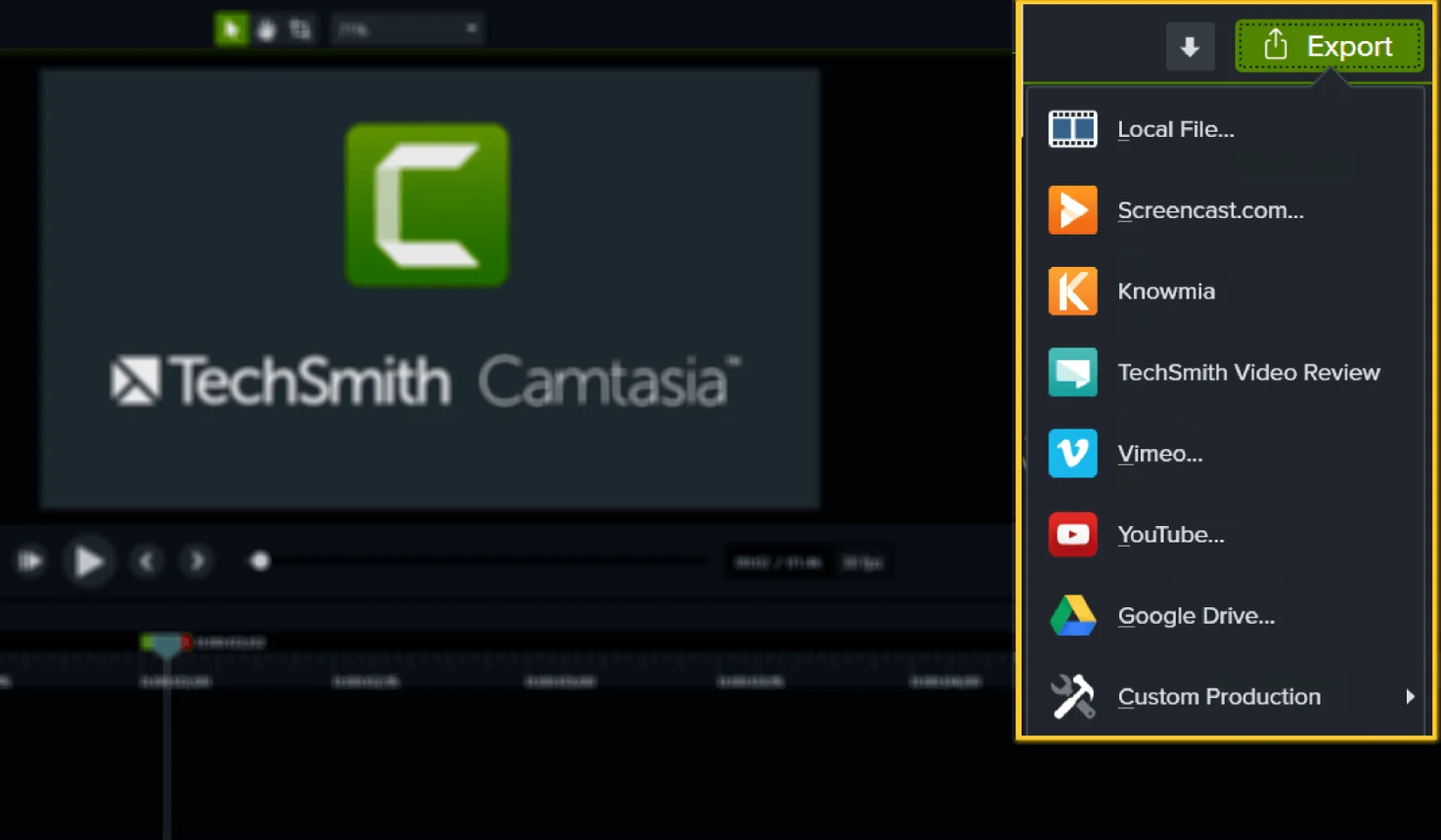
Yes. Produce a local file or share directly. The interface works in French, Japanese, Simplified Chinese, Portuguese, and several other languages for teams that work across regions.
Option-Drag to Ripple-Delete Timeline Gaps
Most people open Camtasia, hit record, and never look past the surface. A few shortcuts change how fast you work.
- Hold Option while dragging a clip edge — ripple-deletes the gap without leaving a hole on the timeline.
- Cmd-Shift-E — extend the selected clip to the playhead in one keystroke. No more zooming in to nudge the edge.
- Right-click any media in the bin, choose "Update Media" — swap a rough take with a re-recorded version while keeping every edit, animation, and callout intact.
- Cursor smoothing in the screen recording settings — stops the pointer from jittering when you demonstrate a click path. Toggle it before recording, not after.
- Library presets remember more than colours — save a fully styled callout (font, padding, drop shadow, fade duration) and drag it onto future projects as one unit.
Fix a Stuck Export by Isolating Corrupted Media
Three frustrations show up repeatedly in support threads and team chats.
Export stalls at 99%. The most common culprit is a single corrupted media file—often a screen recording that was interrupted mid-save. Test by exporting only half the timeline, then narrow the range. If a specific clip is the problem, right-click it and choose "Replace Media" with a re-exported version.
Recordings pick up no system audio on macOS 13 or later. Camtasia needs the system audio capture permission granted explicitly. After the first failed recording, open System Settings > Privacy & Security > Microphone and check that Camtasia appears—and is toggled on. Sometimes the permission prompt hides behind the recording window.
PowerPoint import brings in one slide as a flat image. That happens when the PowerPoint file is open during import. Close PowerPoint completely, then drag the file into Camtasia again. Each slide lands as a separate clip on the timeline, timed to your preference.
Annotation Depth That Leaves ScreenFlow Behind
Camtasia vs. ScreenFlow. ScreenFlow offers finer audio routing and a slightly lighter export engine, but its annotation tools are bare compared to Camtasia's drag-and-drop callout library. If your work leans on text overlays, arrows, and pre-built lower-thirds, Camtasia saves you from building those assets manually. ScreenFlow suits podcast-style edit jobs; Camtasia suits software trainers who need visual cues on every clip.
Camtasia vs. OBS with DaVinci Resolve. This is the common two-app stack people try first. OBS records; Resolve edits. The friction is real—round-tripping media, syncing separate audio tracks, and re-creating zoom-and-follow effects that Camtasia handles in one timeline action. The combo gives more colour-grading control, but for a tutorial or a quick product walkthrough, Camtasia removes hours of assembly work. People searching for a Camtasia Studio torrent or a Camtasia crack for Mac often do so after discovering how many steps the two-app approach demands.
Camtasia vs. Loom. Loom records and shares in minutes; editing is nearly non-existent. Camtasia covers the other side of the spectrum—projects with multiple takes, imported slides, and timed animations. They complement more than they compete. Some teams record a rough walkthrough in Loom, then recreate the polished version in Camtasia for a permanent library.
Version 2026.2.5 refines dynamic captions behaviour and tidies up a handful of interface snags that appeared in the last cycle. Performance during long timeline scrubs is noticeably smoother.
- macOS 13 or later
- Apple Silicon or Intel 64-bit processor
Questions I get before install
Which Macs run the current version?
The app supports both Apple Silicon and Intel Macs running macOS 13 or later.
Comments 0
Sign in to leave a comment.Sign inCreate an account
No comments yet. If a step is still there after you install it, say so.
More in Mac Apps
All in Mac Apps Camo Studio
Turns a phone or tablet camera into a high-quality webcam with overlay controls.
13 steps saved
 Canopy
Shows playback controls and a countdown timer in a small overlay at the top of the screen.
13 steps saved
 CapCut
Cuts short social videos fast with templates, auto captions and effects.
22 steps saved
 Updated
Caffeinated
Keeps your Mac awake, display bright, and screensaver off from the menu bar.
17 steps saved
 Updated
Capture One
Gives tethered shooters direct raw-file control over colour and detail before retouching.
12 steps saved
 Carbon Copy Cloner
Creates a direct, bootable duplicate of a disk on a schedule you set.
20 steps saved
 BuhoLaunchpad
Replaces the standard app grid with a snappier, folder-friendly launcher.
6 steps saved
 BuhoCleaner
Removes leftover files from uninstalled apps and clears system clutter.