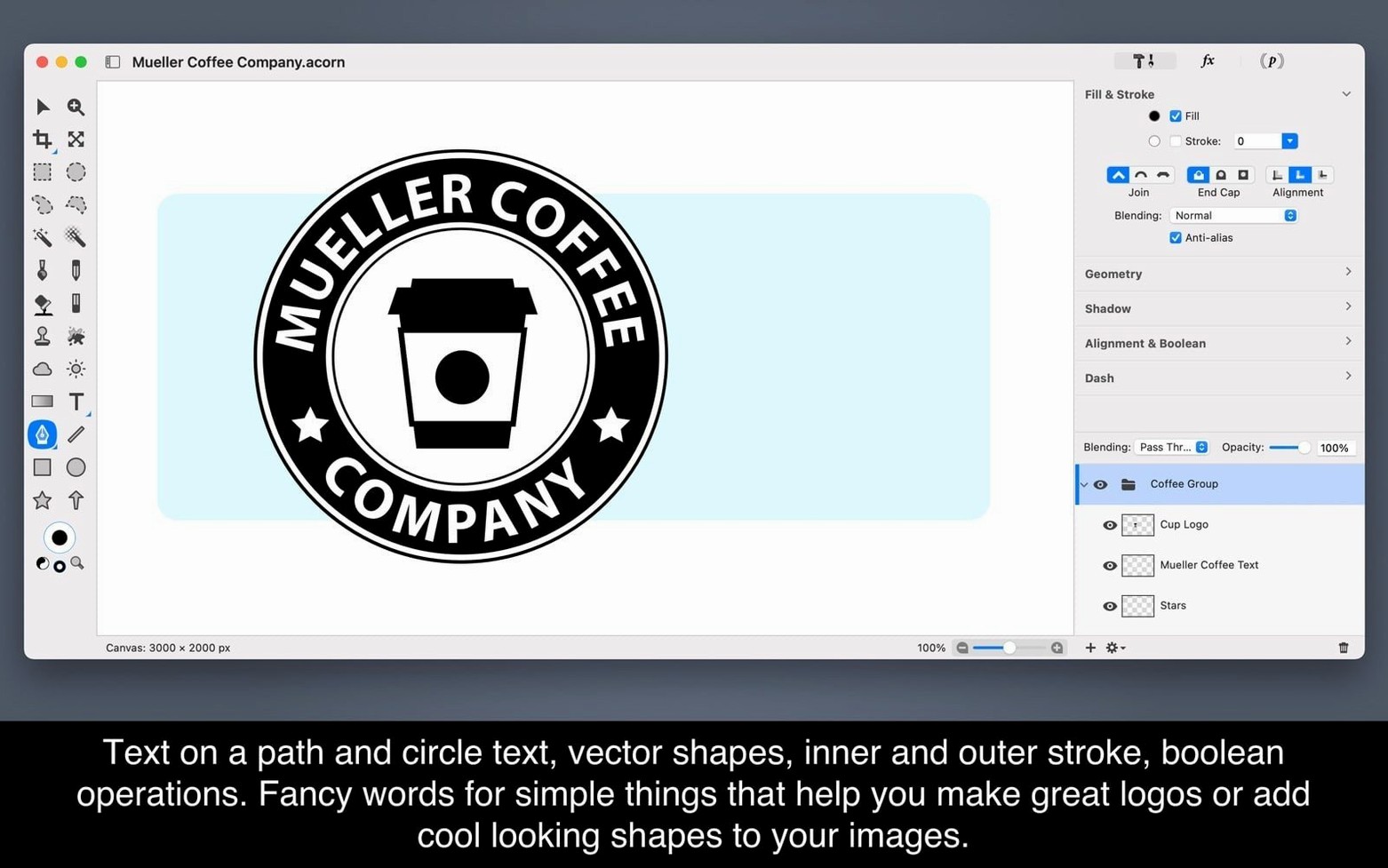
Acorn is a layer-based image editor for macOS that handles photo editing, drawing and compositing without the complexity of a sprawling creative suite.
New to Acorn? Start with these five moves—they show how the app thinks.
- Open and edit a screenshot. Acorn can capture or import a screen, then let you crop, annotate and export it straight from the canvas.
- Add a vector shape layer. Draw a rectangle or circle on a new vector layer. Drag the handles to resize without losing crispness—useful for wireframes and callouts.
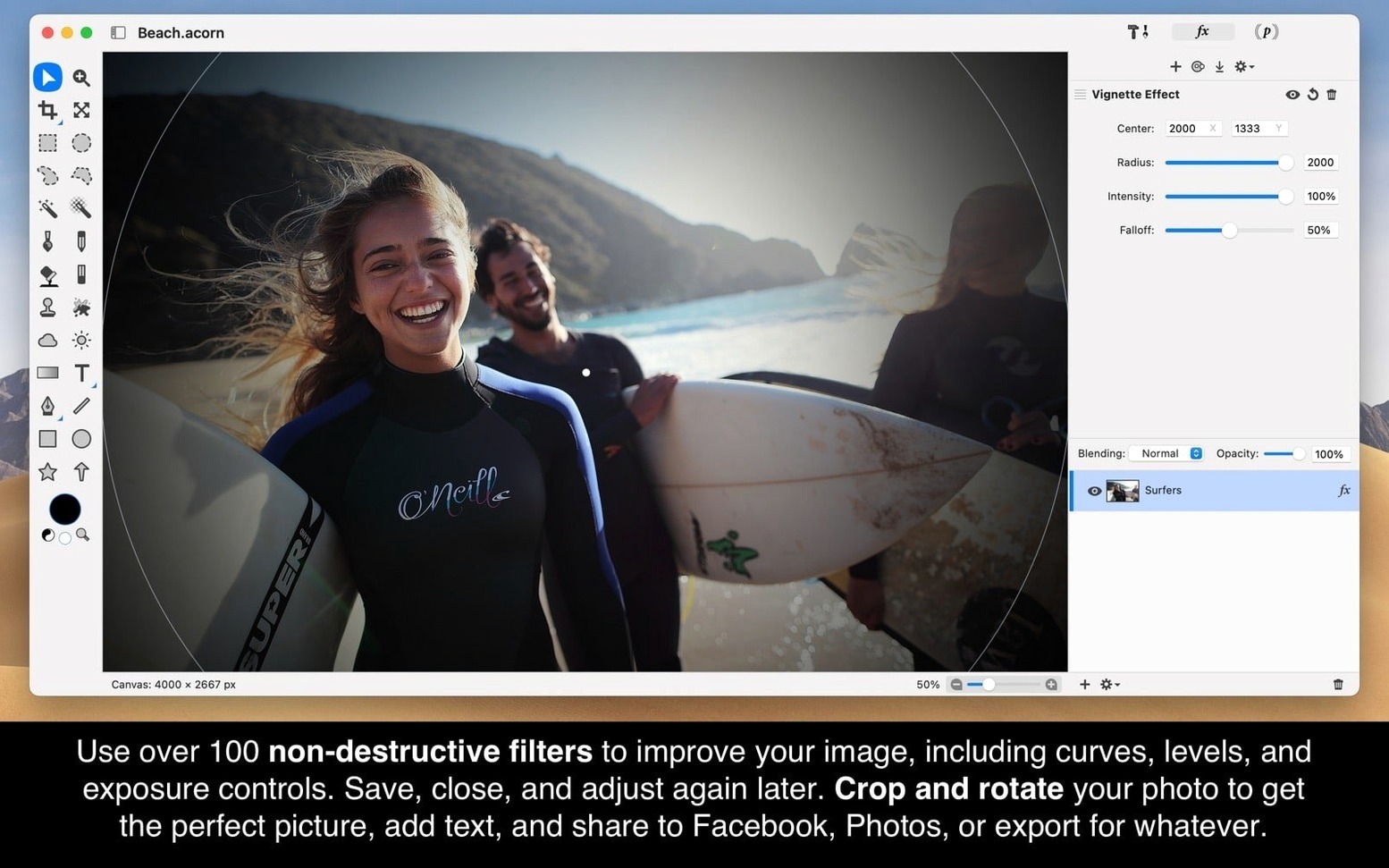
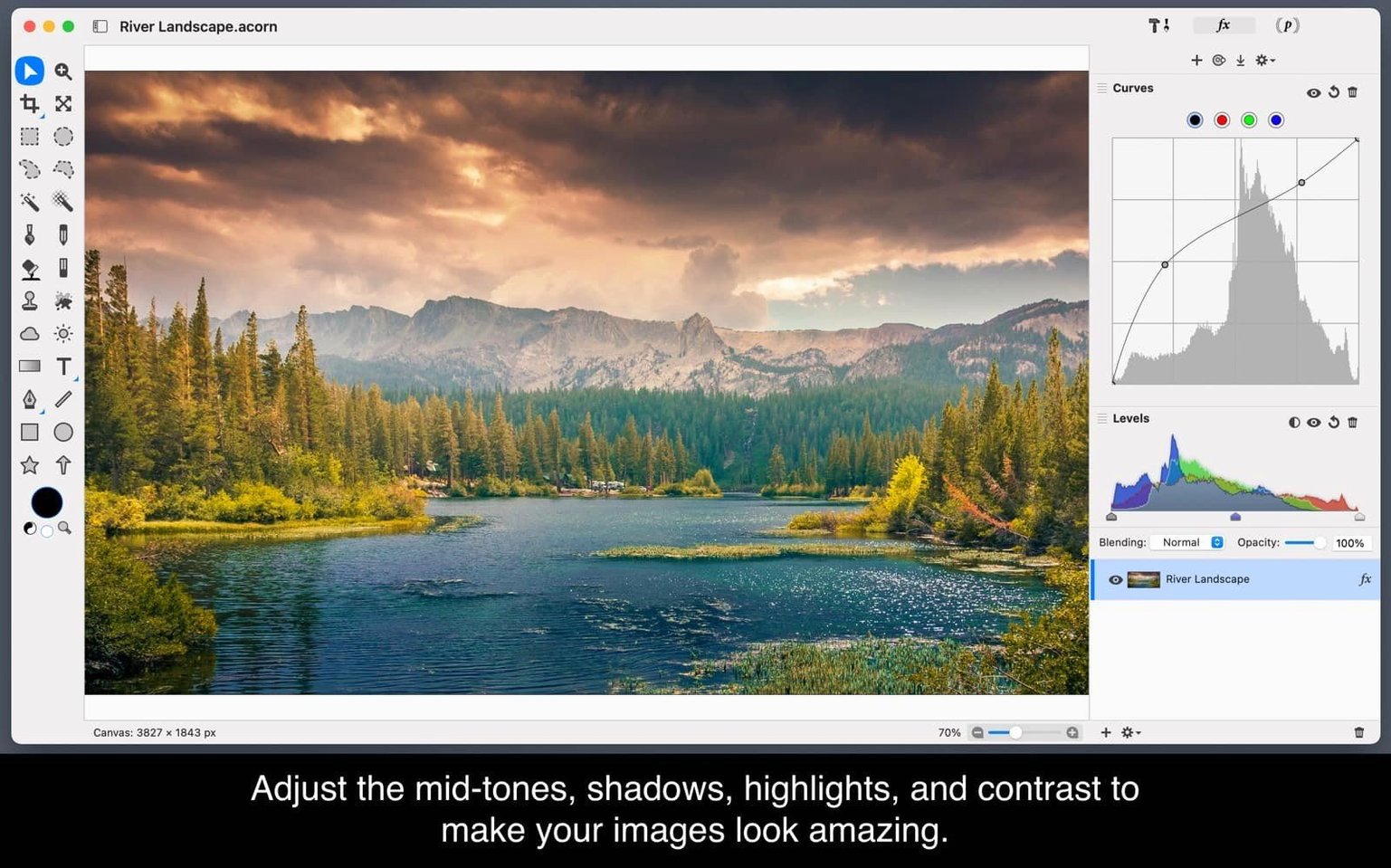
- Stack two adjustment filters. Apply a Black & White filter, then stack a Gradient Fill on top. Adjust the blend mode between them to build a toned look in seconds.
- Work with layers. Drag a photo onto the canvas, add a text layer, reorder them in the palette and toggle visibility. Layers are the backbone of every Acorn project.
- Export a selection. Make a rectangular selection, copy it and use New from Clipboard to create a separate file. Fast way to slice up a mockup.
Each of these actions leans on a core tool—layers, vectors, filters, selections—that you will reach for in almost every session. Once they feel comfortable, the rest of the app slots into place around them.
Little Touches That Speed Things Up
A handful of shortcuts in Acorn for Mac sit just below the surface. Hold Option while dragging a layer in the palette to duplicate it instantly. Press ⌘-Shift-N to create a new layer without touching the mouse. In the colour picker, Control-click a swatch to save it to the palette permanently.
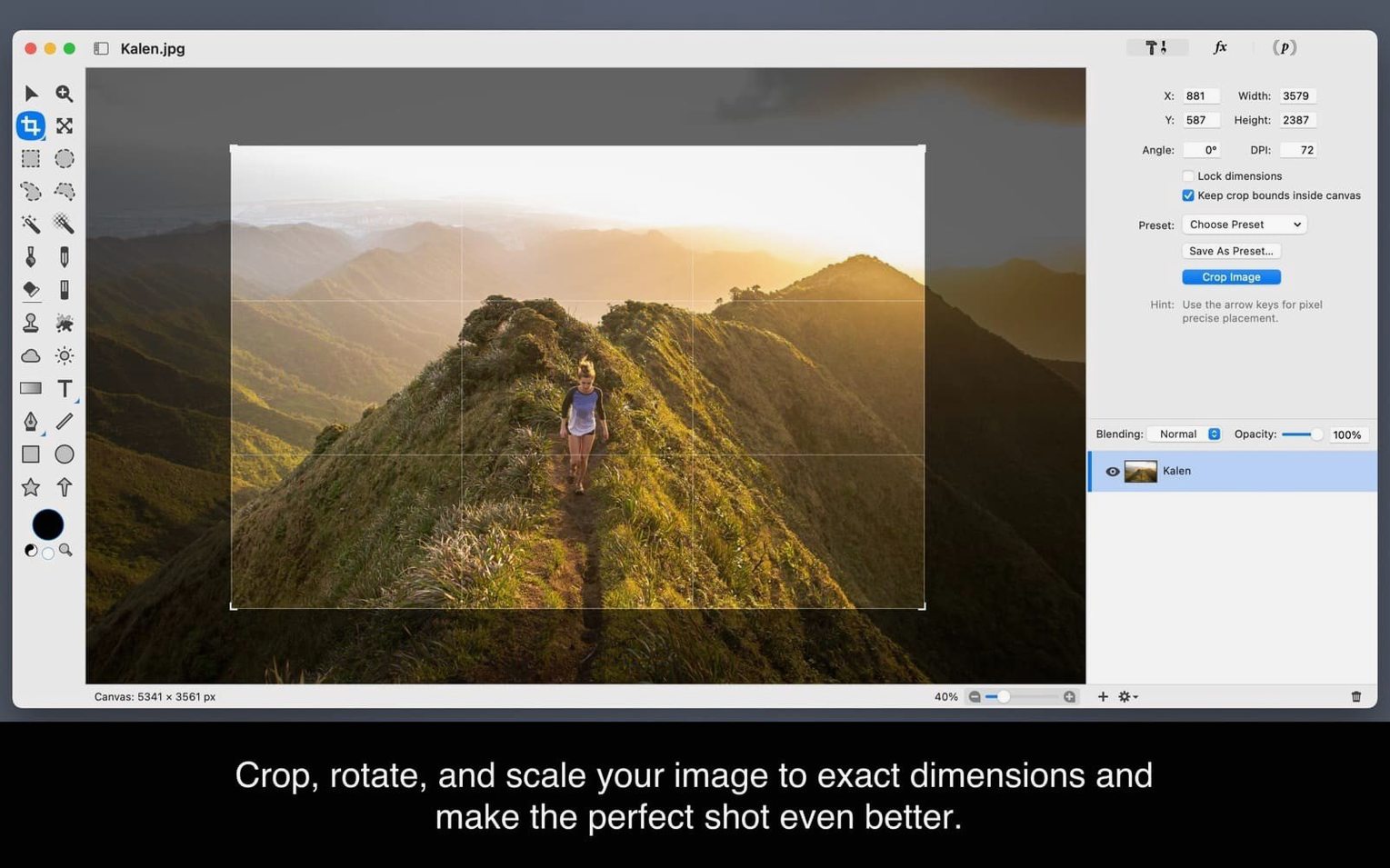
The crop tool respects a hidden rule: drag a crop area, then press ⌘-K to commit it without reaching for the toolbar button. When working with filters, Option-drag an effect from one layer to another to copy it—no menu diving needed.
Vector Tools Hiding in the Shape Pop-Up
Newcomers to Acorn macOS sometimes misplace the vector tools. They live under the Shape pop-up in the toolbar, not in a separate mode. If a shape refuses to resize, check that the layer is still a vector; rasterizing it (Layer > Rasterize) locks the paths permanently.
Performance stutter during filter stacking usually points to a single heavy effect. Temporarily hide the top filter by Option-clicking its visibility icon to isolate the culprit. If pasted images arrive at the wrong size, Acorn matches the clipboard contents to the canvas resolution—resample the canvas first, then paste.
When the text tool types in the wrong direction for a mockup, flip the text layer horizontally via Layer > Transform > Flip Horizontal. Keeps the text editable and saves a re-type.
Version 8.7.1 is out with the developer's latest fixes and improvements.
- macOS 14 or later
- Apple Silicon or Intel 64-bit
Comments 0
Sign in to leave a comment.Sign inCreate an account
No comments yet. If a step is still there after you install it, say so.
More in Mac Apps
All in Mac Apps ACDSee Photo Studio
Chains exposure, sharpness, and watermark steps into one reusable batch preset.
17 steps saved
 Updated
Absynth
Builds evolving textures and drones with a semi-modular engine for sound design.
22 steps saved
 Updated
Ableton Live
Controls clip timing precisely so dense sessions keep their transient punch.
10 steps saved
 Updated
Adguard
Blocks ads and trackers across browsers and apps before they load.
10 steps saved
 A Better Finder Rename
Rebuilds hundreds of file names in one pass using configurable renaming categories.
9 steps saved
 Adobe After Effects
Composites, animates, and builds motion graphics for video and film projects.
10 steps saved
 Updated
A Better Finder Attributes
Syncs photo capture dates with your Mac’s file dates without opening a raw editor.
16 steps saved
 Adobe Animate
Produces vector animation for browsers, mobile devices, and game engines.