
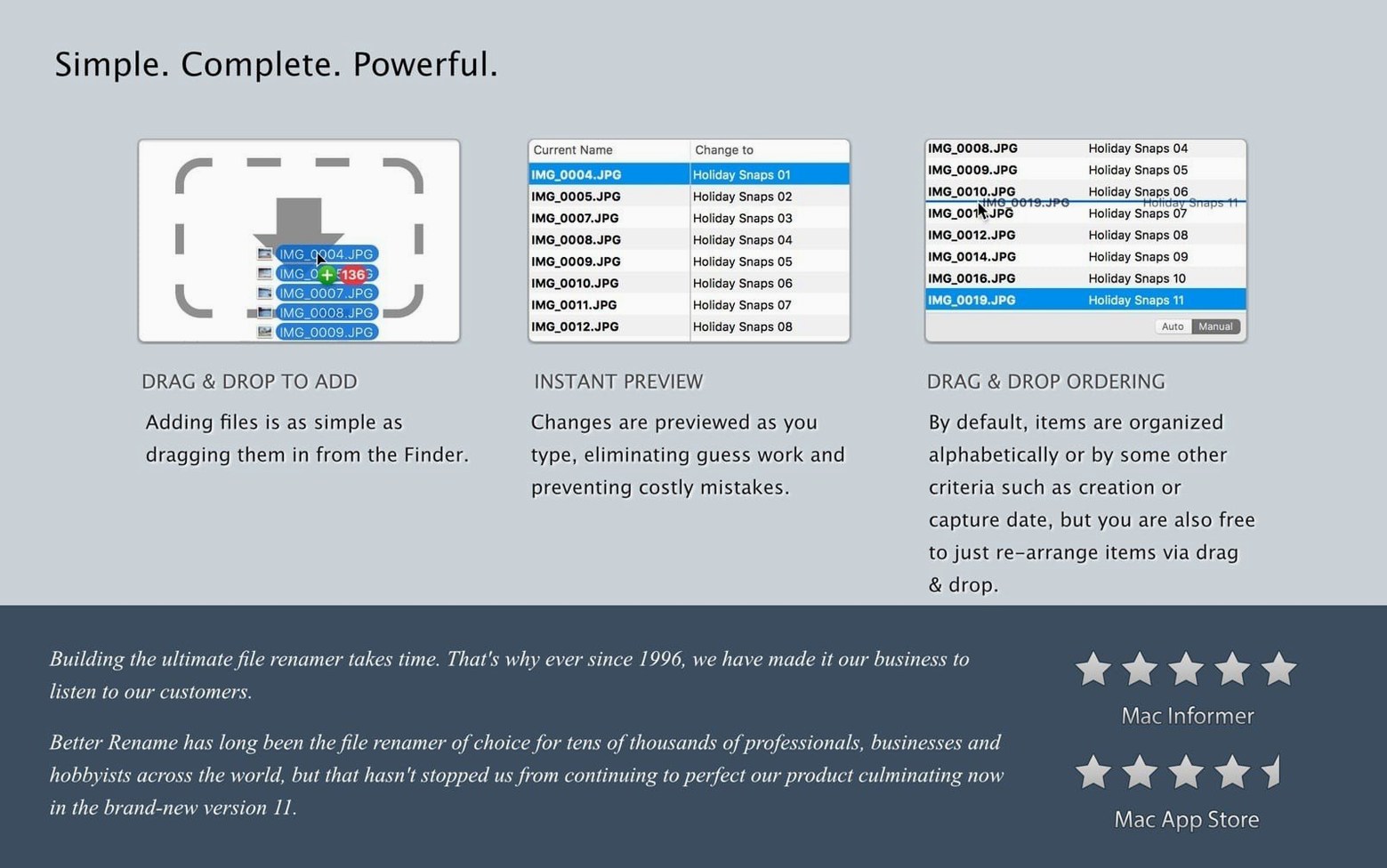
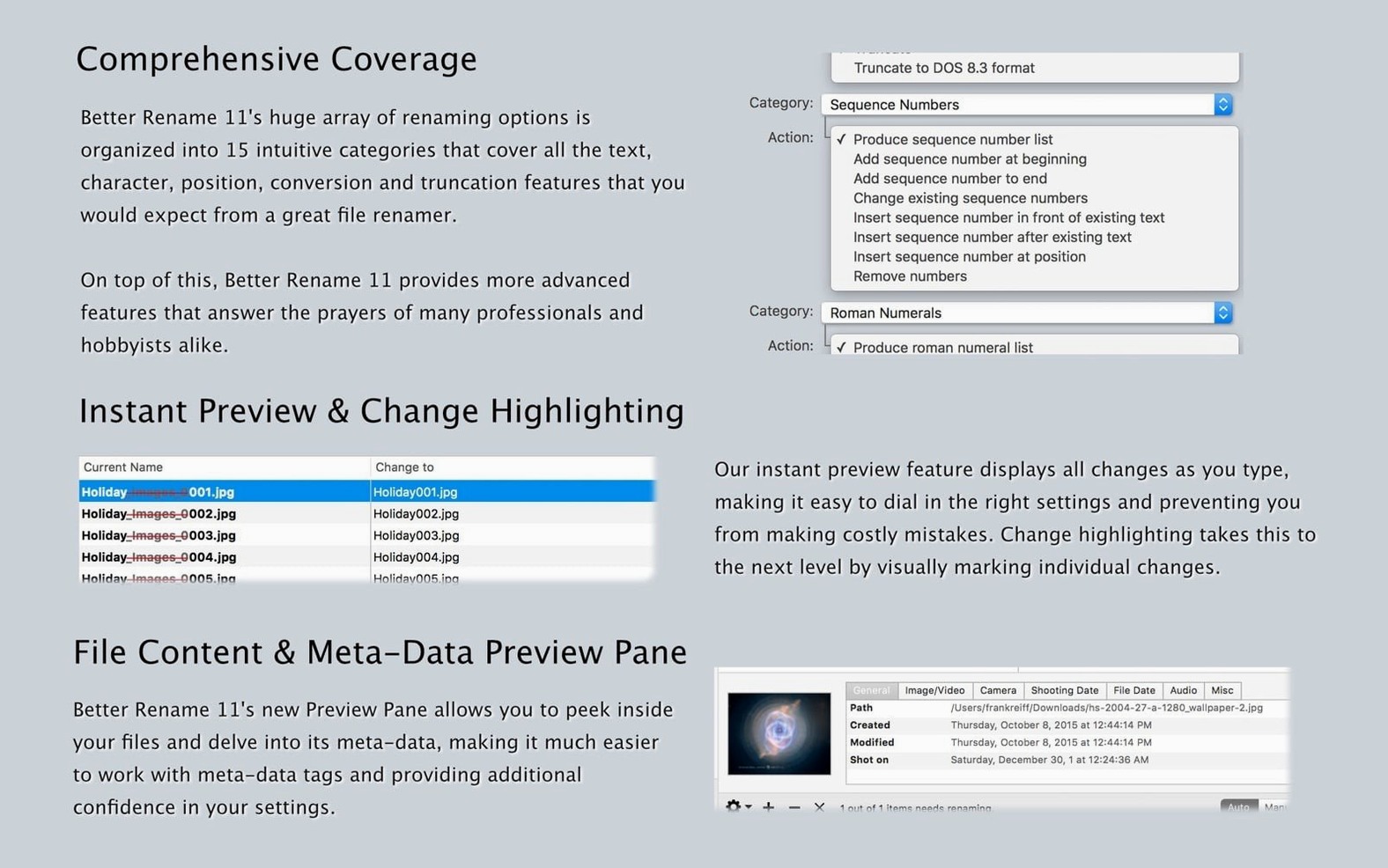
15 categories. That is how many ways A Better Finder Rename organizes its file-renaming actions. You pick a category, configure a handful of settings, and the app rebuilds hundreds of file names in a single pass.
1. Choose your file set. Drag files in from the Finder, or launch the app directly from the Finder context menu. It reads RAW files, common image formats, and anything else on your disk.
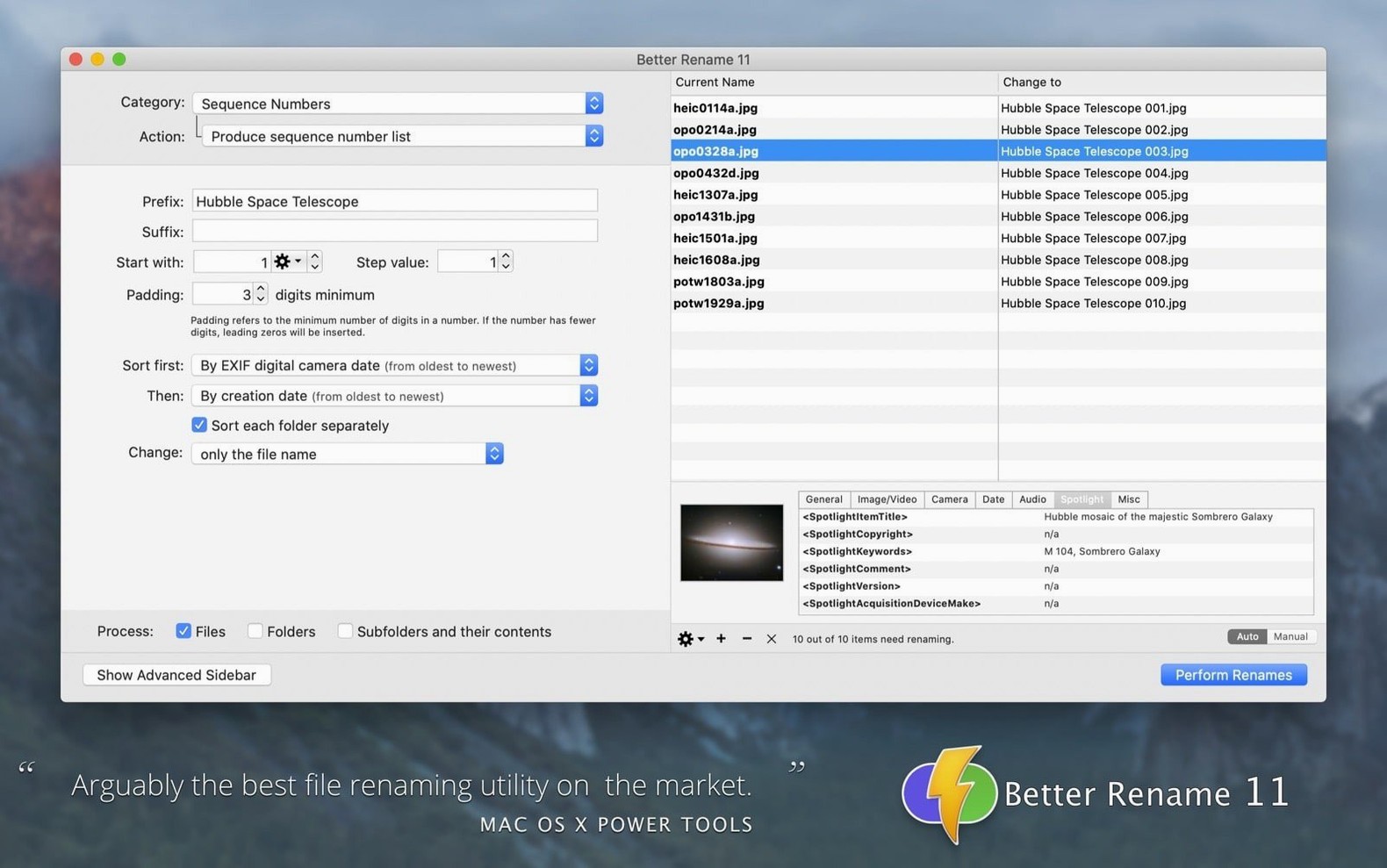
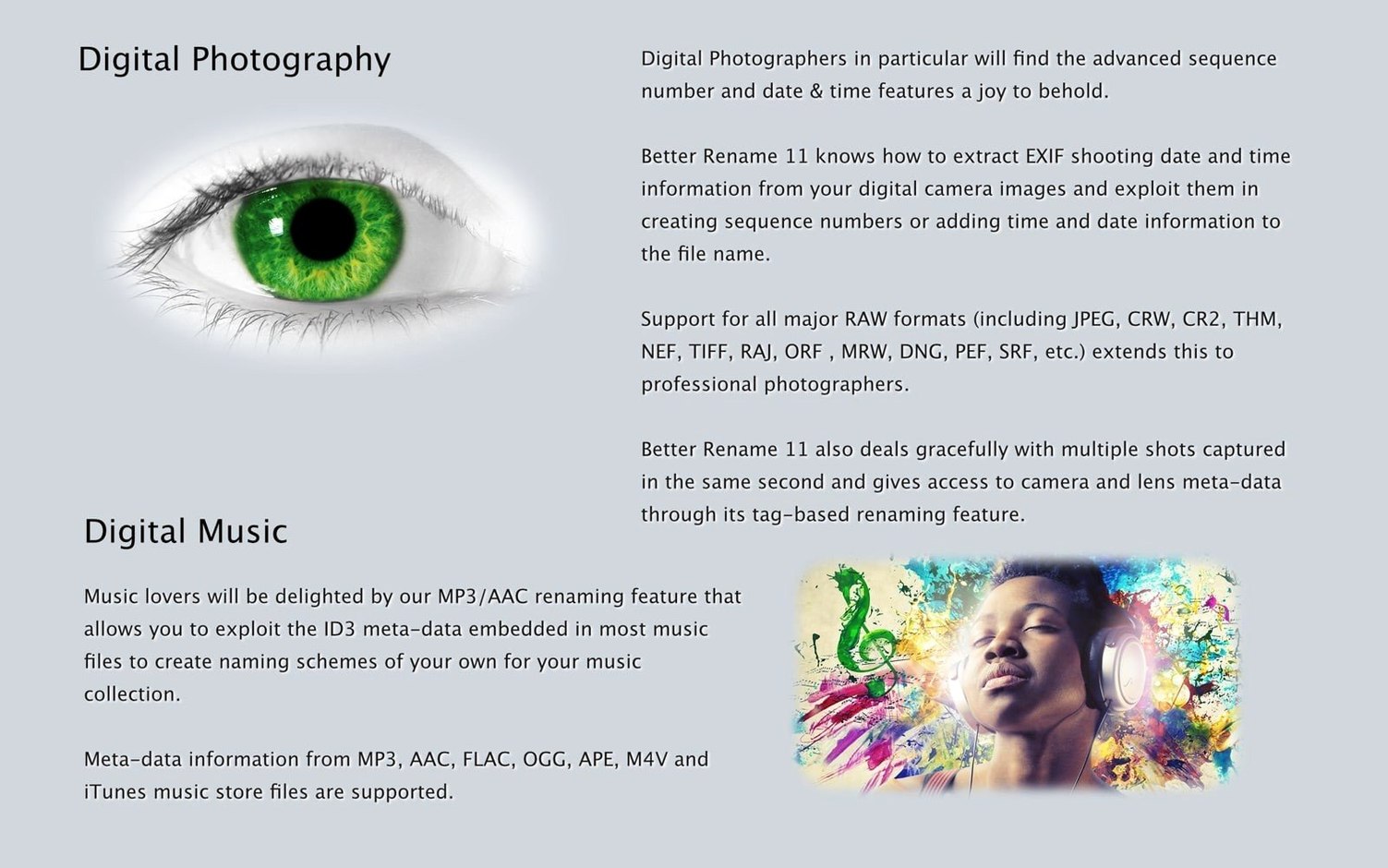
2. Select a renaming category. The 15 groups cover the practical ground: text replacement, character removal, sequence numbering, and time-based renaming. Need to insert EXIF capture dates into photo file names? The EXIF category pulls the original date and time data and formats it to your specification.
3. Configure the details. Set a starting number for a sequence, define the text to insert, or choose which creation-time attribute to use. A live preview updates as you adjust each parameter, so the final name structure is visible before you commit.
4. Run the rename. One click processes the entire batch. Hundreds of files get their new names in one go.
Renaming a photo export from Lightroom
A common workflow starts with a card dump. You have 400 RAW files named DSC_0001.NEF through DSC_0400.NEF, and the client expects descriptive filenames that include the shoot date and a sequence. Here is the four-step path through the app.
- Load the folder. Select all 400 files in the Finder and choose the app’s context-menu command. The main window populates with the list.
- Strip the camera prefix. Open the Remove Characters category. Configure it to delete the first four characters (
DSC_). The preview column instantly reflects the shorter base. - Prepend the capture date. Switch to the EXIF Date & Time category. Choose the Date Taken tag, set the format to
YYYY-MM-DD, and place it at the front with an underscore separator. The preview now reads something like2025-03-14_0001.NEF. - Add a project sequence. Move to the Numbering category. Start at 1, step by 1, and place the three-digit counter after a short text label like
HQ-Shoot. The final name becomes2025-03-14_HQ-Shoot_001.NEF.
Because the live preview updates across all steps, you catch formatting errors before a single file changes. Press Rename and the batch completes in a second or two. The same sequence works equally well for scanned TIFFs or exported JPEG proofs.
macOS 15 Sequoia requirement in the latest build
What macOS versions does it actually need? The app runs on macOS 10.15 and later, but version 12.35 specifically expects macOS 15 Sequoia. If you keep an older Mac on Catalina through Sonoma, an earlier build still works. Check the build notes before updating.
Does it handle RAW files without a helper? Yes. The EXIF parser reads metadata directly from common RAW formats — Nikon NEF, Canon CR2/CR3, Sony ARW — without needing a companion library. If your camera writes a standard EXIF date field, a better finder rename macos extracts it.
Can I rename files on external or network volumes? Absolutely. As long as the volume is mounted and writable, dragging files from a NAS or USB drive works the same as a local folder. The rename engine does not distinguish between internal and external storage.
What if I mess up? The instant preview shows the exact new name before you commit. If you still
The tool runs natively on Apple Silicon and 64-bit Intel Macs, requiring macOS 10.15 or later. Version 12.35 specifically asks for macOS 15 Sequoia.
A maintenance update lands with refinements that keep the batch renaming engine fast and reliable.
- macOS 10.15 or later
- Apple Silicon or Intel 64-bit
Questions I get before install
Can A Better Finder Rename add the date a photo was taken to its file name?
Yes, it can extract EXIF date and time data from image files and format that information directly into the file name.
What file types does the app support?
It handles standard image and document formats and includes dedicated support for RAW files from various camera manufacturers.
Comments 0
Sign in to leave a comment.Sign inCreate an account
No comments yet. If a step is still there after you install it, say so.
More in Mac Apps
All in Mac Apps Updated
A Better Finder Attributes
Syncs photo capture dates with your Mac’s file dates without opening a raw editor.
22 steps saved
 Updated
Ableton Live
Controls clip timing precisely so dense sessions keep their transient punch.
17 steps saved
 Updated
Absynth
Builds evolving textures and drones with a semi-modular engine for sound design.
17 steps saved
 ACDSee Photo Studio
Chains exposure, sharpness, and watermark steps into one reusable batch preset.
13 steps saved
 Updated
Acorn
Edits screenshots and composites layers without the weight of a creative suite.
4 steps saved
 1Password
Flags weak, reused, and exposed passwords so your team skips the security audit busywork.
10 steps saved
 Updated
Adguard
Blocks ads and trackers across browsers and apps before they load.
9 steps saved
 Adobe After Effects
Composites, animates, and builds motion graphics for video and film projects.